Where Drive Files Go When You Delete a Workspace User
Deleting a Workspace user can take their Drive files with it. Here's what transfers, what doesn't, how long you have, and the order to do things in.
Overdrive Team//6 min read
When you delete a Google Workspace user, the files they owned in My Drive are deleted with them unless you transfer them first. Google gives you a short safety net, about 20 days during which you can restore the account and its files, but after that, anything that wasn't transferred is gone for good. Files in shared drives are unaffected, because the organization owns those, not the user.
That's the summary. The details are where data actually gets lost: what the transfer option includes and excludes, what happens to files other people put in the user's folders, and how sharing behaves after the account is gone. Here's the full picture, and the order of operations that avoids the common mistakes.
The three places a user's files can live
Before deleting anyone, it helps to know where their work actually sits, because each location behaves differently.
Files they own in My Drive. These belong to the user. Deleting the account deletes them, unless they're transferred to someone else as part of the process.
Files in shared drives. These belong to the organization. Removing or deleting a user doesn't touch them, and the rest of the drive's members keep working as normal.
Files other people own that sit in the user's folders. If a colleague created a document inside a folder the departing user owns, the colleague still owns the document. For about 20 days after the deletion, people with access can find these files through Drive search. After that, Google moves them back to their owners' My Drive.
Most data loss happens in the first category, so that's where your attention should go.
What the transfer option includes
During deletion, the Admin console offers to transfer the user's data to another user, and super admins can include Drive and Docs files in that transfer. The person receiving the data becomes the owner of the transferred files.
Several details are easy to miss.
Files nobody else could see need a separate checkbox. The transfer includes files the user had shared, but files that weren't shared with anyone are only included if you tick the option to transfer them. Leave it unticked and a user's private working files, often the drafts that matter most, can be lost.
Trash is excluded. Items in the user's trash aren't transferred, and they're deleted along with the account.
Shared drive content isn't part of it. It doesn't need to be, because it never belonged to the user.
The receiving user inherits everything. Transferred files land in the recipient's Drive in a folder named after the departing user, including all their sharing. That's convenient for continuity, but it means the recipient now owns every external share the departing person ever created.
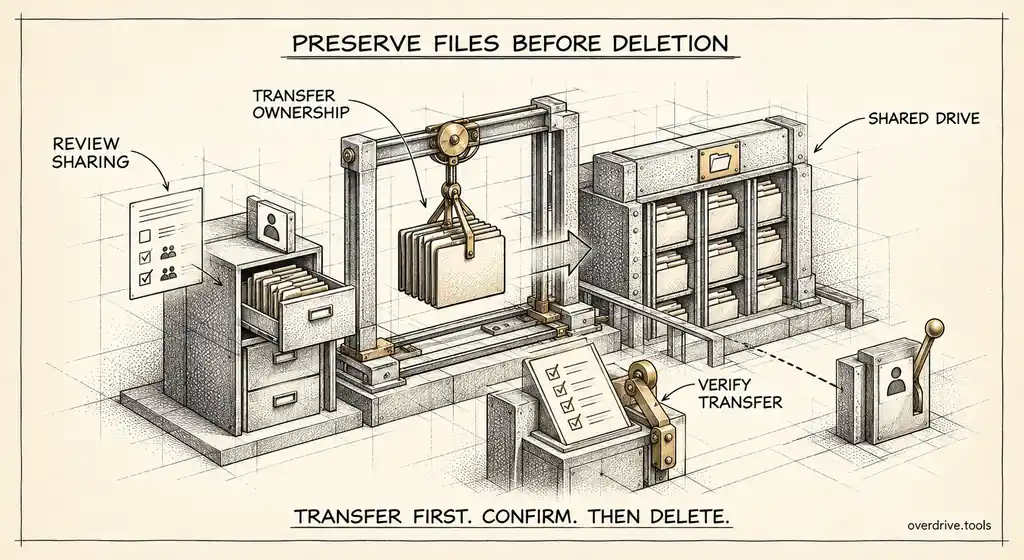
You can also transfer Drive files separately, before deleting the account, using the Admin console's data transfer tool. Doing it as its own step gives you a chance to confirm it completed before you remove anything.
Shared drives are usually the better destination
Transferring everything to a manager works, but it moves the problem rather than solving it. When that manager eventually leaves, the same files go through the same process again, and each round is another chance for something to be missed.
Google's own guidance suggests an alternative: move the departing user's files into a shared drive instead. Shared drive files belong to the organization, so they never depend on any one person's account again. For team material, project files, and anything with ongoing value, a shared drive is the more durable home. A manager transfer is fine for the leftovers that genuinely need sorting through.
What happens to sharing
Two sharing effects catch admins by surprise.
First, external shares survive transfer. A document the departing user shared with a client's personal Gmail address is still shared with that address after it moves to its new owner. The transfer changes ownership, not access.
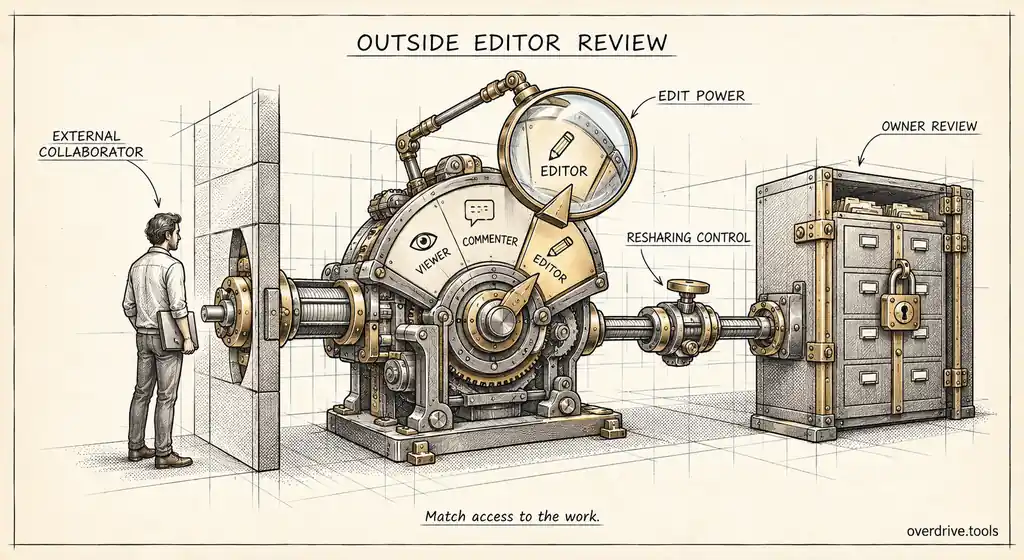
Second, a removed user can keep access to some files. Google notes that a user removed from the organization can still reach files in shared drives and other files shared with them directly, if sharing outside the organization allows it. If the person is moving to another Google account, direct shares to their old identity can effectively follow them. Restricting external sharing, and removing direct shares before the account goes, closes that gap.
Suspend, archive, or delete
Deletion isn't the only option, and often it shouldn't be the first one.
| Option | Files | Access for the user | Best for |
|---|---|---|---|
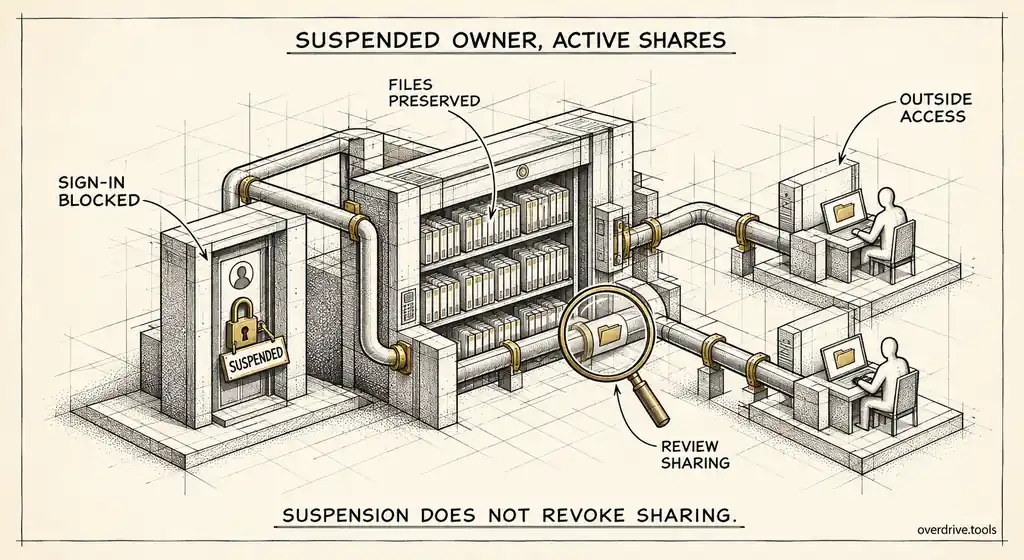
| Suspend | Kept intact, collaborators keep access | Blocked | The first step for every departure |
| Archived User license | Kept, preserved long term | Blocked | Data you must retain without paying a full license |
| Delete with transfer | Owned files move to a new owner | Removed | Clean exit once data is safe |
| Delete without transfer | Owned files deleted after about 20 days | Removed | Almost never |
Suspending first gives you breathing room. The user can't sign in, nothing is lost, and you can review their files, sharing, and any legal obligations before making anything permanent. If your organization uses Google Vault, also be aware that deleting an account removes its data from Vault's holds and retention rules, and accounts covered by a hold can't be deleted until the hold is resolved.
The order that avoids losing data
A sequence that works for most departures:
- Suspend the account on the person's last day.
- Review external sharing on their files, particularly shares with personal accounts, and remove what's no longer needed.
- Check legal holds and retention requirements with whoever owns that decision.
- Move team material into shared drives, and transfer the rest to a manager, including unshared files.
- Confirm the transfer completed by checking the recipient's Drive.
- Delete the account, or switch it to an Archived User license if data must be preserved.
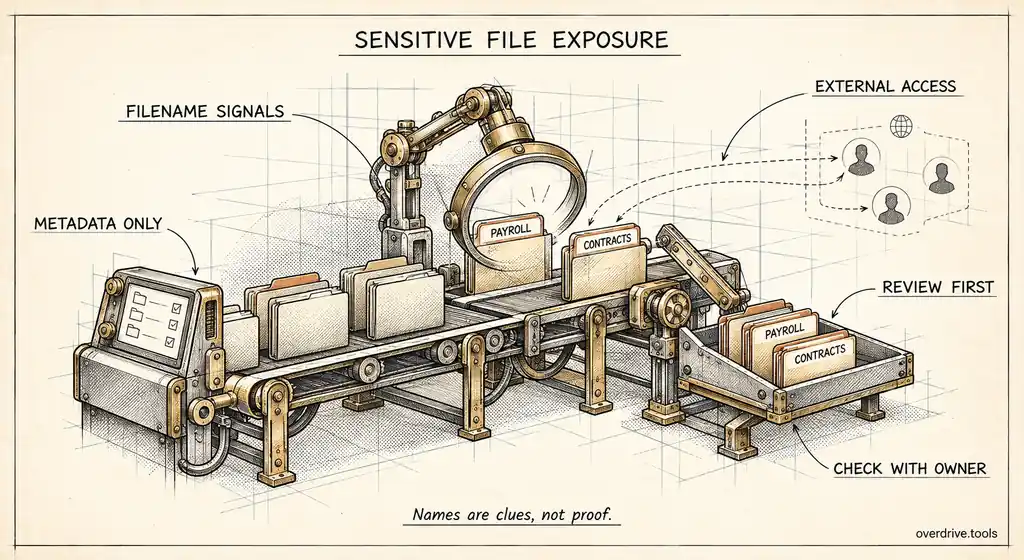
Step two is the one most often skipped, and it's the one that matters most for security. Overdrive for Google Workspace connects with read-only access and shows files owned by suspended users that are still exposed outside the company, ranked by severity, so you can see exactly what a departing person's files are sharing before the transfer hands those shares to someone else. It reads metadata only, never file contents.
Mistakes that cause the most data loss
A handful of errors account for most lost files during deletion, and all of them are avoidable.
Leaving the unshared-files box unticked. It's the default trap. The departing person's private drafts, working notes, and half-finished documents are exactly the files nobody else has seen, and without that checkbox they aren't transferred.
Deleting the same day as the departure. Without a suspension period, there's no time to discover that a client still needs a file or that legal has an interest in the account. Suspend first, delete later.
Transferring to someone who's also leaving. If the recipient is themselves on the way out, the files will need a second transfer within weeks. Choose a stable owner or, better, a shared drive.
Assuming shared drives cover everything. Many organizations use shared drives for official material while people keep plenty of real work in My Drive. Don't assume a user's important files are already in shared drives because the team uses them.
Not telling collaborators. When files move to a new owner, the people working with them often don't know whom to ask about access. A short note saying who now owns the departed person's files saves a lot of confusion.
If you've already deleted the account
If a user was deleted recently and files are missing, act fast. Within roughly 20 days, an admin can restore the user account, which brings their Drive files back, and then run the transfer properly. Google also provides a way for admins to restore a user's deleted Drive files within a limited window. After those windows close, the data can't be recovered from Google, so check backups or any copies colleagues might hold.
The short version
Deleting a Workspace user deletes the files they owned in My Drive unless you transfer them, and you have about 20 days to restore the account if something was missed. The transfer option includes shared files but needs a separate checkbox for unshared files, excludes trash, and doesn't touch shared drives, which the organization already owns. Files other people placed in the user's folders return to their owners after 20 days. Transfers keep all existing sharing, including external shares, so review those first. Suspend before you delete, prefer shared drives over manager transfers for team material, and check legal holds before anything permanent.
Related Articles
- What Happens to Shared Files When an Employee Leaves Your Workspace
- How to Audit Google Drive When an Employee Leaves Your Company
- Google Drive Ownership Transfer: How It Works, and Where It Breaks Down