How to Move Files Between Google Accounts
Learn how to transfer files from one Google Drive account to another. Step-by-step methods for sharing, downloading, and bulk migration between accounts.
Overdrive Team//2 min read
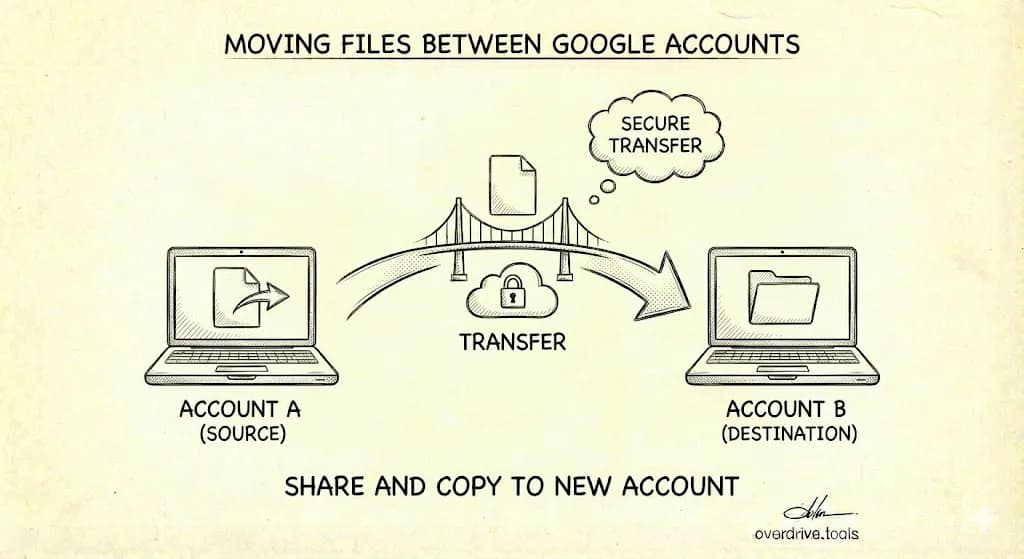
To move files between Google accounts, share the files with your other account (with Editor access), then log into the second account, go to "Shared with me," select the files, right-click, and choose "Make a copy." The copies now belong to your second account. Google doesn't offer a direct transfer feature.
Method 1: Share and Copy (Best for Small Transfers)
From your first account:
- Go to drive.google.com
- Select the files or folder you want to transfer
- Right-click → "Share"
- Add your second account's email with "Editor" access
- Click "Send"
From your second account:
- Go to "Shared with me"
- Select the shared files
- Right-click → "Make a copy"
- Move the copies to your preferred folder
The copies are now owned by your second account and count against its storage.
Method 2: Download and Re-upload (Best for Full Migration)
- Go to takeout.google.com
- Click "Deselect all"
- Scroll down and select only "Drive"
- Click "Next step"
- Choose delivery method (email link works fine)
- Click "Create export"
- Wait for the download link (can take hours for large drives)
- Download the ZIP file(s)
- Log into your second account
- Upload the files to Google Drive
Note: Google Docs, Sheets, and Slides download as Microsoft Office formats. You'll need to convert them back after uploading.
Method 3: Shared Folder Workflow (Best for Ongoing Transfers)
Set up a folder that automatically shares everything you put in it:
- Create a new folder in your first account
- Share it with your second account (Editor access)
- Drag files into this folder whenever you want to transfer them
- Log into your second account and make copies
This is useful if you regularly move files between accounts.
Can You Transfer Ownership Between Personal Accounts?
No. Google doesn't allow ownership transfer between personal Gmail accounts (@gmail.com). You can only:
- Share files (they stay in the original account)
- Make copies (creates duplicates)
- Download and re-upload (loses some metadata)
Google Workspace accounts can transfer ownership between users in the same organization, but not to external accounts.
What Gets Lost in Transfer
When you copy or download/re-upload files:
- Version history — gone
- Comments — gone (on copies)
- Sharing settings — reset
- Original creation date — changes to copy date
- File ID/URL — changes (breaks existing links)
If preserving metadata matters, keep files in the original account and use sharing instead.
Before You Transfer: Clean Up First
Moving files between accounts is a good opportunity to clean house. Before transferring:
- Delete duplicates so you don't copy them twice
- Remove empty folders and junk files
- Identify what's actually worth keeping
Overdrive scans your Drive and shows duplicates, empty files, and storage hogs—so you only transfer what matters, not years of accumulated clutter.
For Google Workspace Admins
If you're an admin transferring files for a departing employee:
- Go to admin.google.com
- Navigate to Apps → Google Workspace → Drive and Docs
- Click "Transfer ownership"
- Enter the current owner and new owner emails
- Click "Transfer files"
This preserves sharing settings and doesn't require downloading.