External Users With Edit Access to Company Files
An outside editor can change, copy, and often reshare your files. Here's how Workspace admins find external editors and cut access down to what's needed.
Overdrive Team//7 min read
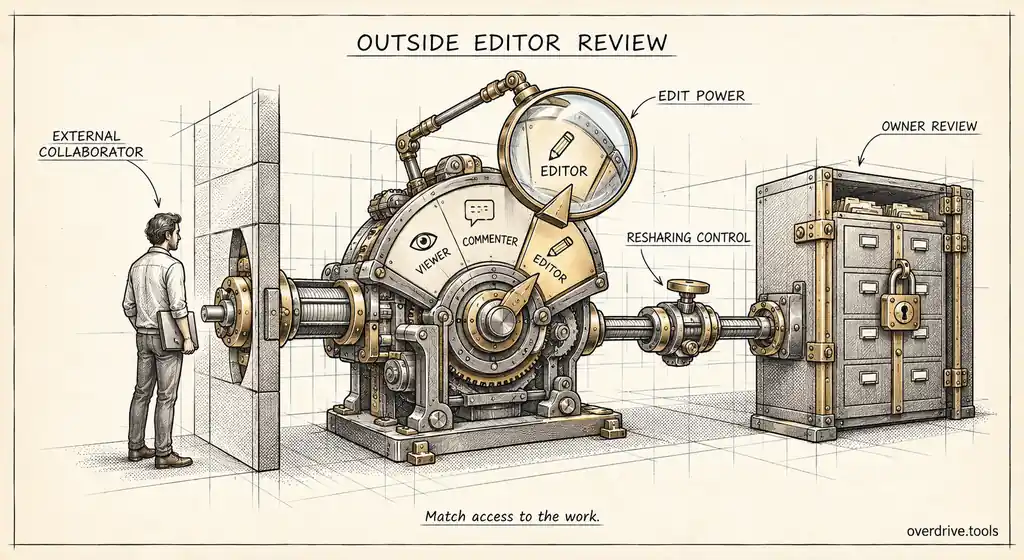
When someone outside your organization can view a Google Drive file, they can read it. When they can edit it, they can change it, delete content from it, and, unless the owner has turned it off, share it with anyone they like. Outside editors are one of the most under-examined forms of exposure in Google Workspace, because edit access is so often granted by default and rarely downgraded when the work is done.
Most external collaborators need to view or comment. Far fewer genuinely need to edit, and almost none need to manage sharing. Here's why outside edit access matters, how to find it, and how to reduce it without disrupting real collaboration.
What an outside editor can actually do
It helps to be specific, because "editor" sounds more modest than it is.
An editor can change any part of a document, sheet, or slide deck, including removing content. Version history usually allows recovery, but only if someone notices the change. An editor can make a copy, which creates a new file they own, outside your control entirely. An editor can also download the file in most cases.
The most important power is resharing. By default, editors can change permissions and share a file with other people. An outside editor can therefore add their colleagues, their own personal account, or anyone else, and your organization's visibility into who has the file stops at the first hop. Owners can turn off "Editors can change permissions and share" on a file, but few people know the setting exists.
In shared drives the roles are named differently but the logic is similar. Outside members with Manager or Content manager access can add people and move or delete files, which is far more than most collaborators need.
Why edit access spreads
Edit access accumulates for ordinary reasons.
It's the convenient default. When sharing in a hurry, people pick Editor so the other person "can do whatever they need," rather than thinking about what that is.
Collaboration ends but access doesn't. An agency edited a document during a three-week project two years ago. The project ended. Their edit access didn't.
Folder sharing multiplies it. Granting edit access to a folder grants it to every file inside, including files added later. One generous folder share can produce hundreds of external editors on files nobody intended them to touch.
Shared drive roles are set once. Outside members are often added as Content manager at the start of a collaboration and never reviewed.
Finding external editors
Here are your options.
Option 1: Surface outside editors across the domain
Overdrive for Google Workspace connects with read-only access and raises the severity of any finding where an outside user has write or owner access, so external editors rise above viewers automatically. Its list of outside people also shows each person's highest Drive role, from Reader through Writer to Organizer and Owner, which makes it quick to sort by edit power. It reads metadata only, never file contents.
Option 2: Review the Drive audit log
Drive log events record access changes, including the role granted. Filtering for grants to outside addresses with editor-level roles shows edit access given in the last six months. Older grants won't appear, and those are usually the stale ones.
Option 3: Review high-value folders by hand
For your most sensitive folders and shared drives, opening the sharing settings and checking each outside entry is slow but definitive. It's worth doing for the handful of locations that hold contracts, financials, and strategy, even if you rely on other methods elsewhere.
Deciding what each editor needs
For each outside editor you find, the question is simple: what does this person actually need to do?
| Need | Right access |
|---|---|
| Read a document or deliverable | Viewer |
| Give feedback or suggestions | Commenter, or Suggesting mode with Commenter |
| Actively co-author for a current project | Editor, with resharing turned off |
| Upload files to a shared workspace | Contributor in a dedicated shared drive |
| Manage membership or settings | Almost never appropriate for outsiders |
Commenter access is underused. Commenters can suggest edits that an internal person accepts, which gives you full collaboration with a record of every change and no ability for the outsider to reshare.
Where edit access is genuinely needed, turn off the option for editors to change permissions and share. The outside person can still work on the document, but the file stays within the circle you chose.
And set an end point. Edit access for a project should end when the project does. Agreeing that in advance makes removal routine rather than awkward.
Reducing edit access safely
Downgrading access mid-collaboration can stall real work, so a little care goes a long way.
Start with the stale cases: outside editors on files that haven't been touched in months, or whose relationship has ended. These can usually be downgraded or removed without anyone noticing.
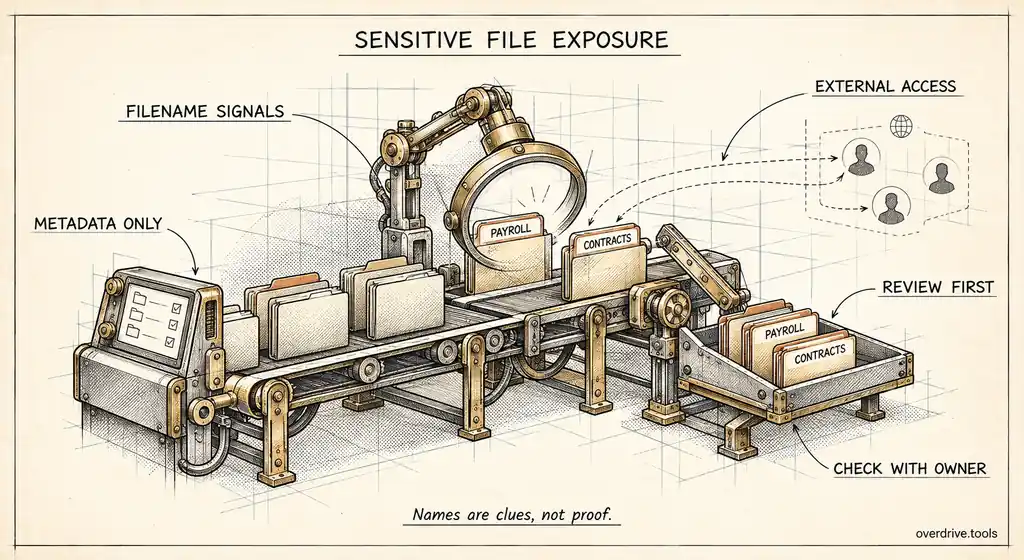
Then handle sensitive files. Outside edit access on anything with a name suggesting contracts, pricing, payroll, or credentials should be reviewed with the owner promptly, regardless of how recent it is.
For active collaborations, talk to the internal owner before changing anything. Ask what the outside person is doing, then set the minimum access that supports it.
Finally, look at folder-level edit grants. Replacing one broad folder share with access to the specific subfolder someone works in often removes hundreds of unnecessary external edit permissions at once.
Common situations and how to handle them
A few scenarios come up in almost every review, and each has a straightforward answer.
An agency still edits your marketing folder a year after the campaign. Remove the agency's members from the folder, or downgrade them to Viewer if they need reference access to past work. If you're likely to work with them again, keep a dedicated shared drive for the relationship and add them back when there's new work.
A client edits a shared project plan. This is often genuine collaboration, and edit access may be right. Turn off resharing for editors on the file so the client can't add their own colleagues without you knowing, and review it when the project closes.
A freelancer has edit access on a whole team folder. They probably need one or two subfolders. Replace the folder-level share with access to the specific subfolders they work in.
An outside person owns a file in your folder. Files created by external people in your shared folders belong to them, not you. If the file matters, make a copy your organization owns, or ask the person to transfer ownership if they're in a position to.
An outsider is a Manager on a shared drive. Almost never appropriate. Downgrade to Contributor or Content manager only if they genuinely need to organize files, and make sure an internal person remains a Manager.
What owners should know
Most outside edit access is granted by ordinary employees, not admins, so a short piece of guidance for staff prevents a lot of it. Three points cover most of it: give outside people the lowest access that works, prefer Commenter for reviewers, and turn off resharing for any outside editor on an important file. Include those three lines in onboarding and in your sharing policy.
Preventing it from coming back
A few settings and habits keep outside edit access in check.
Restrict who can share outside the organization, through allowlisted domains or trust rules, for teams handling sensitive material. Turn on the warning for external sharing so people pause before granting access. Encourage Commenter as the default for outside reviewers, and Viewer for anyone receiving a finished deliverable.
Review outside editors on a schedule, not just once. A quarterly check of external people with edit or higher access, sorted by how many files they can change, keeps the list short and catches new grants while their purpose is still remembered.
For ongoing outside collaboration, use dedicated shared drives with outside members as Contributor at most, and keep internal drives closed to outsiders. That way the places where external editing is allowed are deliberate and easy to review.
The short version
External users with edit access can change, copy, download, and by default reshare your Google Drive files, which makes them a bigger exposure than outside viewers. Edit access spreads through convenience defaults, finished projects, folder-level shares, and shared drive roles that are never revisited. Find outside editors across the domain or through six months of Drive audit log events, then match each one to what they actually need: Viewer, Commenter, or Editor with resharing turned off. Remove stale and sensitive cases first, talk to owners before changing active work, replace broad folder grants with narrower ones, and keep external editing inside dedicated shared drives.
Related Articles
- What Can a Commenter Do in Google Drive?
- Shared Drive Permission Levels Explained
- How to Change Google Drive Sharing Permissions