How to Find Recently Deleted Files in Google Drive
Learn how to find and recover recently deleted files in Google Drive. Step-by-step instructions for restoring from Trash and recovering permanently deleted files.
Overdrive Team//2 min read
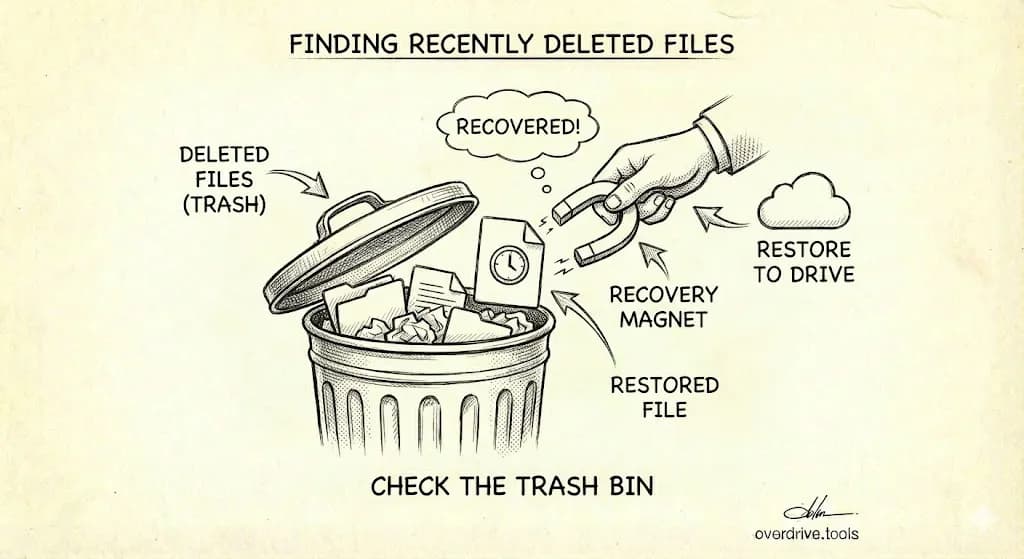
To find recently deleted files in Google Drive, click "Trash" in the left sidebar. All deleted files appear here for 30 days before being permanently removed. To restore a file, right-click it and select "Restore"—it returns to its original location.
Find Deleted Files on Desktop
- Go to drive.google.com
- Click "Trash" in the left sidebar
- Browse or search for your deleted file
- Right-click the file → "Restore"
The file goes back to its original folder. If that folder was also deleted, the file goes to the root of My Drive.
Find Deleted Files on Mobile
Android:
- Open the Google Drive app
- Tap the menu icon (three lines)
- Tap "Trash"
- Long-press the file you want to restore
- Tap "Restore"
iPhone/iPad:
- Open the Google Drive app
- Tap the menu icon (three lines)
- Tap "Trash"
- Tap the three dots next to the file
- Tap "Restore"
Sort Trash by Deletion Date
To find the most recently deleted files:
- Open Trash
- Click the "Trashed date" column header
- Files sort by when they were deleted (newest first)
This helps you quickly find something you just deleted.
Search Within Trash
If your Trash is cluttered:
- Open Trash
- Use the search bar at the top
- Search by filename
Only files in Trash will appear in results.
The 30-Day Window
Deleted files stay in Trash for exactly 30 days, then Google permanently deletes them. You cannot change this timeframe.
Before 30 days: Restore anytime from Trash After 30 days: File is auto-deleted permanently
If you empty Trash manually, files are deleted immediately.
Recover Permanently Deleted Files
If you emptied Trash or the 30 days passed:
Personal accounts: You can request recovery within ~25 days of permanent deletion. Fill out Google's recovery form and wait for a response (usually within 48 hours). There's no guarantee—Google may or may not be able to recover the file.
Google Workspace accounts: Contact your IT administrator. Admins can recover permanently deleted files within 25 days using the Admin Console.
After 25 days: The file is gone permanently. No recovery option exists.
Can't Find a File That Wasn't Deleted?
Sometimes files seem to disappear but weren't actually deleted:
- Check "Shared with me" — the owner may have removed your access
- Search your entire Drive — it might be in an unexpected folder
- Check Activity panel — right-click any folder → "View details" → "Activity" to see recent changes
If you frequently lose track of files, Overdrive can scan your entire Drive and show you exactly where everything is—including files buried in nested folders you forgot existed.
Restore Multiple Files at Once
To restore several files:
- Open Trash
- Hold Ctrl (Windows) or Cmd (Mac) and click each file
- Right-click → "Restore"
All selected files return to their original locations.
What If Someone Else Deleted My File?
If you shared a folder and someone with Editor access deleted a file:
- The file goes to their Trash, not yours
- Ask them to restore it, or
- If you're a Workspace admin, check the Drive audit log to see who deleted what
For better control over shared folders, see our guide on Google Drive permissions explained.