How to Transfer File Ownership in Google Drive
Learn how to transfer ownership of Google Drive files and folders to another person. Step-by-step instructions for single files, bulk transfers, and what happens after.
Overdrive Team//2 min read
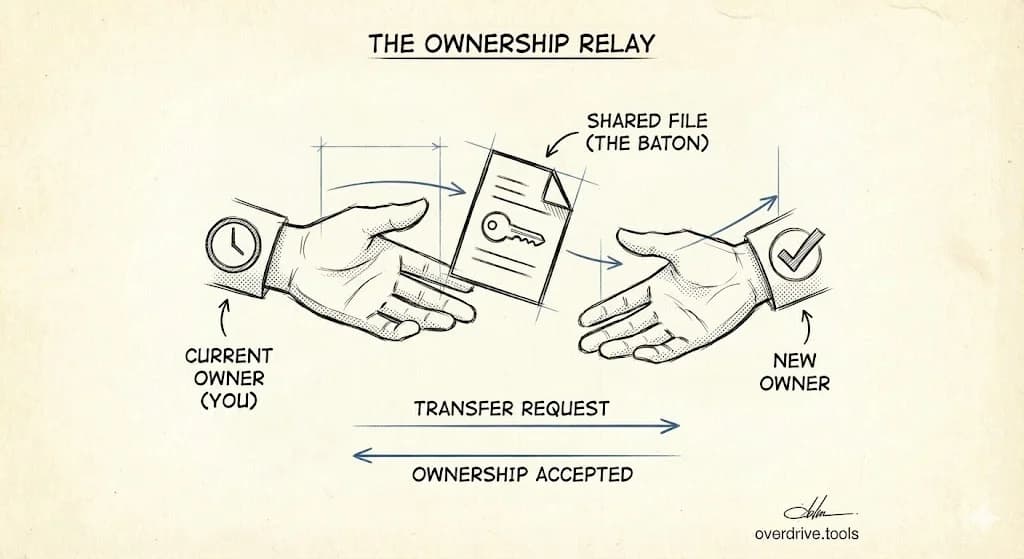
To transfer ownership of a Google Drive file, right-click the file, select "Share," click the dropdown next to the person's name, choose "Transfer ownership," and confirm. The new owner must accept the transfer via email. You can only transfer ownership to people with Google accounts.
Transfer Ownership on Desktop
- Go to drive.google.com
- Right-click the file or folder you want to transfer
- Click "Share"
- If the person isn't already shared, add their email address
- Click the dropdown next to their name (shows "Editor" by default)
- Select "Transfer ownership"
- Click "Send invitation"
The new owner receives an email and must accept. Until they accept, you remain the owner.
Transfer Ownership on Mobile
- Open the Google Drive app
- Tap the three dots next to the file
- Tap "Share"
- Add the person if they're not already shared
- Tap their name
- Tap "Transfer ownership"
- Confirm
Transfer Multiple Files at Once
Google Drive doesn't have a built-in bulk transfer feature. Your options:
Option 1: Move files to a folder, transfer the folder
- Create a new folder
- Move all files you want to transfer into it
- Transfer ownership of the folder
When you transfer a folder, all files inside transfer too.
Option 2: Use Google Takeout for full account transfers
If you're transferring everything (leaving a company, switching accounts), use Google Takeout to export your data, then upload to the new account.
What Happens After Transfer
Once the new owner accepts:
- They become the owner and can delete the file permanently
- You become an Editor (unless they change your access)
- The file moves from your "My Drive" to "Shared with me"
- The file now counts against their storage quota, not yours
- You can no longer transfer ownership to someone else
Limitations
You can only transfer to Google accounts. The recipient must have a Gmail or Google Workspace account.
Personal to Workspace restrictions. If you have a personal Gmail, you cannot transfer ownership to a Google Workspace account (and vice versa) in some configurations.
You must be the current owner. Editors cannot transfer ownership—only the owner can.
Google Docs, Sheets, Slides only (for some features). Ownership transfer works for all file types, but some advanced features are limited to Google's native formats.
Common Use Cases
Leaving a company: Transfer work files to your manager or replacement before your account is deactivated. See our guide on revoking access for former employees for the admin perspective.
Freelancer handoff: Transfer project files to clients at project completion.
Shared account cleanup: Move ownership of files that ended up in the wrong account.
Storage management: Transfer large files to someone with more storage space. For other ways to free up space, see our Google Drive Storage Cleanup Guide.