What Happens to Shared Files When an Employee Leaves Your Workspace (and Why Their Shares Don't)
When you suspend or delete a Workspace user, the files they shared keep working. Here's what actually happens to their access, and how admins close the gap.
Overdrive Team//7 min read
When an employee leaves and you suspend their Google Workspace account, the files they shared stay shared. Suspension blocks their login, but the links they created, the external people they granted access to, and the public files they left behind keep working exactly as before. Their access to your data ends; the access they handed out does not. Closing that gap is a deliberate step, not an automatic one.
This is one of the most common sources of quiet exposure in any organization, and it's counterintuitive. Offboarding feels like a clean break. You suspend the account, reclaim the laptop, and move on. But sharing in Google Workspace lives with the files, not only with the person, so a departed employee can leave behind a trail of active shares that nobody is watching.
Suspended, Deleted, and What Each Actually Does
The first thing to get straight is what the offboarding actions really change.
Suspending an account blocks the user from signing in. They can't access anything anymore. But their files still exist, still belong to them, and, critically, any shares they created remain live. A folder they shared with an outside contractor is still shared with that contractor. A file they made public is still public. Suspension secures the front door while leaving the side doors open.
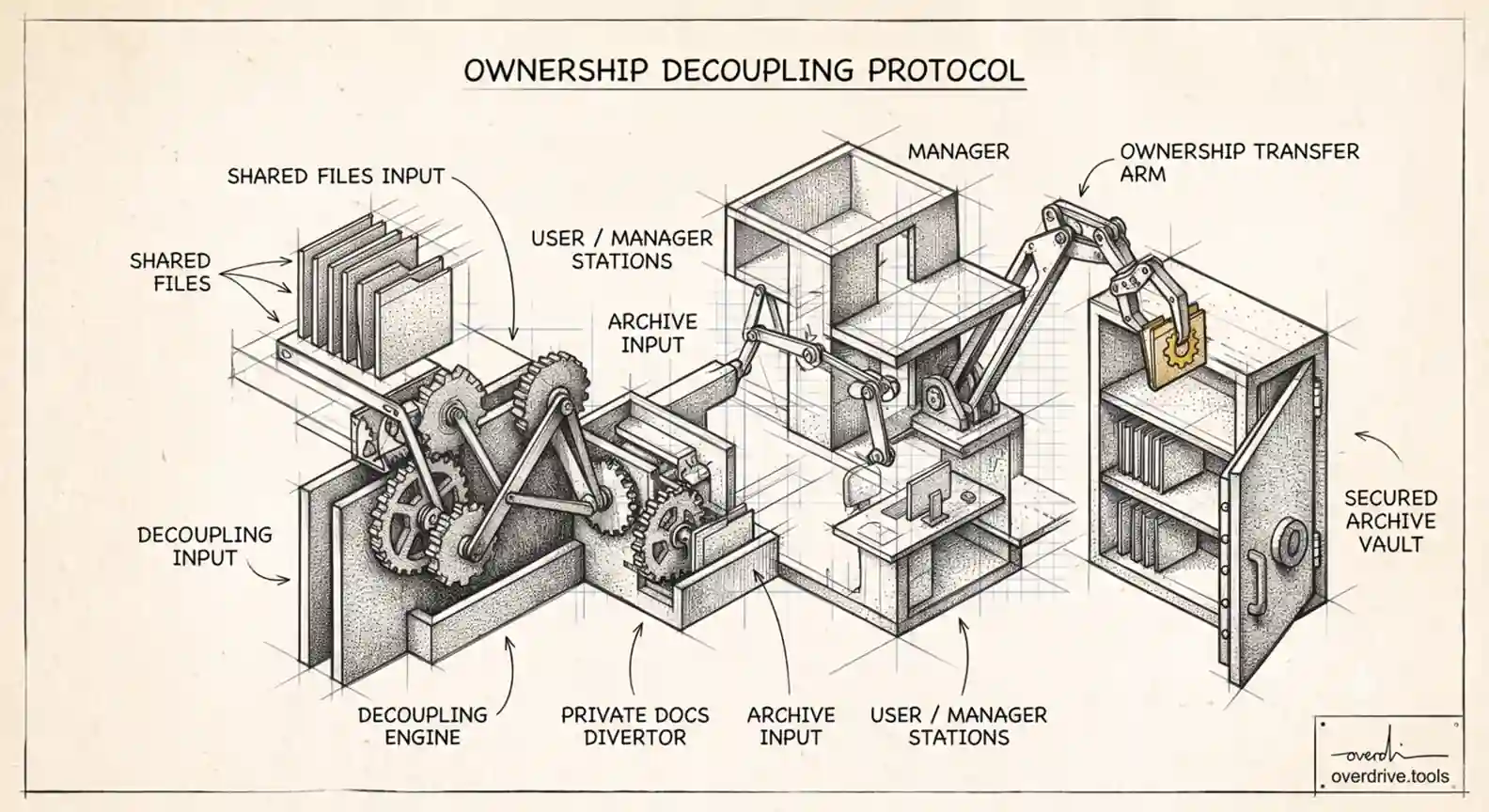
Deleting an account removes the user, and Google prompts you to transfer their Drive data to another user during deletion. Ownership moves, which is important for continuity, but transferring ownership doesn't automatically tidy up the sharing those files carry. The new owner inherits the file and its existing access list, including external shares the departed employee set up.
So neither action, on its own, answers the question that matters for security: what is still shared, with whom, because of someone who no longer works here?
Why the Shares Outlive the Person
Sharing in Google Workspace is a property of each file. When a user shares a document, that permission is attached to the document and persists regardless of the user's account status. Suspend or even delete the account, and the permission entry can remain in force. This is especially true for "anyone with the link" files, which don't depend on the original sharer's account being active at all.
The practical result is a category of exposure that's easy to miss precisely because it's tied to people who are gone. No one is using these files day to day, no one gets a prompt, and the former employee certainly isn't reviewing their old shares. The access just sits there. In a workspace with regular turnover, contractors, and project-based collaboration, this accumulates into a meaningful blind spot.
How to Close the Gap
Here are your options for catching and clearing the shares a departing user leaves behind.
Option 1: Track departed-user exposure with Overdrive. Finding every share a former employee created means reconstructing it from audit history, which is slow and rarely complete. Overdrive for Google Workspace connects read-only and surfaces exactly this: accounts that are suspended or deleted whose shares are still live, including files still shared externally and public links that outlived their creator. It presents them as prioritized issues with a clear next step, and because it monitors continuously, a departing user's lingering shares show up as part of offboarding rather than turning up in an audit months later. It reads sharing metadata and directory status only, never file contents, so you get the exposure picture without handing a tool access to the data itself.
Option 2: Work through it manually at offboarding. Before or during deprovisioning, transfer the user's Drive data to a manager, then review the transferred files' sharing to remove external collaborators and link shares that are no longer needed. You can also use Drive log events in the Admin console to find sharing actions the user took. It's doable for one departure at a time. Across many users and historical leavers, reconstructing it by hand is a real undertaking, and it's easy to miss "anyone with the link" files that don't show up against a specific recipient.
Option 3: Restrict first, review second. Tightening org-level sharing settings to limit external sharing and public links reduces how much exposure any one user can create, which shrinks the offboarding cleanup over time. It doesn't address shares already in place, so it works best alongside an actual review.
The underlying workflow is the same one in our guide to revoking access for former employees: identify what the departing user shared, decide what's still needed, and remove the rest, then transfer ownership so nothing is orphaned.
Where It Gets Worse: Contractors, Groups, and Backlogs
A few situations amplify the problem. Contractors and temporary staff churn faster than full-time employees and often share heavily during a project, so they leave behind a disproportionate amount of external access, frequently to other outside parties. When their access ends, those second-hand shares rarely get reviewed. Group-based sharing adds another layer: a departing employee may have shared files with a Google Group, and if that group still contains external members or is itself broadly scoped, the file stays exposed even after the individual is gone. Untangling whether a group share reaches outsiders is exactly the kind of thing that's invisible from a single file's sharing dialog.
Then there's the backlog. Most organizations only tightened offboarding recently, which means years of earlier departures left shares that were never cleaned up. Every one of those former employees is a potential source of live external access and public links sitting in your Drive today. The backlog doesn't surface on its own, since no one is prompted about a file owned by someone who left in 2024, so it has to be found deliberately. Clearing it once, and then never letting it rebuild, is the difference between a controlled environment and a slowly widening exposure.
Build It Into Offboarding
The fix isn't heroics after the fact; it's making share cleanup a standard part of deprovisioning. A good offboarding checklist treats sharing as a first-class step, not an afterthought. When someone leaves, the routine should cover transferring their Drive data to the right owner, reviewing and clearing the external and public shares they created, and confirming any third-party apps they authorized are revoked along with the account. Doing this at the moment of departure is far easier than discovering a two-year-old public file owned by someone you barely remember.
It also helps to periodically sweep for shares owned by accounts that are already suspended or deleted, because most organizations have a backlog from before offboarding was tightened. Clear that backlog once, build the checklist into every future departure, and the "ghost access" problem stops growing. For the structural side, meaning who can do what once files move to a manager or a shared drive, our overview of shared drive permission levels is a useful companion.
One organizational habit makes all of this easier: store team-critical files in shared drives rather than individual My Drives in the first place. When files belong to the organization instead of a person, a departure doesn't strand ownership or leave a tangle of personal shares to unwind. The content stays put and the access model is managed at the drive level. You can't retrofit that overnight, but steering important work into shared drives going forward steadily shrinks how much any single person's exit can expose. Until then, treat every departure as a sharing event to review, not just an account to switch off.
Frequently Asked Questions
Do shared files become inaccessible when I suspend a user?
No. Suspension blocks the user from signing in, but files they shared stay shared. External collaborators and public links they created keep working until you remove them.
Does transferring ownership remove the old sharing?
No. When you transfer a departed user's files to someone else, the new owner inherits the file along with its existing access list, including external shares. You still need to review and clean up those shares.
Why do "anyone with the link" files survive after an employee leaves?
Link sharing is a property of the file, not the account that created it. The link keeps working regardless of whether the original sharer's account is active, suspended, or deleted.
What's the right order for offboarding Drive access?
Transfer the user's Drive data to a manager, review the transferred files' external and public shares and remove what's no longer needed, revoke the user's app authorizations, then suspend or delete the account.
How do I find shares left by employees who already left?
Reconstruct them from Drive log events in the Admin console, or use a tool that inventories shares owned by suspended and deleted accounts so you can clear the backlog in one pass.
Related Articles
- How to Find Every Publicly Shared File in Your Google Workspace
- Auditing Third-Party App Access in Google Workspace
- How to Revoke Google Drive Access for Former Employees