Find Contracts and Payroll Files Shared Externally
Not all external sharing is equal. Here's how Workspace admins find sensitive files like contracts and payroll shared outside, even without DLP.
Overdrive Team//7 min read
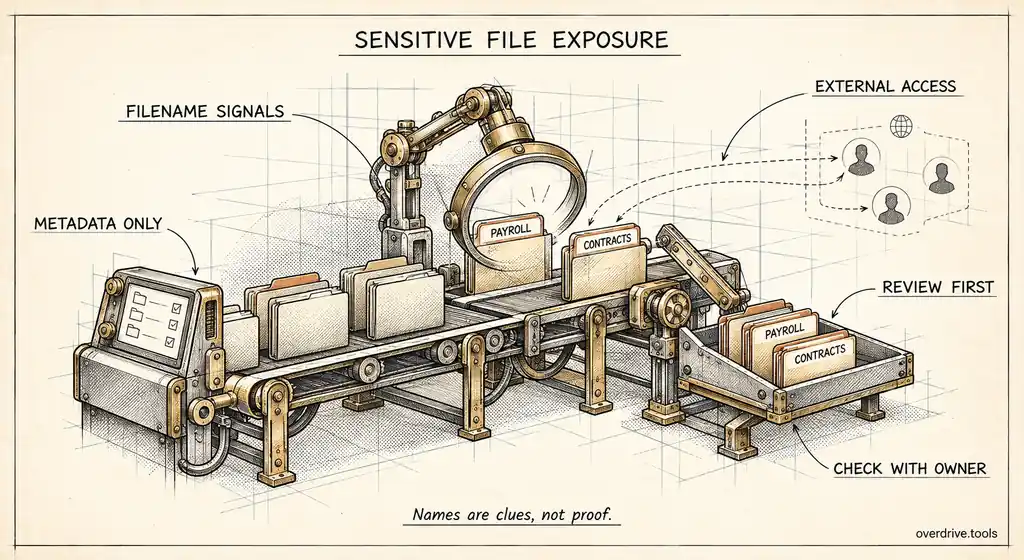
The fastest way to find the most dangerous external sharing in Google Workspace is to look at file names. You don't need to read a single document to know that a spreadsheet called "Payroll 2026" or a folder called "Investor Contracts" shared with an outside address deserves attention before a file called "Team lunch ideas." Names are imperfect, but they're the most practical first filter most organizations have.
Content inspection tools like Google's data loss prevention exist, but they're only available on certain editions and take real effort to configure well. Name-based review works on every edition, can be done today, and catches the bulk of the obvious cases. Here's how to do it and how to combine it with stronger controls where you have them.
Why sensitivity changes the priority
A typical company has hundreds or thousands of files shared outside the organization. Most of them are fine: proposals sent to clients, presentations shared with partners, documents co-written with agencies. Reviewing all of them with equal care is impractical, and treating them all as urgent produces alarm fatigue.
Sensitivity is what turns that pile into a priority list. A file shared with anyone who has the link is a moderate concern if it's a product brochure and a serious one if it's a salary spreadsheet. The sharing setting is the same, but the consequence of exposure is completely different.
The categories that matter most are fairly consistent across organizations: payroll and compensation, contracts and legal agreements, financial statements and forecasts, investor and board material, customer data exports, and anything containing credentials or passwords.
Filename signals that matter
Names give you a strong hint about content. Common terms worth searching for include:
| Category | Example terms |
|---|---|
| Compensation | payroll, salary, salaries, compensation, bonus |
| Legal | contract, agreement, NDA, MSA, terms |
| Finance | invoice, financial, P&L, budget, forecast, bank |
| Investors and board | investor, board, cap table, fundraising |
| Credentials | password, credentials, login, API key |
| Confidential marking | confidential, internal only, restricted |
Expand the list with terms specific to your business: customer names that should never leave, internal project codenames, or regulated data types. Ten minutes with your finance and legal leads usually produces a better list than any generic one.
Names have limits in both directions. A file called "Untitled spreadsheet" might contain the entire customer database, and a file called "contract template" might be an empty form. Use names to prioritize, not to declare files safe.
Finding sensitive files shared outside
Here are your options.
Option 1: Combine sensitive names with external exposure automatically
Overdrive for Google Workspace connects with read-only access and checks file names for sensitive keywords such as invoice, contract, payroll, password, financial, investor, confidential, and credential. When a file with one of those names is also exposed outside the company, its severity is raised, so a payroll file open to anyone with the link appears near the top rather than buried among routine shares. It reads metadata only, never file contents, which means the names are used as a signal without anything inside the files being opened.
Option 2: Search the Drive audit log by file name
Drive log events include the document title for each event. Filter to sharing and visibility changes, then search the results for your sensitive terms. This works within the six-month retention window and shows when sensitive files were shared, though not whether that sharing is still in place today.
Option 3: Use DLP where your edition supports it
On editions that include data loss prevention for Drive, you can create rules that inspect file content for patterns like credit card or national ID numbers and act on matches, for example by blocking external sharing. DLP looks at content, not just names, so it catches the "Untitled spreadsheet" case. It's the strongest control, but it needs careful rule design to avoid false positives, and it applies going forward rather than auditing what's already shared.
Option 4: Ask the owners of sensitive data
Finance, HR, and legal teams usually know where their most sensitive files live. Asking each team to check the sharing on its key folders is a reasonable complement to any automated method.
Triage once you've found them
For each sensitive file shared externally, three questions settle most cases.
Who has access? A known auditor or law firm is very different from a personal Gmail address or anyone with the link.
Is the sharing still needed? A contract shared with a counterparty during negotiation may be fine. The same contract still shared two years after signing probably isn't.
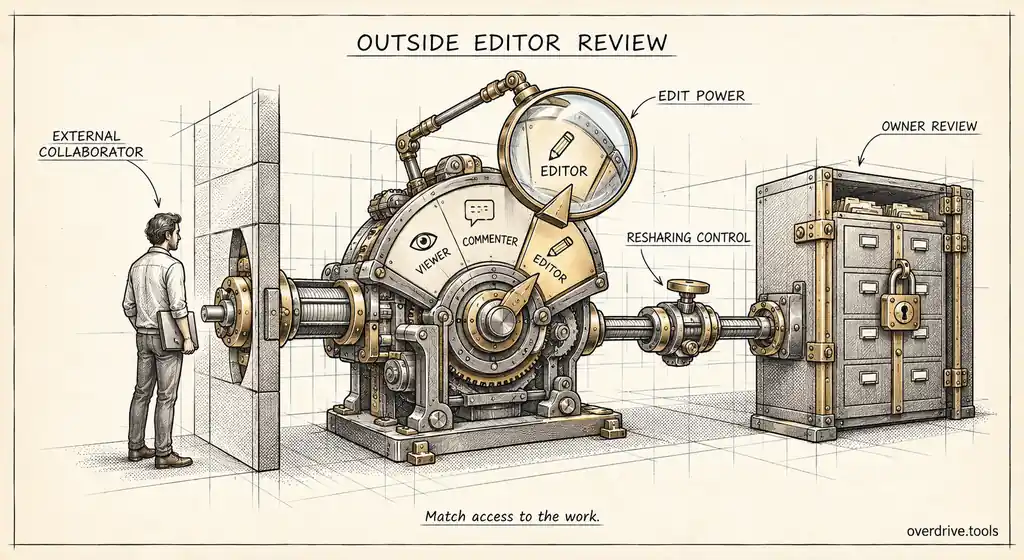
What level of access? An outside editor on a sensitive file can change and reshare it. Viewer or Commenter is almost always enough.
Then act in order of severity. Anyone-with-the-link and personal-account shares on sensitive files come first. Outside editors come next. Long-standing shares with legitimate partners can be reviewed with the owner on a slower timeline.
A worked example
Consider a 120-person company running its first sensitive-file review. The admin builds a term list with finance and legal, then matches it against files currently shared outside the organization.
Out of roughly 1,800 externally shared files, 64 match a sensitive term. That's already a manageable list, and it gets shorter quickly. Thirty are contracts shared with the counterparty that signed them, which legal confirms are fine to keep for now. Twelve are invoices shared with clients, also expected. That leaves 22 that need a decision.
Within those 22 are the findings that justify the exercise: a compensation spreadsheet shared with a recruiter's personal Gmail address during a hiring push, a cap table open to anyone with the link from a fundraising round two years earlier, and a folder named "Board" where a former advisor still has edit access. Each is fixed within a day.
The whole review takes an afternoon. Without the name filter, the same three problems would have been buried among 1,800 routine shares, and almost certainly missed.
Mistakes to avoid
Treating a clean result as proof. If no sensitive names match, it may simply mean sensitive files have generic names. Use the review alongside restricted folders and, where available, DLP, rather than as a guarantee.
Over-broad terms. Words like "plan" or "report" match everything and drown the useful results. Keep terms specific enough that a match is genuinely worth a look.
Fixing files without telling owners. Removing a share on a contract mid-negotiation can stall a deal. For anything that might be active, confirm with the owner first, then act.
Protecting sensitive files going forward
Finding the current exposure is half the job. A few structural changes stop it recurring.
Keep sensitive material in restricted shared drives. Payroll, legal, and board folders belong in shared drives with no external members and tight internal membership, with external sharing turned off at the drive level. Drive-level settings override individual file sharing, so even a mistaken share won't reach outsiders.
Restrict sharing for the teams that own sensitive data. Apply tighter sharing settings or trust rules to finance, HR, and legal organizational units, such as allowlisted domains only and no public links.
Classify files where you can. Drive labels let you mark files with a sensitivity level, and on editions with DLP you can build rules that act on those labels. Classification turns "this looks sensitive" into a property the system can enforce.
Use clear naming. Somewhat counterintuitively, consistent names help security. When sensitive files reliably contain words like "confidential" or the team name, they're far easier to find and protect.
Making it routine
Run a sensitive-file check monthly, focused only on new external sharing of files that match your terms. It's a short list once the backlog is cleared, and catching a payroll file the week it was shared is very different from finding it a year later. Record what you found and fixed each time, since that history is useful evidence in audits and customer security reviews. Review the term list itself every few months with the teams that own sensitive data, since new projects and new document types change what's worth watching.
The short version
File names are the most practical first filter for finding sensitive Google Drive files shared outside your organization, and they work on every Workspace edition. Build a list of terms for compensation, legal, finance, investor, credential, and confidential material, then combine name matches with external exposure to prioritize. Use an automated metadata-based review, the Drive audit log's six months of sharing events, or DLP content rules where your edition includes them. Fix public and personal-account shares on sensitive files first, then outside editors, and move sensitive material into restricted shared drives with tighter sharing rules so it stays protected.
Related Articles
- How to Set Up DLP Rules for Google Drive
- Google Drive Labels: How to Classify Files
- Google Drive and GDPR: What Personal Data Lives in Your Shared Files