Google Drive Ownership Transfer: How It Works, and Where It Breaks Down
Transferring ownership in Google Drive looks simple until you hit an account boundary it won't cross. Here's what actually happens, and the workarounds that exist.
Overdrive Team//7 min read
Every file in Google Drive has exactly one owner, and that owner has authority the other permission levels don't: the ability to permanently delete the file, control its sharing settings, and decide who else gets access. Transferring that ownership sounds like it should be a simple settings change, and for files that stay within the same organization, it mostly is. The friction shows up at account boundaries: personal accounts, work accounts, and accounts outside your organization don't mix the way people expect.
How Ownership Transfer Works Normally
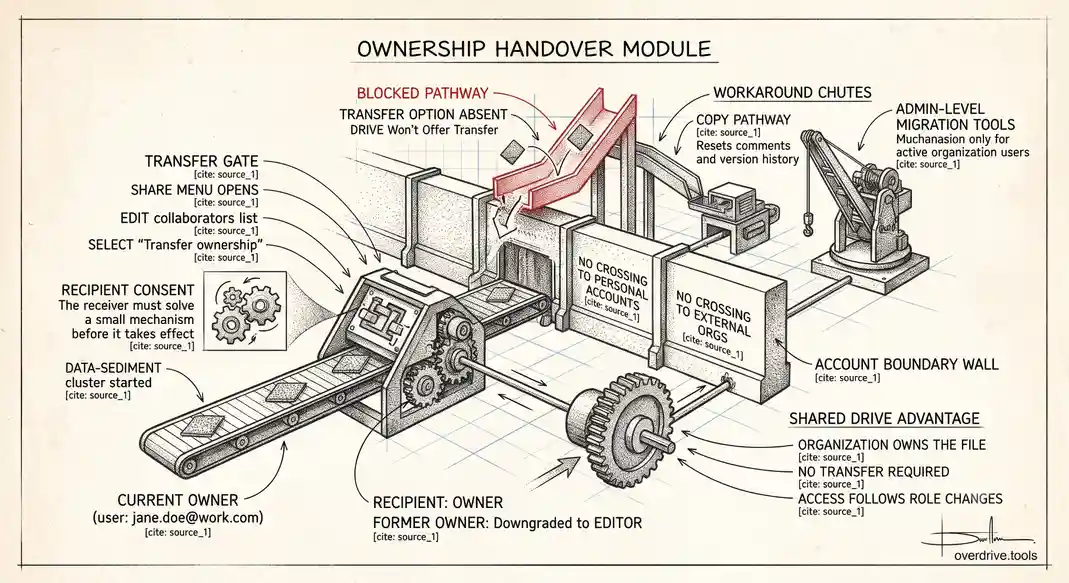
To hand off a file, the current owner opens Share, finds the person in the list of collaborators (adding them as an Editor first if they aren't already), clicks the dropdown next to their name, and selects Transfer ownership. The recipient gets a notification and has to accept the transfer before it takes effect. Until they accept, the original owner keeps ownership. Once accepted, the previous owner is typically downgraded to Editor rather than losing access entirely, unless the new owner deliberately removes them.
This works cleanly for the common case: two people with accounts in the same Google Workspace organization, or two personal Gmail accounts. Where it breaks down is the moment either side of that transfer crosses an account-type boundary.
Where the Boundary Actually Sits
You cannot transfer ownership to or from an external account. If you use a Google Workspace account for work, you can only transfer files to someone else inside your same organization. A file owned by a personal Gmail account cannot be transferred to someone using a work or school account, and the reverse doesn't work either. Google enforces this deliberately, as a data-protection boundary rather than a bug: it prevents company data from being moved out to a personal account, and it prevents personal data from being absorbed into an organization's managed domain without an explicit, separate step.
This becomes a real problem in a few common situations. A freelancer who did work under their personal Gmail account and now needs to hand deliverables to a client's Workspace domain will find that a straightforward ownership transfer simply isn't offered as an option. An employee who did early-stage work on a personal account before the company set up Workspace runs into the same wall in reverse. And an account being offboarded that needs its files moved to a different organization entirely, say, after an acquisition or a platform migration, hits the same boundary at scale.
What Actually Happens When You Try
If you attempt to transfer to an external account, Drive won't offer "Transfer ownership" as an option in the sharing menu at all for that person; it's simply absent from their dropdown, which is often the first sign to a confused user that something about the recipient's account type doesn't qualify. There's no error message explaining why, which is part of why this trips people up: it looks like a missing feature rather than an intentional restriction.
Working Around the Boundary
Option 1: See what a departing account still owns before you try to move it
Before attempting any ownership transfer, especially at scale during an offboarding or reorganization, it helps to know exactly what a given account owns and where those files actually live. Overdrive can show you everything an account owns across the Drive, which makes it much easier to plan a transfer, or a workaround, before running into the account-boundary wall mid-process.
Option 2: Making a copy instead of transferring
For individual files, the practical workaround is for the person who needs ownership to make their own copy of the file rather than receiving a transfer. Opening the file and selecting File > Make a copy creates a new file owned by whoever made the copy, with its own independent URL. The tradeoff is real: comments, version history, and the original sharing list don't carry over, and anyone who had the original link will need to be re-shared on the new copy. For a handful of files this is annoying but manageable. For an entire folder structure, it becomes a genuinely large manual task.
Option 3: Downloading and re-uploading through Google Takeout
For a full account migration, rather than a handful of files, downloading your data through Google Takeout and re-uploading it under the destination account is the closest thing to a bulk solution Google offers natively. It preserves the files themselves but not sharing settings, comment history, or collaborative context, so it's better suited to archival moves than to an active handoff where ongoing collaboration matters.
Option 4: Admin-level transfer for departed Workspace users
If the situation is a Workspace admin needing to reassign a departed employee's files to someone still active in the same domain, that's a different and more capable path: admins can transfer a user's Drive content to another user within the organization directly from the Admin console, without needing the departed user to accept anything, since the account may already be suspended by that point.
The Practical Takeaway
If you're planning any kind of account transition, personal to work, contractor to client, one organization to another, check the account types involved before assuming a simple ownership transfer will work. The boundary isn't negotiable, and finding out mid-process, after you've already started reorganizing files, costs more time than confirming it up front.
Shared Drives Sidestep the Whole Problem
One detail worth knowing before spending time on any of the workarounds above: files inside a Shared Drive are owned by the organization itself, not by an individual person. There's no "transfer ownership" concept in the same sense, because no individual holds ownership to begin with; membership determines access, and access simply moves with role changes rather than requiring a formal transfer step. For teams that anticipate frequent handoffs, project leads rotating, contractors cycling in and out, moving collaborative work into a Shared Drive from the start avoids the ownership-transfer problem entirely rather than needing a workaround for it later.
This is also why offboarding a departed employee's Shared Drive contributions is usually simpler than offboarding their My Drive files: removing them from the Shared Drive's membership doesn't touch the files at all, since they were never individually owned in the first place.
Frequently Asked Questions
Can I transfer ownership of a folder along with everything inside it at once?
Transferring a folder's ownership doesn't automatically transfer ownership of every file inside it if those files have different owners. Google's transfer flow works at the level of what's selected, so a mixed-ownership folder needs each distinct owner to complete their own transfer, which is one more reason Shared Drives are simpler for genuinely collaborative folders.
What happens to comments and version history when I make a copy instead of transferring?
Making a copy resets both. The new file starts fresh with no comment thread and no prior version history, since it's technically a new file rather than the same file under new ownership. This is the real cost of the copy workaround and worth weighing against how much that history actually matters for the specific file in question.
Does transferring ownership affect anyone else's access to the file?
Not directly. Other collaborators keep whatever permission level they had before the transfer; only the owner role itself changes hands, and the previous owner is typically downgraded to Editor rather than losing access outright.
Is there a way to force a transfer to an external account with admin privileges?
No. This boundary is enforced at the platform level specifically to prevent data leaving an organization's control, and there's no admin override that bypasses it. Any legitimate need to move data to an external account has to go through one of the copy or export-based workarounds instead.
Why doesn't Google just build a proper cross-account transfer feature?
The restriction is deliberate rather than a missing feature. Allowing arbitrary transfers between personal and managed accounts, or across separate organizations, would undermine the data-boundary guarantees that make Workspace admin controls meaningful in the first place. An admin who can enforce security policies, retention rules, and access controls across their domain loses much of that authority if data can freely flow in from an unmanaged personal account without any equivalent oversight. The friction is the tradeoff for those guarantees holding up, not an oversight Google is likely to remove.
Is there a difference in how Shared Drives versus My Drive handle a company acquisition or merger?
Shared Drive content generally requires a more deliberate migration process during a merger, since it's tied to the organization's domain rather than any individual, and moving it to a new domain typically involves admin-level data migration tools rather than a simple per-file transfer. My Drive content owned by individuals who are moving to the new organization can sometimes use the personal copy or Takeout-export workaround on a per-person basis, which is slower but doesn't require the same scale of coordinated migration tooling.
Related Articles
- Google Drive Permissions Explained: Viewer, Commenter, Editor, and Owner
- How to Revoke Google Drive Access When Employees Leave
- Deleting Your Google Account? Here's What Happens to Your Shared Files