How to Audit Google Drive When an Employee Leaves Your Company
A complete checklist for Google Workspace admins to secure, transfer, and preserve Google Drive files before deleting a departing employee's account.
Overdrive Team//5 min read
How to Audit Google Drive When an Employee Leaves Your Company
When an employee leaves—whether voluntarily or not—their Google Drive doesn't pack itself up neatly. Files they created are scattered across the organization. Documents they own might be critical to ongoing projects. Shared folders could become orphaned. And if you simply delete their account, all of it disappears.
This guide walks Google Workspace admins through the complete process of auditing and securing a departing employee's Drive before their account is removed.
The Core Problem: File Ownership
In Google Drive, every file has exactly one owner. When that owner's account is deleted, all their files are deleted too—regardless of who else has access.
This means a departing employee might own:
- Project documentation used by their entire team
- Client folders shared with external partners
- Templates and resources the whole company depends on
- Files stored in shared folders (ownership doesn't transfer with folder location)
If you delete their account without auditing ownership, you could lose critical business data.
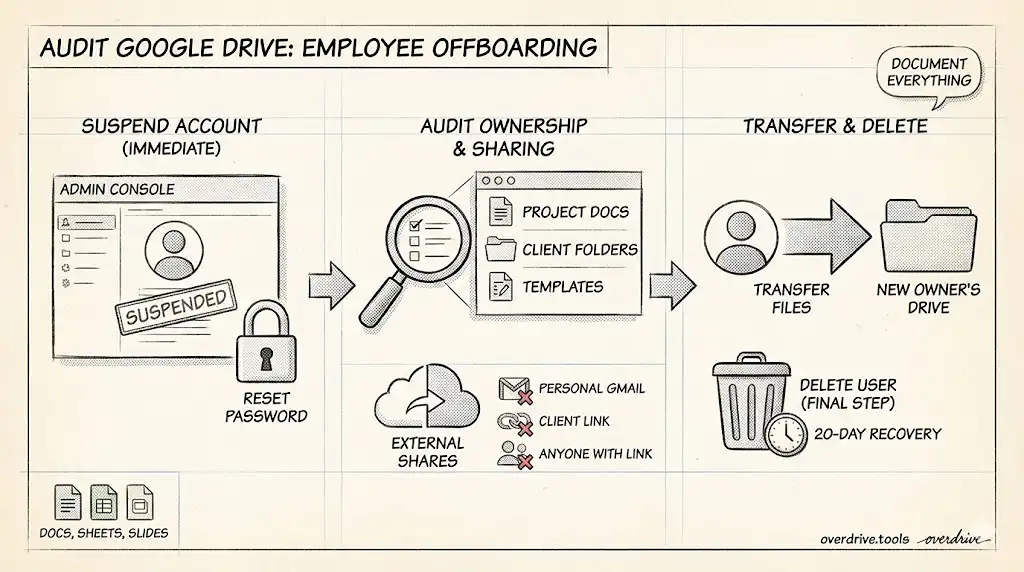
Step 1: Suspend the Account (Don't Delete Yet)
The moment you know an employee is leaving, suspend their account instead of deleting it.
In the Admin Console:
- Go to Directory > Users
- Find the user's account
- Click the account, then click Suspend user
Suspension immediately:
- Blocks the user from signing in
- Stops email from being delivered
- Preserves all their data
- Keeps files accessible to collaborators
This buys you time to audit properly without risking data loss or unauthorized access.
Step 2: Reset the Password
Even though the account is suspended, reset the password as an extra precaution. This ensures the departing employee can't access the account if it's accidentally unsuspended.
In the user's account settings, click Reset password and generate a new random password.
Step 3: Audit What They Own
Before transferring anything, you need to know what exists. This is the most important step.
Use the Admin Console's Audit Features
Go to Reports > Audit and investigation > Drive log events. Filter by:
- Actor: the departing user's email
- Event: Create, Upload, Share
This shows their recent activity, but doesn't give a complete picture of everything they own.
Transfer Ownership Report
Use the Data Export tool or third-party audit tools to generate a comprehensive list of files owned by the user. Google's built-in tools are limited here—you may need to use the Drive API or a third-party solution for large accounts.
Check for External Sharing
Critically important: identify files the departing employee shared externally. These might include:
- Files shared with personal Gmail accounts (including their own)
- Files shared with clients, vendors, or partners
- Files with "anyone with the link" access
You'll want to review these shares and decide whether to:
- Remove external access entirely
- Transfer ownership and maintain the share
- Revoke access from the employee's personal accounts specifically
Step 4: Transfer File Ownership
Google Workspace admins can bulk transfer all files from one user to another.
In the Admin Console:
- Go to Apps > Google Workspace > Drive and Docs
- Click Transfer ownership
- Enter the departing employee's email in "From user"
- Enter the new owner's email in "To user"
- Click Transfer Files
What Gets Transferred
- All files in the user's My Drive
- All files they own in shared folders
- Google Photos (stored in Drive)
What Doesn't Get Transferred
- Files in Shared Drives (these are owned by the Drive itself, not individuals)
- Files they have access to but don't own
- Files with sharing links (the links still work, but point to the new owner's account)
Where Transferred Files Go
All transferred files appear in the new owner's My Drive inside a folder named with the original owner's email address. The new owner will need to reorganize these files.
Step 5: Handle Shared Drives Properly
If your organization uses Shared Drives, file ownership is less of a concern—files in Shared Drives are owned by the Drive, not individual users.
However, you should still:
- Review the departing employee's access level on each Shared Drive
- Remove them as a member (this happens automatically if you delete their account)
- Check if they were the only manager of any Shared Drives and assign a new manager
Step 6: Check for Files in Unexpected Places
Employees often store work files in locations you might not think to check:
Google Sites: If they created internal sites, transfer ownership or these will be deleted.
Google Forms: Forms they created will stop collecting responses when their account is deleted. Transfer ownership first.
Apps Script projects: Any automation they built will stop working.
Connected third-party apps: Check what apps had access to their Drive. These integrations will break when the account is deleted.
Step 7: Handle Email and Calendar
While this guide focuses on Drive, don't forget:
Gmail: Set up email forwarding to their manager or a team inbox, or create an auto-reply explaining the employee has left and providing alternative contacts.
Calendar: Transfer ownership of recurring meetings or shared calendars that others depend on.
Contacts: Export their contacts if they contain business relationships worth preserving.
Step 8: Create a Record
Before final deletion, consider creating a record of what existed:
- Export a list of all files the user owned (using the Admin Console or API)
- Note any external shares that were revoked
- Document what was transferred and to whom
- Record any third-party integrations that were connected
This documentation protects you if questions arise later about what happened to specific files.
Step 9: Delete the Account (When Ready)
Only after completing the audit should you delete the account.
In the Admin Console:
- Go to Directory > Users
- Find the suspended user
- Click Delete user
Google will ask if you want to transfer data during deletion—if you've already done this, you can skip it.
Important: Once deleted, user data can only be recovered for a limited time (typically 20 days, but this varies by Workspace edition). After that, it's gone permanently.
The Terminated Employee Scenario
When an employee is terminated (rather than resigning), speed matters more. You may need to:
- Suspend the account immediately—even before they're informed
- Revoke all sharing with their personal accounts
- Check for recent bulk downloads or unusual activity in Drive logs
- Review files they shared externally in the days before termination
The audit and investigation tools in the Admin Console let you see what files were accessed, downloaded, or shared recently. This can help identify if company data was copied before departure.
Automating the Process
For organizations with frequent turnover, consider:
Third-party offboarding tools: Services like GAT+, BetterCloud, or Spin.ai automate much of this workflow.
Standardized Shared Drives: Encourage teams to work in Shared Drives rather than personal My Drives. This eliminates most ownership transfer issues.
Regular permission audits: Don't wait until someone leaves to audit sharing. Periodic reviews catch problems early. Tools like Overdrive can audit file permissions across your organization's Google Drives, showing who has access to what and flagging files shared broadly or externally.
Quick Checklist for Employee Offboarding
- Suspend account immediately
- Reset password
- Audit files owned by the user
- Review external sharing (especially to personal accounts)
- Transfer file ownership to appropriate team members
- Check Shared Drive memberships
- Transfer Google Sites, Forms, and Apps Script projects
- Set up email forwarding or auto-reply
- Transfer important calendar events
- Document what was transferred
- Delete account only after audit is complete
Related Articles
- Google Drive Permissions Explained
- How to Remove Someone's Access to Your Google Drive
- The Google Drive Security Audit Checklist