Can a Google Workspace Admin See Your Drive Files?
Workspace admins can't simply browse your Drive, but they can see plenty of activity and reach files in set ways. Here's what's visible, and what isn't.
Overdrive Team//6 min read
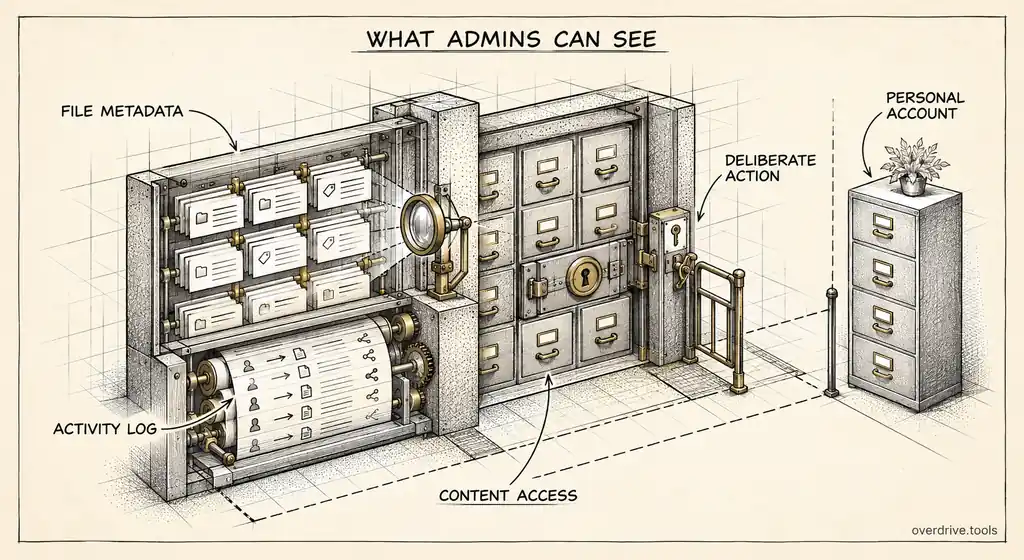
Not in the way most people imagine. A Google Workspace admin can't open the Admin console and scroll through your My Drive like a shared folder. But admins can see a great deal of activity around your files, and they have several legitimate routes to the files themselves when the organization needs them.
The honest answer is that your work Drive belongs to your employer, and the tools reflect that. What's useful is knowing exactly what an admin can see by default, what requires a deliberate action, and which of those actions leave a trace.
What admins can see without opening anything
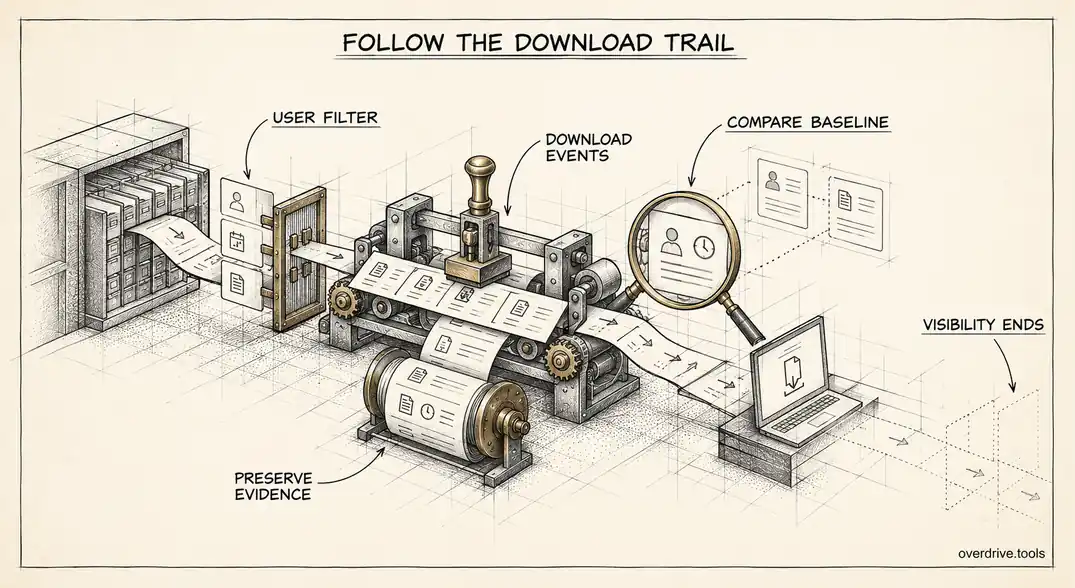
The most visible layer is activity. Google Workspace records Drive events in an audit log, and admins with the right privileges can review it under Reporting, then Audit and investigation, then Drive log events. Depending on the organization's edition, that log captures actions like creating, viewing, editing, downloading, copying, and sharing files, along with who did it and when. Google keeps these events for six months.
So an admin generally can't read your document from the console, but they can often see that you opened it, downloaded it, or shared it with someone outside the company, and the name of the file involved.
Admins also see sharing metadata. Which files are shared externally, which are open to anyone with the link, and who the outside recipients are can all be surfaced from the log and from security tooling. File names, owners, and sharing state are not private from the organization.
Usage information is visible too. Storage consumption per user, apps connected to your account, and account security status such as whether two-step verification is turned on all appear in admin reports.
How admins can reach the files themselves
When there's a business reason, such as a departure, an investigation, or a legal request, admins have several routes to the content.
Transferring ownership. Admins can transfer Drive files from one user to another, most often when someone leaves. Once transferred, the new owner can open everything.
Google Vault. On editions that include Vault, authorized users can search, hold, and export Drive content for legal and compliance purposes. Vault access is itself audited.
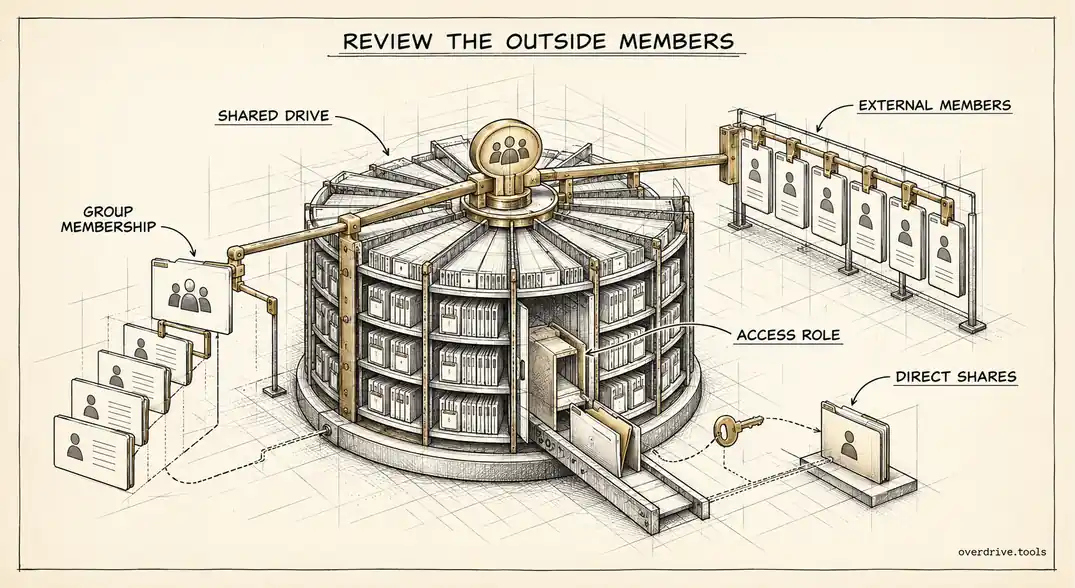
Shared drives. Admins can manage the membership of any shared drive in the organization, including adding themselves, which gives them access to its contents.
Account access. A super admin can reset a user's password and sign in as them. This is a blunt instrument that's logged and visible, and most organizations restrict it to emergencies, but it exists.
None of these are casual browsing. Each is a deliberate action with a purpose, and most leave records of their own.
What admins generally can't see
Files you keep in a personal Google account are outside your employer's Workspace entirely. If you're signed into both accounts in the same browser, the personal Drive still belongs to the personal account, and the work admin has no console view of it.
Content isn't scanned for admins to read either. Features like data loss prevention, available on some editions, inspect files for patterns such as card numbers to enforce rules, but that's automated policy enforcement, not an admin reading your documents.
Browsing history and what you do outside Google's apps depend on how your device and browser are managed, which is a separate question from Drive. A managed Chrome browser or company laptop can carry its own policies, but that's not something Workspace's Drive tools provide by default.
Shared files and shared drives behave differently
Where a file lives changes the answer more than most people expect.
A file in your My Drive is owned by you until someone transfers it. Nobody else sees it unless you share it, or an admin takes one of the deliberate steps above. That's the most private place a work file can sit, though "private" here still means private within a company-owned account.
A file in a shared drive is owned by the organization, not by you. Every member of that shared drive can see it according to their access level, and admins can manage membership of any shared drive in the domain. If you've been treating a team shared drive as personal storage, the people who can see those files are everyone with access to the drive, plus any admin who adds themselves.
A file you've shared with colleagues is visible to them, obviously, but it's also visible to anyone they reshare it with if they have edit rights and resharing isn't restricted. Sharing is the point at which a file stops being yours alone, and the audit log records each step of that.
What happens when you leave
Departure is when admin access to files is most likely to actually happen, and it's worth understanding in advance.
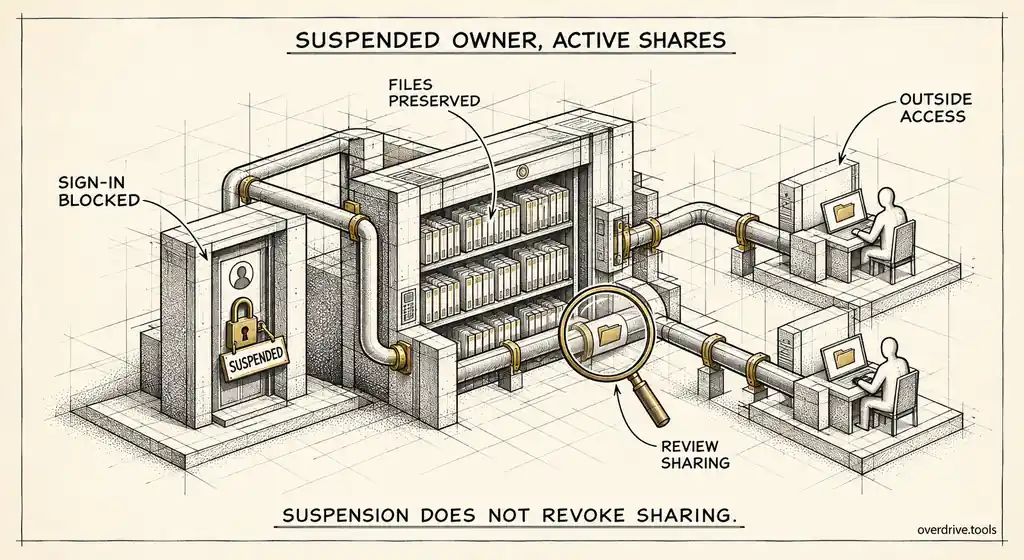
When someone leaves, the usual sequence is that the account is suspended, then files are transferred to a manager or moved to a shared drive, then the account is eventually deleted. Transferring ownership is the standard way to make sure work isn't lost, and it means the new owner can open everything that was in your My Drive.
If there's anything genuinely personal in a work account, the time to move it is before your last day, and to a personal account you own. After that, it's company data in a company process.
A quick reference
| What | Visible to admin? | How |
|---|---|---|
| File names, owners, sharing state | Yes | Audit log, security tools |
| That you viewed, downloaded, or shared a file | Usually, depending on edition | Drive log events, kept for six months |
| File contents | Not directly | Requires transfer, Vault, or shared drive membership |
| Your personal Google account's Drive | No | Separate account |
| Storage usage and connected apps | Yes | Admin reports |
If you're the admin reading this
The flip side of this question is just as important. Employees asking whether admins can see their files usually means the organization hasn't explained its monitoring, and silence breeds suspicion.
A short internal note goes a long way: what the company logs, why, who can access it, and under what circumstances anyone would open a user's files. Most people are comfortable with sensible oversight once they know its limits. They're uncomfortable with mystery.
It's also worth applying least privilege to your own team. Not every admin needs audit log access, and very few need Vault or super admin rights. Google's admin roles let you grant reporting and audit privileges separately from user management, so the people who can see activity are a deliberate, small group.
When you need visibility, prefer tools that look at metadata rather than content. Most security questions, such as who has access to what, what's shared outside the company, and which files are public, can be answered without opening a single file. Overdrive for Google Workspace is built that way: it connects with read-only access and reports on sharing exposure across the domain using metadata only, never file contents, so you can audit risk without creating a new privacy concern in the process.
Monitoring and trust
There's a reasonable balance here. Organizations need to protect their data, meet legal obligations, and recover work when people leave. Employees reasonably expect that nobody is idly reading their drafts.
The tools Google provides support that balance when they're used deliberately: activity logging for security, content access only through purposeful and audited actions, and narrow admin privileges. The problems arise when those boundaries are undocumented, when too many people hold powerful roles, or when a one-off investigation becomes routine browsing.
Clear rules protect admins too. When an employee later disputes how their files were handled, a documented process showing who accessed what and why is far easier to defend than an informal habit.
For employees, the practical guidance is simple. Treat your work Drive as company property, keep personal files in a personal account, and assume that sharing activity is visible to the organization even if your content isn't being read.
The short version
A Google Workspace admin can't browse your Drive from the Admin console, but can see a lot of activity, including file names, sharing changes, and, depending on edition, views and downloads, kept for six months in the Drive audit log. Admins can reach file contents through deliberate actions such as transferring ownership, Google Vault, shared drive membership, or signing in as the user, most of which are logged. Your personal Google account stays separate. If you're the admin, publish what you monitor, keep audit privileges to a small group, and favor metadata-only tools that answer security questions without reading files.
Related Articles
- What Google Workspace's Audit Log Shows About Drive Activity
- Google Drive for Work vs Personal: Differences
- Google Vault and Drive: What Admins Need to Know