How to Check if an Employee Downloaded Drive Files
When someone leaves under a cloud, the first question is what they took. Here's how Workspace admins check Drive downloads, and where the evidence stops.
Overdrive Team//7 min read
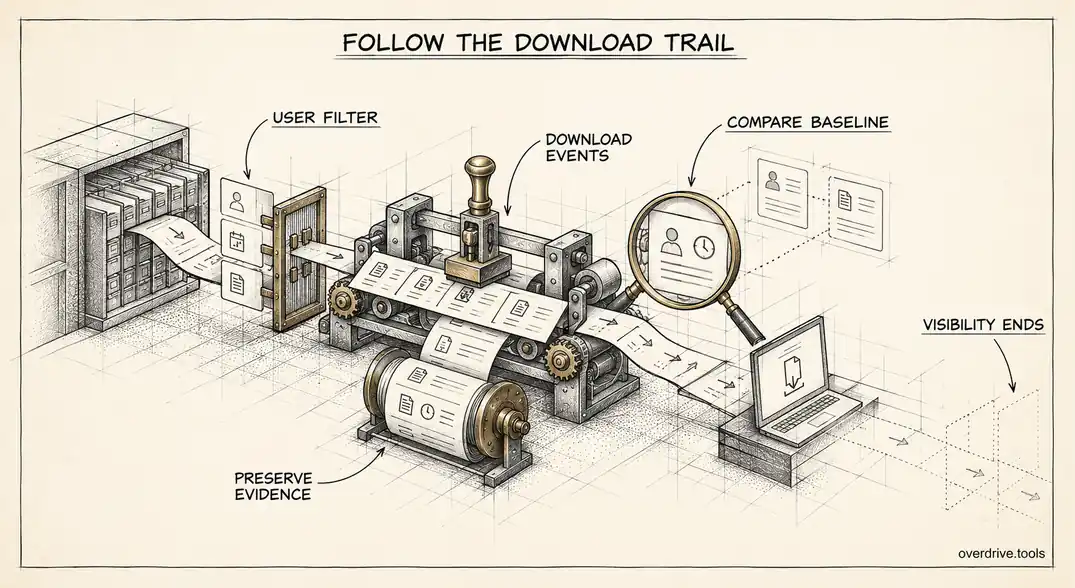
Yes, in most cases you can. Google Workspace records Drive downloads in the audit log, so an admin can see which files a specific user downloaded, when, and from what kind of device, going back six months. What you can't see is everything that happened to the file afterwards, and there are a few ways data leaves Drive that never register as a download at all.
This usually comes up at an awkward moment: a resignation to a competitor, a dismissal, a suspicion that a client list walked out the door. Here's how to answer the question properly, in the right order, and how to read what you find without overstating it.
Act before you investigate
If you suspect someone is taking data, the first priority is stopping it, not proving it. The audit log isn't going anywhere, but the person's access is still live until you remove it.
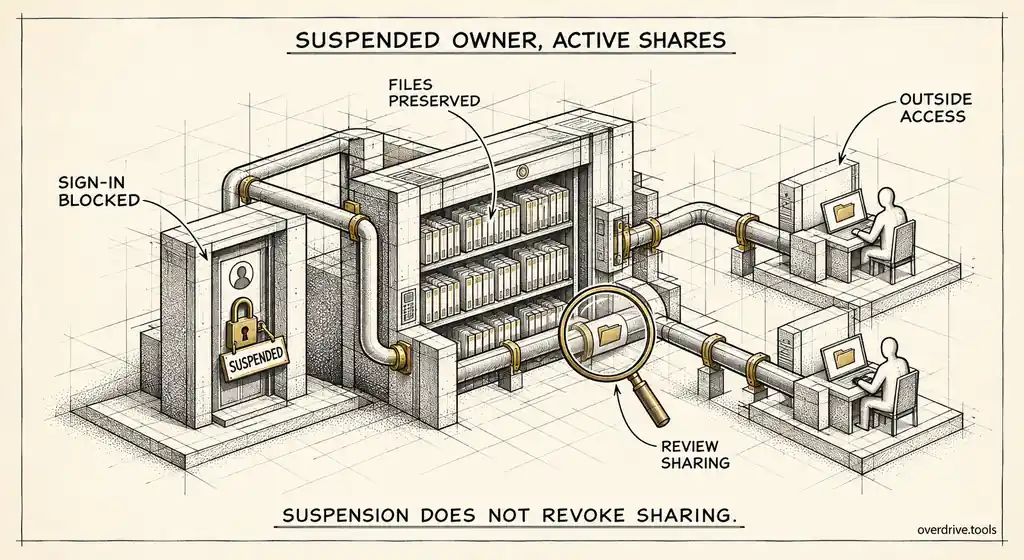
Suspend the account, or at minimum sign the user out of all sessions and reset their password, before you start digging. Suspension keeps their files and data intact for review while blocking their access to Workspace. If they have Drive for desktop syncing to a personal computer, cutting the account off also stops further syncing.
Then check what they can still reach from outside. Files the person shared with their own personal email address remain accessible to that personal account even after the work account is suspended, so review and remove those shares early. This is the step that's most often missed.
Where downloads are recorded
In the Admin console, go to Reporting, then Audit and investigation, then Drive log events. This requires an admin role with audit privileges, so if you can't see it, ask a super admin to grant reporting access.
Filter by the user in question, then filter the event type to downloads. The results show each file name, the time of the download, and details about the access. Google logs most downloads here, including files copied between Drive and a local device through Google Drive for desktop, which matters because a full sync can move an entire Drive without a single click in the browser.
Two limits apply to everything you find. First, Drive log events are kept for six months, and admins can't extend that window. Anything older simply isn't there. Second, audit coverage depends on the file owner's Workspace edition, and most Drive events are only logged for files owned by users on supported editions. On some editions you'll also have access to the security investigation tool, which runs the same kind of search with more flexible conditions and lets you act on results directly.
The other events worth checking
A download isn't the only way someone takes a copy. Widen the search to cover the other routes.
Copies. Making a copy of a file creates a new file the person owns. If they then shared that copy with a personal account, the original never registers as downloaded. Look for copy events alongside sharing events on the resulting files.
Sharing changes. Search the same user's activity for access changes, especially grants to addresses outside your domain. Sharing a folder with a personal account in the weeks before leaving is a common pattern and is often more significant than any single download.
Ownership transfers and moves. Transferring files to an outside account isn't normally possible across organizational boundaries, but moving files into folders someone else controls can be. Moves into shared folders owned externally are worth reviewing.
Prints. Printing is logged on supported editions too, and a burst of printing before a departure is worth noting.
Read these together. A user who downloaded three documents they worked on daily is very different from one who downloaded two hundred files from folders they hadn't opened in a year.
Reading the results honestly
Audit logs are evidence, not conclusions, and it's easy to overread them in a tense situation.
| What the log shows | What it does and doesn't prove |
|---|---|
| Download events on specific files | The file left Drive to a device. Not what happened after. |
| Sync activity via Drive for desktop | Files were copied locally. Possibly routine if they always used it. |
| Sharing to a personal address | Access was granted outside the company. Check whether it's still live. |
| No events found | Not proof of innocence. Earlier activity, screenshots, and manual copying aren't captured. |
Context matters most. Compare the suspicious window with the person's normal behavior over the previous months. Someone who has always used Drive for desktop will generate sync events constantly, and that baseline is what makes an unusual spike meaningful.
Also be clear about what the log can't capture. Screenshots, photos of a screen, copying text into another app, and anything done on a file before the six-month window are all invisible to it. If the stakes are high enough to involve lawyers, involve them early, preserve the data with Google Vault if your edition includes it, and let them decide what the evidence means.
A worked example
Suppose a sales manager resigns on a Friday and is joining a competitor. Here's what a careful review looks like in practice.
First, the account is suspended that afternoon and all sessions signed out. Before anything else, the admin checks whether any of the manager's files are shared with personal addresses and removes those shares, because suspension alone wouldn't stop them.
Next, the admin opens Drive log events, filters to the manager as the actor, and sets the range to the last ninety days. Downloads are reviewed first. In this case there are a steady handful each week, matching the person's normal pattern, and then a cluster of forty downloads on the Wednesday before the resignation, almost all from a folder of customer pricing sheets the manager rarely opened.
The admin then widens the search to sharing and copy events over the same week, finds two copies of the pricing summary, and confirms neither was shared outside the company. Everything relevant is exported to a spreadsheet with the search criteria noted, and the findings go to HR and legal with a plain description: what the log shows, the comparison with normal behavior, and what the log can't show.
That's the right shape for any review: contain first, compare against a baseline, look across event types, and report evidence without stretching it.
Preserving what you found
If this might become a legal matter, don't let the evidence age out. Export the relevant Drive log events to a spreadsheet and store it somewhere controlled, and note who ran the search and when. On editions with Vault, put the user's account on hold before you consider deleting it. Deleting an account removes its data from Vault's protection.
Keep the account suspended rather than deleted while the matter is open. Deletion starts a short countdown after which the user's own files are gone for good.
Reducing the risk next time
Most organizations only look at download activity after something goes wrong. A few changes make the next incident smaller, or prevent it.
Restrict Drive for desktop to the users and devices that genuinely need it. Google's security guidance recommends limiting desktop access to people with a business need and to authorized devices, because a full local sync is the fastest way for an entire Drive to leave in one go.
Remove standing external access before departures, not after. The most damaging exfiltration is often quiet: a folder shared with a personal account months earlier that nobody remembers. Overdrive for Google Workspace connects with read-only access and flags files shared with personal accounts and external users across the domain, grouped by the internal person who shared them, so you can review a departing employee's outside exposure in one place before their last day. It reads metadata only, never file contents.
Finally, make the review routine. A short pre-departure checklist that covers external shares, desktop sync, and recent download volume turns a stressful investigation into a ten-minute check.
The short version
You can check whether an employee downloaded Drive files in the Admin console under Reporting, Audit and investigation, Drive log events, filtered by user and download events. Google keeps six months of these events, and coverage depends on the file owner's edition. Suspend the account and remove shares to personal addresses first, then widen the search to copies, sharing changes, and prints, and compare against the person's normal behavior. The log proves files left Drive, not what happened next, and an empty result doesn't prove nothing was taken. Export and preserve what you find before it ages out, and keep the account suspended rather than deleted while the matter is open.
Related Articles
- What Google Workspace's Audit Log Shows About Drive Activity
- How to Audit Google Drive When an Employee Leaves Your Company
- Google Vault and Drive: What Admins Need to Know