What Google Workspace's Audit Log Shows About Drive Activity (and What It Doesn't)
The Drive audit log in the Admin console tracks more than most admins realize, but it has real gaps. Here's what's actually captured, and what requires a higher edition.
Overdrive Team//6 min read
When something goes wrong with a shared file, being able to answer "who did this, and when" is one of the first things an admin reaches for. Google Workspace does keep a Drive audit log, accessible from Reporting > Audit and investigation > Drive log events in the Admin console, and it captures a lot more than most admins assume. But it also has real limits that only become obvious the moment you actually need it, usually mid-investigation.
What the Drive Audit Log Actually Captures
The Drive log records file-sharing activity, permission changes, and deletions across your domain, not just for a single account but across every user the log has visibility into. That includes events like document creation and copying, comment activity (created, edited, resolved, or reopened), and downloads, including files synced to a local device through Drive for Desktop, which are logged as download events even though nothing was manually downloaded in the traditional sense. For an admin trying to reconstruct what happened to a file, that level of detail is genuinely useful: you can see when a file's sharing settings changed, who changed them, and whether it was made external or public at some point in its history.
This is a meaningfully different picture from what an individual user sees on their own personal account. A personal Gmail user checking a Google Doc's Activity dashboard only sees who viewed the file and when, with no visibility into sharing-permission history or deletion events. Workspace admins get the organization-wide, permission-level picture that personal accounts simply don't have access to, which is one of the underappreciated security advantages of being on a managed domain in the first place.
Where the Native Audit Log Falls Short
The gaps show up in two places: coverage of certain event types, and how far back you can search.
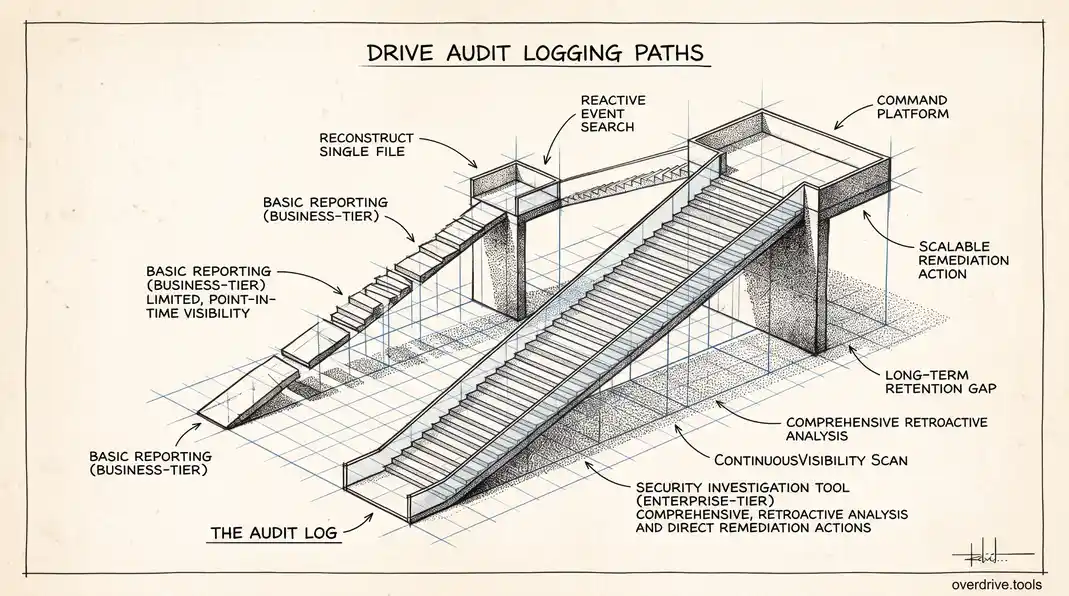
First, coverage. The standard Drive audit log is built for reconstructing what happened to a file over time, not for surfacing what's currently exposed across the whole organization. It will tell you that a specific file's sharing setting changed on a specific date, but it won't proactively flag every file in the domain that's currently shared publicly or externally. To find that, an admin has to already know which file to look at, which is backwards from how most security investigations start.
Second, edition gating. Google's more powerful investigative capability, the Security Investigation Tool, lets an admin search across audit log data with much richer filtering, take direct remediation action (like changing a file's visibility) right from the results, and pull in data sources beyond the basic Drive log. That tool is only available on Enterprise Standard, Enterprise Plus, Education Standard, Education Plus, Enterprise Essentials Plus, Frontline Standard and Plus, and Cloud Identity Premium editions. It is not included in Business Starter, Business Standard, or Business Plus. If your organization is on a Business-tier plan, which covers a large share of small and mid-size Workspace customers, the audit log view you get is the basic Reporting interface, not the investigation tool, and that's a meaningfully less capable starting point for anything beyond a single-file lookup.
Working Within Business-Tier Limits
Option 1: Continuous visibility instead of log-diving after the fact
Because the basic Drive log is reactive by design, the practical alternative on Business-tier plans is to reduce how often you need it. Overdrive scans a Drive account continuously and surfaces exactly what the audit log won't proactively show: which files are currently shared publicly, which are accessible outside the domain, and which permissions look unusual for that file's location, all without needing to already know which file to search for. That shifts the work from "reconstruct what happened after a complaint" to "catch the exposure before it becomes an incident."
Option 2: Get the most out of the standard Drive log
If an upgrade to a higher edition isn't on the table, the basic Drive log is still worth using deliberately rather than only reaching for it during an emergency. Set a recurring habit, monthly or quarterly, of reviewing Reporting > Audit and investigation > Drive log events for a sample of high-risk file categories: anything recently made externally shared, anything with ownership transferred, and anything downloaded in bulk by an account that doesn't typically do that. The log supports filtering by event type and by user, which at least lets you narrow a review instead of scrolling through everything.
When You Actually Need the Investigation Tool
If your organization handles sensitive client data, is subject to compliance requirements, or has had a security incident that required reconstructing exposure across many files rather than one, the gap between the basic log and the Security Investigation Tool becomes the difference between a fast, confident answer and a slow, incomplete one. That's usually the point where upgrading edition tier or supplementing with a third-party visibility tool stops being optional and starts being the actual cost of doing the investigation properly.
How Long the Log Data Actually Sticks Around
Retention matters as much as coverage. Audit log data isn't kept indefinitely: the default retention period for Google Workspace audit logs is 6 months, after which the events age out of the standard Reporting view. Longer retention is possible through Google Vault or by exporting logs to external storage, but neither happens automatically; both require deliberate setup before you need them, not after. This has a practical consequence admins sometimes discover too late: an investigation into something that happened eight months ago may find the relevant events have already aged out of the default retention window. If your organization has any compliance requirement to reconstruct activity going back further than the default window, that's a configuration decision to make in advance, not something to discover mid-investigation.
A Practical Walkthrough
Say a client calls to ask why a shared proposal document was visible to someone outside the intended recipient list. On the basic Drive log, the workflow looks like this: filter Reporting > Audit and investigation > Drive log events by the specific file (searchable by title or, more reliably, by opening the file and checking its detail view for a document ID to filter on), then review the sharing-change events in chronological order. This shows exactly when the file's visibility changed, and by whom, which usually resolves the question definitively: an intentional but mistaken share, a folder-level permission that cascaded down unexpectedly, or a link that was set broader than intended and never tightened.
Where this breaks down is scale. That workflow works cleanly for one file you already suspect. It does not scale to "show me everything currently exposed across the whole domain," which is the more common and more anxiety-inducing question after any security scare. That broader query is exactly what the Security Investigation Tool is built for on higher editions, and exactly what the basic log, by design, isn't.
Frequently Asked Questions
Can a Business-tier admin get any of the Investigation Tool's capability at all?
Not directly within the native console. Business Starter, Standard, and Plus editions are limited to the standard Reporting interface. Some organizations bridge this gap with third-party monitoring tools that continuously track sharing and access patterns rather than relying on point-in-time log searches, since that shifts the work from investigative log-diving to standing visibility.
Does the audit log show what a file's content actually was?
No. The Drive log tracks metadata about events, who shared what with whom, when a file was deleted, when a permission changed, not the content of the file itself. For content-level review, an admin would need direct access to the file, subject to the same privacy boundaries that apply to any account access.
Is the audit log visible to regular users, or only admins?
Only admins with the appropriate console permissions can access the Drive audit log. Regular users only see their own personal activity view (like the Activity dashboard on a document), which shows far less than what's available to an admin reviewing the same file from the console side.
Does upgrading editions retroactively give access to older log data?
Generally no. Upgrading changes what gets captured and how long it's retained going forward, but it typically doesn't backfill detailed investigation capability for events that occurred before the upgrade, since the richer data sources the Investigation Tool relies on weren't necessarily being captured at the same depth beforehand.
Related Articles
- Can You See Who Viewed a Google Drive File?
- Auditing Third-Party App Access in Google Workspace (Drive & Gmail)
- How to Find Every Publicly Shared File in Your Google Workspace