How to See Who Viewed Your Google Drive File
Learn how to see who has viewed your Google Drive files using Activity Dashboard. Find out who opened your documents and when.
Overdrive Team//2 min read
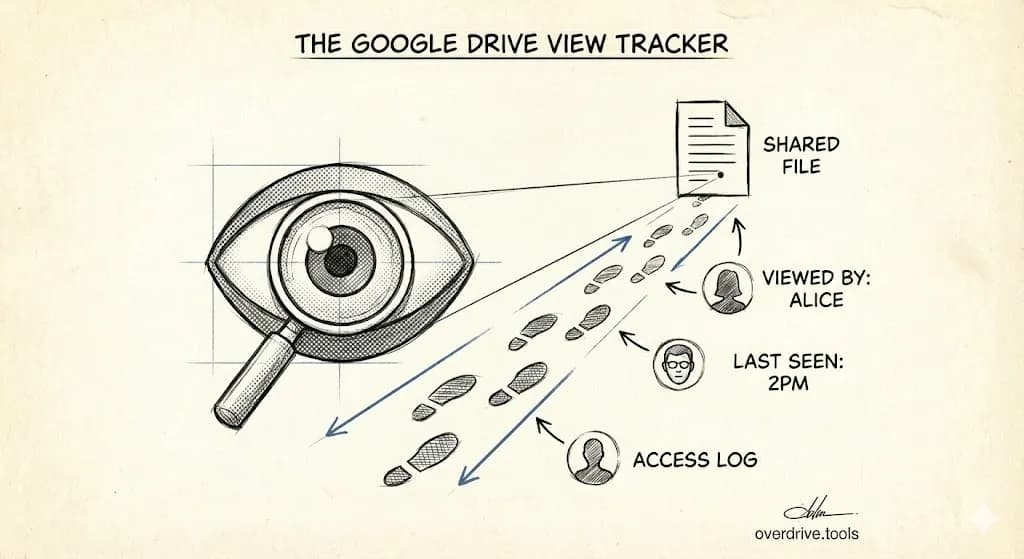
To see who viewed your Google Drive file, open the file in Google Docs, Sheets, or Slides, click the upward arrow icon in the top right (or go to Tools → Activity dashboard), and check the "Viewers" tab. This shows who opened the file and when. This feature only works for Google Workspace accounts, not personal Gmail accounts.
View File Activity on Desktop
- Open the file in Google Docs, Sheets, or Slides
- Click the trending arrow icon (↗) in the top-right corner, or go to Tools → Activity dashboard
- Click the "Viewers" tab
- See who viewed the file and when
You'll see each viewer's name, email, and their last viewed date.
View Activity on Mobile
The Activity dashboard isn't available in the mobile apps. You'll need to:
- Open a browser on your phone
- Go to docs.google.com and open the file
- Request the desktop site
- Access Tools → Activity dashboard
Or just wait until you're at a computer.
What You Can See
The Activity dashboard shows:
- Viewers tab: Who opened the file and when they last viewed it
- Viewer trend: A graph of views over time
- All viewers: List of everyone who has ever opened the file
You cannot see:
- How long someone spent viewing
- Which parts of the document they looked at
- Whether they downloaded or printed it
Limitations
Personal Gmail accounts: Activity dashboard is not available. You can only see who has access, not who actually viewed the file.
Privacy settings: Viewers can turn off their view history in their Google account settings. If they do, their views won't appear in your dashboard.
"Anyone with the link" sharing: If your file is shared via link, you'll only see viewers who were signed into Google when they opened it. Anonymous viewers don't appear.
Non-Google files: Activity tracking only works for Google Docs, Sheets, Slides, and Forms—not PDFs, images, or other uploaded files.
Check Who Has Access (Alternative)
If you can't see view history, you can at least see who has access:
- Right-click the file in Google Drive
- Click "Share"
- View the list of people with access
This tells you who could view the file, even if you can't confirm they did.
For a complete picture of who has access to what across your entire Drive, Overdrive scans all your files and shows sharing permissions in one dashboard. See our full guide on finding who has access to your Google Drive.
Turn Off Your Own View History
If you don't want file owners to see when you view their documents:
- Open any Google Doc, Sheet, or Slide
- Go to Tools → Activity dashboard
- Click "Privacy settings" (gear icon)
- Turn off "Show my view history"
This applies to all files you view going forward.