How to Change Default Google Account for Drive
Learn how to change your default Google account so Drive opens with the right account. The first account you sign in with becomes the default—here's how to reset it.
Overdrive Team//2 min read
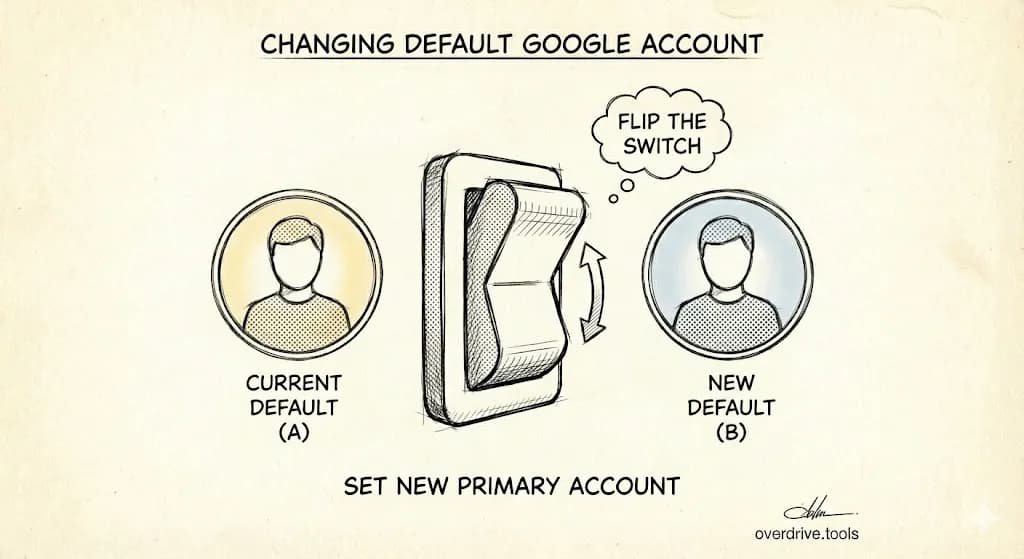
To change your default Google account for Drive, sign out of all Google accounts, then sign in first with the account you want as default. The first account you sign into always becomes the default—there's no setting to change this directly.
Change Default Account on Desktop
- Go to drive.google.com or any Google site
- Click your profile picture in the top right
- Click "Sign out of all accounts"
- Go back to Google and click "Sign in"
- Sign in with the account you want as default first
- Add your other accounts by clicking your profile → "Add another account"
The first account you sign into is now your default for all Google services (Drive, Gmail, Calendar, YouTube, etc.).
Change Default Account on Android
- Open Settings on your phone
- Go to "Accounts" or "Passwords & accounts"
- Remove all Google accounts (note: this doesn't delete them, just removes them from the device)
- Restart your phone
- Add the account you want as default first
- Add your other accounts after
Change Default Account on iPhone/iPad
- Go to Settings → Mail (or the Gmail app)
- Remove all Google accounts
- Add the account you want as default first
- Add your other accounts after
Why This Matters for Google Drive
Your default account affects:
- Which Drive opens when you click Drive links
- Which account shows when you share files
- Which account's storage quota appears first
- Which account syncs with Drive for Desktop by default
If you're constantly opening the wrong Drive, resetting your default fixes it.
Quick Account Switching (Without Changing Default)
If you just need to access another account temporarily:
In browser:
- Click your profile picture
- Click your other account from the list
- Or go directly:
drive.google.com/u/1(second account),/u/2(third), etc.
Bookmark trick: Bookmark drive.google.com/u/1 to always open your second account directly.
Use Chrome Profiles Instead
For complete separation between accounts, use Chrome profiles:
- Click your profile icon in the top right of Chrome (near the three dots)
- Click "Add" to create a new profile
- Sign into your other Google account in this profile
Each profile has its own bookmarks, extensions, and default Google account. This is cleaner than constantly switching.
Google Drive for Desktop with Multiple Accounts
Google Drive for Desktop supports multiple accounts:
- Click the Drive icon in your taskbar/menu bar
- Click the gear icon → Preferences
- Click "Add another account"
- Sign in with your additional account
Each account syncs to a separate folder on your computer. You can access both Drives without switching.
Common Frustrations
"I signed out but it still defaults to the wrong account"
Clear your browser cookies, then sign in fresh. Cached data sometimes preserves the old default.
"My work and personal accounts keep mixing"
Use separate Chrome profiles—it's the only reliable way to keep them fully separated.
"Drive links always open in the wrong account"
Check the URL. Links containing /u/0/ open in your default account. You can manually change the number to open in a different account.
Keep Your Accounts Organized
If you manage files across multiple Google accounts, it's easy to lose track of what's where. Overdrive works with any Google account to scan and organize your Drive—so you can clean up whichever account you're signed into.