How to Audit External Members of Shared Drives
Outside members of a shared drive can see everything in it. Here's how Workspace admins find external members, decide who stays, and set safer defaults.
Overdrive Team//6 min read
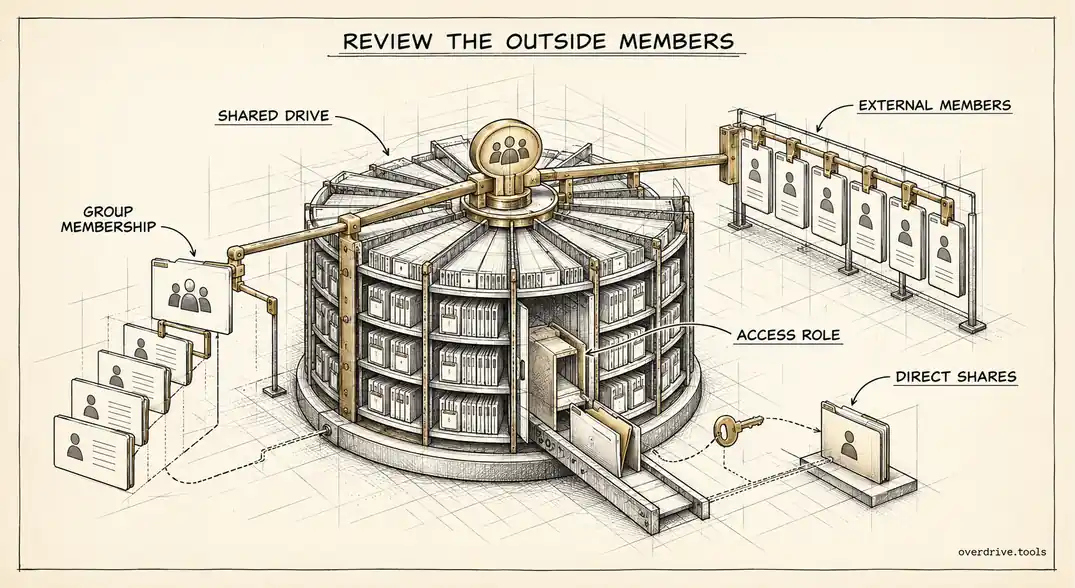
Adding an outside person to a shared drive is a much bigger grant than sharing a file with them. A file share covers one document. Shared drive membership covers every file in the drive, including everything added after they joined, for as long as they remain a member. Few organizations review that membership, and fewer still know how many outsiders are sitting in their shared drives right now.
Here's how to find them, how to decide who should stay, and which settings stop the list growing back.
Why shared drive membership is easy to forget
Shared drives were designed to solve an ownership problem. Files belong to the organization rather than to individuals, so nothing disappears when someone leaves. That's a real improvement, but it shifts the risk from ownership to membership.
A shared drive created for a project two years ago may still have the agency, the freelancer, and the client contacts who were added on day one. The project ended, the drive went quiet, but the members were never removed. If anyone later used that drive as a convenient place to store something unrelated, those outside members can see it too.
Membership is also invisible in day-to-day use. People see the files, not the member list, so nobody notices that an outside address still has Content manager access to the team's working drive.
The setting that controls external members
Admins decide whether shared drives can include people from outside the organization. In the Admin console, under Apps, then Google Workspace, then Drive and Docs, the sharing settings include an option to allow users outside your organization to access files in shared drives. When it's turned off, managers can't add external members, and external people lose access to files in those drives even if a file was shared with them directly.
That last part is important. A shared drive's settings can override individual file sharing, which makes the drive-level setting a powerful control when you need to cut outside access quickly.
There are three details to know before relying on it. The default sharing settings you choose apply to new shared drives, and existing drives keep their own settings until they're changed individually. You can prevent shared drive managers from changing those settings, or let them adjust them for legitimate external work. And if your organization uses trust rules, external sharing for shared drives is governed there rather than in the legacy setting.
Finding the external members you already have
Here are your options, from fastest to most manual.
Option 1: See external access across all shared drives at once
Overdrive for Google Workspace connects with read-only access and lists the external people who can reach your organization's files, with the domain, whether it's a personal or business account, how many files they can access, and their highest role. Because outside members of a shared drive show up with access to that drive's files, the drives with the broadest outside exposure stand out immediately. It reads metadata only, never file contents, and changes nothing.
Option 2: Review drives in the Admin console
Under Apps, then Google Workspace, then Drive and Docs, then Manage shared drives, admins can see the organization's shared drives and open each one to view and change its members and settings. This is authoritative but slow, since you work through drives one at a time. Start with drives that have external sharing allowed, then the ones belonging to finance, HR, legal, and client-facing teams.
Option 3: Use the Drive audit log for recent changes
Drive log events record membership changes on shared drives. Filtering for members added from outside your domain shows recent additions, but only within the six-month retention window, and long-standing members won't appear at all.
Deciding who stays
A list of outside members on its own doesn't tell you what to remove. A short set of questions resolves most cases.
Is the engagement still active? Agency and contractor members from finished projects are the bulk of what you'll find, and they're the easy removals.
Does this person need the whole drive? Often an outside collaborator only needs one folder. If so, remove them as a member and share that folder with them directly, or move the shared material into a smaller drive created for the collaboration.
Is the role too high? Outside members with Manager or Content manager access can add other people and move or delete files. Few external collaborators need more than Contributor, and many only need Viewer or Commenter.
Is it a personal account? Outside members using personal Gmail addresses are harder to manage than business accounts, because nobody on their side will remove access when they move on.
| Finding | Typical action |
|---|---|
| Member from a finished project | Remove |
| Active collaborator needing one folder | Remove from drive, share the folder |
| External Manager or Content manager | Downgrade to Contributor or lower |
| Personal account on a sensitive drive | Remove, or replace with a business account |
| Active partner, appropriate role | Keep, set a review date |
Structuring drives for outside collaboration
The cleanest pattern is to separate internal and external work at the drive level. Keep a team's internal drive closed to outsiders entirely, and create dedicated drives for each external collaboration, named so their purpose is obvious, with external sharing turned on only for those.
That gives you a clear rule: internal drives never have outside members, and collaboration drives get reviewed and archived when the engagement ends. It also makes the Admin console review much faster, because you only need to check the drives designed for outside access.
Using Google Groups for membership helps too. If outside collaborators are added through a group, removing someone from the group removes them from every drive at once, and the group's membership becomes the list you review.
Common mistakes during cleanup
A few errors come up repeatedly when admins work through outside members, and each is easy to avoid once you know about it.
Removing members without checking file-level shares. Removing someone from a shared drive removes the access that came from membership, but a file inside the drive may also have been shared with them directly. If external sharing is still allowed on that drive, that direct share can survive. Check the drive's settings as well as its member list, or the person may keep access to the files that mattered most.
Turning off external access on an active collaboration drive. Because drive-level settings override file sharing, switching off outside access on a live project drive cuts off every external collaborator at once, mid-project. Confirm with the drive's managers before changing the setting on any drive with recent activity.
Forgetting about groups. If outside people were added through a Google Group, the drive's member list shows the group, not the individuals. The review has to include the group's membership, or outsiders hide behind a single internal-looking entry.
Leaving abandoned drives open. Drives with no recent activity feel harmless, but their outside members still have access to everything in them. If a drive is finished, archive its contents somewhere internal and remove all external members, rather than leaving a quiet drive with open doors.
Making it a routine
A one-off cleanup will drift back within months unless it becomes a habit. Two light routines keep it under control.
Review external members of collaboration drives at the end of each engagement. Tie it to whatever marks the end of a project, such as the final invoice or a closing meeting, so it happens without anyone having to remember.
Run a broader review quarterly. Look for new drives with external sharing turned on, outside members with elevated roles, and personal accounts on drives holding sensitive material. A quarterly pass that takes an hour is far cheaper than discovering a former agency still has access to this year's plans.
The short version
External members of a shared drive can see every file in it, including files added later, and that membership is rarely reviewed. Admins control whether shared drives can include outside people under Drive and Docs sharing settings, and drive-level settings can cut external access even to individually shared files, though defaults only apply to new drives and trust rules take precedence where used. Find current outside members across all drives, remove those from finished work, downgrade elevated roles, and replace drive membership with folder sharing where that's all someone needs. Then separate internal and external drives and review collaboration drives when each engagement ends.
Related Articles
- Shared Drive Permission Levels Explained
- How to Use Google Groups with Shared Drives
- Managing External Sharing in Google Workspace: An Admin's Guide