How to Back Up Google Workspace Drive Data
Google Workspace doesn't back up Drive data the way admins assume. Here's how backup really works, the options available, and what each one misses.
Overdrive Team//7 min read
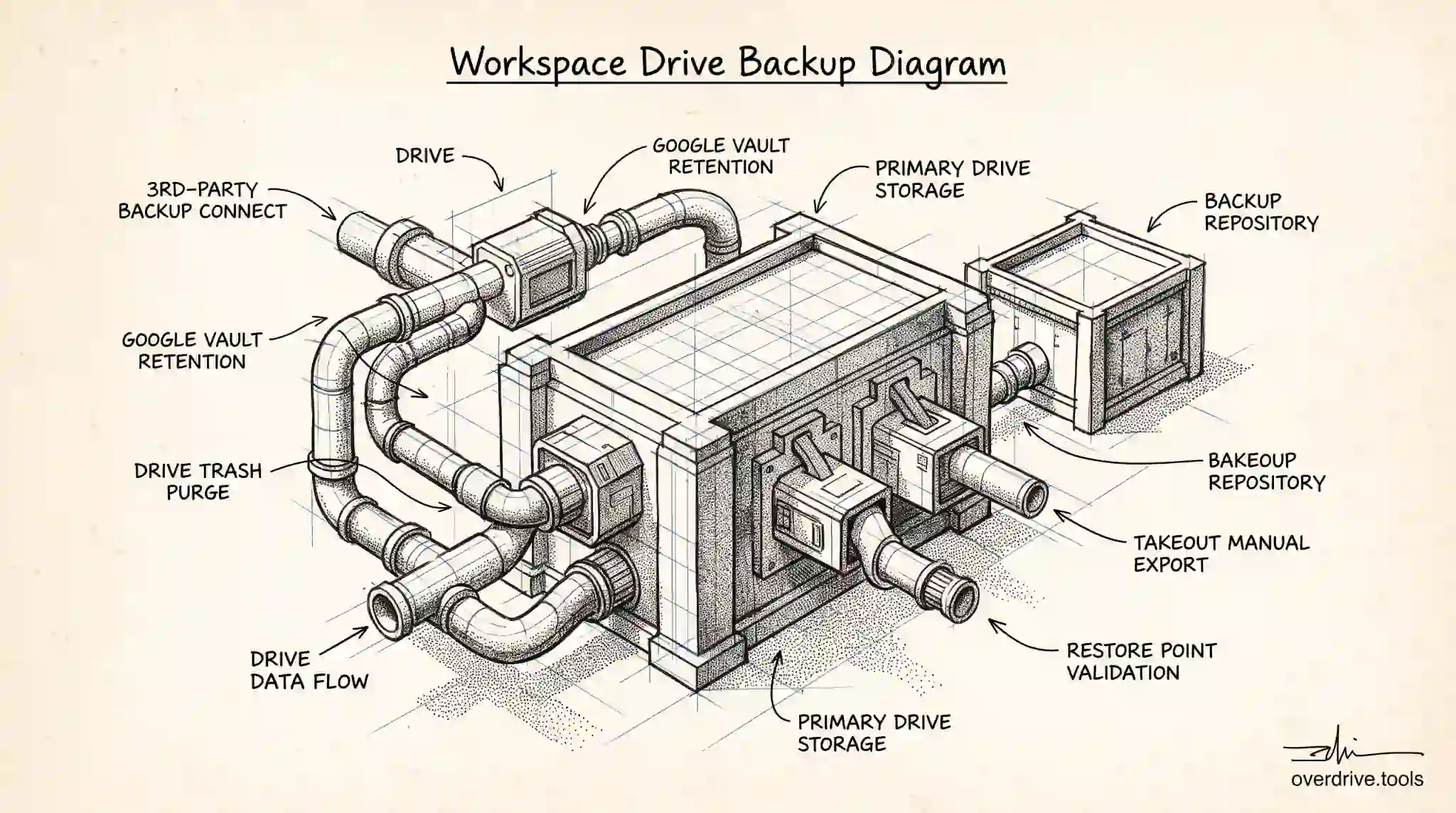
Most Workspace admins assume Google is backing up their organization's Drive data. Google runs redundant, highly reliable infrastructure, so the data is safe from hardware failure, but that is not the same as a backup you can restore from. If a user deletes files and empties their trash, if data is corrupted, or if a departing employee's account is removed, Google's infrastructure reliability won't hand your files back. Real backup, the kind that lets you restore a specific state of your data after a mistake, is something an organization has to arrange for itself.
This gap between "Google won't lose the data" and "we can get our data back" is where a lot of organizations are quietly exposed. Here's how backup actually works for Workspace Drive data, the options available, and the limits of each so you can build protection that holds up.
Why Google's reliability isn't a backup
It's worth being precise about the distinction, because it's the root of the confusion. Google's infrastructure protects against Google losing your data. It replicates data across systems so a hardware failure or data center issue doesn't destroy it. That reliability is excellent and real.
A backup protects against you losing your data, which is a different threat. The common causes of data loss in an organization are human and procedural: someone deletes files and empties the trash past the recovery window, a sync mishap propagates a deletion, a file gets overwritten, ransomware or a compromised account corrupts data, or an account is deleted during offboarding before its contents were preserved. In none of these does Google's reliability help, because from Google's perspective the deletion or change was a legitimate instruction it faithfully carried out.
So the question isn't whether your data is safe on Google's systems. It's whether you can restore a known-good state after your own organization loses or corrupts something. That requires deliberate backup.
Retention and trash are not backup either
Two Workspace features often get mistaken for backup, and it's important to see why they fall short. The Drive trash holds deleted files for 30 days, which is a genuine safety net for recent, noticed deletions, but it's time-limited and it only helps if someone catches the mistake before the window closes and the item is purged.
Google Vault, covered by many editions, handles retention, legal holds, and eDiscovery. It can keep data for compliance and preserve it for litigation, but it's built for legal and compliance purposes, not for restoring an individual's working files after an accident. Its workflows and guarantees are about producing data for a matter, not about handing a user back the folder they deleted last week. Relying on Vault as your backup leaves exactly the restoration gap a backup exists to fill.
Recognizing that neither trash nor Vault is a backup is the first step to actually having one.
The backup options available
Organizations generally use one or more of a few approaches. Google Takeout lets you export Workspace data, including Drive, as an archive, which you can store elsewhere. It's serviceable for periodic full exports, but it's a manual, point-in-time process rather than an automated, continuously updated backup, and restoring from it is a re-upload exercise rather than a clean restore.
Drive for Desktop keeps a synced copy of files on local machines, which can serve as a rough local copy, but sync is not backup: a deletion or corruption syncs too, so the local copy mirrors the mistake rather than protecting against it. It's a convenience, not a safety net.
Dedicated third-party backup services are the option built specifically for this job. They connect to Workspace, back up Drive and other data automatically on a schedule, retain version history, and allow granular restoration of specific files, folders, or accounts to a chosen point in time. For organizations that need genuine, restorable backup, this is the category designed for it, and it's what turns "we export sometimes" into "we can restore reliably."
Which you choose depends on your recovery requirements: how quickly and how granularly you need to restore, and how much data loss you can tolerate. The more critical the data, the more a purpose-built, automated backup earns its cost.
Know what you're protecting before you back it up
Whatever backup approach you adopt, it's more effective when you actually understand what's in your Drive environment. Backing up blindly means preserving years of duplicates, obsolete files, and clutter alongside the data that matters, which inflates backup size and cost and makes restores harder to reason about. Knowing what you have lets you back up deliberately and keep the environment lean.
Google doesn't give admins a clear picture of what's actually accumulating across Drive. Overdrive for Google Workspace connects with read-only access and visualizes what a Drive contains, surfacing duplicates, large old files, and how storage is distributed, so before and alongside a backup strategy you can clean up what isn't worth protecting and understand the shape of the data you are protecting. It reads metadata only, never file contents. A leaner, better-understood Drive is cheaper to back up and easier to restore.
That visibility also supports the security side of data safety, since knowing what exists and how it's shared is part of protecting it, not just copying it.
How often to back up, and how long to keep it
Two questions define a backup policy: how frequently you capture data, and how long you keep each capture. The right answers come from how much data loss you can tolerate and how far back you might need to restore. A team producing critical work throughout the day can't tolerate losing a day's changes, which points toward frequent, automated backups rather than occasional manual exports. A team with slower-changing data can accept longer intervals.
Retention of the backups themselves matters just as much. Some data loss isn't noticed for weeks, a file quietly corrupted or deleted and not missed until someone needs it, so keeping backups only a few days can leave you unable to restore a good version by the time the problem surfaces. Match your backup retention to how long problems typically take to be discovered in your organization, which is usually longer than people assume.
Testing that your backup actually restores
The most common and dangerous backup mistake is assuming a backup works because it's running. A backup you've never restored from is a hope, not a guarantee. The only way to know your backup will save you is to periodically test a restore: pick some files or an account, restore them into a safe location, and confirm the data comes back intact and usable.
Test restores also reveal practical details you need before a real incident, such as how long a restore takes, how granular it can be, and who has the access and knowledge to perform one under pressure. Discovering during an actual data-loss event that your backup is incomplete, or that nobody knows how to restore from it, is the worst possible time to learn. Building a periodic restore test into your routine turns backup from a checkbox into genuine, proven protection you can rely on when something goes wrong.
Ultimately, backup for Workspace comes down to a mindset shift. Google's reliability tempts organizations into assuming their data is already protected, when what they really have is durability against Google's failures, not against their own. Closing that gap doesn't require anything exotic: choose an approach that matches how much you'd lose and how fast you'd need it back, keep the backups long enough to outlast slow-to-surface problems, and prove the restore works before you ever need it. Do those three things and a data-loss incident becomes an inconvenience you recover from in hours, rather than a permanent loss you explain to the business after the fact. The cost of getting there is modest; the cost of assuming you are covered when you are not is the kind that ends up in an incident report.
The short version
Google Workspace keeps your Drive data safe from hardware failure, but that reliability is not a backup, because it won't restore files your organization deletes, corrupts, or loses during offboarding. The Drive trash is only a 30-day net, and Vault is for compliance and legal holds, not restoration, so neither counts as backup. Real options range from manual Google Takeout exports to synced local copies to purpose-built third-party backup services that restore granularly to a point in time, with the right choice depending on your recovery needs. Whatever you choose, understand and clean up what's in your Drive first, so you're backing up the data that matters rather than years of clutter.
Related Articles
- How to Actually Back Up Your Google Drive (Takeout, Sync, and What Neither Covers)
- What Google Workspace's Audit Log Shows About Drive Activity (and What It Doesn't)
- What Happens to Shared Files When an Employee Leaves Your Workspace