How to Actually Back Up Your Google Drive (Takeout, Sync, and What Neither Covers)
Google Drive isn't automatically backed up the way people assume. Here's how Takeout and Drive for Desktop actually work, and where both fall short.
Overdrive Team//7 min read
Google Drive feels like a backup. Files sync automatically, version history exists, and everything lives on Google's servers instead of a single laptop that could fail. That's real protection against a dead hard drive, but it's not the same thing as a backup, and the gap between the two shows up the moment something goes wrong that Drive's own safety nets don't cover: a ransomware sync, an accidental bulk delete, an account lockout, or files a departing employee owned and never handed off.
Why Drive Syncing Isn't the Same as a Backup
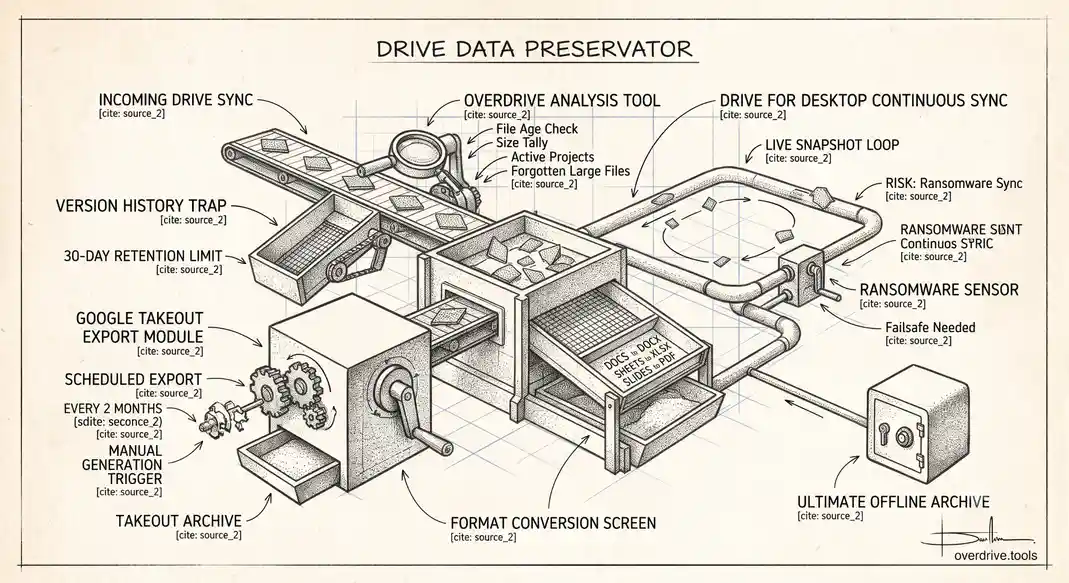
A backup is a separate, independent copy of your data that survives problems affecting the original. Drive's version history and 30-day Trash are useful safety nets, but they're not independent, they live inside the same account. If that account is compromised, suspended, or deleted, the version history and Trash go with it. Sync tools make this worse in one specific way: if a ransomware process encrypts files on a synced local folder, Drive for Desktop will happily sync those encrypted versions up to the cloud, overwriting the good copies. Version history can sometimes recover from this, but only within its retention window, and only if you catch it in time.
Option 1: Using Google Takeout for a Point-in-Time Copy
Google Takeout is Google's own export tool, built for exactly this purpose: downloading a full copy of your data outside of Google's live systems. Go to Google Takeout, and you'll see every Google product you use pre-selected; uncheck anything you don't want, and make sure Drive is included. Choose the file type, frequency, and destination for the export, then create it. Google Docs, Sheets, and Slides get converted to standard formats like DOCX, XLSX, or PDF as part of the export, which is useful for opening them outside Google's ecosystem but means some Google-specific formatting or linked-cell behavior in Sheets may not translate perfectly.
Takeout doesn't impose an overall size limit, but large exports get split into multiple archive files, typically in 2 GB or 10 GB chunks depending on your settings, so a large Drive can mean downloading and managing a dozen or more files rather than one. Takeout also supports scheduling exports every two months, which is the closest thing to an automated backup schedule Google offers natively, though you still have to manually move the resulting files somewhere safe once they're generated; Takeout itself doesn't manage long-term storage of the exports.
Option 2: Google Drive for Desktop as an Ongoing Sync
Google Drive for Desktop, the successor to the older Backup and Sync tool, keeps a local folder in continuous sync with your Drive account. Depending on how you configure it, it can mirror your computer up to Drive, mirror Drive down to your computer, or keep both in sync bidirectionally. Combined with your operating system's own local backup tool, File History on Windows or Time Machine on Mac, this gives you an automated, always-current local copy without the manual export step Takeout requires.
The tradeoff is exactly the ransomware scenario above: because it's a live, continuous sync rather than a discrete point-in-time snapshot, anything that corrupts or encrypts your local files gets faithfully replicated to the cloud copy too, and the reverse is equally true if something happens on the Drive side first. Sync protects against a single device failing. It does not protect against account-level or malware-driven corruption of the data itself.
Where a Real Backup Strategy Also Needs Overdrive
Overdrive: Knowing what's actually worth backing up
Before backing up terabytes of Drive content, it's worth knowing what's actually in there. Overdrive scans your Drive and shows what's taking up space by file type, size, and age, which makes it much easier to separate active project files worth prioritizing in a backup from old duplicates and forgotten large files that don't need to be preserved at all. A leaner, cleaner Drive also means faster, smaller Takeout exports and less local storage consumed by a Drive for Desktop mirror.
Building a Backup That Actually Covers the Real Risks
A reasonable approach combines both native tools with intent rather than relying on either alone. Use Drive for Desktop for day-to-day convenience and quick recovery from a single device failing. Use scheduled Takeout exports, every two months at minimum, as your independent, point-in-time copy that lives outside the live sync loop entirely, ideally on a separate external drive or a different cloud provider. And treat account-level risk, a compromised account, a suspended Workspace user, an account deletion, as the scenario neither tool fully protects against on its own; that's where having an actual offline or third-party-stored copy earns its keep.
What This Doesn't Protect Against
No backup strategy protects against sharing mistakes. If a file is exposed publicly or shared with the wrong person, having a backup copy doesn't undo who already accessed it. That's a permissions problem, not a backup problem, and it needs a separate practice of reviewing sharing settings regularly rather than assuming a backup covers every kind of data risk.
How Often You Should Actually Run This
A backup schedule only protects you for data created after the last backup ran, which makes the frequency question worth thinking through deliberately rather than defaulting to "whenever I remember." Takeout's built-in two-month scheduling option is a reasonable baseline for personal use, but for anyone doing active, valuable work in Drive daily, two months is a long exposure window if something goes wrong the day after a backup completes. Pairing scheduled Takeout exports with continuous Drive for Desktop sync closes most of that gap: the sync handles day-to-day recovery, while the periodic Takeout export is your independent fallback if the sync itself gets compromised.
Restoring From a Backup When You Actually Need To
Restoring from a Takeout export is a manual process: you re-upload the exported files into Drive, which means recreating folder structure and re-establishing sharing settings by hand, since Takeout preserves file content but not full sharing metadata. This is meaningfully slower than restoring from Drive's own version history, which is why Takeout backups are best thought of as a last resort for scenarios where version history and Trash are unavailable or already compromised, rather than a first response for a simple accidental deletion. For that more common, smaller-scale mistake, Drive's own 30-day Trash and per-file version history are usually faster and sufficient.
Frequently Asked Questions
Does Google Drive have any built-in ransomware protection?
Drive itself doesn't have dedicated ransomware detection, though Google does have general account security systems that can flag unusual mass file changes in some cases. The core protection against a ransomware scenario is having an independent backup that isn't part of the live sync loop, which is exactly what a scheduled Takeout export provides and a continuous sync does not.
Can I automate re-uploading a Takeout export somewhere other than Drive itself?
Yes, many organizations script Takeout exports to a separate cloud storage provider or an on-premises server specifically so the backup doesn't live in the same ecosystem as the source data, which limits the blast radius if something happens to the Google account itself.
Is Drive for Desktop's local copy enough backup on its own?
It protects against a single computer failing, but not against account-level problems or a ransomware sync, since the local and cloud copies stay in lockstep by design. Treat it as convenience and quick recovery, not as your independent backup.
Do shared files I don't own get included in my Takeout export?
Generally, Takeout exports files you own along with files shared with you that you have some access to, but ownership and sharing metadata for those files isn't preserved the same way it is for files you actually own. For a complete organizational backup, exports need to run at the account level for whoever actually owns the critical files, not just from any single collaborator's account.
Is it worth paying for a dedicated third-party backup service instead of Takeout?
For an individual with a modest amount of data, native tools are usually sufficient if used consistently. For an organization with critical, hard-to-recreate business data, dedicated backup services built specifically for Workspace can offer meaningfully faster restores, automated scheduling without manual export management, and version retention beyond what Drive's own history provides. The decision usually comes down to how costly it would actually be to lose or slowly reconstruct the data by hand, weighed against the ongoing subscription cost of a dedicated tool.
Does having a backup change how I should think about sharing permissions?
Not really; they solve different problems. A backup protects the data itself from loss or corruption. It does nothing to prevent or undo a sharing mistake, since a backup copy doesn't revoke access anyone already has. Both practices, backing up your data and periodically reviewing who can access it, need to run in parallel rather than treating one as a substitute for the other.
Related Articles
- How to Download Large Google Drive Files Before You Delete Them
- The Ultimate Google Drive Storage Cleanup Guide
- How to Find and Download Your Largest Google Drive Files