Context-Aware Access for Google Drive: Admin Guide
Context-Aware Access lets Workspace admins gate Drive by device, location, and IP. Here's how to set it up, and which editions actually include it.
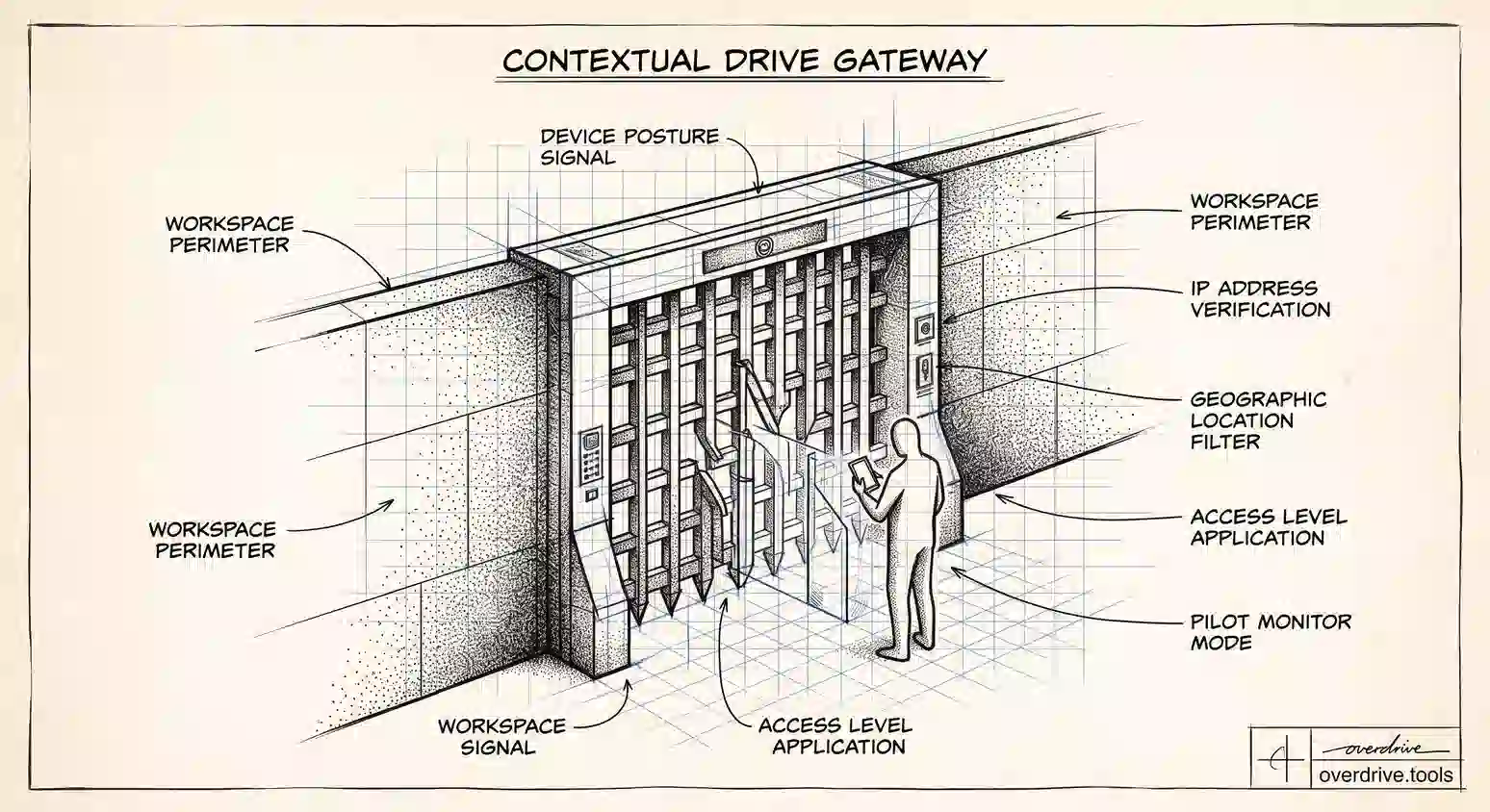
Most Drive access controls answer one question: who is this person. Context-Aware Access adds a second question that matters just as much: where are they, and what are they using. It lets you say that finance can open Drive from a managed laptop on the corporate network, but the same account signing in from an unmanaged phone in another country gets blocked, even though the password and the second factor were both correct.
That distinction is what makes it useful. A stolen credential is still a valid credential, and identity alone can't tell the difference. Here's how Context-Aware Access works for Drive specifically, which editions include it, and how to roll it out without locking your own users out.
What Context-Aware Access actually does
Context-Aware Access, usually shortened to CAA, evaluates the circumstances of an access attempt and allows or denies it based on rules you define. Instead of a single yes-or-no tied to the account, access becomes conditional on the context around the request.
The signals you can build rules from include device policy, such as whether the device is company-owned, encrypted, screen-locked, or running a minimum OS version; IP address, so you can distinguish the office network or a corporate VPN from everything else; and geographic location, so access from unexpected countries can be treated differently. You can combine these into access levels and then apply those levels to specific apps for specific organizational units or groups.
The practical shape of a policy is: this group, accessing this app, must satisfy these conditions. Everyone else in the organization can be left on a looser policy, which is what keeps CAA from becoming an all-or-nothing switch.
Which editions include it
This is the first thing to check, because CAA is not on every plan. Context-Aware Access is available on Enterprise Standard and Enterprise Plus, on Education Standard and Education Plus, on Frontline Standard, on Enterprise Essentials Plus, and with Cloud Identity Premium.
If you're on a Business edition, CAA generally isn't available, which surprises admins who assume conditional access is table stakes. There's also a narrower point worth knowing if you plan to combine CAA with data protection rules: using Context-Aware Access conditions inside DLP rules is supported on Frontline Standard and Plus, Enterprise Standard and Plus, Education Standard and Plus, and Enterprise Essentials Plus, and for Drive that combination currently applies to the action that disables download, print, and copy rather than the full range of actions. Verify what your specific edition exposes in the Admin console before designing a policy around it.
Setting it up for Drive
The workflow has two halves: define the conditions, then apply them.
First, build your access levels. In the Admin console, go to the Security section and find Context-Aware Access, then create an access level that describes an acceptable context. A common first one is a device-based level requiring a company-owned, encrypted device, or an IP-based level matching your office ranges. Give it a name that describes the condition rather than the team, since you'll reuse it across apps.
Second, assign it. Still in Context-Aware Access, choose the app you're protecting, in this case Google Drive, select the organizational unit or group the policy should cover, and attach the access level. Access attempts that don't satisfy the level are blocked for that app.
Two details save pain later. Device-based conditions depend on device management being in place, so if you haven't enrolled endpoints, device signals won't be meaningful and IP or location conditions are your realistic starting point. And CAA applies per app, so protecting Drive doesn't automatically protect Gmail or the Admin console itself, which you may well want to cover separately.
Rolling it out without locking people out
CAA denies access. That's the entire point, and it's also the risk: a policy that's slightly wrong can shut out a whole department mid-workday, including possibly you.
Start in monitor mode where your edition supports it, so you can see which access attempts would have been blocked before anything actually is. Review that list for legitimate patterns you didn't anticipate: people working from home on personal networks, a sales team travelling, contractors on unmanaged devices, someone using a phone on mobile data rather than office Wi-Fi. Every one of those is a real workflow that a naive IP-based rule would break.
Then pilot on a small, friendly organizational unit rather than the whole domain. Confirm the intended access still works and the intended blocks actually block. Expand outward only once the pilot is quiet.
Protect yourself explicitly. Make sure at least one super admin account is either exempt or reliably satisfies the conditions, and know your recovery path before you enable anything domain-wide. Admins locking themselves out of the Admin console is a genuinely common CAA incident.
Finally, tell people. A blocked access attempt looks like a broken product to the person experiencing it, and your help desk will absorb the confusion if nobody warned them that access from personal devices is changing.
Where CAA fits with your other Drive controls
CAA is one of three complementary layers, and it's worth being precise about which problem each one solves.
| Control | What it governs |
|---|---|
| Trust rules | Who your users can share Drive files with |
| DLP for Drive | What content can leave, based on what's inside files |
| Context-Aware Access | Whether a session can reach Drive at all, based on device, IP, and location |
Trust rules and DLP both act on sharing. CAA acts earlier, on the connection itself. A file that's perfectly shared internally is still exposed if someone's credentials are used from an unmanaged device in an unexpected place, and CAA is the layer that addresses that.
What none of the three do is tell you what's already exposed. All of them are forward-looking: they govern future access and future sharing. If your domain has years of accumulated link-shared files and external collaborators from finished projects, a new CAA policy changes none of it.
That standing exposure is the gap worth closing alongside the policy work. Overdrive for Google Workspace connects with read-only access and turns Google's sharing signals into a present-tense inventory of what's actually exposed across your Drive: which files are public or shared externally, how long they've been that way, and who owns them. So while CAA hardens who can get in from where, this shows you the backlog of sharing that predates the policy and would survive it untouched. It reads metadata only, never the contents of your files, which is the right posture for a tool with this much visibility.
Three policies worth starting with
If you're staring at a blank Context-Aware Access screen, these three cover most of the value and are each simple enough to reason about.
Block Drive from unmanaged devices for your most sensitive organizational unit. Finance, legal, HR, or whichever team holds the material you'd least like walking out. This is the highest-value single rule in most domains, because it targets the smallest population and the biggest consequence.
Require a corporate network or VPN for admin-adjacent roles. People with elevated Drive permissions are worth holding to a stricter standard than general staff, and the population is small enough that the support burden stays manageable.
Apply a geographic condition where your workforce genuinely is. If nobody on your team works outside a handful of countries, denying access from everywhere else costs your users nothing and closes a real avenue for credential abuse. Be careful with this one if people travel, and pair it with a documented exception process so a legitimate trip doesn't become an emergency.
What these have in common is a narrow scope and an obvious blast radius. Broad domain-wide conditions are where CAA rollouts go wrong, because the number of legitimate edge cases across a whole organization is always larger than it looks from the Admin console.
The limits worth knowing
CAA is strong but it isn't a complete perimeter. It evaluates context at the point of access, so a session that was legitimate when it started is a different question from one being newly established. It depends on the quality of your signals, which means device conditions are only as good as your device management and IP conditions are only as good as your knowledge of your own network ranges. And it governs access to apps rather than the sharing behaviour within them, so a user who satisfies your conditions can still overshare a file unless trust rules or DLP are also in place.
It also can't help with anything outside the apps you've protected. Data already downloaded to a device, or shared to an external party who never touches your domain's login, sits outside CAA's reach entirely.
The short version
Context-Aware Access lets Workspace admins make Drive access conditional on device posture, IP address, and location rather than identity alone, which is what catches a valid credential being used in an invalid context. It's available on Enterprise, Education Standard and Plus, Frontline Standard, Enterprise Essentials Plus, and Cloud Identity Premium, so confirm your edition first. Build access levels describing acceptable conditions, apply them per app and per organizational unit, and roll out in monitor mode on a pilot group with an admin exemption in place before going domain-wide. Pair it with trust rules and DLP for sharing control, and with a present-tense view of existing exposure, since CAA governs future access and does nothing about the sharing already out there.
Related Articles
- Google Drive Trust Rules Explained
- How to Set Up DLP Rules for Google Drive
- Google Workspace Sharing Settings by OU: Admin Guide