How to Download a Folder from Google Drive
Learn how to download entire folders from Google Drive to your computer. Includes desktop, mobile instructions, and how to handle large folders.
Overdrive Team//2 min read
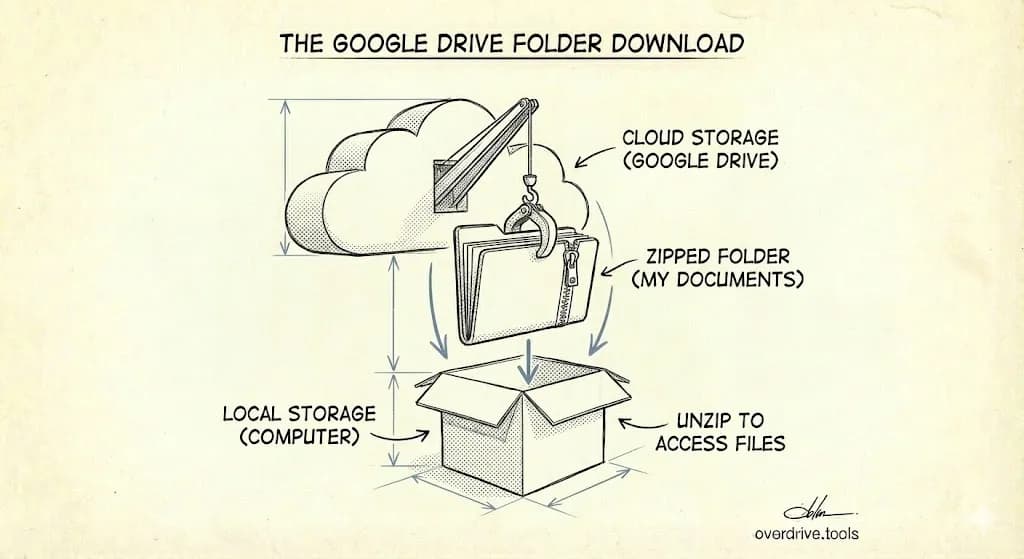
To download a folder from Google Drive, right-click the folder and select "Download." Google Drive will compress the folder into a ZIP file and download it to your computer. Large folders may take several minutes to prepare.
Download a Folder on Desktop
- Go to drive.google.com
- Right-click the folder you want to download
- Click "Download"
- Wait for Google to prepare the ZIP file
- The download starts automatically
The folder downloads as a ZIP file. Extract it to access your files.
Download a Folder on Mobile
Android:
- Open the Google Drive app
- Long-press the folder
- Tap the three dots (more options)
- Tap "Download"
iPhone/iPad:
- Open the Google Drive app
- Tap the three dots next to the folder
- Tap "Open in"
- Choose "Save to Files"
Note: Mobile downloads work better for smaller folders. For large folders, use a desktop browser.
Download Multiple Folders at Once
- Hold Ctrl (Windows) or Cmd (Mac) and click each folder
- Right-click on any selected folder
- Click "Download"
Google combines everything into a single ZIP file.
Downloading Large Folders
For folders over 2 GB, Google may split the download into multiple ZIP files. If the download keeps failing:
Try these fixes:
- Use Chrome (works best with Google Drive)
- Disable browser extensions temporarily
- Download subfolders separately instead of the parent folder
- Check your internet connection
For very large folders (10+ GB):
- Use Google Drive for Desktop to sync folders directly
- Or use Google Takeout to export your entire Drive
What Gets Downloaded
When you download a folder:
- Regular files (PDFs, images, videos): Download as-is
- Google Docs: Convert to Microsoft Word (.docx)
- Google Sheets: Convert to Excel (.xlsx)
- Google Slides: Convert to PowerPoint (.pptx)
- Google Forms: Convert to ZIP containing HTML
The folder structure is preserved inside the ZIP file.
Download Shared Folders
You can download folders shared with you, as long as the owner hasn't disabled downloading:
- Go to "Shared with me"
- Right-click the folder
- Click "Download"
If "Download" is grayed out, the owner has restricted downloads. You'll need to request access or ask them to enable it.
Backup Your Entire Drive
If you're downloading folders for backup purposes, consider:
- Google Drive for Desktop: Syncs your Drive to your computer automatically
- Google Takeout: Exports everything as downloadable archives
- Overdrive: Helps you identify what's worth keeping before you download, so you're not backing up duplicates and junk