How to Find Orphaned Files in Google Workspace
Orphaned Drive files have no owner and no folder, so nobody finds them by accident. Here's how admins locate them and bring them back under control.
Overdrive Team//7 min read
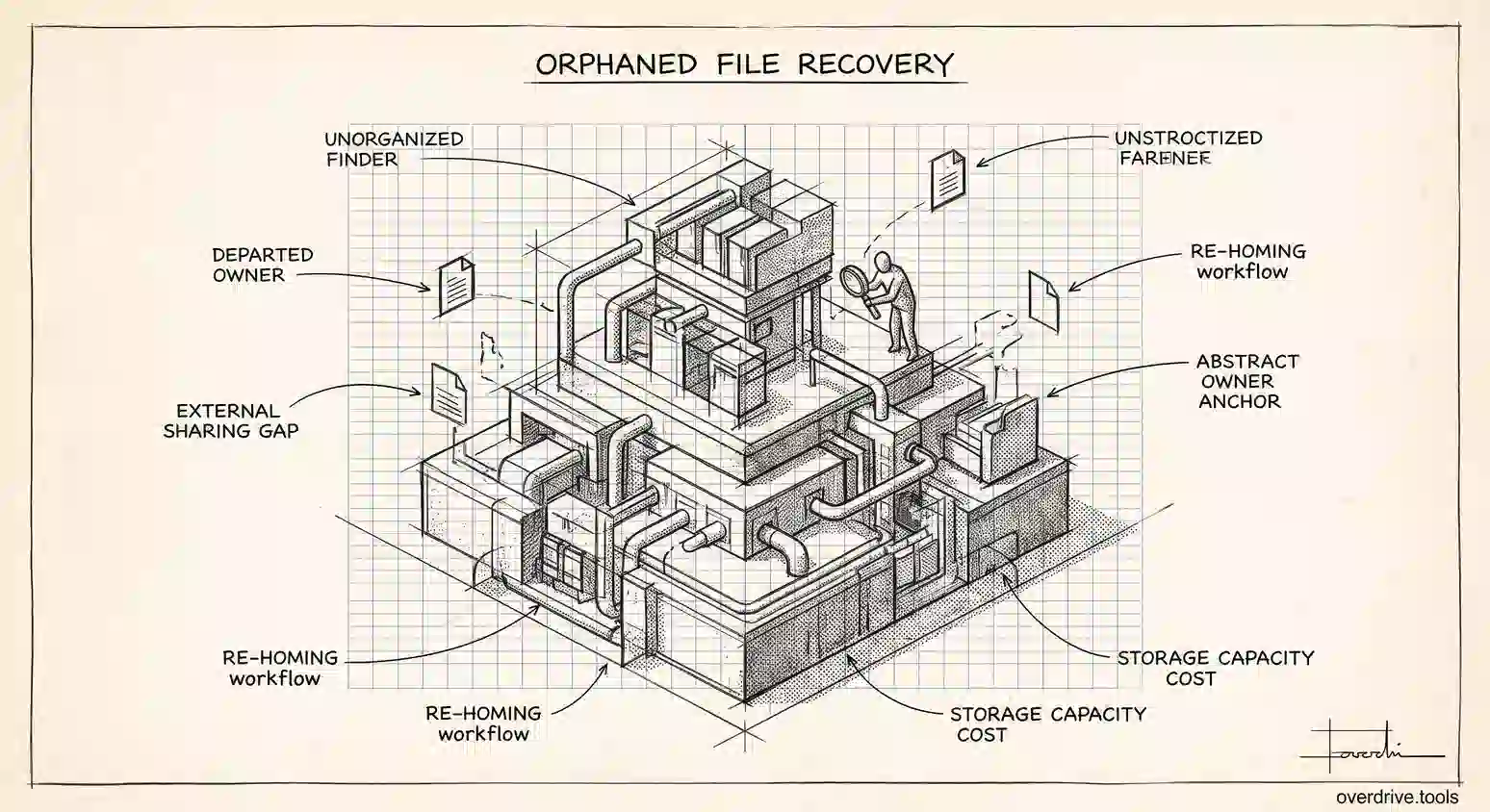
An orphaned file in Google Drive is one that still exists and still consumes storage, but has no path to it. Nobody sees it when browsing folders, it may have no living owner, and the only way to reach it is a direct link or a deliberate search. In an organization of any age there are usually thousands of them, quietly holding storage and, in some cases, quietly staying shared with people who left years ago.
They accumulate through completely normal activity, which is why no amount of user discipline prevents them. Here's how they're created, why Google makes them so hard to see, and what an admin can actually do about them.
What makes a file orphaned
Two different situations both get called orphaned, and they need different fixes.
Files with no parent folder. The file exists in someone's Drive but isn't inside any folder that person can navigate to. The classic cause is a shared folder: you put a file into a folder someone else owns, they delete the folder, and your file survives with nowhere to live. Another route is a collaborator removing a file from a shared folder without deleting it. The file is still yours and still counts against storage, but browsing My Drive will never surface it.
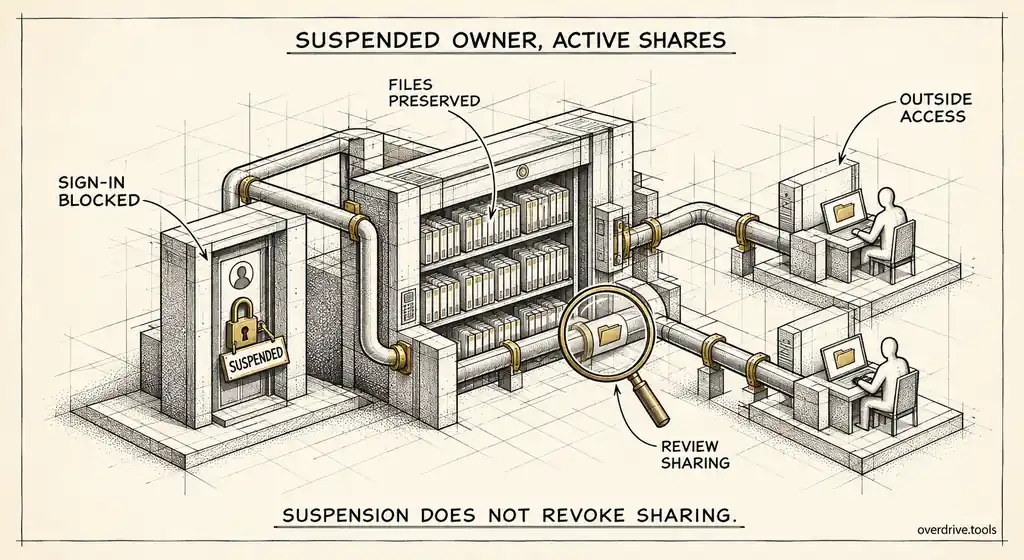
Files whose owner is gone. An employee leaves, their account is deleted, and files they owned that were shared into team folders remain accessible to others while having no active owner. These are the more consequential ones, because ownership is what determines who can manage sharing and who can permanently delete. A file with no live owner is a file nobody can fully control.
Both types share the same characteristic: they don't show up in the places people look, so they persist indefinitely.
Why they matter
The obvious cost is storage. Orphaned files count against your organization's pooled quota exactly like anything else, and in a domain with years of history the total can be substantial. That's real money if it's pushing you toward buying more capacity.
The less obvious cost is security, and it's the more serious one. An orphaned file frequently retains whatever sharing it had at the moment it lost its home. A document shared with an external agency in 2023, whose parent folder was deleted in 2024, is still shared with that agency today. Nobody sees it in a folder listing, so nobody reviews it. Departed-owner files are worse still, because there's no obvious person to ask about them and no one whose offboarding checklist would have caught them.
There's a governance angle too. If you're answering an access review or a compliance question about who can reach company data, files nobody can enumerate are a gap in the answer, not a footnote.
What Google gives you
Not much, honestly, and that's the core of the problem.
For files with no parent, the Drive search operator is:unorganized owner:me surfaces items in an individual's Drive that aren't in any folder. It works, but it's per-user and self-service: each person has to run it in their own account, and most never will. There's no admin-side equivalent that sweeps the domain.
For departed-owner files, the intended prevention is the Admin console's transfer tool, which moves a departing user's Drive content to another user before the account is deleted. That's the right process, and organizations that follow it consistently create far fewer orphans. The catch is that it only helps if it ran. Files orphaned by accounts deleted before you had a process are not retroactively fixed by having one now.
The Admin console shows storage totals per user and audit events for activity, but neither answers "which files in this domain have no owner or no parent." Reconstructing that from audit logs is impractical at any real scale.
Finding them at domain scale
Because the native tooling is per-user and self-service, the practical options are to script it, to ask users to run the search themselves, or to use tooling built for the job.
Asking users works poorly. It relies on people running an unfamiliar search operator, understanding what the results mean, and making judgement calls about files they may not recognize. Response rates are low and the results are inconsistent.
Scripting against the Drive API can enumerate files lacking parents or owners across the domain, and for an organization with engineering capacity that's a legitimate route. It requires a service account with domain-wide delegation and some care about what you do with the output.
The third option is a tool that already does this. Overdrive for Google Workspace connects with read-only access and builds a present-tense inventory of what a Drive actually contains and how it's shared, which surfaces exactly the material that folder browsing misses: files sitting outside any folder, items still shared externally, and content whose owner is no longer active. Instead of asking every user to audit themselves, an admin gets one list to work through, ordered by what's most exposed. It reads metadata only, never the contents of your files, which matters when the scan is by definition touching material nobody has reviewed in years.
Cleaning up what you find
Work through the list by consequence rather than by volume.
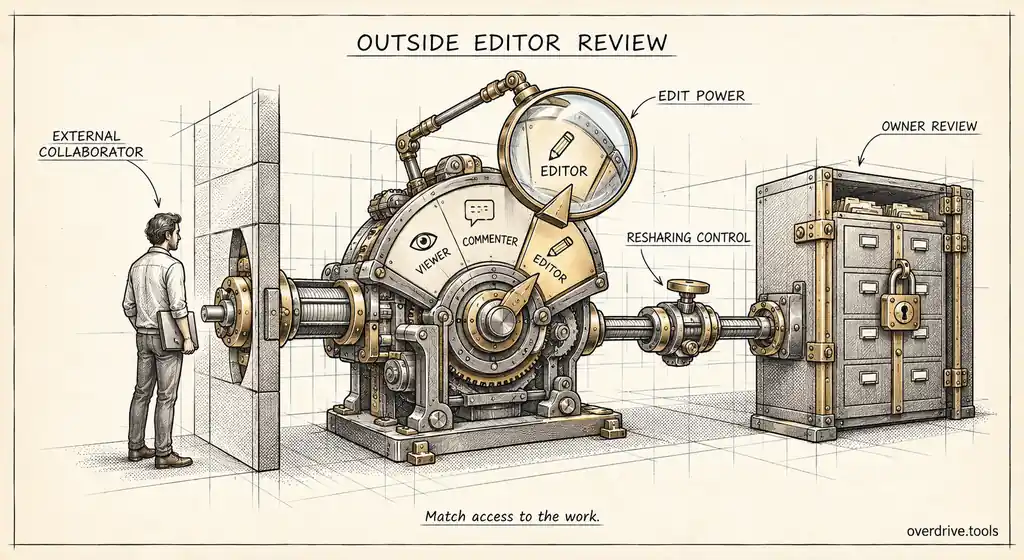
Start with orphaned files that are shared externally. These combine the two worst properties, invisible and exposed, and they're where an access review would find its most awkward examples. Decide file by file whether the sharing is still legitimate; usually it isn't, and revoking is straightforward once you can see it.
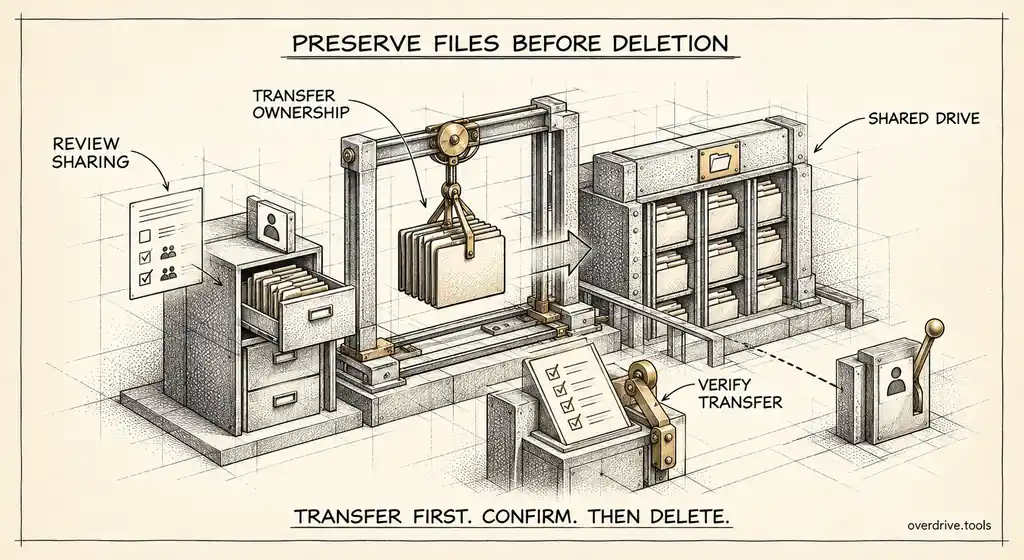
Next, re-home orphaned files that the business clearly still needs. Move them into an appropriate shared drive so they gain both a folder and an organizational owner, which stops them becoming orphaned again. This is also the moment to fix ownership on anything whose owner has left.
Then delete what's genuinely dead. A file with no owner, no parent, and no access in three years is usually safe to remove, but verify a sample before bulk deletion, and remember trashed items keep consuming storage until the trash is emptied.
Finally, look at what created them. If a particular team's shared folders keep getting deleted out from under people, or if account deletions are happening without the transfer step, the process is the actual fix.
The judgement calls you'll hit
Cleanup sounds mechanical until you're looking at the list, at which point most of the work turns out to be deciding rather than deleting.
The most common hard case is a file with no owner that several people clearly still use. Deleting it breaks a workflow; leaving it means nobody can manage its sharing. The right move is almost always to copy it into an appropriate shared drive, which gives it an organizational owner, then remove the original once you've confirmed people are using the new location. Do the confirmation step, because moving something people depend on without telling them generates exactly the kind of ticket that stops cleanup projects.
The second is material that looks abandoned but is retained deliberately. Old contracts, closed-matter files, and finished project archives can look identical to junk from a metadata view. Before bulk-deleting anything old, check with whoever owns retention in your organization, since the difference between clutter and a record you're obliged to keep is not visible in the file listing.
The third is personal material in someone's orphaned files. Departed employees' Drives often contain genuinely personal documents alongside company work. Your policy on this should be decided before you start reading through anything, not improvised when you find it.
When in doubt, move rather than delete. Trash keeps items for 30 days, but relocating a file into a clearly labelled holding area buys you months and costs nothing but storage you were already paying for.
Preventing the next batch
Three habits keep the number low.
Run the ownership transfer before deleting any account, every time, without exception. This single step prevents the most consequential category entirely.
Put team material in shared drives rather than personal My Drive folders, because organization-owned files cannot be orphaned by an individual's departure. This is the structural answer, and it removes the problem rather than managing it.
And schedule a periodic sweep. Orphans accumulate slowly and invisibly, so they're only ever discovered by deliberately looking. Folding an orphaned-file check into a quarterly Drive review costs little and stops a decade of accumulation.
The short version
Orphaned Drive files are those with no parent folder or no living owner. They keep consuming pooled storage and, more importantly, often keep their old sharing, including external access nobody has reviewed. Google offers the per-user is:unorganized owner:me search and an admin transfer tool for departing accounts, but nothing that sweeps a domain, so finding them at scale means scripting the Drive API or using tooling built for it. Clean up by tackling externally shared orphans first, re-homing what the business needs into shared drives, and deleting what's genuinely dead. Then prevent recurrence by always running ownership transfer before account deletion and keeping team material in shared drives where individuals can't orphan it.
Related Articles
- What Happens to Shared Files When an Employee Leaves Your Workspace
- How to Monitor Google Workspace Storage Usage Across All User Accounts
- How to Find Every Publicly Shared File in Your Google Workspace