Google Drive Labels: How to Classify Files
Drive labels let Workspace admins tag files by sensitivity and build DLP policy on them. Here's how to set them up, and where classification pays off.
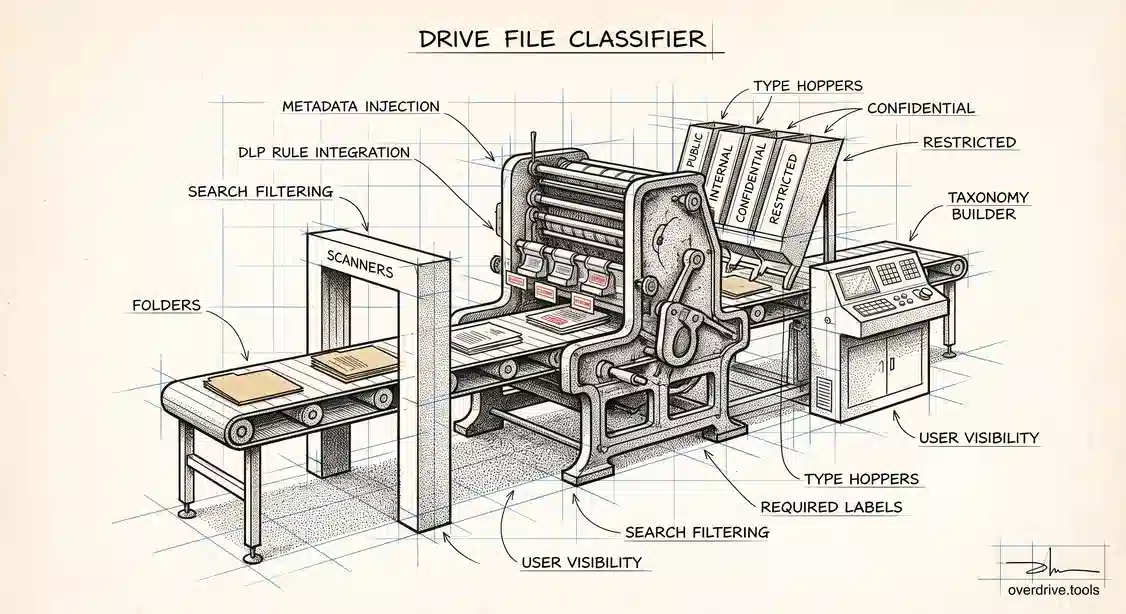
Most organizations treat every file in Drive the same way, because Drive itself does. A quarterly board deck and a lunch menu sit in the same folder tree with the same controls, and nothing about either one tells your systems which is which. Drive labels fix that. They let you attach structured metadata to files, most usefully a sensitivity classification, and then build policy and reporting on top of it.
The payoff isn't the tag itself. It's what the tag enables: DLP rules that only fire on files marked Confidential, search that can filter by classification, and a reporting layer that finally answers "how much sensitive material do we actually have." Here's how labels work, which editions include them, and how to deploy a taxonomy people will actually use.
What Drive labels are
A label is a piece of admin-defined metadata attached to a Drive file. Labels come in two broad shapes. A badged label is the one most people mean by classification: a single field with a fixed set of options, such as Public, Internal, Confidential, and Restricted, displayed prominently on the file. Standard labels can hold multiple fields of different types, including text, dates, users, and selection lists, which makes them useful for operational metadata like contract expiry dates or matter numbers.
Labels differ from folders in the way that matters most: a file has one location but can carry structured, queryable metadata that travels with it. Move the file and the label goes too. That's why classification built on labels survives reorganizations in a way that classification built on folder names never does.
Labels are visible to users in the Drive interface, which means they also do quiet cultural work. A file badged Confidential tells the next person something before they decide whether to forward it.
Which editions include labels
Labels are more widely available than most advanced Drive controls, which is part of what makes them attractive. They're supported on Business Standard and Business Plus, on Enterprise Standard and Enterprise Plus, on Education Standard and Education Plus, on the Frontline editions, and on the Essentials family including Enterprise Essentials and Enterprise Essentials Plus.
The important caveat is that the advanced automation around labels depends on your edition. Creating labels and applying them manually is broadly available. Automatically applying labels through DLP rules, or using AI-based classification, requires an edition that includes DLP capability, which lands you back in the Enterprise, Education, Frontline Standard and Plus, and Enterprise Essentials Plus tiers. So a Business Standard organization can absolutely run a manual classification scheme, but shouldn't plan around automatic labelling.
To create labels you need the Manage Labels privilege, which is worth assigning deliberately rather than leaving to every admin.
Designing a taxonomy that survives contact with users
The most common way label projects fail is over-design. An admin builds eleven categories with careful definitions, users can't tell which applies, and everything ends up either unlabelled or tagged with whichever option is first in the list.
Keep the sensitivity scheme to three or four values. Something like Public, Internal, and Confidential covers most organizations, with a fourth Restricted tier if you genuinely handle regulated data. Each value needs a one-line definition a non-specialist can apply without thinking hard, and the definitions should key off consequence rather than content type: Confidential means real harm if it leaves, Internal means embarrassing but survivable, Public means already outside.
Resist the urge to encode department, project, and retention into the same label. Those are separate fields at best, and separate problems at worst. Start with sensitivity, get adoption, and add operational fields later if there's genuine demand.
Set a default. If new files land as Internal automatically, your unlabelled backlog stops growing while you work through it, and users only have to act on the exceptions.
Setting them up
Label creation happens in the Admin console under the data classification area. You create the label, define its fields and options, publish it, and then choose which users or organizational units can see and apply it.
Two decisions matter at this stage. First, who can apply labels: making classification available to everyone maximizes coverage but reduces consistency, while restricting it to a smaller group gives cleaner data and far fewer labelled files. For a first rollout, opening it to everyone with a very simple scheme usually beats the alternative. Second, whether labels are required: enforcing a label on new files drives coverage hard but generates friction and resentment if the scheme isn't obvious.
Once labels exist and are being applied, the real value unlocks in two places. DLP rules can condition on label values, so you can block external sharing of anything marked Confidential without blocking everything. And Drive search can filter by label, so an admin or a user can pull up all files carrying a classification.
The gap labels don't close
Here's the honest limitation, and it's the one that determines whether a labelling programme delivers anything. Labels describe files. They say nothing about who can currently reach those files.
A file badged Confidential can still be shared to anyone with the link. The label doesn't change its permissions, doesn't alert anyone, and doesn't get applied retroactively to the thousands of files that existed before you launched the scheme. So a mature label taxonomy sitting on top of unexamined sharing gives you a comforting classification layer over an unknown exposure surface, which is arguably worse than knowing you have no classification at all.
Closing that gap means pairing the classification with an actual view of access. Overdrive for Google Workspace connects with read-only access and turns Google's sharing signals into a present-tense inventory of what's exposed across your Drive: which files are public or shared externally, how long they've been that way, and who owns them. Read alongside your labels, that turns classification into something actionable, because the question stops being "what is this file" and becomes "this is sensitive and forty people outside the company can open it." It reads metadata only, never file contents.
The sequencing that works is: label the sensitive material, see what of it is exposed, fix the exposure, then use DLP conditioned on labels to keep it from happening again.
What labels give you that folders don't
It's fair to ask why any of this beats simply putting sensitive material in a folder called Confidential. Three reasons, and they compound.
Metadata travels with the file. Move a file between folders, drives, or owners and the label persists, while folder-based classification evaporates the moment anyone reorganizes. Over a few years of team churn, that difference is the whole ballgame.
Labels are queryable and reportable in a way folder names aren't. You can filter Drive search by label value and, more importantly, condition DLP rules on it, which means classification stops being documentation and starts being enforcement. A folder called Confidential enforces nothing.
And labels are visible at the point of decision. Someone about to forward a file sees the badge on it. Folder location is invisible once a file is open, so it does no work at the moment when a person is deciding whether to share something.
The trade-off is that labels require deliberate application, where folders happen naturally as a by-product of filing. That's exactly why defaults matter so much: they give you the persistence and queryability of labels without depending on everyone remembering.
Rolling out without stalling
Label programmes usually stall for one of two reasons: nobody applies them, or the backlog of unlabelled files is so large that the data is never trustworthy enough to build policy on.
Handle the first with defaults and a tiny scheme. Handle the second by scoping. Don't try to classify the entire historical Drive. Pick the material where classification actually changes a decision, typically the shared drives belonging to legal, finance, HR, and whichever team handles customer data, and label those thoroughly. A fully classified 5% that covers your genuine risk beats a 40% scattering across everything.
Then measure. If you can't report on how many Confidential files exist and how many of those are shared externally, the programme isn't yet doing anything for you, whatever the adoption numbers say.
The short version
Drive labels attach admin-defined metadata to files, most usefully a sensitivity classification, and unlock DLP rules and search filters that key off the classification. They're available on Business Standard and above, Enterprise, Education Standard and Plus, Frontline, and Essentials editions, though automatic labelling through DLP needs a DLP-capable edition. Design three or four sensitivity values with consequence-based definitions, set a default so the unlabelled backlog stops growing, and scope your first pass to the teams that actually hold sensitive material. Remember that a label describes a file without changing who can reach it, so pair classification with a real view of current sharing, or you'll build a tidy taxonomy over an exposure surface nobody has looked at.
Related Articles
- How to Set Up DLP Rules for Google Drive
- The Google Workspace Drive Security Audit: A Recurring Checklist for Admins
- How to Find Every Publicly Shared File in Your Google Workspace