How to Transfer Google Drive to Another Account
Moving Google Drive to another account can be done by sharing, transferring ownership, or exporting. Here's each method, and which one to use when.
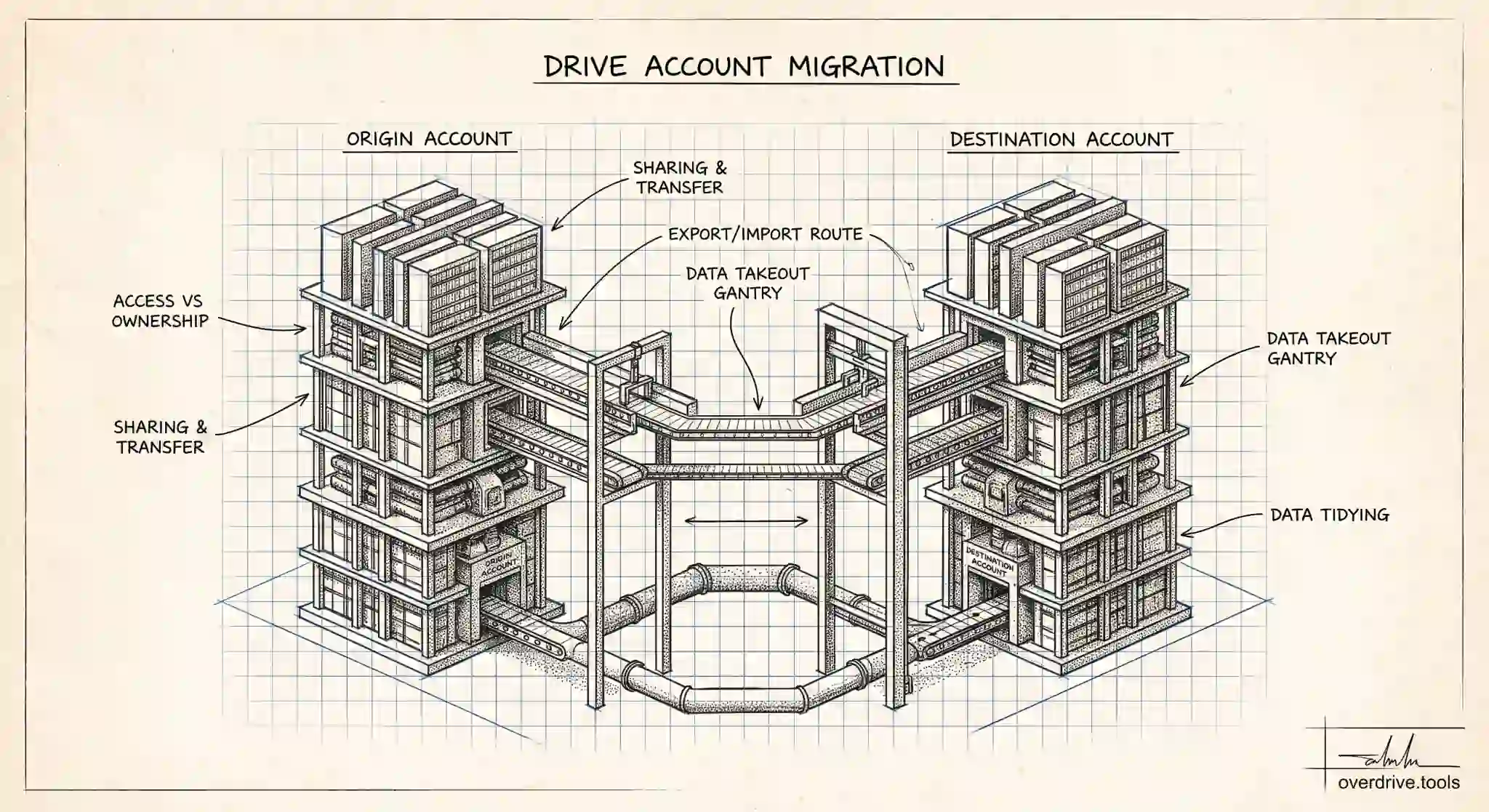
There's no single "move my Drive to another account" button in Google Drive, but you can absolutely transfer your files from one account to another. The right method depends on what you're moving and why: sharing and transferring ownership works well between two personal accounts, while exporting and re-importing suits a full account migration. Whichever route you take, the goal is the same, getting your files onto the new account cleanly, with as little manual work and as few surprises as possible.
Maybe you're moving from an old Gmail account to a new one, shifting files from a work account before you leave, or consolidating two accounts into one. Here are the practical ways to do it, and how to pick the one that fits your situation.
First, understand what "transfer" means in Drive
Two things can move when you transfer files: access and ownership. They're not the same, and the difference matters.
Sharing a file or folder gives another account access to it, but you remain the owner, which means the files still count against your storage and stay under your control. Transferring ownership actually hands the file to the other account, so the new owner controls it and it counts against their storage instead of yours. For a true move, where the files leave your account entirely, ownership transfer or a full export is what you want, not just sharing.
One important limit: you can only transfer ownership to another account in certain conditions, and between two standard personal Gmail accounts, direct ownership transfer of individual files is supported for Google formats like Docs, Sheets, and Slides, but works differently for uploaded files like PDFs and images. That's why the method you choose depends heavily on your file types and account types.
Method 1: Share, then transfer ownership
For moving files between two personal accounts you control, the cleanest approach is to share everything to the new account and then transfer ownership.
Start by signing in to the old account and sharing the folders or files with the new account's email address, giving it editor access. The new account will now see everything under "Shared with me." For Google format files, you can then use the sharing panel to change the new account's role to owner, which transfers ownership item by item.
This method keeps your files in place while moving control, and it's reliable for Docs, Sheets, and Slides. Its downside is that ownership transfer can be tedious for large numbers of files, and it doesn't transfer ownership of uploaded, non Google files as smoothly, so for those you may need one of the methods below.
Method 2: Download everything, then re-upload
The most universal method, one that works for every file type and between any two accounts, is to download your Drive from the old account and upload it to the new one.
Sign in to the old account, select the folders and files you want, and download them to your computer, where Drive packages them into a zip file. Then sign in to the new account and upload those files back into its Drive. The new account becomes the owner of everything you upload, because uploaded files belong to whoever uploads them.
This route is simple to understand and completely format agnostic. The trade offs are that it requires enough local disk space and time to download and re-upload everything, large libraries can take a while, and you'll lose some Drive specific metadata like original sharing settings and revision history, since the files arrive as fresh uploads.
Method 3: Use Google Takeout for a full export
If you're migrating an entire account rather than a handful of files, Google Takeout is built for exactly this. Takeout lets you export a full copy of your Google data, including your whole Drive, as a download or directly to another cloud service.
From the old account, go to Google Takeout, select Drive (and anything else you want to move), and choose how to receive the export. You can have it delivered as downloadable archives, which you then upload into the new account's Drive, giving that account ownership of everything.
Takeout is the most thorough option for a complete migration, capturing everything in one organized export. Like the download and re-upload method, though, the files land in the new account as uploads, so they'll be owned by the new account but won't retain their old sharing or version history.
Method 4: Ask an admin (for Workspace accounts)
If you're moving files out of a Google Workspace account, for example a work or school account, your options may be different, because the organization owns that account's data. Workspace administrators have dedicated tools to transfer a user's Drive files to another user in the same organization, often used when someone changes roles or leaves.
If your transfer involves a Workspace account, the fastest and cleanest path is usually to ask the administrator to run that transfer for you, rather than doing it by hand. Just be aware that files created in a work account may belong to the employer, so confirm you're allowed to move them before you do.
Before you transfer: know what you're moving
Whatever method you choose, a migration is the perfect moment to avoid carrying junk into your new account. Most Drives are full of duplicates, old large files, and clutter that isn't worth moving. Transferring all of it just recreates the mess in a new place, and for the download or Takeout methods, it also means more to download, upload, and store.
Option 1: See and tidy your Drive before you move it. Google Drive doesn't give you a clear overview of what you actually have, so it's easy to migrate a pile of files you don't need. A tool like Overdrive can scan and visualize your entire Drive, surfacing duplicates, large old files, and your folder structure, so you can clean up and organize before the transfer and move only what's worth keeping into the new account.
Option 2: Sort and prune manually first. Inside Drive, sort by size to catch the biggest files, empty your trash, and delete obvious duplicates and outdated material, so your export or upload is leaner.
Option 3: Plan the folder structure on the new account. Decide how you want things organized in the new account before you import, so you're building a clean structure rather than dumping everything in and reorganizing later.
How long a transfer takes, and what to check afterward
How long a move takes depends on the method and the size of your Drive. Sharing and transferring ownership of a handful of Google format files is quick, a matter of minutes. Downloading and re-uploading, or using Google Takeout, can take much longer, since you're moving every byte down to your computer and back up again. A large library of photos and videos can mean hours of transfer and a Takeout export that Google prepares and delivers in stages, sometimes over a day or more for very big accounts.
Whatever route you use, verify the result before you delete anything from the old account. Sign in to the new account and confirm the files are actually there, that folders arrived intact, and that important documents open correctly. For the download and Takeout methods, remember the files land as fresh uploads, so check that anything that relied on old sharing links or revision history still works the way you need, because that context doesn't carry over.
Only once you've confirmed everything is safely in the new account should you clean up the old one. Keep the originals until you're certain, since a transfer isn't truly done until the new copies are verified. If the old account is a work or school account you're losing access to, give yourself a comfortable margin before the account closes, so a slow export or a missed folder doesn't cost you files you can't get back later. A patient, verified move always beats a fast one that quietly drops files you only notice missing weeks afterward, once the old account is already closed.
The short version
To move Google Drive to another account, share and transfer ownership for a clean move of Google format files between personal accounts, or download and re-upload, or use Google Takeout, when you need every file type moved or you're migrating a whole account, accepting that uploaded files lose their old sharing and history. For Workspace accounts, ask an administrator to run the transfer. And before you move anything, clean up first, so you carry only the files worth keeping into your new account rather than recreating old clutter.
Related Articles
- Google Drive Ownership Transfer: How It Works, and Where It Breaks Down
- How to Actually Back Up Your Google Drive (Takeout, Sync, and What Neither Covers)
- Google Drive for Work vs Personal: Differences