Google Drive Free Storage Limit in 2026: What Changed
Google cut free storage to 5 GB by default in May 2026, with 15 GB unlocked by phone number. Here's the new limit and what counts against it.
Overdrive Team//10 min read
Google Drive Free Storage Limit in 2026: What Changed
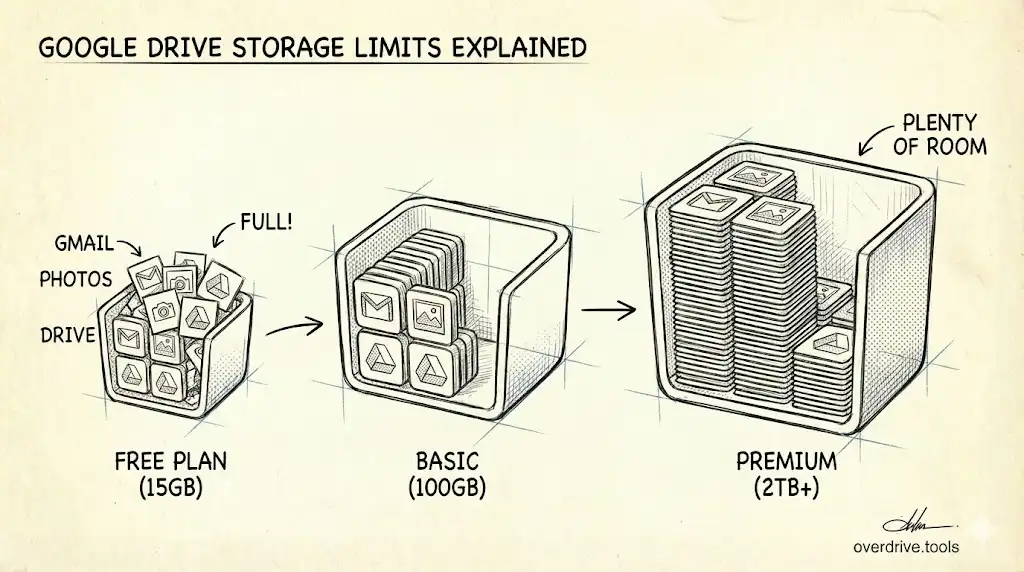
Google Drive's free storage limit changed in May 2026. New Google accounts now get 5 GB free by default, and the full 15 GB is available at no cost only after you verify a phone number on the account. Google's official wording is now "up to 15 GB of cloud storage at no charge." Whatever your allowance, it's shared across Google Drive, Gmail, and Google Photos, and applies to uploaded files, email attachments, and photos stored in "Original quality"—but not to Google Docs, Sheets, or Slides created within Drive. Paid Google One plans increase storage to 100 GB, 200 GB, 2 TB, or more, with all services still sharing the same quota.
Key Takeaways
- 5 GB free by default since May 2026, expandable to 15 GB at no cost by linking a phone number
- The free allowance is shared across Drive, Gmail, and Photos
- Google Docs, Sheets, and Slides don't count toward storage
- Uploaded files, PDFs, images, videos, and Gmail attachments do count
- Google One paid plans start at 100 GB for $1.99/month
- Shared files don't count toward your limit unless you own them
- Workspace accounts have different limits based on your organization's plan
Understanding what counts toward your limit helps you avoid unexpected storage overages and decide whether upgrading makes sense.
What Is Google Drive's Storage Limit?
Free Account: 5 GB by Default, Up to 15 GB
Since May 2026, Google accounts include 5 GB of free storage by default. Adding and verifying a phone number on the account unlocks the full 15 GB at no charge, which is why Google now describes the free tier as "up to 15 GB." Accounts that already had the 15 GB allowance before the change keep it. Whatever your allowance, it's shared across:
- Google Drive – Uploaded files, PDFs, images, videos
- Gmail – Emails and attachments
- Google Photos – Photos and videos in "Original quality" (not "Storage saver")
These three services pull from the same pool. On a 15 GB allowance, if Gmail uses 8 GB, you have 7 GB left for Drive and Photos. On the 5 GB default, the squeeze arrives much sooner—which makes knowing what counts, and clearing what doesn't belong, more important than it used to be.
Google Workspace: Custom Limits
If you use Google Workspace (formerly G Suite) for work or school, your storage limit depends on your organization's plan:
| Plan | Storage per User |
|---|---|
| Business Starter | 30 GB per user |
| Business Standard | 2 TB per user |
| Business Plus | 5 TB per user |
| Enterprise | 5 TB per user (more available on request) |
Workspace accounts have separate storage from personal Google accounts. Your work Drive doesn't affect your personal 15 GB.
Google One Paid Plans
Google One is Google's subscription service for additional storage. Plans include:
| Plan | Storage | Price (Monthly) |
|---|---|---|
| Basic | 100 GB | $1.99 |
| Standard | 200 GB | $2.99 |
| Premium | 2 TB | $9.99 |
| Premium+ | 5 TB | $24.99 |
| Enterprise | 10 TB, 20 TB, 30 TB | $49.99–$149.99 |
Annual plans offer discounts (typically 2 months free). All Google One plans include storage shared across Drive, Gmail, and Photos, plus extras like Google expert support and, on the higher tiers, Gemini AI features. Google reorganized the upper tiers around its AI plans in 2026, so check the current lineup at one.google.com before subscribing.
What Counts Toward Your Google Drive Storage Limit?
Understanding what uses storage helps you manage your quota efficiently.
What Counts
In Google Drive:
- Uploaded files (PDFs, Word docs, Excel sheets, PowerPoint)
- Images, videos, audio files
- ZIP archives and compressed files
- Files synced from Google Drive for Desktop
- Files you own or uploaded
In Gmail:
- Email messages
- Email attachments (each attachment counts)
- Spam and Trash (until emptied)
In Google Photos:
- Photos and videos uploaded in "Original quality"
- Photos uploaded before June 1, 2021 in "High quality" (if you switched to "Original quality" after that date)
What Doesn't Count
Google Workspace Files Created in Drive:
- Google Docs
- Google Sheets
- Google Slides
- Google Forms
- Google Drawings
- Google Sites
These files are free and unlimited. You can create thousands of Docs without affecting your storage.
Shared Files You Don't Own:
- Files others share with you
- Files in shared folders where you're not the owner
- Shortcuts to files (shortcuts are pointers, not copies)
Google Photos in "Storage Saver":
- Photos and videos uploaded in "Storage saver" mode (compressed quality)
- Photos uploaded in "High quality" before June 1, 2021 (grandfathered)
How to Check Your Current Storage Usage
Quick Check: Google One Dashboard
- Go to one.google.com/storage
- See total usage across Drive, Gmail, Photos
- View breakdown by service
This shows your overall consumption but doesn't reveal which specific files are using space.
Detailed Breakdown in Google Drive
- Open Google Drive
- Click Storage in the left sidebar (below "Shared with me")
- See largest files sorted by size
Limitation: Only shows files you own in Drive. Doesn't include Gmail or Photos.
Check Gmail Storage
- Open Gmail
- Search:
has:attachment larger:10M - See emails with large attachments
You'll need to manually review to understand total Gmail usage.
Check Google Photos Storage
- Open Google Photos
- Go to Settings → Recover storage
- See if you have photos in "Original quality"
Google offers to compress them to free space.
The Problem: Fragmented Visibility
Google's native tools show storage in silos. You check Drive, then Gmail, then Photos—but you never see a unified view of what's actually consuming your quota.
Overdrive solves this by scanning your entire Google account and showing every file, attachment, and photo that counts toward storage—in one place. You see large files, duplicates, old content, and exactly where your quota is going, so you can make informed decisions about what to keep or delete.
When Should You Upgrade to a Paid Plan?
Situations Where Upgrading Makes Sense
You legitimately need more space:
- You work with large files daily (video editing, design, photography)
- Your job requires storing extensive archives or datasets
- You're backing up multiple devices to Drive
You've already cleaned up efficiently:
- You've deleted duplicates, old files, and unnecessary content
- Your remaining files are essential
- You still hit the limit regularly
Storage is cheaper than time:
- Cleaning up Drive would take hours
- The value of your time exceeds $1.99/month
- You'd rather pay than manually audit files
Situations Where You Shouldn't Upgrade Yet
You haven't cleaned up:
- You're hitting the limit but haven't checked for large files or duplicates
- Old email attachments are consuming gigabytes
- Google Photos is in "Original quality" when "Storage saver" would work
Most of your storage is unnecessary:
- You have files you don't remember uploading
- Duplicates are wasting space
- App data from old integrations is taking quota
Before upgrading, use Overdrive or manually audit your storage. Many users reclaim 20–50 GB of space without deleting anything essential.
How Google Drive Storage Limits Work in Practice
Scenario 1: You Upload a Large Video
- You upload a 2 GB video to Google Drive
- Your storage immediately increases by 2 GB
- The video counts toward your quota until deleted (and Trash is emptied)
Scenario 2: Someone Shares a File With You
- A colleague shares a 500 MB file
- Your storage doesn't change (they own it)
- You can access and edit it, but it uses their quota, not yours
Scenario 3: You Make a Copy of a Shared File
- You copy that 500 MB file to your own Drive
- Your storage increases by 500 MB (you now own a copy)
- The original remains in your colleague's storage
Scenario 4: You Create 100 Google Docs
- You create 100 Google Docs, each with 50 pages
- Your storage doesn't change (Docs don't count)
- You could create 10,000 Docs without affecting your quota
Scenario 5: Gmail Hits 10 GB
- Your Gmail inbox reaches 10 GB from years of attachments
- You now have 5 GB left for Drive and Photos
- Deleting emails frees space only after emptying Trash
What Happens When You Hit the Storage Limit?
When your account reaches its limit (5 GB, 15 GB, or your paid plan allowance):
You can't upload new files:
- Google Drive rejects new uploads
- Google Photos stops backing up
- Gmail can't receive emails with attachments (senders get bounce-backs)
Existing files remain accessible:
- You can still view, download, and share files
- You can still edit Google Docs, Sheets, and Slides
- Nothing is deleted automatically
Google gives you time:
- You get warnings before hitting the limit
- After exceeding, Google waits 2+ years before deleting content
- You'll receive multiple notifications before any deletion
What you need to do:
- Delete files and empty Trash
- Compress Google Photos
- Clean up Gmail
- Or upgrade to a paid plan
How Google Drive Storage Compares to Competitors
| Service | Free Storage | Paid Plans Start At |
|---|---|---|
| Google Drive | 5 GB default, up to 15 GB (shared) | $1.99/mo (100 GB) |
| Dropbox | 2 GB | $11.99/mo (2 TB) |
| Microsoft OneDrive | 5 GB | $1.99/mo (100 GB) |
| Apple iCloud | 5 GB | $0.99/mo (50 GB) |
| pCloud | 10 GB | $49.99/year (500 GB) |
With a verified phone number, Google's 15 GB remains one of the most generous free tiers. The 5 GB default, though, now matches OneDrive and iCloud, so the easy win for any Google user is making sure the full 15 GB is unlocked. Either way, the allowance is shared across three services, which means heavy Gmail or Photos users fill it faster than those who only use Drive.
Google Drive Storage Limits: Common Misconceptions
Misconception 1: "I Have Unlimited Storage"
Reality: Only certain Workspace Enterprise plans offer "unlimited" storage (typically 5+ users). Personal Google accounts always have limits.
Even Workspace "unlimited" plans often have soft caps that trigger admin reviews if you exceed several terabytes.
Misconception 2: "Google Docs Count Toward Storage"
Reality: Google Docs, Sheets, Slides, Forms, and Drawings are free and unlimited. Only uploaded files (PDFs, Word docs, Excel sheets) count.
If you convert a Word doc to Google Docs format, it stops counting toward storage.
Misconception 3: "Shared Files Use My Storage"
Reality: Files others share with you don't count toward your quota. Only files you own or upload count.
Copying a shared file to your Drive creates a new file you own, which does count.
Misconception 4: "Deleting Files Immediately Frees Space"
Reality: Deleted files go to Trash and still count for 30 days. You must empty Trash to reclaim storage.
Misconception 5: "Photos in 'High Quality' Don't Count"
Clarification: Photos uploaded in "High quality" before June 1, 2021 don't count (grandfathered). After that date, even "High quality" counts unless you use "Storage saver" mode.
How to Avoid Hitting Your Storage Limit
1. Use Google Docs Format When Possible
When creating documents, use Google Docs instead of uploading Word files. Convert existing Word/Excel files to Google format to free space:
- Open the file in Drive
- File → Save as Google Docs (or Sheets/Slides)
- Delete the original uploaded file
2. Set Google Photos to "Storage Saver"
- Open Google Photos
- Under Backup, select Storage saver
- Click Recover storage to compress existing photos
Photos remain high quality for viewing and sharing, just not printable at poster size.
3. Clean Gmail Regularly
- Unsubscribe from newsletters with large images
- Delete old emails with attachments:
has:attachment larger:5M - Empty Gmail Trash monthly
4. Delete Duplicates
Google doesn't auto-detect duplicates. You'll need to:
- Manually search for duplicate filenames
- Use Overdrive to automatically identify and group duplicates for review
5. Audit Storage Quarterly
Set a reminder every 3 months to check your storage usage. Delete files you no longer need, and empty Trash.
Should You Pay for Google One or Clean Up First?
Before upgrading, ask yourself:
Have you cleaned up?
- Deleted large files you don't need?
- Removed duplicates?
- Emptied Gmail Trash and Drive Trash?
- Compressed Google Photos?
Is the remaining storage essential?
- Do you actively use most files?
- Are the large files necessary for work or personal projects?
- Would deleting them cause problems?
If you answered "no" to the first set and "yes" to the second, upgrading makes sense. But if you haven't cleaned up, you could reclaim 10–30 GB without spending anything.
Overdrive helps by showing you exactly what's consuming space. One scan reveals hidden storage hogs, so you can decide confidently whether to clean up or upgrade.
Frequently Asked Questions
Does Google Drive have unlimited storage?
No. Personal Google accounts get up to 15 GB free (5 GB by default since May 2026), with paid plans offering more. Some Google Workspace Enterprise plans advertise "unlimited" storage (with 5+ users), but often have soft limits and admin oversight for very large usage.
Why is my Google Drive full when I have no files?
Your storage is shared across Drive, Gmail, and Google Photos. Even if Drive looks empty, Gmail attachments or Google Photos in "Original quality" could be consuming your allowance. Check one.google.com/storage for a breakdown.
Do Google Docs count toward my storage limit?
No. Google Docs, Sheets, Slides, Forms, Drawings, and Sites don't count. You can create unlimited Google Docs without affecting storage. Only uploaded files (Word docs, PDFs, images, videos) count.
Can I increase my Google Drive storage for free?
Yes, in one specific way: if your account is on the 5 GB default, adding and verifying a phone number unlocks the full 15 GB at no cost. Beyond that, Google doesn't offer promotions or referral programs for free storage, and the only way to get more than 15 GB is a Google One paid plan.
What happens if I downgrade my Google One plan?
If you downgrade to a plan smaller than your current usage, you become "over quota." You can't upload new files until you delete enough to fit within the new limit. Existing files remain accessible.
Do files in Trash count toward storage?
Yes. Files in Trash count toward your quota for 30 days. After 30 days, they're permanently deleted. To free space immediately, empty Trash manually.
How do I see what's using my Google Drive storage?
Go to Google Drive → Storage in the left sidebar. This shows your largest files. However, it doesn't show Gmail, Photos, duplicates, or app data. For a complete view, use Overdrive to scan your entire account.
Keep Reading
- Google Drive Storage Full? Here's Why (and How to Fix It) – Identify what's consuming your storage
- Why Is My Google Drive Full But Empty? (Solved) – Where hidden storage goes
- The Ultimate Google Drive Storage Cleanup Guide (2026) – Complete cleanup process
- Hidden App Data Is Eating Your Google Drive Storage – Find invisible storage usage