Why Is Google Drive So Slow? How to Speed It Up
Google Drive slows down for reasons that have little to do with your internet speed. Here's what's actually causing it and how to fix each one.
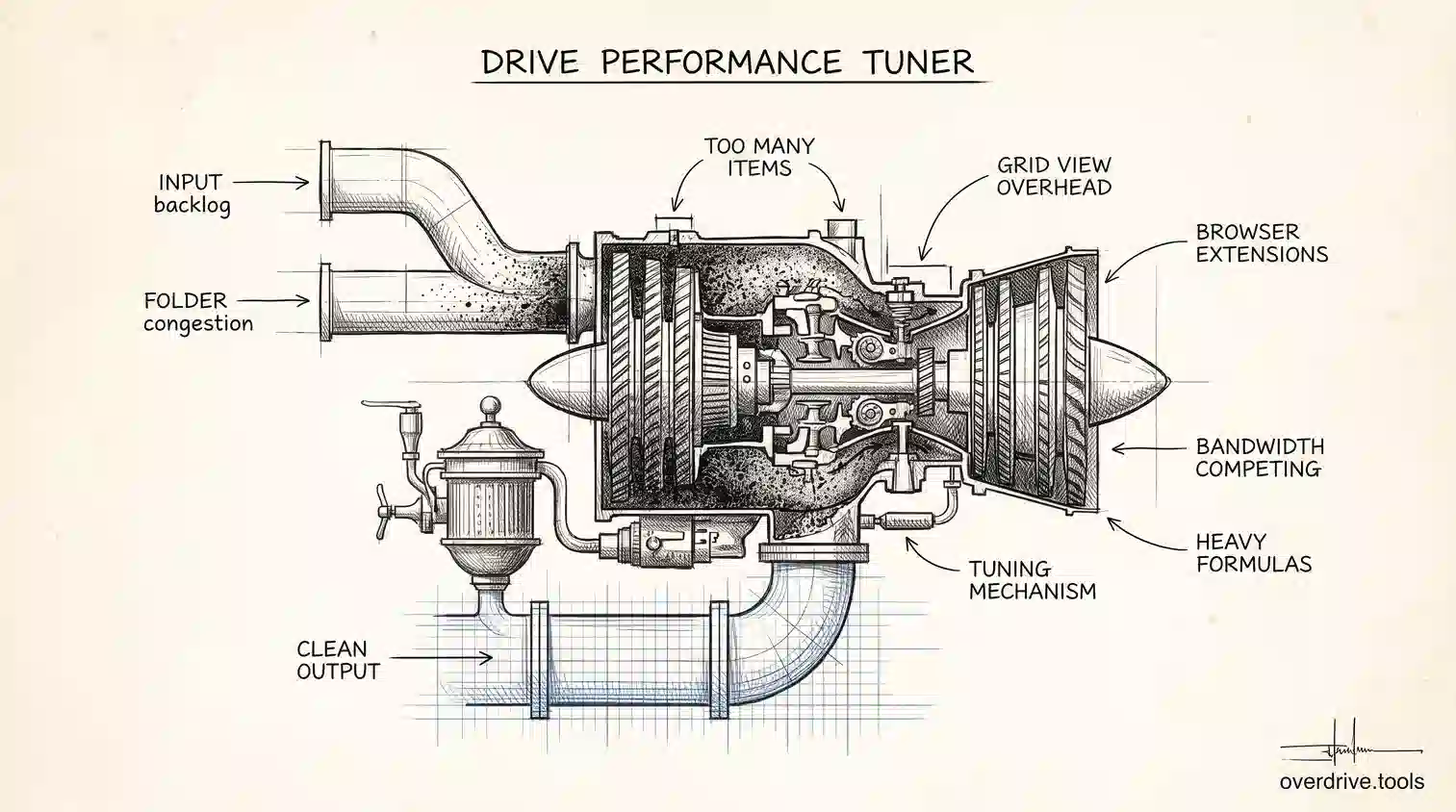
When Google Drive feels slow, the instinct is to blame the connection. Occasionally that's right, but far more often the internet is fine and something else is responsible: a folder with too many items in it, a browser carrying years of accumulated extensions, a sync client working through a backlog, or simply a Drive large enough that every operation has more to think about.
The useful thing about these causes is that they produce different symptoms. Slow to load the file list is a different problem from slow to upload, which is different again from a document that lags while you type. Here's how to tell them apart and fix the one you actually have.
Slow to load your file list
If browsing Drive in a browser feels sluggish, the cause is usually the number of items being rendered rather than the size of them.
Too many files in one folder is the classic. Drive handles large folders, but a folder with several thousand items is slow to load and slower to sort, because the interface has to render all of it. If one folder is your dumping ground, splitting it into subfolders by year or category produces an immediate improvement.
Grid view versus list view matters more than it should. Grid view generates thumbnail previews for every visible item, which is meaningfully heavier than list view, especially in folders full of images and videos. Switching to list view is a one-click speed-up.
Browser extensions are the most under-diagnosed cause. Drive is a heavy web application, and ad blockers, privacy tools, screenshot utilities, and anything that injects itself into pages all add overhead. The quick test is an incognito window, where extensions are usually disabled by default. If Drive is noticeably faster there, work through your extensions until you find the culprit.
Browser cache accumulates and eventually works against you. Clearing it is a standard fix that genuinely helps often enough to be worth trying early.
Slow uploads and downloads
If transfers are slow while the interface is fine, look at these in order.
Your upload speed, not your download speed, governs how fast files reach Drive, and on most home and mobile connections upload is a fraction of download. A connection advertised at 200 Mbps might upload at 20, which changes the arithmetic on a large file considerably.
Many small files transfer far more slowly than one large file of the same total size, because each item carries its own overhead. Zipping a folder of a thousand small files before uploading is often dramatically faster than uploading them individually.
Drive for Desktop competing for bandwidth is a common hidden cause. If the sync client is working through a queue in the background, your browser upload is sharing the pipe with it. The Drive panel has bandwidth settings, and pausing sync temporarily while you move something large is a legitimate move.
And Google applies daily upload limits and per-file download limits, so an unusually large transfer session can hit a ceiling that looks like slowness rather than a stated error.
Documents that lag while you work
A Google Doc or Sheet that stutters as you type is a different problem entirely, and it's almost always about the document rather than Drive.
Very long documents, spreadsheets with heavy formulas, and files with many embedded images all get slower as they grow. Sheets in particular slow down with volatile formulas that recalculate constantly, with formatting applied across entire columns rather than used ranges, and with large numbers of individual cell formats.
Documents with a long revision history and many collaborators also carry more weight. Splitting a very large document into several, or copying a sheet's values into a fresh file to shed accumulated formatting, usually restores normal responsiveness.
Having many Drive tabs open at once is worth mentioning too, since each one holds an active connection and consumes memory. Slowness that appears late in the day, after you've accumulated fifteen tabs, is often just that.
Drive for Desktop making your computer slow
If the whole machine feels heavy rather than Drive specifically, the sync client is the likely cause.
On first setup, or after a large change, Drive for Desktop indexes and transfers a lot at once, and that shows up as sustained disk and CPU activity. It settles, but it can take a long time on a big Drive.
Mirroring mode is heavier than streaming, because it maintains a full local copy. If your machine is struggling and you don't need offline access to everything, switching to streaming reduces both disk usage and background work considerably.
Antivirus scanning is a frequent and unobvious contributor. Real-time scanners inspect every file the sync client touches, which on a large sync means scanning continuously. Adding the Drive folder to your scanner's exclusions, if your security policy allows, often produces a striking improvement.
When the real problem is Drive's size
There's a category of slowness that no setting fixes, because the cause is simply how much is in there.
A Drive holding tens of thousands of files, with duplicate sets from years of sync conflicts and re-uploads, is slower at everything: search returns more to sift, sync has more to track, and folders take longer to render. Each individual fix above helps a little, and the problem returns because the underlying volume keeps growing.
Seeing that clearly is the hard part, since Drive shows you one folder at a time and gives no sense of scale. Overdrive scans your entire Drive and visualizes it by file type, size, and age, surfacing duplicate sets and the large old files inflating your file count, so you can cut the volume rather than repeatedly optimizing around it. For Drives that have grown for years, reducing what's actually stored does more for day-to-day speed than any browser tweak.
Search that takes too long
Slow search deserves its own mention, because it's the complaint most likely to mean your Drive has simply outgrown casual browsing.
Drive search is generally fast, so when results crawl, it's usually because the query is broad enough to match an enormous number of items. Searching a single common word across a Drive with fifty thousand files returns a great deal to rank and render. Narrowing with operators fixes it immediately: adding type: to restrict the format, owner:me to skip everything shared with you, or a date filter to bound the period all cut the result set dramatically.
The other cause is duplicates. If the same document exists in eight copies, every search that matches it returns eight rows, and the useful results get buried among near-identical entries. That's slowness of a different kind, where the search itself is fast but finding the right answer takes far longer than it should.
If you find yourself routinely scrolling past repeated filenames to reach what you want, that's the signal that your problem is the contents of the Drive rather than its performance.
A quick diagnostic order
If you want a sequence rather than a menu, work through it like this.
Try an incognito window first, since it isolates browser extensions in ten seconds and they're a top cause. Switch to list view and check whether the folder you're in has thousands of items. Look at the Drive for Desktop panel to see whether it's mid-sync and competing for bandwidth. Test your actual upload speed rather than assuming. And if documents specifically are slow, look at the document rather than at Drive.
Each of these rules something out cheaply, which beats changing five settings at once and never learning which one mattered.
One more thing worth checking before you conclude the problem is yours: Google Workspace Status Dashboard reports live service disruptions, and Drive does occasionally have degraded performance in a region. If everything you try makes no difference and the slowness appeared suddenly across every device you own, checking the status page takes ten seconds and saves an hour of pointless troubleshooting.
The short version
Google Drive is usually slow for reasons unrelated to your connection: folders holding thousands of items, grid view generating thumbnails, browser extensions adding overhead, or Drive for Desktop consuming bandwidth and disk in the background. Uploads are limited by upload speed rather than download speed, and many small files are far slower than one large one. Documents that lag while typing are a document problem, typically length, heavy formulas, or whole-column formatting, rather than a Drive problem. Diagnose by testing an incognito window first, then folder size, then sync activity. If slowness keeps returning after each fix, the real cause is usually the sheer volume of files, and reducing it helps more than any individual setting.
Related Articles
- Google Drive Not Syncing? How to Fix It
- Does Google Drive Compress Your Files?
- How to Find Large Files in Google Drive (4 Methods)