How to Free Up Google Photos Storage Fast
Google Photos is usually the biggest drain on your Google storage. Here's how to reclaim gigabytes from it without deleting the photos you care about.
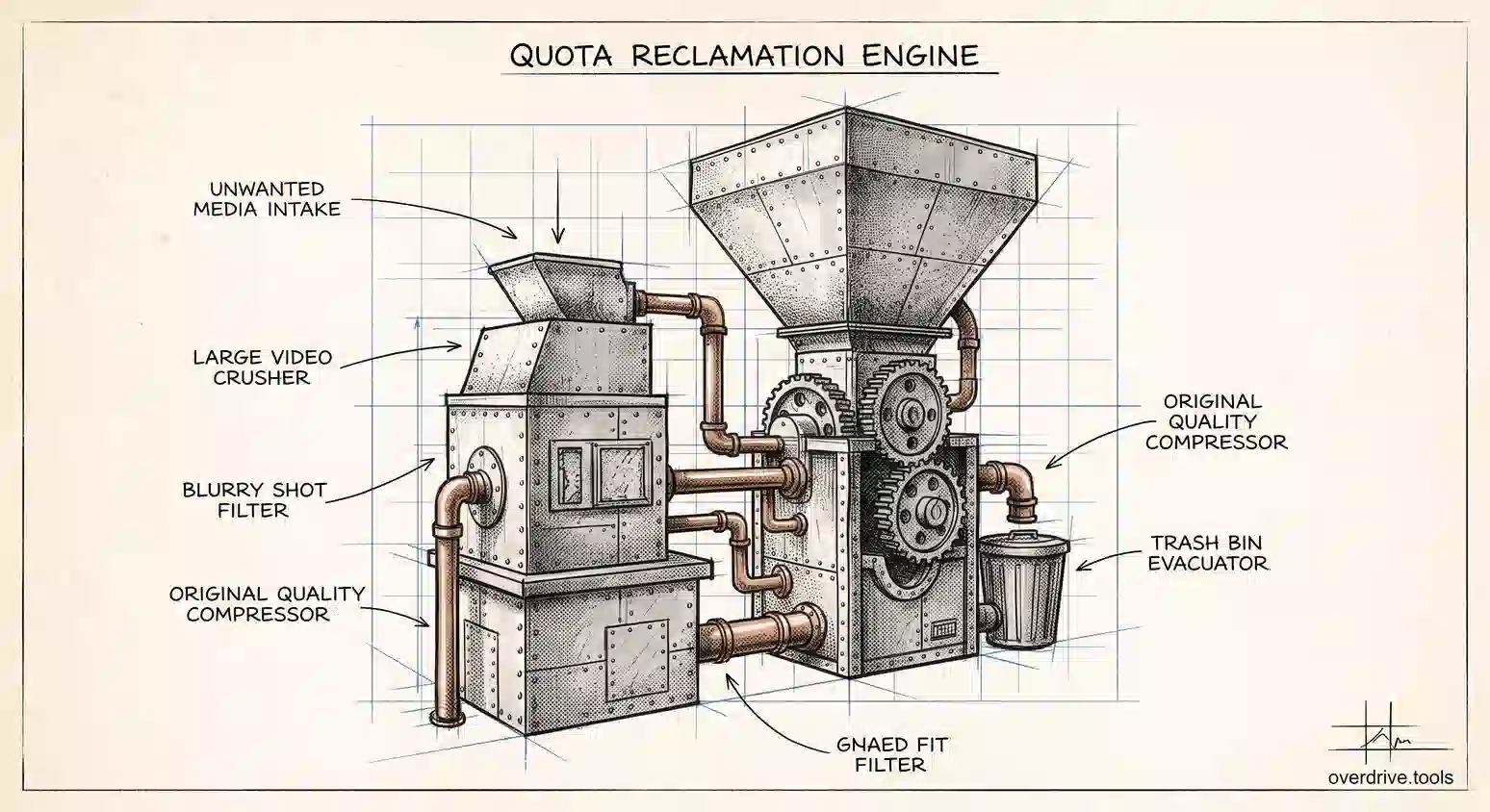
When your Google storage fills up, Photos is usually the reason. It's also the service people are most reluctant to touch, because deleting photos feels different from deleting files. The good news is that most of the space Photos consumes isn't memories at all: it's screenshots, blurry duplicates, and video shot at a resolution you'll never watch it in.
Reclaiming that costs you nothing you'd miss, and it can free more space in twenty minutes than an afternoon of cleaning Drive. Here's the order that gets the most back for the least risk.
Why Photos dominates your storage
Photos, Drive, and Gmail share one pool. Since May 2026 that pool is 5 GB by default on a free account, with the full 15 GB available once you verify a phone number on the account.
Photos fills it faster than the other two for a simple reason: it uploads automatically. Drive fills up when you actively put something in it, but Photos backs up every picture and video your phone takes, in the background, without a decision. A modern phone camera produces images of several megabytes and video at hundreds of megabytes per minute, so a single weekend can move the needle more than a month of document work.
The change that catches people out is from June 2021. Before then, photos backed up in the compressed "High quality" tier didn't count against storage at all. Since then everything counts, regardless of quality setting. Anything you backed up before that date in the old free tier is grandfathered and still doesn't count, which is why long-time users often find their older photos aren't the problem.
Start with the built-in cleanup tool
Google Photos has a storage management screen that does most of the hard work for you, and it's the fastest first move.
Open photos.google.com/storage, or in the mobile app go to your profile icon and then Photos settings and Manage storage. It presents categories of material that are usually safe to remove: large photos and videos, blurry shots, screenshots, and unsupported or corrupted files.
Work through these in order of size. Large videos are almost always the top of the list and almost always the biggest single win, because one long 4K clip can outweigh a thousand photos. Blurry shots and screenshots are the easiest decisions you'll make all day.
This tool alone often recovers several gigabytes, and it does so without you having to judge anything sentimental.
Switch backup quality, then compress what's there
This is the setting that determines whether the problem returns.
In Photos settings, under Backup, check your backup quality. Original quality uploads everything at full resolution, which is what fills accounts. Storage saver compresses photos larger than 16 megapixels down to 16 MP and video above 1080p down to 1080p, using lossy compression.
For the vast majority of people, Storage saver is indistinguishable on a phone or laptop screen and uses a fraction of the space. Switch to it, and every future upload costs you far less.
Then deal with the existing library. Photos settings offers an option to recover storage by compressing your already-uploaded original-quality photos to the storage-saver standard. This is permanent and irreversible, so it's worth pausing on: if you're a photographer, or you print large, or you might edit these files seriously later, keep originals for that material. For a typical phone camera roll of everyday photos, compressing is a large one-time gain with no visible cost.
Empty the trash
Deleted photos stay in the Photos bin for 60 days, not the 30 days Drive uses, and they continue counting against your storage the entire time.
That means a cleanup you did last month may not have actually freed anything yet. Open the Bin in Photos and empty it to make the space real immediately.
This trips people up constantly: they delete hundreds of photos, see no change in their storage number, and conclude the cleanup didn't work.
Deal with duplicates
Photos accumulates near-identical images in a way that's easy to miss because each one looks intentional in isolation.
Burst shots and repeated attempts at the same picture are the main source. Backing up from more than one device is another, and it's worse, because the same photo arriving through two paths can be stored twice. Anything you edited and saved as a copy adds another.
Photos does some duplicate detection on upload, but it won't catch images that differ slightly, and it doesn't help with the ten nearly-identical attempts at one shot. Going through your largest albums and keeping the best of each cluster is genuinely worthwhile, and it's a task that suits idle phone time.
Check whether Drive is the real problem
Before spending hours in Photos, confirm the split. Open one.google.com/storage and look at the breakdown across Drive, Gmail, and Photos.
If Photos is the largest slice, everything above applies. If Drive turns out to be the culprit, cleaning photos is the wrong afternoon: Drive fills with duplicates, old exports, large media files, and material from finished projects, and Google gives you one folder at a time to find it in.
Overdrive scans your Drive and visualizes it by file type, size, and age, surfacing duplicates and the large old files driving your usage, so you can see the composition behind the number rather than guessing which service to attack. Checking the split first, then targeting the right service, saves the common mistake of compressing an entire photo library to reclaim space that was never in Photos to begin with.
Archive rather than delete
Not everything has to be a keep-or-delete decision, and treating it that way is why photo cleanups stall.
Downloading a batch of photos before removing them from Google gives you the space back while keeping the images. Google Takeout can export your entire Photos library, or specific albums, to a zip file you can store on an external drive or a computer with room to spare. It's slower than deleting, and it requires somewhere to put the result, but it removes the emotional friction that makes people abandon cleanups halfway through.
This is particularly worth doing for the material that takes the most space and gets looked at least: long videos from events years ago, burst sequences, and RAW files if you ever shot in that format. Those are large, they're rarely opened, and they're exactly the things people refuse to delete outright. Moving them to an external drive is a compromise that actually gets executed.
Two cautions. Takeout exports can take hours or days to prepare for a large library, and the download links expire, so start it when you have time to follow through. And verify the export opens correctly before you delete anything from Google, because an unverified backup is not a backup.
Shared albums and other people's photos
One category surprises people: photos other people shared with you generally count against their storage, not yours, so leaving a shared album alone doesn't help your number.
The exception is anything you saved to your own library from a shared album, since saving creates a copy that you own and that counts against your quota. If you've been in the habit of saving photos from family or group albums, that's a quiet contributor worth checking.
What not to do
Two well-intentioned moves make things worse.
Don't use the "Free up space" option on your phone expecting it to help your Google storage. That feature deletes local copies of photos already backed up, which frees space on your device and changes your cloud usage by exactly nothing. It's useful, but for a different problem.
And don't move photos from Photos into Drive to save space. They share one pool, so relocating them achieves nothing, and you'll have made your photo library harder to browse in the process.
Keeping it from filling again
Three settings do most of the work. Keep backup on Storage saver permanently, so new uploads stay small. Decide whether you actually need every device backing up to the same account, since a second phone or a tablet often duplicates what your main phone already uploaded. And empty the bin as part of any cleanup rather than assuming the 60 days will take care of it while you wait for storage you need now.
Then check the breakdown every few months. Photos grows quietly and continuously, so the only way it stays under control is noticing the trend rather than reacting to a warning.
The short version
Google Photos usually dominates your shared Google storage because it uploads automatically and everything has counted against your quota since June 2021. Start with the built-in storage management tool at photos.google.com/storage, which surfaces large videos, blurry shots, and screenshots, then switch backup to Storage saver and optionally compress your existing library, remembering that compression is permanent. Empty the Photos bin, which holds deleted items for 60 days while still counting them. Before any of it, check the Drive, Gmail, and Photos split, because cleaning the wrong service is the most common wasted effort in this whole exercise.
Related Articles
- Does Google Photos Use Google Drive Storage?
- Google Photos Storage: What Shares With Drive
- Why Does My Google Storage Keep Filling Up?