Google Drive Download Quota Exceeded: How to Fix It
"Download quota exceeded" in Google Drive means a file was downloaded too many times in 24 hours. Here's why it happens and how to get the file anyway.
Overdrive Team//7 min read
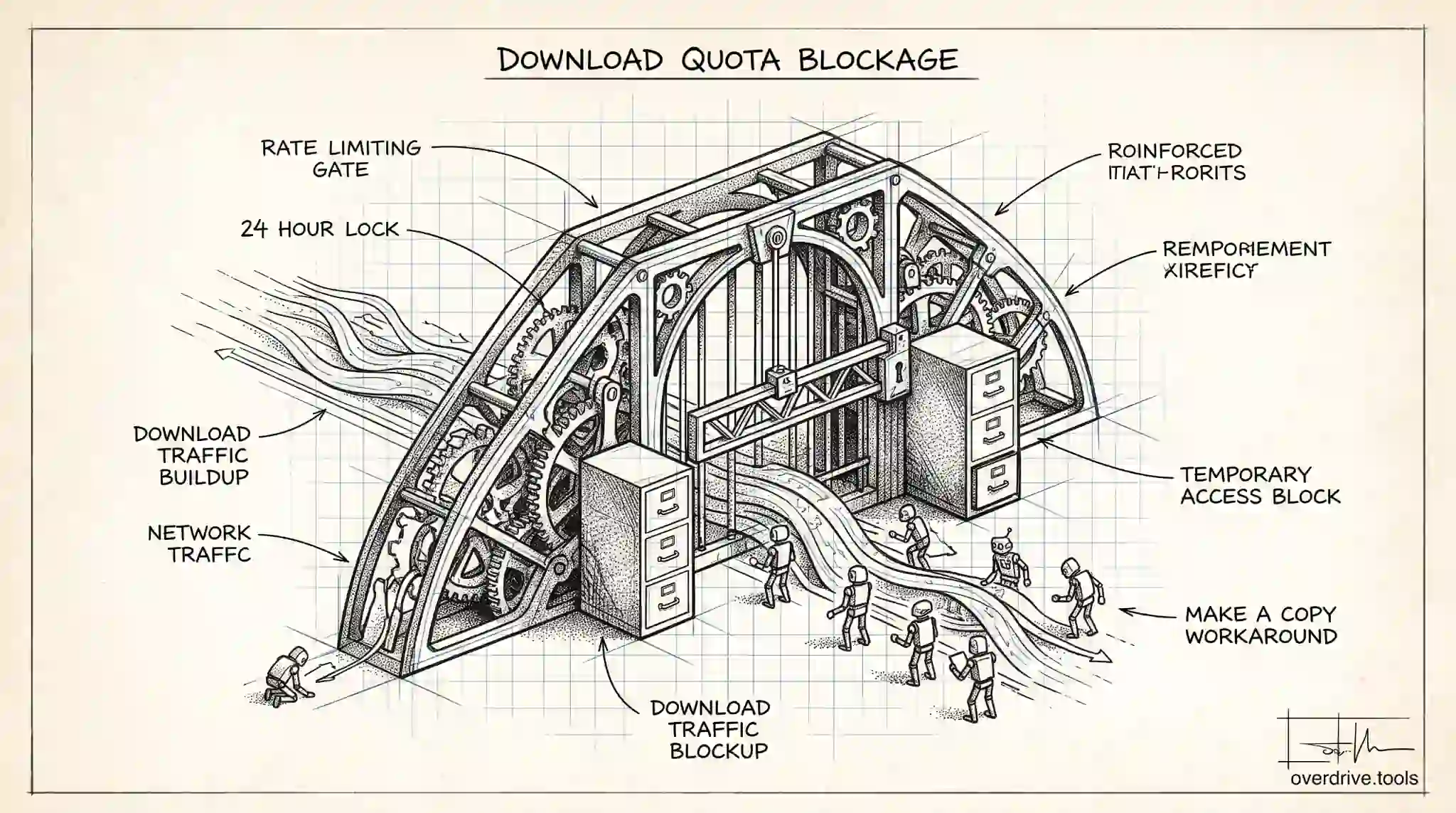
If you've hit a message like "Sorry, you can't view or download this file at this time" or "Download quota exceeded," it almost always means the same thing: that file has been downloaded or copied too many times within a 24 hour window, and Google has temporarily locked further downloads. It's not your account being broken and it's not the file being deleted. It's a rate limit, and it usually clears on its own within a day.
That's small comfort when you need the file now. The good news is there are ways to get it without waiting, and there are steps you can take on your own files so this never blocks the people you share with. Here's what's actually happening and how to work around it.
What "download quota exceeded" really means
Google puts a cap on how many times a single file can be downloaded or copied in a 24 hour period. This limit is mostly aimed at files that are shared widely, for example a popular link posted publicly, where thousands of people might try to download the same file at once. When that traffic crosses Google's threshold, the file is temporarily locked for downloading to protect the system from abuse and overload.
The important details are these. The limit is per file, not per account, so hitting it on one file doesn't affect your others. It's based on the file's total download traffic from everyone, not just you, which is why you can trigger it on a file you've never downloaded before if lots of other people are grabbing it. And it's temporary. Once the 24 hour window rolls forward, the counter effectively resets and the file becomes downloadable again.
It's worth knowing what the message does not mean. Your file is not lost. Your access has not been revoked. Nothing is corrupted. The content is fine and still sitting safely in Drive. You're simply being asked to wait or take a different route to it.
The fastest workaround: make a copy
The most reliable way to get a file that's hit its download limit, when you have at least view access to it, is to copy it into your own Google Drive instead of downloading it directly. Making a copy is treated differently from downloading, so it often works even while direct downloads are blocked.
For a Google Docs, Sheets, or Slides file, open it and use File, then Make a copy, to save your own version into your Drive. From there you can open or download your copy freely, since it's now your file with its own fresh limits.
For other file types such as PDFs, images, or videos, open the file in Drive, and use the Add to My Drive or the copy option to create a shortcut or copy in your own Drive. Once it lives in your account, you can usually download it without tripping the shared file's limit.
If the file was shared with you by someone else and you can't copy it, ask the owner to help using the steps in the next section. They have options you don't.
If it's your own file: how to fix it for others
When you're the owner and the people you've shared with keep hitting the download wall, you have a few ways to relieve the pressure.
Wait out the window, then reduce the load. The limit resets within about 24 hours, so the simplest fix is patience. To stop it recurring, avoid having a large number of people download the exact same file through one link at the same time.
Distribute the file differently. If you're sharing something popular, consider giving people a copy in their own Drive rather than a single download link, or hosting large public downloads on a platform built for high download volume. Google Drive is designed for storage and collaboration, not for acting as a mass download server, which is exactly why the limit exists.
Make copies for distribution. For a file that many people need, you can create separate copies and share those, spreading the download traffic across multiple files instead of concentrating it on one. Each copy carries its own limit.
Convert where it helps. Turning a shared document into a Google format, or splitting a very large file into smaller pieces, can reduce the strain of repeated downloads and make the whole thing more manageable.
When it's tied to large or heavily shared files
Download limits tend to show up around two kinds of files: very large ones and very popular ones. Large files get downloaded slowly and repeatedly, and heavily shared files rack up download counts fast. If you frequently run into this on your own Drive, it's often a sign that a handful of big or widely shared files are doing most of the work.
That's a good moment to take stock of what you're storing and sharing. Knowing which files are largest and most exposed helps you decide what to move, split, or share differently.
Option 1: Find your largest and most-shared files at a glance. Google Drive doesn't give you an easy overview of which files are biggest or shared most widely. A tool like Overdrive can scan and visualize your Drive by size and surface your largest files, so you can spot the heavy items behind repeated download limits and decide how to handle them, whether that's relocating a big video or rethinking how a popular file is distributed.
Option 2: Sort by size inside Drive. You can use Drive's storage view to sort files by size and identify the largest ones manually, then move the biggest offenders out of high-traffic shared folders.
Option 3: Rehost genuinely high-volume downloads. If a file is meant to be downloaded by thousands of people, a general purpose file host or content delivery service is a better home for it than a Drive link, and it removes the download limit problem entirely.
How to avoid it in the first place
A few habits keep download limits from getting in your way. Don't rely on a single public Drive link for a file you expect huge numbers of people to download. For collaboration, give people access to open and work in the file rather than repeatedly downloading fresh copies. And keep large files that are only occasionally needed out of busy shared folders, so their downloads don't stack up alongside everything else.
For the everyday case, though, remember the simplest truth: if you hit the limit on a file you can view, copy it into your own Drive and work from there. And if all else fails, waiting about a day almost always restores normal downloading, because the limit was only ever temporary.
What the different error messages mean
Google words this limit a few different ways, and the exact message can hint at what's going on. The most common is some version of "Sorry, you can't view or download this file at this time," usually followed by a suggestion to try again later. That's the classic download quota message, and "later" effectively means once the 24 hour window has moved on.
You might also see wording about the file having been downloaded too many times, or a copy or export being temporarily unavailable. These are the same underlying situation: too much download or copy activity on that file in a short period. None of them indicate a problem with your account or the file's contents.
It's worth separating this from unrelated errors that can look similar. If you see a message about not having permission, that's an access problem, not a quota one, and the fix is to ask the owner to share the file with you. If a download fails midway with a network or connection error, that's your connection, not Google's limit. The quota message is specifically about volume: the file has simply been fetched too many times too fast. Recognizing which message you're facing tells you whether to wait it out, request access, or just retry your download. When in doubt, the copy trick paired with a little patience resolves the quota version, while a permission or connection message is pointing you somewhere else entirely.
The short version
"Download quota exceeded" means a file was downloaded or copied too many times in 24 hours and is briefly locked, not lost. If you can view the file, make a copy into your own Drive to get around the block right away. If it's your file and others keep hitting the wall, spread the download load, distribute copies, or rehost genuinely popular files elsewhere. Either way, the limit is temporary and clears within a day.
Related Articles
- How to Find and Download Your Largest Google Drive Files (Without Paying for More Storage)
- How to Download Large Google Drive Files Before You Delete Them
- How Long Does Google Drive Keep Deleted Files?