How to Download Large Google Drive Files Before You Delete Them
A practical guide to backing up large files from Google Drive to an external drive before deleting them—so you can free up space without losing anything important.
Overdrive Team//6 min read

When Google Drive starts warning you that storage is nearly full, the pressure to act fast can lead to a mistake most people only notice later: deleting files before confirming the backup actually worked. Videos disappear. Project archives are gone. The download that "should have" completed turns out to be a corrupted ZIP or a partial export that missed half your folders.
Downloading large files from Google Drive before deleting them sounds simple. It isn't always. The right method depends on how much data you're moving, whether it's yours or shared with you, and where you want it to end up. This post covers the whole process—from figuring out what to download, to verifying it's safe to delete.
Start by Knowing What's Actually Taking Up Space
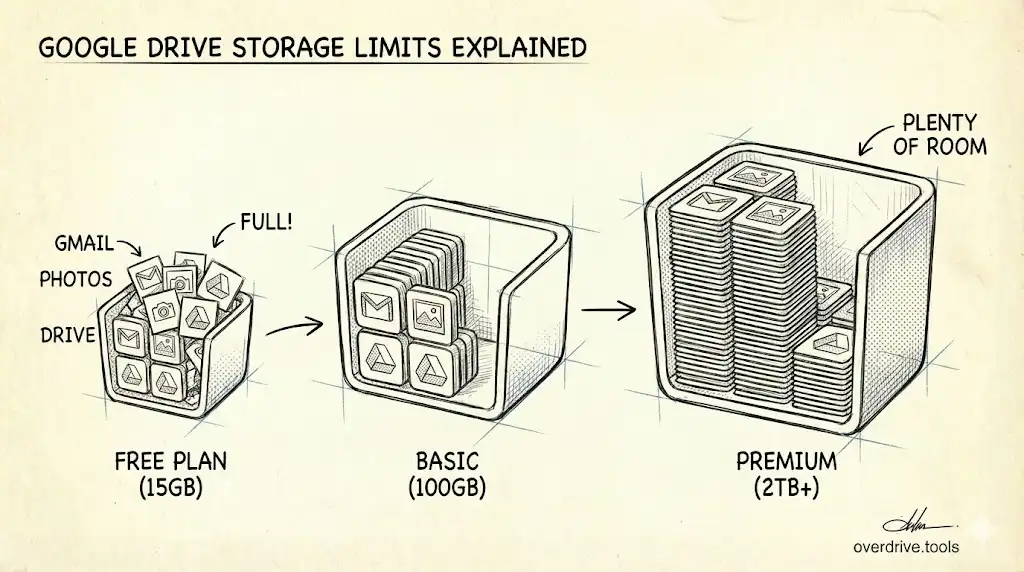
Before you download anything, spend at least five minutes understanding where your storage is going. Most people are surprised by what they find.
Go to drive.google.com/settings/storage to see a breakdown by service—Drive, Gmail, and Photos each have their own slice. Then open Google Drive and click Storage in the left sidebar. This sorts your files by size, with the largest at the top.
The biggest space consumers in most Drives are:
- Videos (phone recordings, screen captures, downloaded media)
- Raw photo files and uncompressed images
- ZIP archives, disk images, and backup files
- Large PDFs and design files
Google Workspace files—Docs, Sheets, Slides—are typically negligible in size and can be handled separately. Focus your download efforts on binary files first.
If you have a lot of files across many folders and can't easily see what's where, Overdrive can scan your Drive and surface the largest files by type and folder, which makes the triage step much faster before you start moving things around.
Know What You Actually Own
Here's something that catches people off guard: not all files in your Drive are yours to download freely.
Files shared with you by someone else live in your Drive but belong to the other person. If they delete their account—or just revoke access—those files disappear from your view. More importantly, Google's export tools (like Takeout) only export files you own, not files shared with you.
Before you start downloading, it's worth separating:
- Your files: Files you created or uploaded, which count against your storage quota
- Shared files you depend on: Files owned by others that you access regularly
Shared files need to be downloaded manually, directly from Google Drive—they won't appear in a Takeout export. If they're important, download them individually first, before anything else.
Method 1: Direct Download (Best for Individual Files and Small Folders)
For anything up to a few gigabytes, downloading directly from drive.google.com is the fastest approach.
On desktop:
- Go to drive.google.com
- Right-click the file or folder you want
- Select Download
For individual files, the download starts immediately. For folders, Google compresses the contents into a ZIP first—this happens server-side and can take a minute or two before the browser download begins. Very large folders sometimes fail during this step; if that happens, break the folder into smaller chunks and download each one separately.
On mobile (iOS and Android):
- Tap the three-dot menu next to any file
- Tap Download
Downloading entire folders is not supported on mobile. For bulk work, use a desktop browser.
What to know about file formats: Google Workspace files (Docs, Sheets, Slides, Forms) don't have a traditional file format—they're converted on the fly when you download them. By default, Docs become DOCX, Sheets become XLSX, and Slides become PPTX. If you'd prefer PDFs, right-click the file, hover over Download, and select your preferred format before the download starts.
Method 2: Google Takeout (Best for Large or Full-Drive Exports)
For anything involving multiple gigabytes, whole folder hierarchies, or a complete backup of your Drive, Google Takeout is the right tool. It prepares your export server-side and sends you a download link when it's ready, which avoids the timeout issues that come with downloading large files directly through the browser.
To export your Drive with Takeout:
- Go to takeout.google.com
- Click Deselect all at the top
- Scroll down and check Drive only (add other services if needed)
- Click Next step
- Set the file type to .zip (opens on any system without extra software)
- Set the archive size to 10GB or 50GB—this reduces the number of separate files you'll need to download
- Set the delivery method to Send download link via email
- Click Create export
Google will email you when the archive is ready. For small exports, this takes minutes. For large ones—tens of gigabytes or more—it can take hours or even a few days. The export links expire after 7 days, so download them as soon as they arrive.
What Takeout includes and what it doesn't
Included:
- All files in your My Drive that you own
- Folder structure (preserved in the archive)
- Google Workspace files, converted to Office formats
Not included:
- Files shared with you by other users
- Files in Shared Drives you're a member of but don't own
- Recent changes made between when you requested the export and when it was created
One practical note on archive size: if your total export is larger than the archive size you chose, Takeout splits it into multiple numbered ZIP files. You need to download all of them to have a complete backup. Don't delete anything from Drive until you've verified every part downloaded successfully.
Moving Downloads to an External Drive
Once your files are on your computer, moving them to an external drive is straightforward—but a few habits here will save you significant pain later.
Verify before you delete. Open the external drive and spot-check a sample of the downloaded files. Try opening a video, an image, a document. A corrupted ZIP or a stalled download isn't obvious until you need the file and it won't open. This step takes five minutes and has saved many people from permanent data loss.
Check that the folder structure is intact. Especially with Takeout exports, confirm that subfolders came through correctly and nothing obvious is missing. The Takeout archive mirrors your Drive structure—compare it against your Drive before removing anything.
Name your backup folder clearly. Something like Google Drive Backup — Feb 2026 is much more useful than New Folder (2) six months later when you're trying to find a specific file.
Consider keeping one copy in two places. External drives fail. If the files you're downloading are genuinely important, keep the external drive copy and either burn a second copy to another drive or leave the original in Drive until you're confident the backup is solid.
After the Backup: Safely Deleting from Drive
Once you've verified the backup, you can delete from Drive. Two things matter here.
Move to trash, then empty it. Files you delete go to Drive Trash first and stay there for 30 days. During that time, they still count against your storage quota. To actually free up space, you need to go to Trash in the left sidebar and click Empty trash.
Work in batches if you're doing a large cleanup. Download a set of files, verify them, delete and empty trash, then confirm your storage quota dropped as expected before moving to the next batch. Doing everything at once makes it harder to catch transfer issues before the originals are gone for good.
Quick Reference
| Situation | Best method |
|---|---|
| A few files or one small folder | Direct download from drive.google.com |
| Multiple large folders or full Drive | Google Takeout |
| Files shared with you by others | Direct download only (Takeout won't include these) |
| Google Workspace files (Docs, Sheets, Slides) | Direct download with format selection |
| Scheduled or recurring backup | Google Takeout with "Export every 2 months" option |
Related Articles
- Google Drive Storage Full? Here's Why (and How to Fix It)
- The Ultimate Google Drive Storage Cleanup Guide (2026)
- How to Find Large Files in Google Drive (4 Methods)