How to Use Google Drive Offline (And What Doesn't Work)
How to access and edit Google Drive files without internet, including setup for desktop, mobile, and the limitations you should know about.
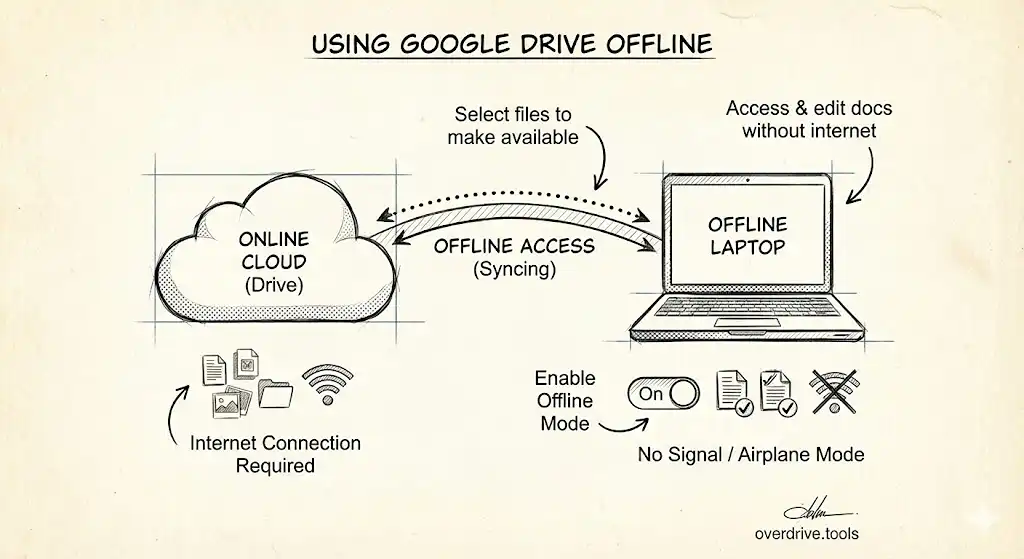
Quick answer: Yes, you can use Google Drive offline—but you must set it up while you're still online. On desktop, it requires Chrome or Edge and the Google Docs Offline extension. On mobile, enable offline access for individual files in the Drive app.
Desktop: Enable Offline Access
Step 1: Install the Extension
You need the Google Docs Offline Chrome extension. It's often pre-installed, but verify at chrome://extensions.
Step 2: Turn On Offline Mode
- Go to drive.google.com
- Click the Settings gear icon → Settings
- Check the box for "Create, open, and edit your recent Google Docs, Sheets, and Slides files on this device while offline"
- Click Done
Google will start syncing your recent files locally. This may take time depending on how many files you have.
Step 3: Make Specific Files Available Offline
To ensure a specific file is available offline:
- Right-click the file in Drive
- Select "Available offline"
A checkmark indicates the file is ready for offline use.
Mobile: Enable Offline Access
Android and iOS
- Open the Google Drive app
- Tap the three dots next to any file
- Select "Make available offline"
A checkmark icon appears on offline-ready files. Find all your offline files under Menu → Offline.
What Works Offline
✅ Open and edit Google Docs, Sheets, and Slides ✅ View PDFs and images you've made available offline ✅ Create new Google Docs, Sheets, and Slides ✅ Changes sync automatically when you reconnect
What Doesn't Work Offline
❌ Real-time collaboration — You can't see other people's edits until you're back online ❌ Commenting — You can't add or view new comments ❌ Add-ons and extensions — Most won't function ❌ Non-Google files — Can't edit Word docs or Excel files directly (view only) ❌ Search — Limited to files you've made available offline ❌ Share or change permissions ❌ Private/incognito browsing — Offline mode is disabled
Sync Conflicts: What Happens If Two People Edit Offline
If you and a collaborator both edit the same file offline, Google creates a conflict file when you reconnect. You'll see:
- Your version
- A "[Conflict]" copy with the other person's changes
You'll need to manually merge the changes—Google won't do it automatically.
Drive for Desktop: Stream vs. Mirror
If you use Google Drive for Desktop, you have two modes:
Stream files (default):
- Files stay in the cloud, downloaded on demand
- Mark specific files "Available offline"
- Uses less local storage
Mirror files:
- All files are stored locally and in the cloud
- Everything is automatically available offline
- Uses more disk space
To change modes: Click the Drive icon → Settings → Choose your sync preference.
Troubleshooting
"Checking offline sync status" won't complete: Clear your browser cache for docs.google.com and try again.
Files not syncing offline:
- Make sure you're not in incognito/private mode
- Check that the Google Docs Offline extension is enabled
- Verify you have enough local storage space
Offline option grayed out: Your organization's admin may have disabled offline access.
Best Practices
- Enable offline before traveling — Don't wait until you're at the airport
- Check the offline icon — Verify files show the offline checkmark before disconnecting
- Don't rely on "recent files" — Manually mark critical files as available offline
- Clear offline files periodically — They take up local storage
Google Drive's offline mode is useful for occasional disconnection, but it's not a complete offline solution. For reliable offline work, consider Overdrive to identify which files you actually need access to and clean up the rest before syncing.
Related Guides
- How to Download a Folder from Google Drive
- How to Check Your Google Drive Storage
- How to Change Your Default Google Account