Google Drive File Size Limits: What You Can and Can't Upload
The complete reference for Google Drive upload limits, including maximum file sizes, daily upload caps, and limits for Docs, Sheets, and Slides.
Overdrive Team//2 min read
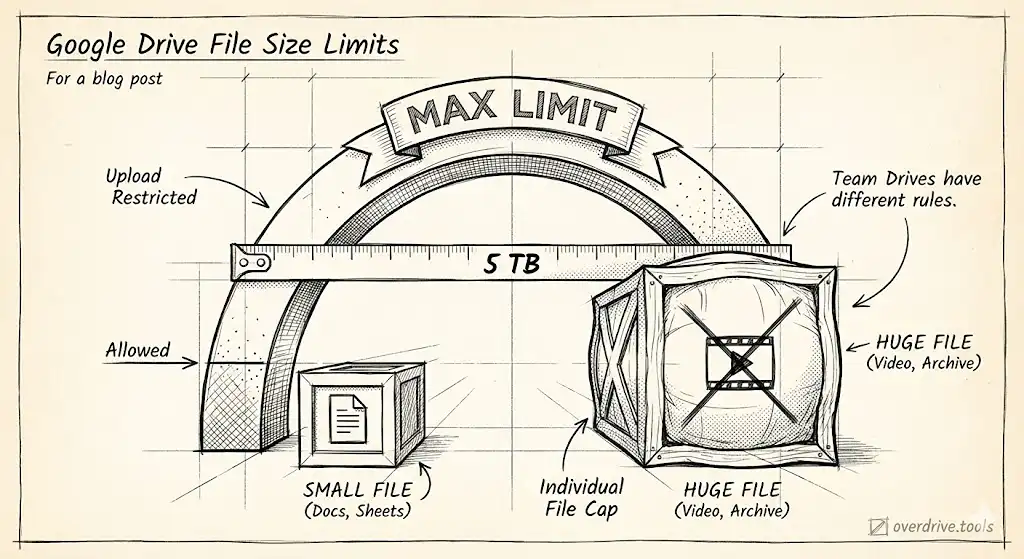
Maximum single file size: 5 TB. For most users, you'll hit your storage quota long before reaching this limit.
Daily upload limit: 750 GB across your My Drive and any Shared Drives.
Upload Limits at a Glance
| Limit Type | Maximum |
|---|---|
| Single file upload | 5 TB |
| Daily upload limit | 750 GB |
| Files per folder | 500,000 |
| Total items per account | 500 million |
| Folder nesting depth | 100 levels |
Limits for Google Docs, Sheets, and Slides
Google's native file types have their own limits:
Google Docs:
- Maximum characters: ~1.02 million
- Maximum size when converting from Word: 50 MB
Google Sheets:
- Maximum cells: 10 million
- Maximum columns: 18,278 (column ZZZ)
- Maximum characters per cell: 50,000
Google Slides:
- Maximum size when importing PowerPoint: 100 MB
Google Drawings:
- No specific size limit documented
What Happens When You Hit Limits
Daily upload limit (750 GB): You can't upload more files until 24 hours pass. Files partially uploaded when you hit the limit will complete, but new uploads are blocked.
Storage quota: Once your storage is full, you can't upload new files, send emails with attachments, or back up photos. Existing files remain accessible.
File size exceeds 5 TB: The upload will fail. You'll need to split the file into smaller parts.
Limits That Surprise People
Copying large files: You can't copy files larger than 750 GB. Download the file and re-upload it instead.
Shared folders: Adding a file to someone else's shared folder still counts against your storage quota since you own the file.
Google Workspace users: The 750 GB daily limit applies to both personal and Workspace accounts.
Tips for Large File Uploads
- Use Drive for Desktop for more reliable uploads of large files—it handles interruptions better than the web interface
- Compress files before uploading when possible (ZIP, video compression, etc.)
- Upload overnight if you have many large files to avoid hitting the daily limit during work hours
- Check storage first before attempting large uploads to ensure you have space
If you're frequently hitting storage limits, you might have accumulated files you no longer need. Overdrive can scan your Drive to identify large files, duplicates, and old content that might be worth cleaning up.
Related Guides
- How to Check Your Google Drive Storage
- How to Download a Folder from Google Drive
- How to Sort Files by Size in Google Drive