How Long Does Google Drive Keep Deleted Files?
Deleted files stay in Google Drive Trash for 30 days, then disappear permanently. Here's the full timeline — and your options for recovery.
Overdrive Team//7 min read
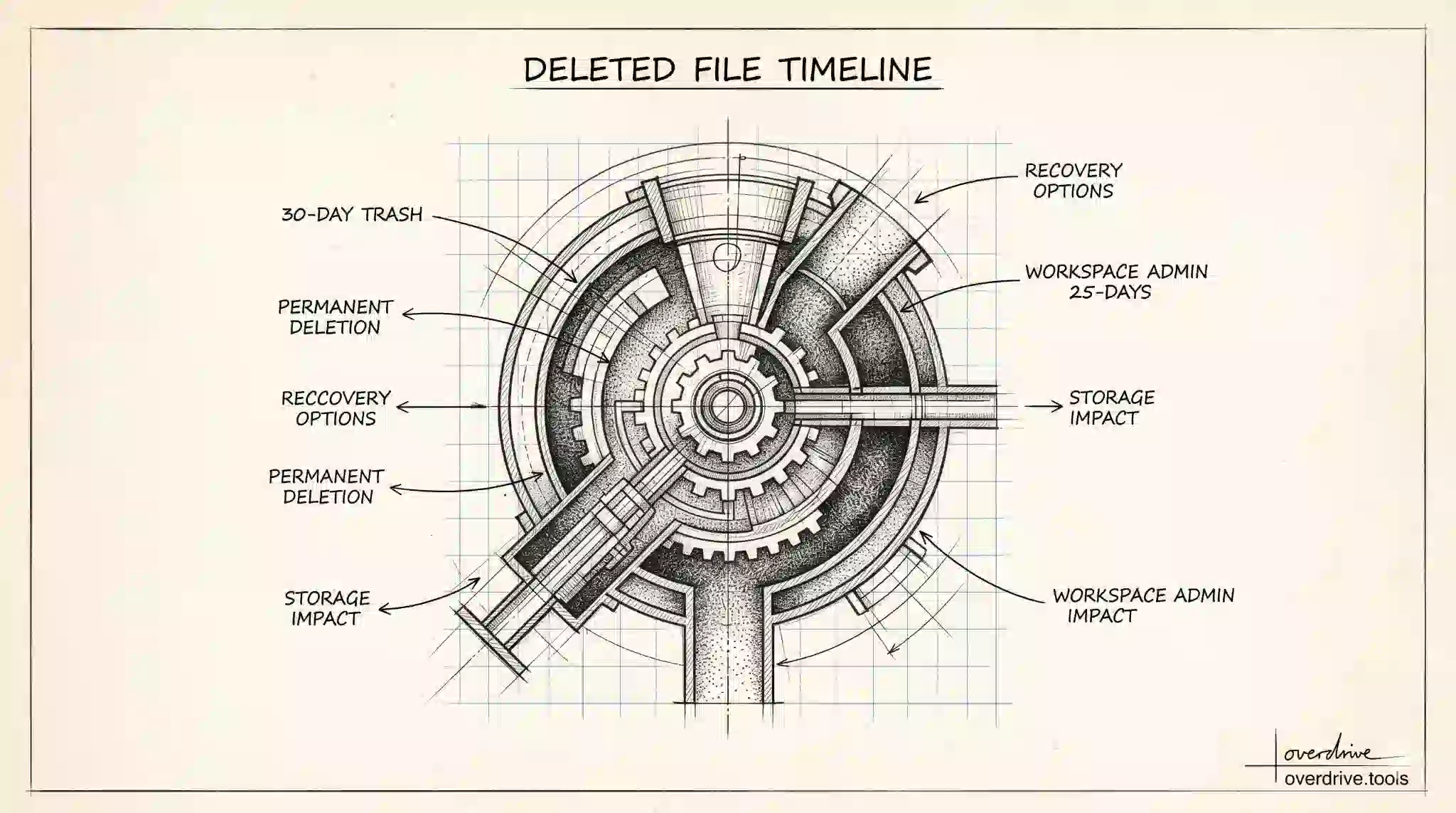
When you delete a file in Google Drive, it doesn't disappear immediately. It moves to Trash, where it sits until it's either permanently deleted by you or automatically removed by Google after 30 days. Understanding exactly when files become unrecoverable — and who has the ability to recover them — is worth knowing before you actually need that information.
The 30-Day Trash Window
Deleting a file in Google Drive moves it to Trash. During those 30 days, the file is still accessible from the Trash folder, and you can restore it to its original location with a single click. Files in Trash also continue to count toward your storage quota during this period, which surprises people who assume deleted files free up space immediately.
After 30 days, Google automatically and permanently deletes files from Trash. Once that happens, the file is gone from Drive entirely — no undo, no restore.
There is one exception that shortens this window: emptying the Trash manually. If you go to Trash and click "Empty trash," all files in Trash are permanently deleted immediately, regardless of when they were deleted. The 30-day window only applies if you leave Trash alone.
What "Permanently Deleted" Actually Means
When Google permanently deletes a file — either after the 30 days expire or when you empty Trash — the file is removed from your Drive. For personal Google accounts, that's the end of the story. There's no support escalation path, no recycle bin, and no way to get the file back.
This is meaningfully different from how many people think of "deleted" files on a computer, where recovery tools can sometimes retrieve data from disk even after deletion. Google Drive doesn't work that way. Once the permanent deletion happens, recovery from Google's servers is not available to end users.
Workspace Admin Recovery Window
For users on Google Workspace (business or education accounts), there is an additional recovery window after permanent deletion — but only an administrator can use it.
After a user permanently deletes a file (either manually or after the 30-day automatic purge), a Workspace admin has up to 25 days to recover it from the admin console. After those 25 days, even admins cannot recover the file. This admin-level window is a safety net, not a standard user feature.
If you accidentally permanently deleted something important and you're on a Workspace account, contacting your IT admin promptly is the right move. The 25-day window closes fast.
Files in Shared Drives
Shared Drive deletion works similarly but has a distinct trash system. When a member with Content Manager or Manager access deletes a file from a Shared Drive, it goes into the Shared Drive's own Trash — not the user's personal Trash. The same 30-day retention applies.
The key difference is that any Manager of the Shared Drive can see and restore files from the Shared Drive Trash, even if they weren't the person who deleted the file. This makes recovery in a team context more forgiving than in personal Drive.
A Shared Drive Manager can also permanently delete files from the Shared Drive Trash before the 30 days are up, so it's worth confirming before assuming a file is still recoverable.
Version History and Deleted Files
Version history doesn't survive deletion. If a file is permanently deleted, all of its version history is deleted along with it. There's no way to view or restore previous versions of a file that no longer exists.
This is especially relevant for uploaded files (PDFs, Word documents, etc.), which already have a limited 30-day version history. If such a file is deleted before you've had a chance to recover a needed earlier version, both the file and all its revision history are gone together.
Storage Impact of Deleted Files
Files sitting in Trash still count against your Google Account storage quota for the full 30 days. If you're close to your storage limit, emptying Trash — carefully — frees up that space immediately without waiting for the automatic purge.
If your Drive storage is approaching its limit and you're not sure what's consuming space, looking at Trash is a good first step. Overdrive can also give you a full breakdown of what's taking up space across your Drive, including large files that could be archived or removed rather than left accumulating.
How to Restore Files from Trash
Restoring a file during the 30-day window is straightforward. Go to the Trash folder in Google Drive (in the left sidebar), find the file, right-click it, and select Restore. The file returns to its original location. If that folder no longer exists, it lands in the root of My Drive.
On mobile, open the Google Drive app, tap the three-line menu, select Trash, find the file, tap the three-dot icon next to it, and select Restore. The process is the same; it just takes a couple more taps.
One thing to be aware of: if you restore a file and the folder it originally lived in has also been deleted, restoring the folder separately puts everything back together properly. Restoring just the file without its parent folder means it reappears in My Drive root, which can make it harder to find if you're not expecting it there.
What Happens When Someone Else Deletes a File You Have Access To
If someone else owns a file that was shared with you, and they delete it, the file disappears from your Shared with me section and from any shortcuts you may have created to it. You have no ability to restore it — that's controlled by the owner. If the owner is on a Workspace account, their admin may be able to restore it within the additional 25-day admin recovery window.
If you delete a file from a folder that someone else shared with you — and you don't own it — the behavior depends on whether you had Content Manager access in a Shared Drive or just editor access on a regular shared folder. In regular sharing, you can delete files you don't own from shared folders, and only the owner can see those files in their Trash and restore them.
Google Vault for Enterprise Retention
For organizations with Google Workspace Business Plus or Enterprise licenses, Google Vault provides a separate layer of retention that operates independently of Drive's Trash. Vault can be configured to retain emails, Drive files, and chat messages for a set period regardless of what users delete.
With Vault configured, a file that's been permanently deleted from Drive — past the 30-day trash window and even past the 25-day admin recovery window — may still be retrievable if it was covered by a retention rule. This is primarily relevant for legal holds, compliance requirements, or regulated industries where document retention is mandatory. For standard business use, most organizations don't need Vault, but it's the right tool when preservation requirements go beyond what Drive's native Trash provides.
Frequently Asked Questions
Can Google recover a file after it's been permanently deleted? For personal Google accounts, no. Once a file is permanently deleted — either manually or after the 30-day auto-purge — it cannot be recovered. Google does not offer a back-end recovery path for personal accounts. For Workspace accounts, admins have a 25-day window after permanent deletion to recover files through the Admin Console.
Does deleting a file from a shared folder delete it for everyone? It depends on your role. If you own the file, deleting it removes it for everyone — it goes to your Trash, and when your Trash is emptied, it's gone for all collaborators. If you don't own the file, deleting it only removes it from your view. The owner's copy remains intact.
Do files in a Shared Drive have the same 30-day trash window? Yes. Shared Drive files deleted by a member with Content Manager or Manager access go into the Shared Drive's own Trash for 30 days. Any Manager of the Shared Drive can restore them during that window.
If I permanently delete a file, does it free up storage immediately? Yes. Permanently deleted files — via "Empty trash" or automatic purge — are removed from your storage quota immediately. Files that are only in Trash still count toward your storage until they're permanently deleted.
The Practical Takeaway
The 30-day trash window is genuinely useful — it catches accidental deletions that you notice quickly. What it doesn't catch is the file you deleted months ago and only now realized you need, or the content that was in the file before several rounds of editing. For anything important and irreplaceable, a separate backup outside of Drive is worth considering.
Related Articles
- Google Drive Storage Full? Here's Why (and How to Fix It)
- How to Back Up Google Drive Before Deleting
- Google Drive Storage Cleanup Guide