How to Find and Download Your Largest Google Drive Files (Without Paying for More Storage)
Identify the files eating your Google Drive storage, back them up locally, and reclaim gigabytes the right way—without upgrading your plan.
Overdrive Team//7 min read

Most people hit their Google Drive storage limit and immediately reach for their wallet. That's exactly what Google is counting on. The alternative—finding your largest files, backing them up locally, and deleting them from Drive—takes maybe an hour and costs nothing. For a lot of people, it buys months or years before a paid upgrade ever becomes necessary.
The process has three parts: locate what's eating your storage, get it safely onto a local drive, and verify the backup before touching anything in Drive. Each part has a few ways to go wrong. This post covers all of them.
Part 1: Find What's Actually Taking Up Space
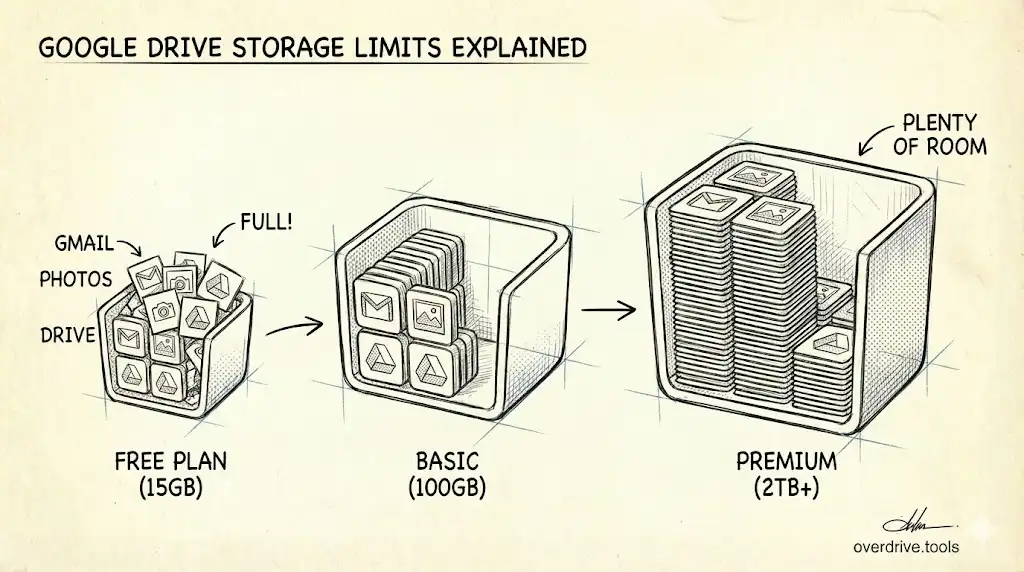
Before you download anything, you need to know what you're dealing with. "My Drive is full" is rarely the complete picture—Gmail and Google Photos share the same storage quota, so the problem might not be in Drive at all.
Start at the storage breakdown page. Go to one.google.com/storage to see how your quota is split across Drive, Gmail, and Photos. If Gmail or Photos is consuming the majority of your storage, large Drive files may not be the right place to focus.
If Drive is the main culprit, the next step is sorting files by size.
Use the Storage view in Drive. In Google Drive, click Storage in the left sidebar (or go to drive.google.com/drive/quota). This lists your files sorted by size, largest first. It's the fastest built-in way to see what's actually taking up room—and it only shows files you own, which are the ones actually counting against your quota.
A few things worth knowing about this view:
- Shared files you don't own won't appear here—they don't count against your storage
- Google Docs, Sheets, and Slides show as zero bytes in this view; they don't count toward quota regardless of their content
- The list is flat—it doesn't show folder context, so you may need to click a file to see where it lives
Filter by file type if needed. At the top of the Storage view, a Type dropdown lets you narrow to videos, images, PDFs, or other categories. If you know videos are your likely culprit, filtering to videos first makes the list more actionable.
If your Drive is large and complicated—lots of folders, old project files, files shared by many people—Overdrive can scan your entire Drive and show everything sorted by size, with folder context intact, in about two minutes. That makes it much easier to identify clusters of large files rather than a flat list with no hierarchy.
Make a short list before downloading anything. Before you start moving files, spend a few minutes reviewing the largest items and noting which are genuinely safe to remove from Drive. Old video recordings, archived project exports, ZIP files from completed work, and duplicate uploads are common candidates. Files that are still actively used—even if large—aren't good targets unless you're committed to re-uploading them when needed.
Part 2: Download the Files
Once you know what to move, the right download method depends on how much data you're dealing with.
For individual files or small batches (under ~2 GB)
Downloading directly from drive.google.com works well for smaller files.
On desktop:
- Go to drive.google.com
- Right-click the file you want to download
- Select Download
For individual files, the download starts immediately. For folders, Drive compresses the contents into a ZIP server-side before the download begins—this can take a minute or two, and very large folders sometimes time out during compression. If that happens, download the contents in smaller batches rather than as one folder.
What happens to Google Workspace files: Docs download as DOCX, Sheets as XLSX, Slides as PPTX. If you'd prefer PDF instead, right-click the file, hover over Download, and you'll see format options before the download starts. Choose before you click—you can't change format after the download begins.
For large files or bulk exports (several GB or more)
For anything substantial, Google Takeout is the more reliable option. It prepares your export server-side and emails you a download link when it's ready, which avoids the connection timeouts that can cut off large in-browser downloads midway through.
To use Takeout for a Drive export:
- Go to takeout.google.com
- Click Deselect all, then scroll down and check Drive only
- Click Next step
- Set the file type to .zip
- Set the archive size to 10 GB or 50 GB—larger archives mean fewer files to manage
- Set the delivery method to Send download link via email
- Click Create export
The preparation time varies considerably. A few gigabytes may be ready in minutes; tens of gigabytes can take hours or occasionally days. Download links expire after 7 days, so don't let the email sit. If Takeout splits your export into multiple numbered ZIP files, you need all of them for a complete backup—download each one before deleting anything from Drive.
What Takeout doesn't include:
- Files shared with you by others (only files you own are exported)
- Files in Shared Drives you didn't create
- Changes made between when you requested the export and when it finished processing
If any important files fall into those categories, download them manually from Drive before running a Takeout export.
Choosing between the two methods
| Situation | Best method |
|---|---|
| A few specific large files | Direct download from drive.google.com |
| A folder of mixed large files | Direct download (if under ~2 GB compressed) or Takeout |
| Many gigabytes across multiple folders | Google Takeout |
| Workspace files you want as PDFs | Direct download with format selection |
| Complete Drive backup before major cleanup | Google Takeout |
Part 3: Verify Before You Delete
This is the step most people skip, and the one that matters most. A corrupted ZIP, a stalled download, or a Takeout export that silently omitted a folder looks fine until you need a specific file and it isn't there.
Open the downloaded files and spot-check them. Don't just verify the file sizes—actually open a sample. Play a few seconds of a video. Open an image. Open a document. A file can have the right name and size but be corrupted or truncated. Spot-checking five or ten files takes two minutes and catches problems before they become permanent losses.
Compare folder structure for Takeout exports. Takeout preserves your Drive folder hierarchy inside the ZIP. Extract the archive and compare the top-level folder structure against your Drive before deleting anything. If a folder you expected is missing, re-run the export for that section before proceeding.
Confirm the destination is reliable. External drives fail. If the files you're downloading are genuinely irreplaceable—family videos, archived client work, years of project files—store the backup in two places. A second external drive or a different cloud service (not the same Google Drive you're cleaning up) is sufficient.
Only once you've verified the backup should you move on to deletion.
Part 4: Delete and Reclaim the Space
With the backup confirmed, deleting from Drive is straightforward—but there's a detail that trips people up every time.
Move files to trash, then empty it. Select the files or folders you want to remove, right-click and choose Move to trash (or press Delete). Then go to Trash in the left sidebar and click Empty trash. Until you empty the trash, deleted files still count against your storage quota. This is the most common reason people delete a large file and then wonder why their storage number didn't change.
Allow time for the quota to update. After emptying the trash, Google's storage counter can take up to 24 hours to reflect the change—sometimes longer after bulk deletions. Don't judge whether it worked based on an immediate recheck.
Work in batches if you're doing a large cleanup. Download a set of files, verify them, delete and empty trash, then confirm the storage number dropped before moving to the next batch. Doing everything at once and then checking makes it harder to identify if something went wrong in the transfer before the originals are gone.
What to Do If You're Still Over Quota After Cleanup
If you've worked through your large files and you're still bumping against your limit, the culprits are usually one of three things:
Gmail attachments. Years of email with attachments can silently consume gigabytes. In Gmail, search has:attachment larger:5mb to find the biggest offenders. Deleting the email deletes the attachment—but remember to empty Gmail's trash afterward too.
Google Photos in original quality. Photos backed up in original quality count against your quota. Switching to "Storage saver" mode compresses future uploads (with no visible quality difference on screens), and Google offers a one-time conversion of existing original-quality photos to compressed versions.
Drive trash you forgot to empty. Items in Drive trash stay on your quota for 30 days after deletion unless you empty it manually. Check the trash before concluding that cleanup didn't work.
For a complete picture of what's consuming your storage across all three services, the Google Drive Storage Cleanup Guide covers each one in detail.
Related Articles
- How to Find Large Files in Google Drive (4 Methods)
- Google Drive Storage Full? Here's Why (and How to Fix It)
- Hidden App Data Is Eating Your Google Drive Storage