Can You Password Protect a Google Drive Folder?
Google Drive has no built-in password for folders. Here's why, what actually protects your files instead, and the workarounds for true password protection.
Overdrive Team//7 min read
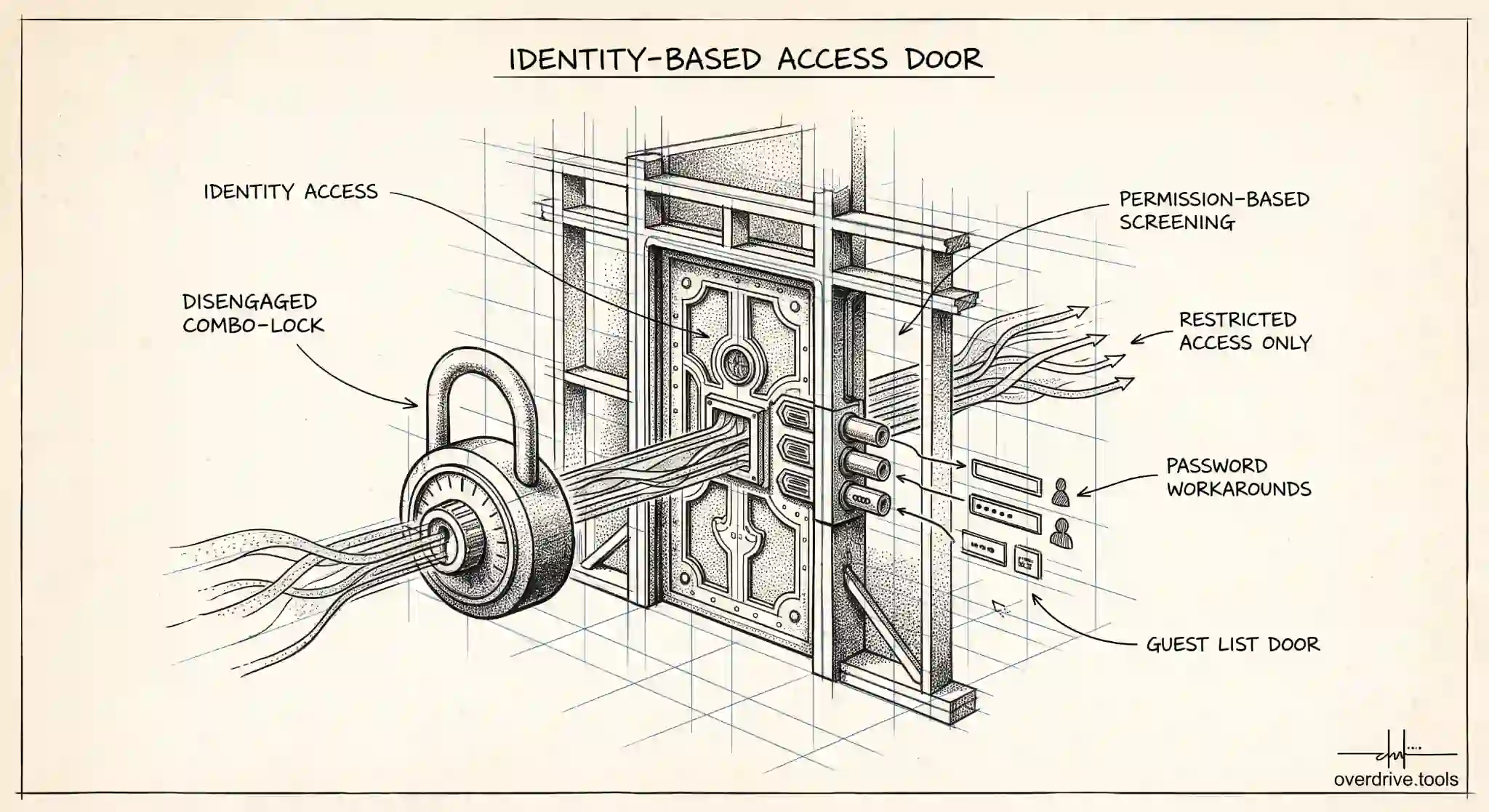
No, Google Drive does not let you put a password on a folder. There's no setting anywhere in Drive that asks you to create a password and then prompts for it when someone tries to open a folder. Instead, Drive protects your files through permissions: you control exactly who can access a folder by adding specific people, and everyone else is locked out by default.
That's a different security model from the password many people are looking for, and once you understand it, you'll usually find it does the job just as well, sometimes better. But if you genuinely need a password prompt, there are workarounds. Here's how Drive actually keeps folders private, and what to do when you need a real password.
Why Drive has no folder passwords
Google Drive was built around access control by identity, not by password. Rather than a shared secret that anyone can pass along, Drive ties access to Google accounts. You decide which people, by email address, can open a folder, and Drive checks who they are when they try. Someone without permission simply cannot get in, whether or not they know any password.
There's a solid logic to this. Passwords on folders have real weaknesses: they get shared, written down, forwarded, and once leaked they give access to anyone who has them, with no way to tell who used it. Permission based access avoids all of that. You always know exactly who can reach a folder, you can add or remove individuals at any time, and access is logged against real identities rather than an anonymous password.
So the absence of a folder password isn't an oversight. It's a deliberate choice to use a model Google considers more secure for cloud collaboration.
What actually protects a Drive folder
Your real security tools in Drive are the sharing settings, and used properly they keep a folder genuinely private.
By default, a folder you create is private to you. Nobody else can see it unless you share it. When you do share, you choose who gets in and what they can do, adding people by their email address and assigning each of them a role of viewer, commenter, or editor. Only those specific accounts can open the folder, and everyone inside it inherits that access for the files within.
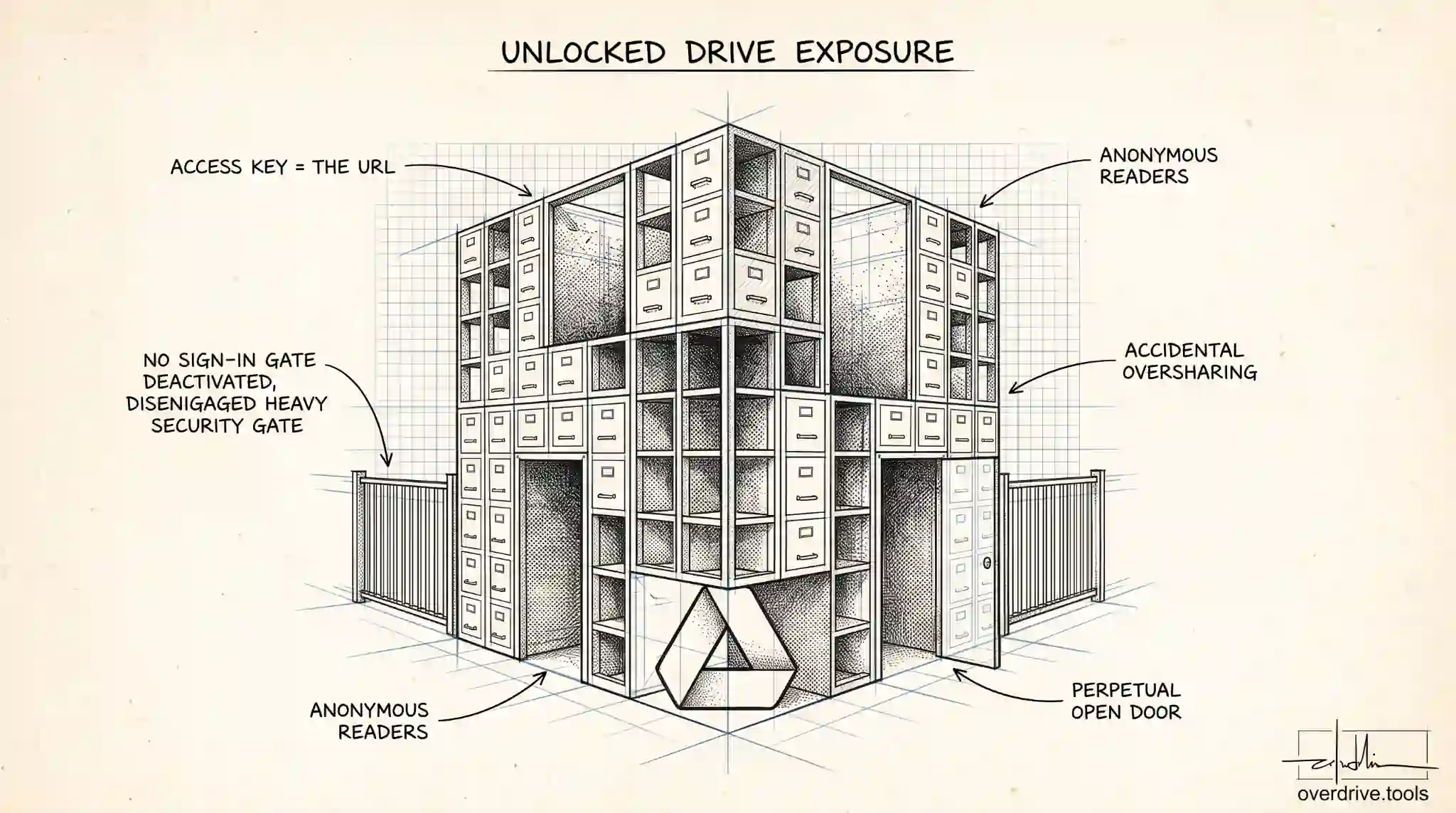
The setting that most often undermines this is general access. If a folder's general access is set to "anyone with the link," then anyone who obtains the link can open it without being individually invited, which is the closest Drive gets to an unprotected folder. Keeping general access set to Restricted, so that only added people can enter, is what actually locks a folder down.
In short: to protect a folder, share it only with named people and keep it Restricted. That combination gives you private, controlled access without any password at all.
The security limits to understand
Permission based protection is strong, but it's worth knowing its edges so you're not surprised.
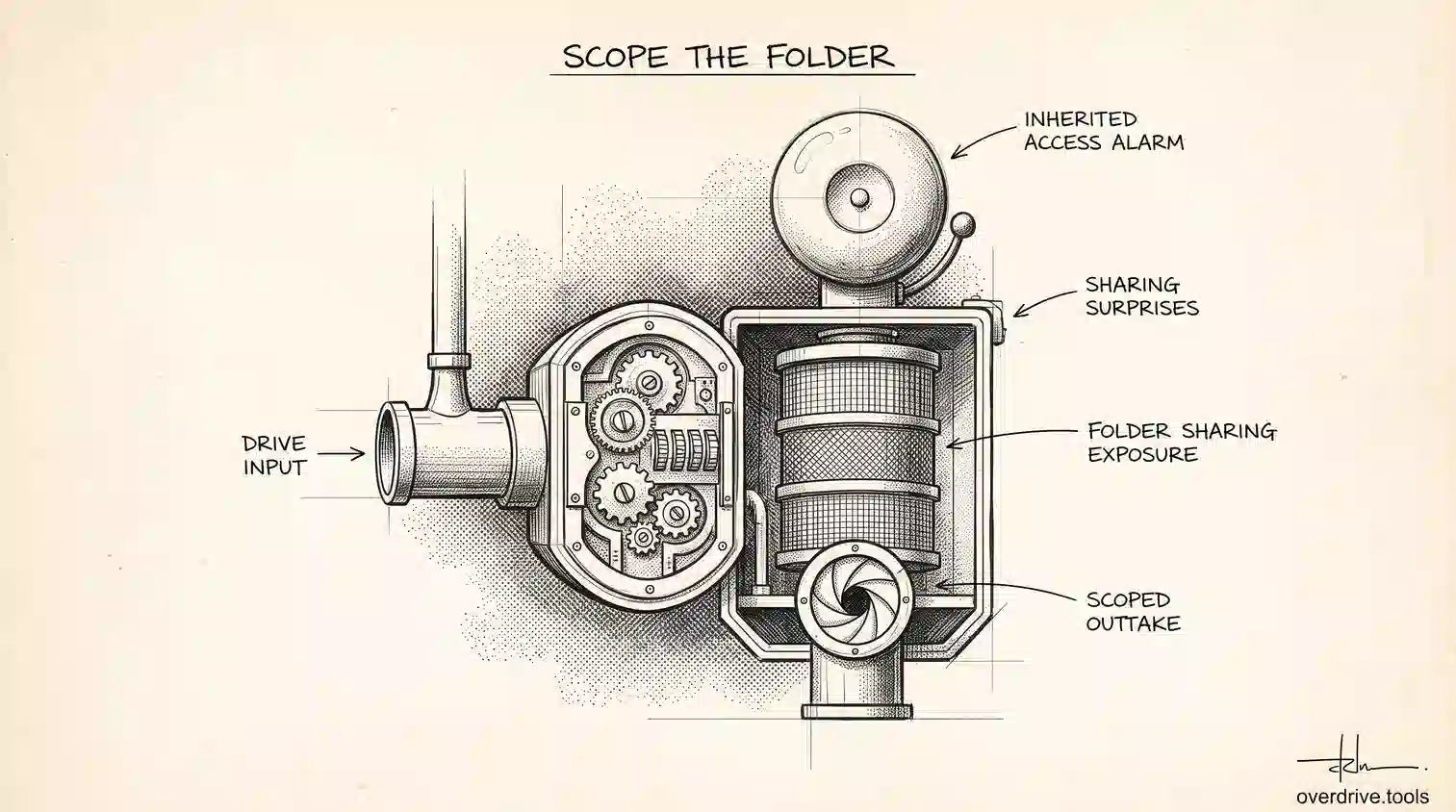
Access follows the folder. Anyone you give access to a folder can reach everything inside it, and access applies to whole folders rather than letting you easily give someone less access to one file within a folder they can already open. If you need tighter control over a particular item, the cleaner approach is to keep it in a separate, more restricted folder.
People with access can often share further, depending on roles. Editors may be able to add other people unless you've restricted that in the advanced settings. And anyone who can view a file can generally take its contents with them in some form, so permissions control who gets in, not what they do with what they see once inside.
None of this is a password, and that's the point. Drive is protecting the door with a guest list, not a lock combination.
When you genuinely need a password
Sometimes a guest list isn't what you need. Maybe you're sending sensitive files to someone who doesn't use a Google account, or you want an extra layer on top of a specific file. In those cases, here are the realistic workarounds.
Password protect the file itself, not the folder. Some file types support their own passwords independent of Drive. A PDF can be encrypted with a password before you upload it, and Microsoft Office files like Word and Excel can be password protected in those apps. Once uploaded to Drive, the file still requires its password to open, effectively giving you password protection at the file level, even though the folder around it has none.
Zip and encrypt before uploading. You can compress files into a password protected, encrypted archive on your computer, then upload that single archive to Drive. Anyone who downloads it needs the password to extract the contents. This is a common way to protect a whole batch of files with one password, though people must download and unzip rather than browse the files directly in Drive.
Use dedicated encryption for truly sensitive material. For highly confidential data, encrypting files with a dedicated tool before they ever reach the cloud gives you the strongest protection, since the files are unreadable without the key regardless of who accesses the Drive folder.
Share the password separately. Whichever method you choose, never send the password in the same place as the file. Deliver the file through Drive and the password through a different channel, so that intercepting one doesn't hand over the other.
Keeping folder access under control
Because Drive security is about who has access rather than a password, the real ongoing task is keeping that access list accurate. Over time, folders accumulate people who no longer need them, and "anyone with the link" settings get switched on for convenience and never switched off. That drift, not the lack of a password, is what usually exposes a folder.
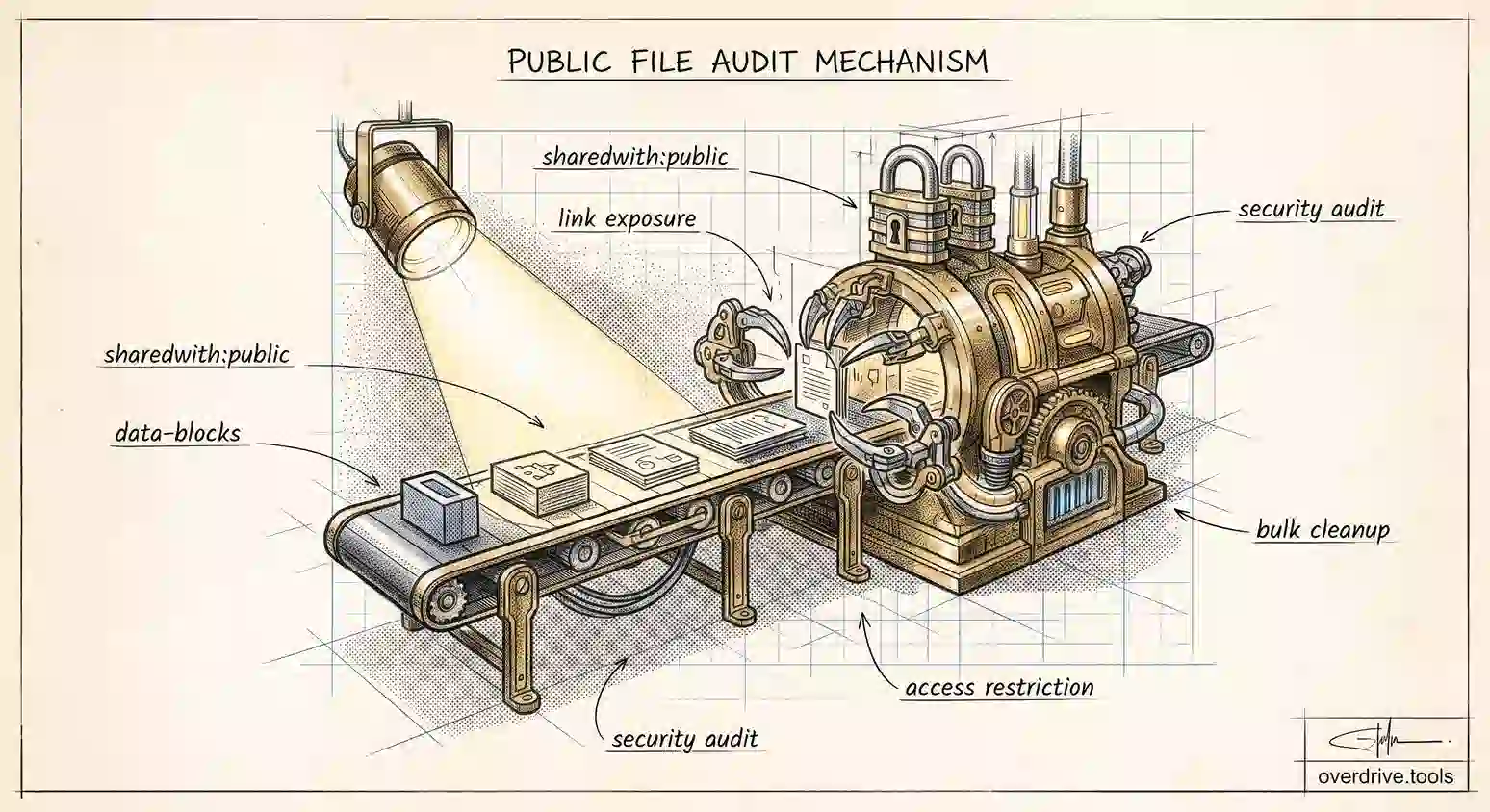
Option 1: Audit who can reach your folders across your whole Drive. Checking access folder by folder is slow, so exposed sharing tends to go unnoticed. A tool like Overdrive can scan your entire Drive and show who has access to every folder and file, flag anything shared by link or with external people, and let you tighten access in bulk, so your permissions stay as private as you think they are.
Option 2: Review sharing settings manually. For an important folder, open its sharing panel, confirm general access is Restricted, and check the list of people with access, removing anyone who no longer needs it. Repeat periodically for your most sensitive folders.
Option 3: Separate the sensitive from the shared. Keep truly private material in its own Restricted folder that you share with as few people as possible, rather than mixing it into folders that are widely shared. The narrower the access list, the safer the contents.
Extra protections worth combining
Since Drive's protection is about controlling access rather than setting a password, you can strengthen a folder further by layering a few habits on top of Restricted sharing.
Turn off downloading, printing, and copying for viewers and commenters in the advanced sharing settings. This won't stop someone who can read a file from seeing it, but it removes the easy one click route to walking away with a copy, which is useful for sensitive documents you still need to show people.
If you're on an eligible Workspace account, use expiration dates on shared access so that permissions automatically end after a set time, rather than lingering indefinitely. That turns a share into something temporary by design, which is often exactly what you want for outside collaborators.
And for the most sensitive items, combine methods: keep the material in a tightly Restricted folder, encrypt the individual files with their own passwords before uploading, and share those passwords through a separate channel. No single measure is perfect, but stacked together they give you strong, layered protection, which in practice beats the simple folder password Drive doesn't offer anyway. The point is to match the protection to the sensitivity: everyday folders are perfectly safe with Restricted sharing alone, while genuinely confidential material is what earns the extra layers.
The short version
You cannot password protect a Google Drive folder, because Drive secures folders with permissions instead of passwords: you choose exactly who can access a folder, and keeping it Restricted and shared only with named people keeps it private. If you truly need a password, protect the files themselves by encrypting a PDF, Office file, or zip archive before uploading, and always send the password through a separate channel. Then keep your folder access lists tidy, since in Drive, controlling who has access is what protection really means.
Related Articles
- Can People See My Google Drive?
- How to Remove 'Anyone With the Link' in Google Drive
- Google Drive Permission Levels: What Viewer, Commenter, Editor, and Owner Can Actually Do