How to Remove 'Anyone With the Link' in Google Drive
'Anyone with the link' is the most common way to accidentally overshare in Google Drive. Here's how to find every file with this setting and turn it off.
Overdrive Team//4 min read
"Anyone with the link" is the most convenient sharing setting in Google Drive. It's also the one most likely to leave your files exposed long after you've forgotten about them.
Here's how it happens: you need to share a file quickly — with a client, a colleague, someone who doesn't have a Google account, or a group too large to add individually. You set it to "anyone with the link," copy the URL, send it. The file gets seen. The conversation moves on. But the setting doesn't reset. Weeks, months, or years later, that file is still technically accessible to anyone who has or finds that link.
Multiply this by every quick share you've ever done, and you have a real exposure problem sitting quietly in your Drive.
What "Anyone With the Link" Actually Means
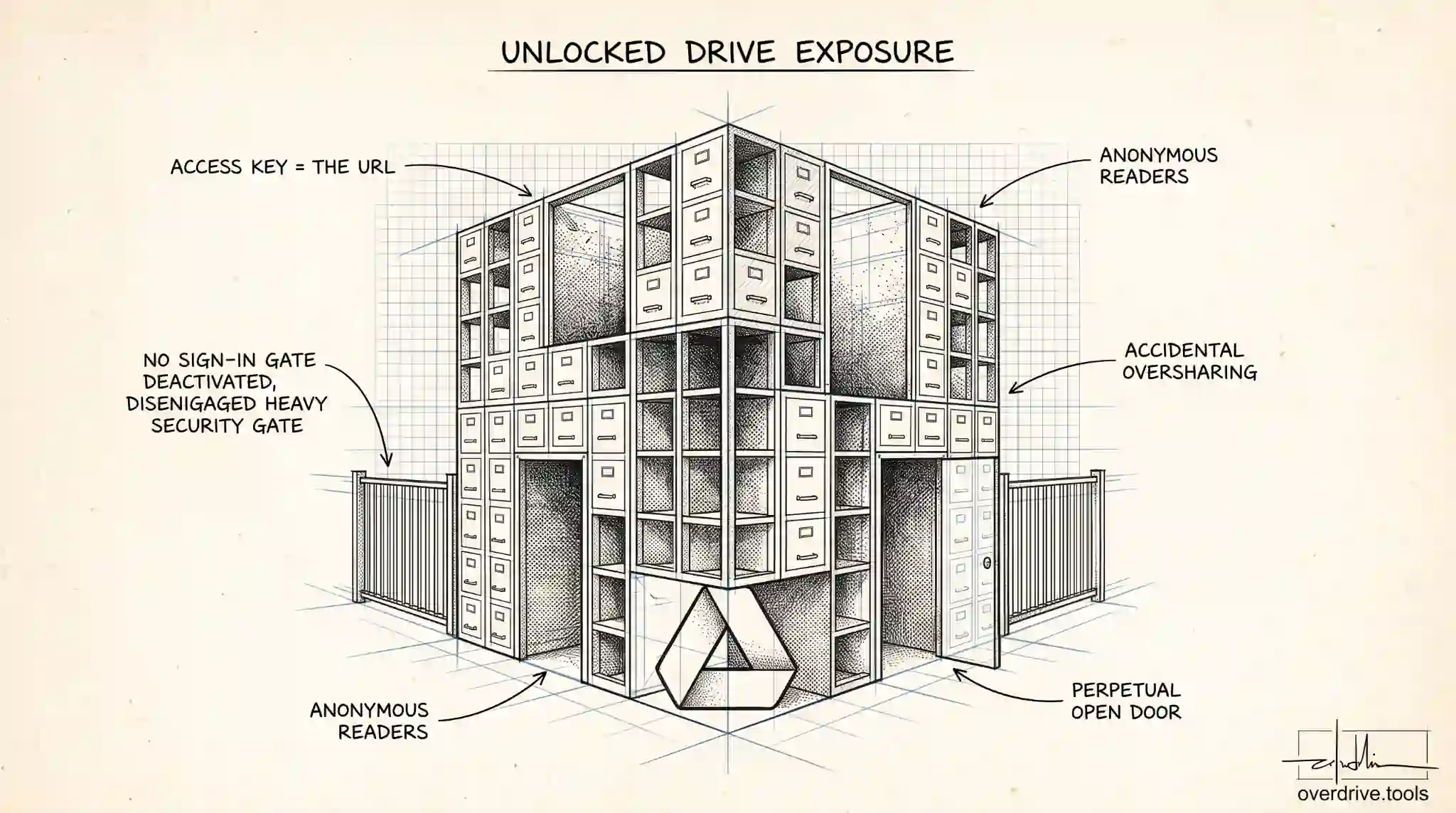
When a file is set to "anyone with the link," it's not publicly indexed like a webpage — but it's close. Anyone who has the URL can open it without logging in or having a Google account. If the link was shared in an email thread, a Slack channel, a document, or a public post, anyone who can see that thread can access your file.
The access level can be Viewer, Commenter, or Editor depending on what you set at the time. Editor access with "anyone with the link" means anyone with the URL can make changes to your file.
How to Remove "Anyone With the Link"
Here are your options:
Option 1: Use Overdrive to Find and Fix All of Them at Once
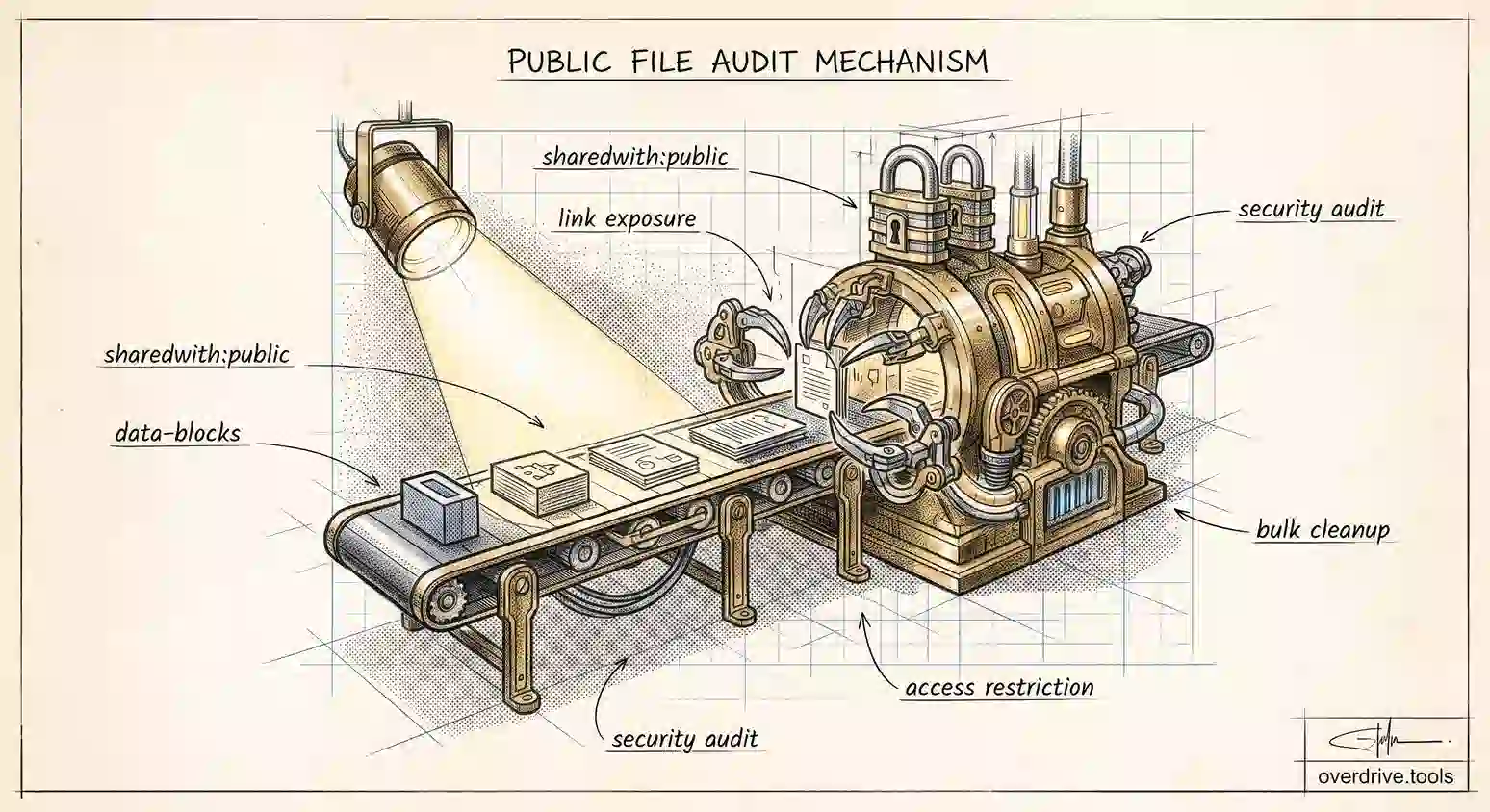
The challenge with "anyone with the link" files isn't just turning off the setting on one file — it's finding all the files where you've done this over time. Overdrive scans your entire Drive and surfaces every file currently set to "anyone with the link," so you can see the full scope and revoke that access in bulk rather than hunting file by file.
This is the right approach if you've been using Google Drive for more than a year and have shared files regularly.
Option 2: Change the Setting on Individual Files
For a specific file you know about:
- Open Google Drive
- Right-click the file and choose Share
- In the sharing panel, look for the General access section — it will say "Anyone with the link"
- Click the dropdown and change it to Restricted
- Click Done
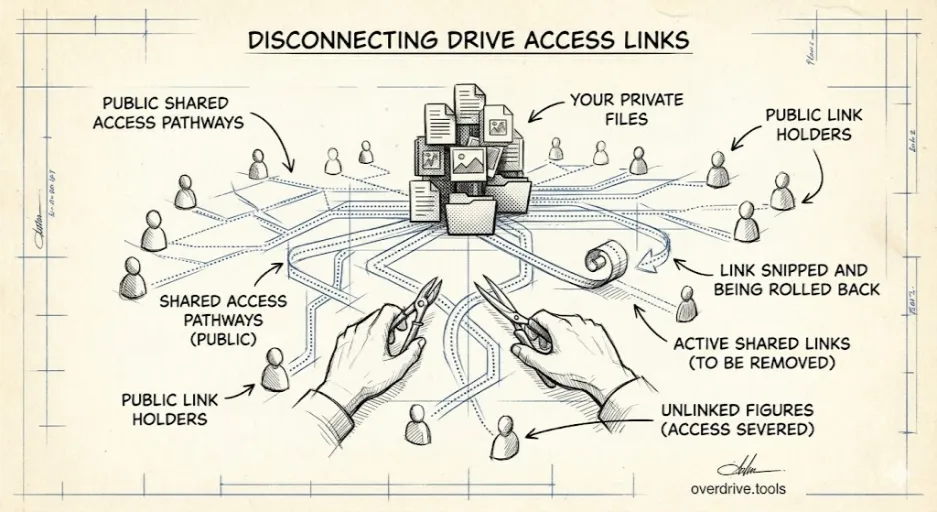
Once set to Restricted, the file is only accessible to people explicitly named in the sharing settings. Anyone who tries to open the old link will see an access error.
Option 3: Search for Shared Files and Review Them
Google Drive doesn't have a built-in filter specifically for "anyone with the link" files, but you can get a partial view:
- In Google Drive, click the search bar and open the filter panel
- Use the Shared with filter or sort your Drive to surface shared files
- Look for the sharing icon next to files and check each one
This surfaces files with any kind of sharing, not just "anyone with the link" — so you'll need to open each one to verify the setting. It works for a small number of files but becomes impractical at scale.
What Happens After You Restrict Access
When you change a file from "anyone with the link" to "Restricted":
- The old link stops working immediately. Anyone who tries to open it will get a "You need access" message.
- People who were also named directly in the sharing settings (added by email) keep their access — Restricted only closes the open link, it doesn't remove individually granted permissions.
- The file isn't deleted or moved. It stays exactly where it is.
- There's no notification sent to anyone.
If you want to also remove the named people from the file, you'll need to do that separately in the sharing panel.
A Note on Files Others Shared With You
If someone shared a file with you using "anyone with the link" and you want to remove it from your view, you can do that from Shared with me — but you can't change the sharing setting on files you don't own. Only the file owner can change General access. You can remove the file from your Drive view by right-clicking and choosing Remove, but the file itself remains accessible via the link.
Why This Is Worth Doing
"Anyone with the link" shares accumulate silently. Unlike named permissions — where you can see a specific person's name in the sharing panel — open links don't announce themselves. You don't get a reminder that twenty files are still set to public-ish access from two years ago.
A periodic check for these files, or a habit of switching files back to Restricted when you're done sharing them, keeps your Drive from building up quiet exposure over time.
Related Articles
- Google Drive Permissions: How to Review and Remove Access
- How to Find Externally Shared Files in Google Drive
- Who Has Access to Your Google Drive? Here's How to Find Out