How to Find Public Files in Your Google Drive
Google Drive has a search operator that lists every public file you own in seconds. Here's how to run it, read the results, and fix what turns up.
Overdrive Team//7 min read
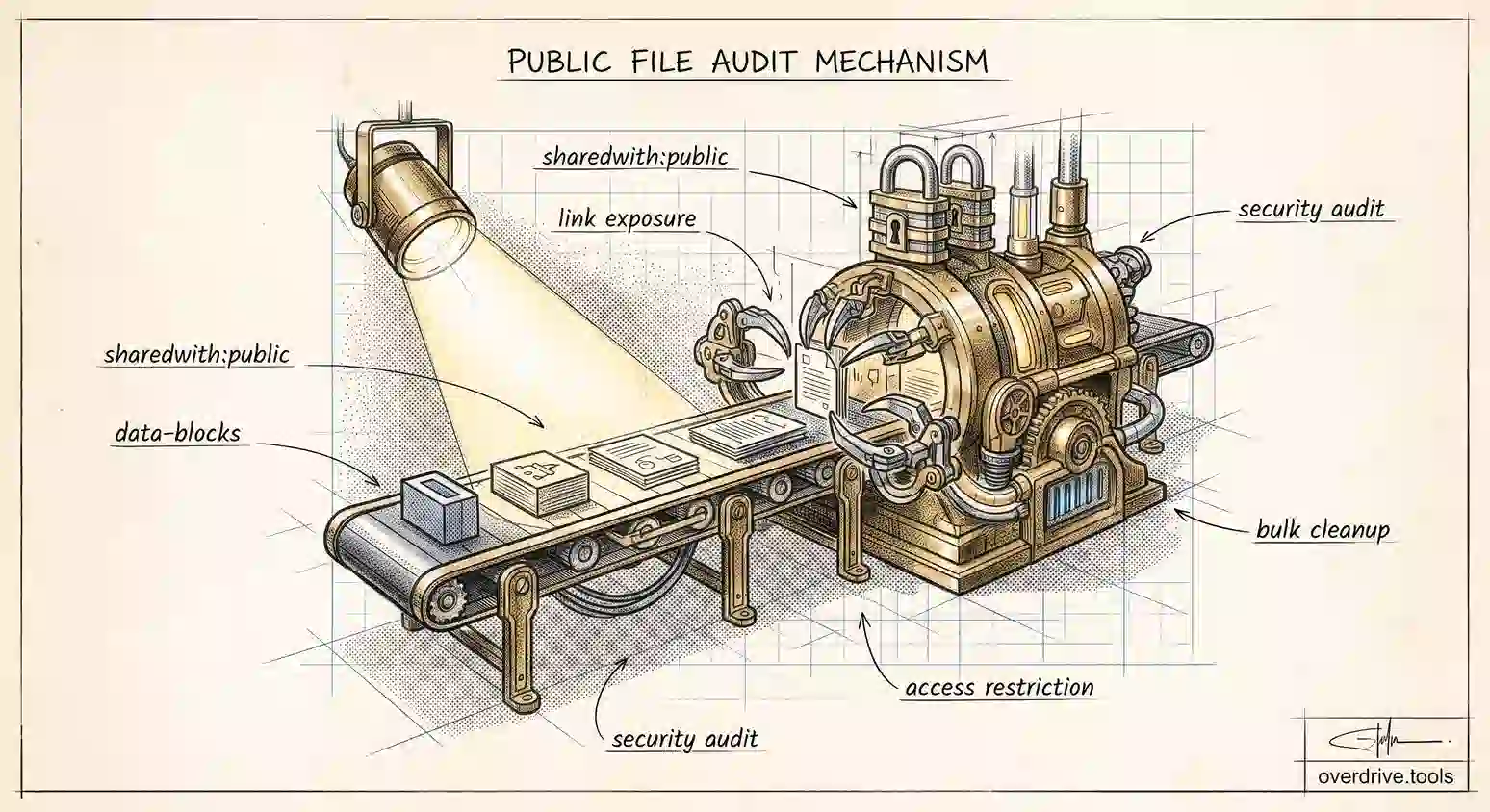
Google Drive has a search operator that answers a question most people never think to ask: which of my files can anyone open? Type owner:me sharedwith:public into the Drive search bar and you get a list of every file you own that's set to public or "anyone with the link." For most people who have used Drive for a few years, that list is longer than expected and contains at least one thing that shouldn't be on it.
It takes about five seconds to run and it's the single most useful sharing check available in Drive. Here's how to use it properly, what the results actually mean, and how to deal with what turns up.
The search that lists your public files
In the Drive search bar, enter:
owner:me sharedwith:public
Every result is a file you own whose general access is set to something broader than Restricted, meaning anyone holding the link can open it without being invited, and in some cases the file is discoverable more widely still.
Two parts are doing work here. The sharedwith:public operator filters to broadly shared files. The owner:me prefix limits results to files you own, which matters because your storage and your responsibility both follow ownership. Files other people shared publicly aren't yours to fix, and including them just makes the list noisier.
You can drop owner:me if you want to see everything public that you can see, including material owned by colleagues, which is occasionally useful for spotting a team problem rather than a personal one.
Narrowing it down
A raw list can be long. Three refinements make it manageable.
Add a file type when you're worried about a specific category. Combining the operator with type:spreadsheet or type:pdf surfaces the formats most likely to hold something sensitive, which is usually where you want to start.
Add a date filter to focus on old shares, which are the most likely to be forgotten and the least likely to still be needed. Something like before:2024-01-01 alongside the operator narrows to the shares you set up long enough ago to have stopped thinking about.
And try visibility:anyonewithlink as a related operator. It targets link-shared files specifically, which helps separate the merely link-accessible from anything set fully public.
What the results actually mean
The list mixes together two different levels of exposure, and it's worth knowing which is which before you panic or relax.
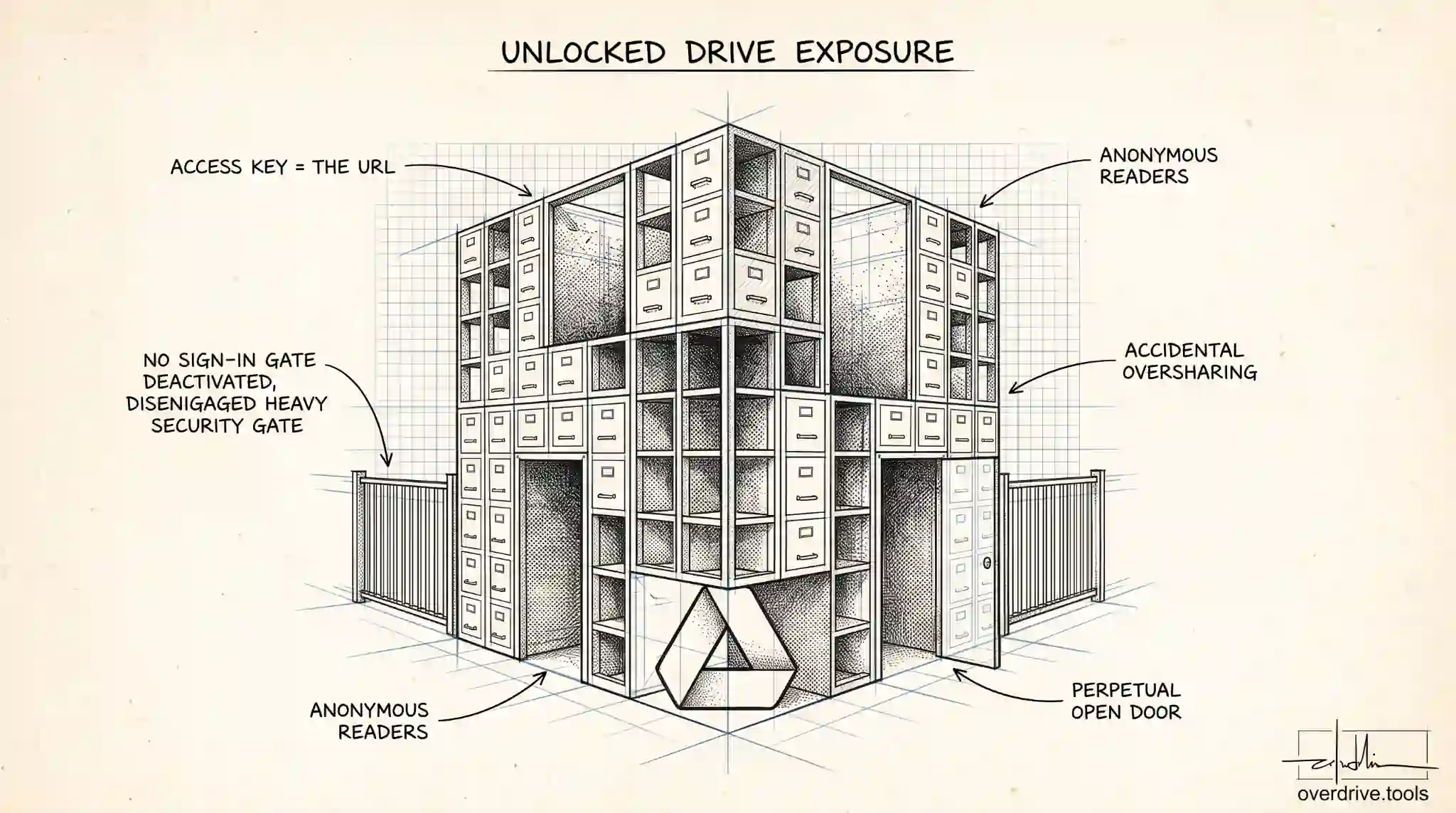
"Anyone with the link" means the file is not listed anywhere public and search engines won't index it under normal conditions, but anyone holding the URL can open it without signing in. The link is the only thing standing between the file and the world, and links get forwarded, pasted into chats, and included in screenshots.
"Public" or "anyone on the internet" is the stronger setting. These files can be discovered through search rather than requiring the link, which is a meaningfully different risk. There are fewer of them in most accounts, and they deserve attention first.
To check which applies to a given result, open the file, click Share, and look at General access. That's also where you change it.
About those "public Google Drive search engines"
A common question, and worth answering plainly because the confusion causes both false alarm and false comfort.
There is no official Google directory of public Drive files. Google doesn't publish a browsable index of everyone's shared documents, and the various third-party sites that claim to search public Drive content are working from links that were posted somewhere on the open web, not from privileged access to Drive itself.
That distinction matters in both directions. It means a file set to "anyone with the link" is not automatically floating in a searchable directory the moment you enable it, so the situation is less dire than the phrase suggests. But it also means that once your link appears anywhere crawlable, a forum post, a public page, a shared document, it can be found and indexed like any other URL. The protection was never secrecy of the file, only obscurity of the link, and obscurity has a habit of expiring.
So the practical takeaway is not to rely on nobody guessing your URL. Treat link sharing as a decision to let the file circulate, and use the operator above to periodically check which files you've made that decision about.
Cleaning up what you find
Work through the list in order of consequence rather than top to bottom.
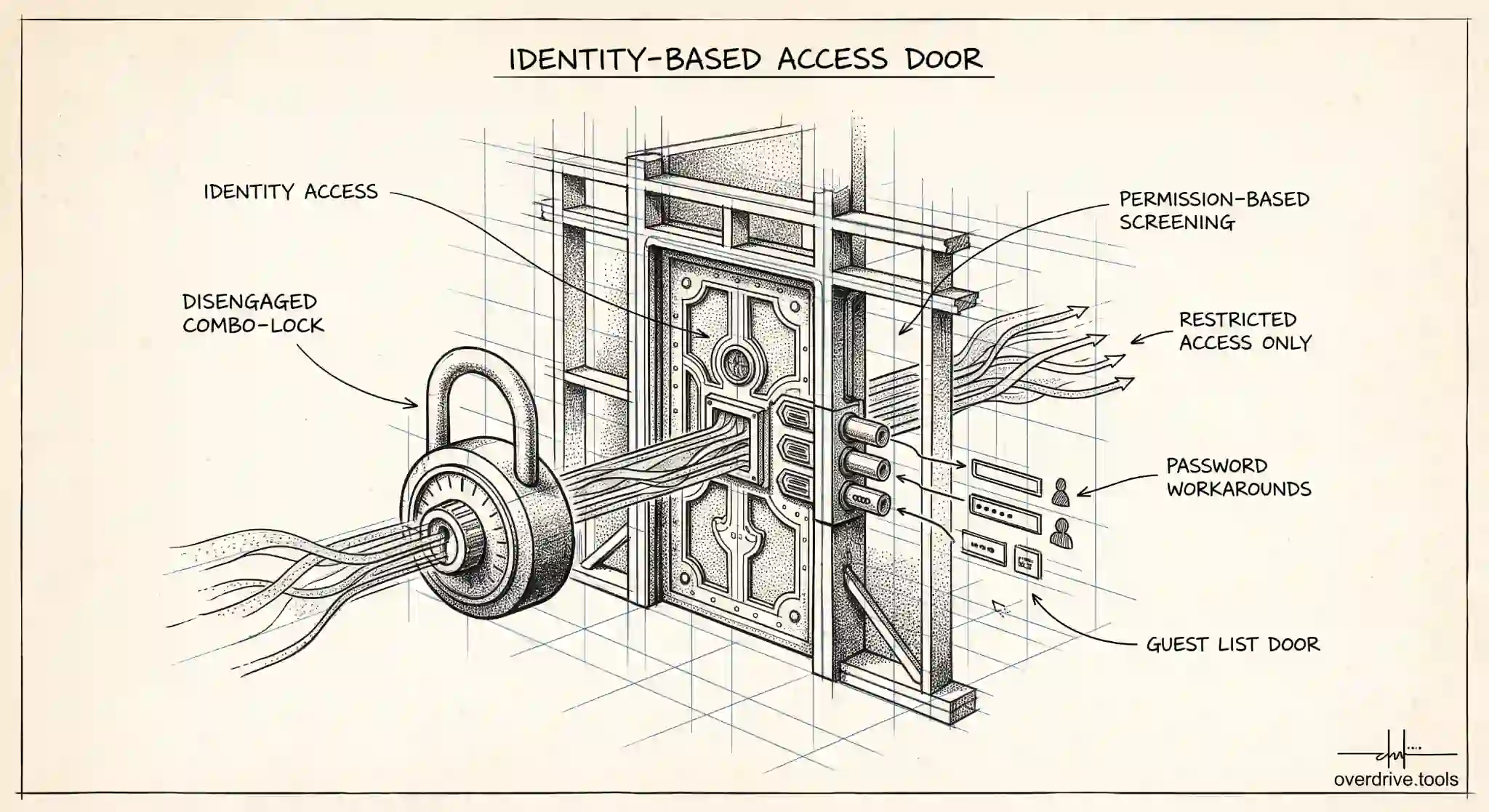
Start with anything fully public that holds personal data, financial detail, credentials, or client material. Change General access to Restricted immediately, then decide who genuinely needs it and add them by email.
Next, handle old link shares from finished work. A proposal sent to a prospect who never converted, a deck from a conference two years ago, an export shared once for a review that ended: none of these need to stay open. Restricting them costs nothing, since anyone who still needs access can ask.
Then look at what's left and decide deliberately. Some public sharing is intentional and fine, a published template or a resource you want circulating. Note it, so next time you run the check you recognize it and move on rather than re-evaluating from scratch.
For anything you want to keep link-shared but slightly tighter, turning off download, print, and copy for viewers and commenters in the advanced sharing settings limits how easily a copy walks away, though it doesn't stop someone reading it.
Where the manual method runs out
The operator is genuinely good, and for a personal Drive of a few hundred files it's all you need. It has three limits worth knowing before you rely on it as your whole process.
It's a point-in-time check, so it tells you about today and nothing about tomorrow. A file shared publicly next week won't announce itself. It only covers Drive search's view of sharing, so it doesn't group results by risk, show you how long a file has been exposed, or tell you which external people have access to what. And on a large Drive, the results are a flat list of filenames, which is fine for twenty items and unmanageable for four hundred.
That's the point where a scan does the job better. Overdrive scans your entire Drive and shows every file that's public, link-shared, or shared externally in one view, along with who has access and how long that access has existed, so you can work through the genuinely risky items first and revoke in bulk rather than opening files one at a time. It's the same question the search operator asks, answered continuously and sorted by what actually matters.
The files that surprise people most
After running this check a few hundred times, the same categories turn up again and again, and knowing them helps you scan a long list quickly.
Old proposals and pitch decks are the most common. They were link-shared to send to someone outside the company, the deal closed or didn't, and the sharing was never revisited. They frequently contain pricing, client names, and internal reasoning you wouldn't publish deliberately.
Spreadsheets shared for a one-off collaboration come second. A budget, a tracker, a list of contacts shared with a freelancer for a fortnight three years ago. Spreadsheets are worth prioritizing because they tend to hold structured personal data, which is exactly the category with regulatory weight.
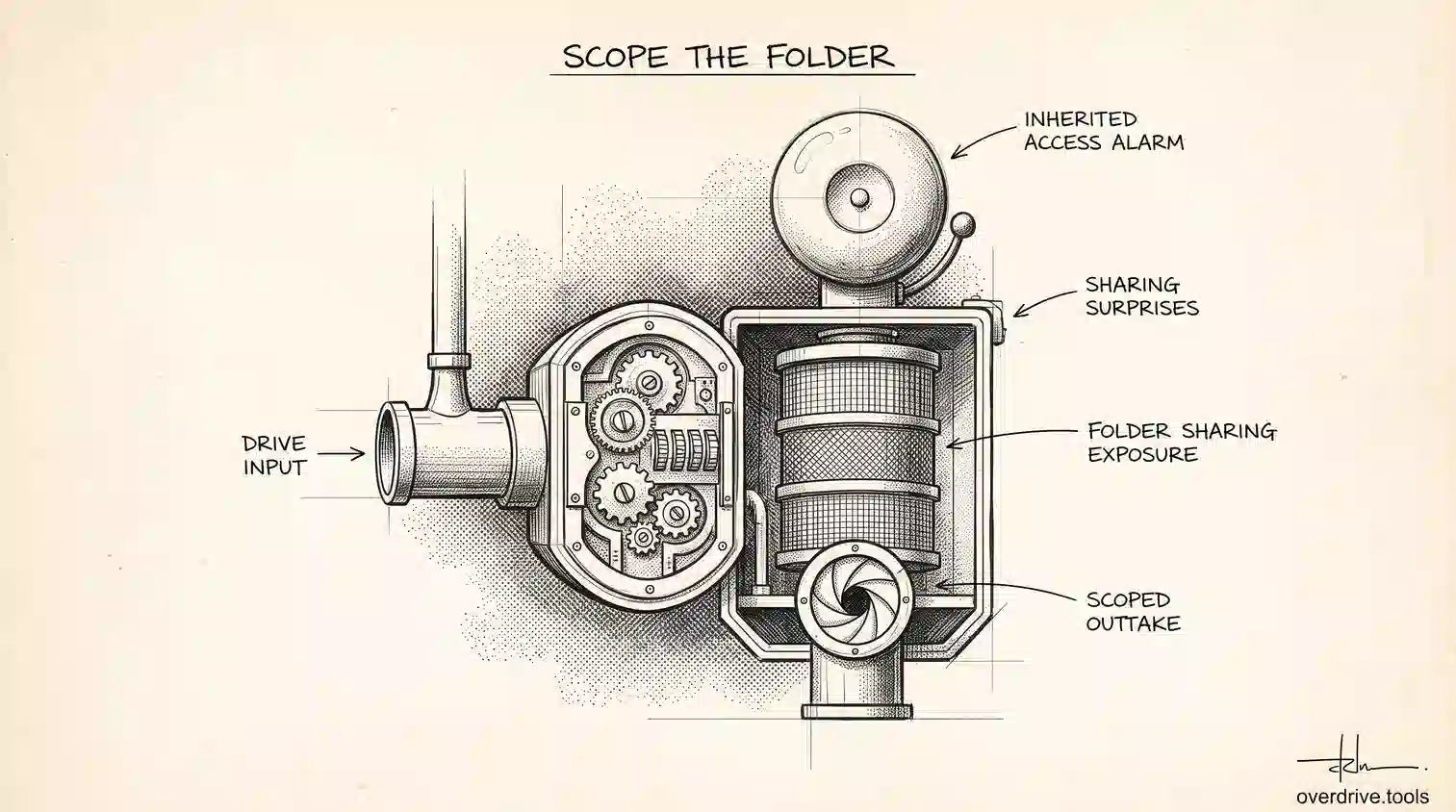
Folders, rather than files, are the sleeper issue. A publicly shared folder makes everything inside it public, including files added long after the sharing decision was made. So one careless folder setting quietly publishes work nobody consciously shared at all.
And forms, exports, and attachments saved from email round out the list. These get link-shared reflexively because sharing is the fastest way to hand something over, and they're the least likely to ever be reviewed.
None of this is negligence. It's the predictable result of link sharing being one click faster than the alternative, repeated over years.
Making it a habit
Whichever method you use, the value is in repetition rather than in one heroic cleanup.
Run the check quarterly. Put it on a calendar next to something else you already do, because a sharing audit that depends on remembering will not happen. Each pass after the first is quick, since you're only reviewing what changed.
And shift your default. The reason these lists get long is that link sharing is faster than adding people by email, so it becomes the reflex. Sharing with named people takes a few seconds longer and produces access you can actually see and remove later. Most of the files on your public list got there because somebody was in a hurry once.
The short version
Search owner:me sharedwith:public in Google Drive to list every file you own that's publicly or link-shared, and add type: or before: filters to narrow it down. Results mix "anyone with the link" files, which need the URL, with fully public files that can be found through search, and the latter deserve attention first. There's no official directory of public Drive files, but links do get indexed once they appear anywhere crawlable, so obscurity isn't protection. Clean up sensitive and stale shares, keep the deliberate ones, and re-run the check quarterly. On a large Drive, a scan that sorts exposure by risk beats a flat list of filenames.
Related Articles
- Are Your Google Drive Files Publicly Searchable?
- How to Remove 'Anyone With the Link' in Google Drive
- How to Find All Externally Shared Files in Google Drive