How to Make a Google Drive File Private
Learn how to make Google Drive files and folders private by removing all sharing. Step-by-step instructions to restrict access to only yourself.
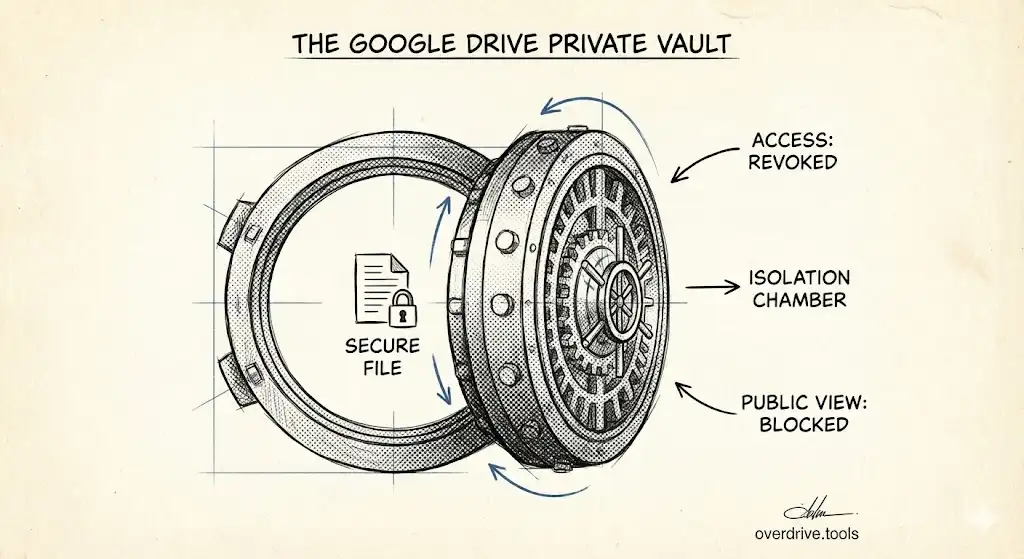
To make a Google Drive file private, right-click the file, click "Share," change "General access" from "Anyone with the link" to "Restricted," then remove any individual people listed. A fully private file is accessible only to you.
Make a File Private on Desktop
- Go to drive.google.com
- Right-click the file
- Click "Share"
- Under "General access," click the dropdown
- Select "Restricted"
- Remove any people listed by clicking the X next to their name (or change dropdown to "Remove access")
- Click "Done"
The file is now private—only you can access it.
Make a File Private on Mobile
- Open the Google Drive app
- Tap the three dots next to the file
- Tap "Share"
- Tap "General access"
- Select "Restricted"
- Go back and remove any individual people
- Tap "Save"
Make a Folder Private
The process is the same for folders. When you make a folder private:
- The folder becomes restricted
- Files inside inherit the folder's permissions
- Files with direct sharing may still be accessible (remove their sharing too)
To ensure everything is private, check individual files within the folder if they were previously shared separately.
Check if a File is Already Private
Quick check: Look at the file icon in Google Drive. Shared files show a "person" icon overlay. Private files have no overlay.
Detailed check:
- Right-click the file → "Share"
- Look at "General access" — should say "Restricted"
- Look at the people list — should only show you as Owner
Find All Your Shared Files
Before making files private, you might want to find everything you've shared:
Using Google Drive search:
Type is:shared-by-me in the search bar to see files you've shared with others.
Using Overdrive: Overdrive scans your entire Drive and shows all shared files organized by who has access—making it easy to spot files that shouldn't be shared and fix them in bulk.
For a complete security review, see our guide to finding externally shared files.
Private vs. Restricted vs. Limited
Google uses different terms that can be confusing:
| Setting | What it means |
|---|---|
| Restricted | Only people explicitly added can access |
| Anyone with the link | Anyone who has the URL can access |
| Anyone on the web | Public, searchable by anyone |
"Private" isn't an official Google term, but it means "Restricted" with no one else added.
When to Make Files Private
Consider making files private when:
- A project ends and collaborators no longer need access
- You shared something temporarily and forgot to unshare
- You find old files shared with ex-employees or clients
- You're doing a security audit of your Drive
For a full security review process, see our Google Drive Security Audit Checklist.