How to Stop Sharing a Google Drive Link
Learn how to disable link sharing on Google Drive files and folders. Turn off 'Anyone with the link' access and restrict files to specific people only.
Overdrive Team//2 min read
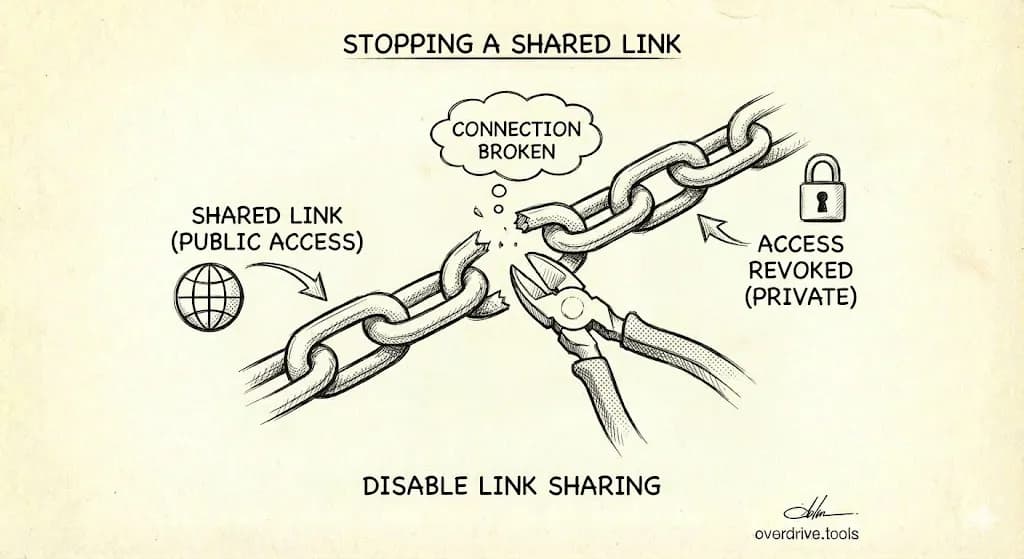
To stop sharing a Google Drive link, right-click the file, click "Share," then under "General access" change "Anyone with the link" to "Restricted." Click "Done." The link immediately stops working for anyone who has it.
Disable Link Sharing on Desktop
- Go to drive.google.com
- Right-click the file or folder
- Click "Share"
- Under "General access," click the dropdown (shows "Anyone with the link")
- Select "Restricted"
- Click "Done"
The shared link now returns an "access denied" error for anyone who tries to use it.
Disable Link Sharing on Mobile
Android:
- Open the Google Drive app
- Tap the three dots next to the file
- Tap "Share"
- Under "General access," tap "Anyone with the link"
- Select "Restricted"
- Tap "Done"
iPhone/iPad: Same steps as Android.
Remove Specific People (Keep Link Active)
If you want to keep link sharing on but remove certain people:
- Right-click the file → "Share"
- Find the person's name in the list
- Click the dropdown next to their name
- Select "Remove access"
- Click "Save"
They lose access immediately. Others with the link can still access the file.
Stop Sharing a Folder
When you disable link sharing on a folder:
- The folder becomes restricted
- Files inside may still be individually shared
To fully lock down a folder, you need to:
- Disable link sharing on the folder
- Check files inside for individual sharing
- Remove any direct shares on those files
Find All Your Link-Shared Files
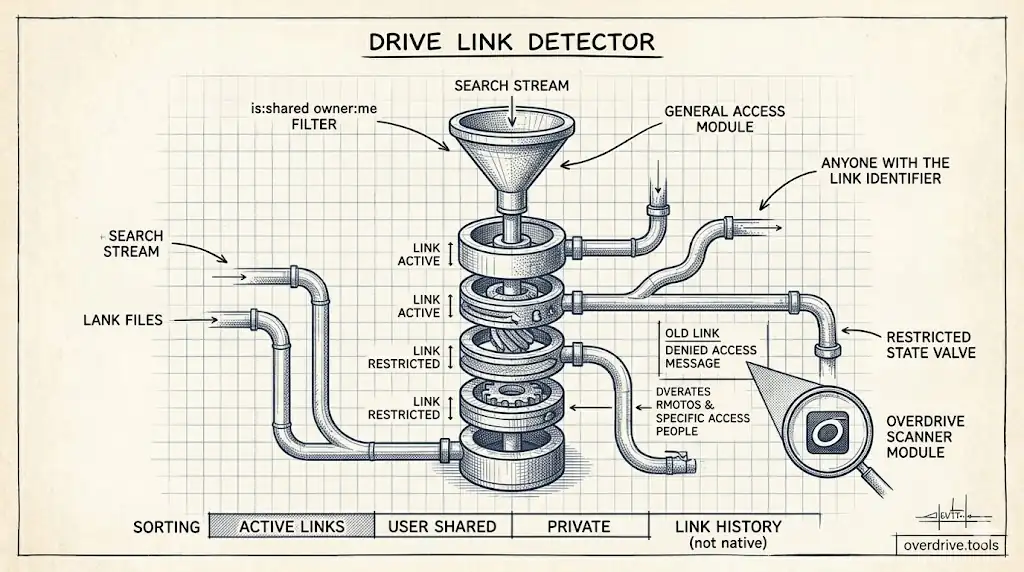
Before you can stop sharing, you need to find what's shared. Search for:
is:shared-by-me
This shows everything you've shared. Look for files with the "shared" icon.
To find specifically link-shared files (not just shared with specific people), you'll need to check each file's sharing settings—or use Overdrive to scan your entire Drive and show all files with "Anyone with the link" access in one list.
For a complete guide, see how to find externally shared files in Google Drive.
What Happens When You Disable Link Sharing
- Anyone with the old link gets "access denied"
- People explicitly added by email still have access
- The file stays in their "Shared with me" if they were added directly
- Bookmarks to the file stop working for link-only users
- Google Docs comments from link users remain
Prevent Editors from Re-enabling Link Sharing
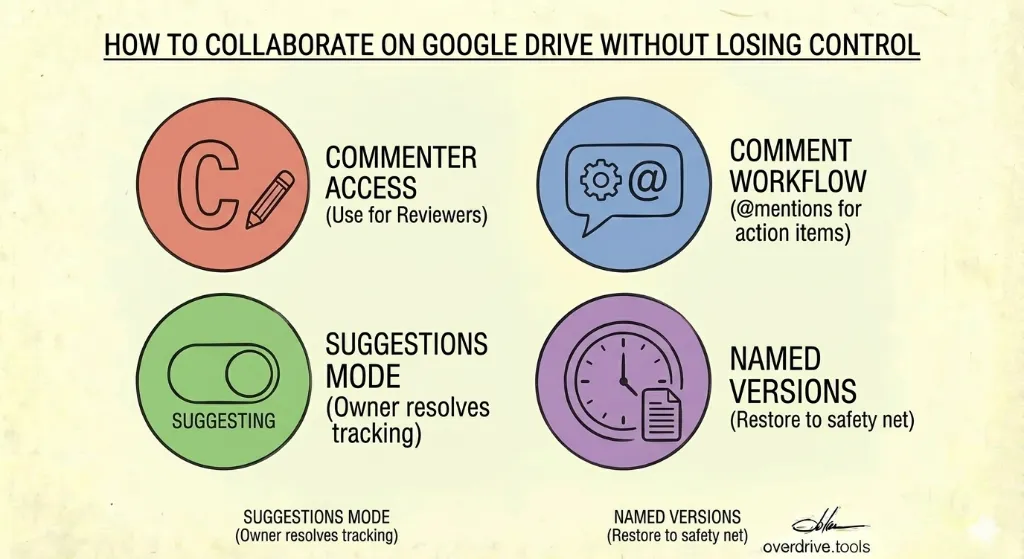
By default, Editors can change sharing settings. To prevent this:
- Right-click the file → "Share"
- Click the gear icon (⚙️) in the top right
- Uncheck "Editors can change permissions and share"
- Click "Done"
Now only you (the owner) can modify sharing settings.
Stop All Sharing at Once
Google Drive doesn't have a "stop all sharing" button. Your options:
Option 1: Check files one by one (tedious but thorough)
Option 2: Move files to a new private folder, then delete the originals
Option 3: Use Overdrive to identify all shared files, then systematically disable sharing
For a full security cleanup, see our Google Drive Security Audit Checklist.