"Anyone With the Link" in Google Drive: What It Means
"Anyone with the link" in Google Drive lets anyone with the URL open your file without signing in. Here's what it really means and who can see it.
Overdrive Team//7 min read
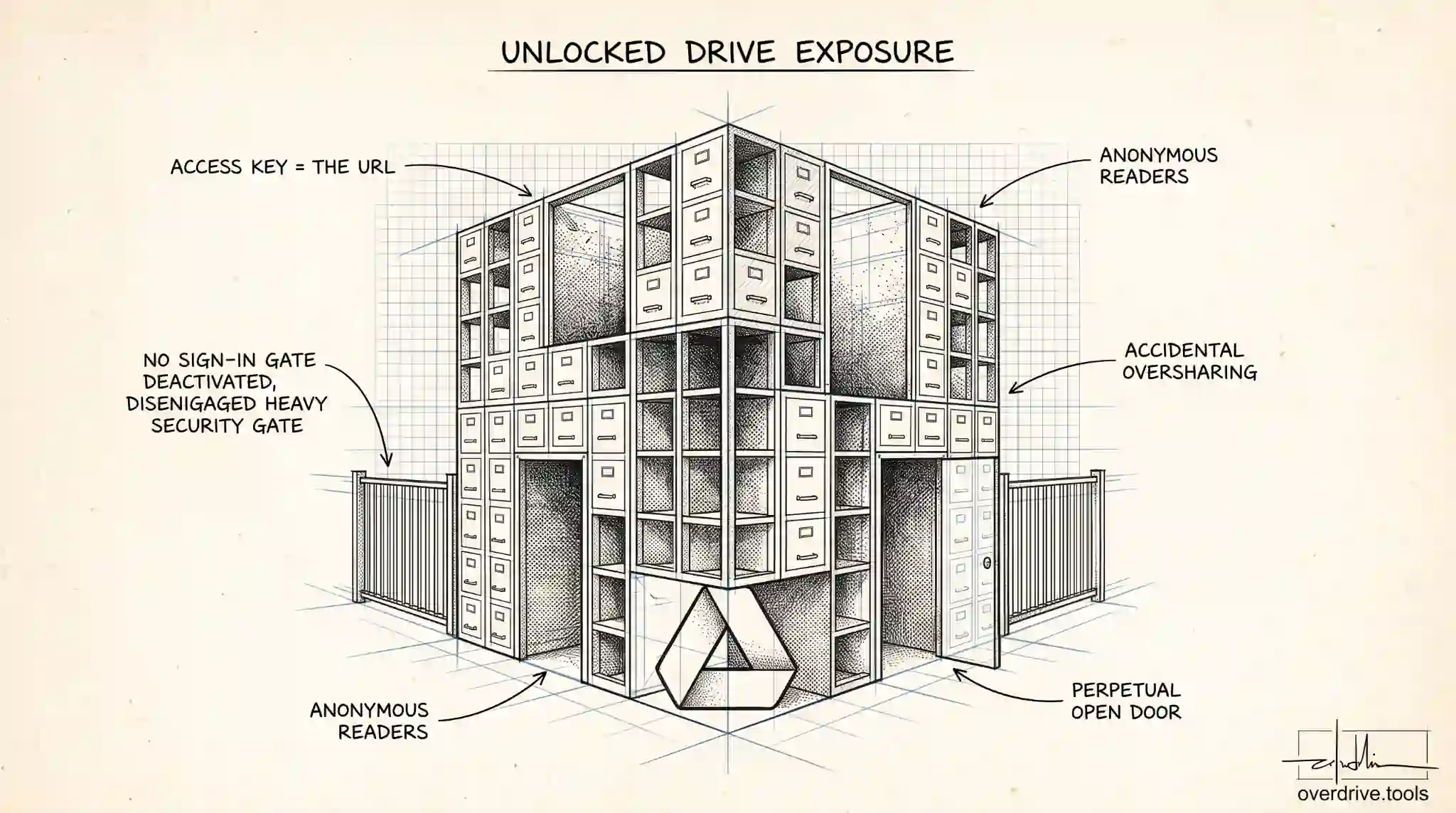
When you share a file in Google Drive and pick "Anyone with the link," you're telling Google that any person who has that link can open the file without signing in to a Google account. They don't need to be invited, they don't need a password, and you'll never see their name. If the link reaches someone you didn't intend, they get the same access as everyone else who has it.
That single setting is behind most accidental oversharing in Google Drive. It's convenient, which is exactly why people leave it on far longer than they should. Here's what the setting actually does, what it doesn't do, and how to tell which of your files are exposed by it right now.
What "Anyone with the link" actually means
Every file in Google Drive has a setting called General access. It controls the baseline of who can reach the file, separate from the specific people you invite by email. General access has three possible states, and it helps to see them side by side.
| General access | Who can open it | Sign-in required? | Findable on Google Search? |
|---|---|---|---|
| Restricted | Only people you add by email | Yes | No |
| Anyone with the link | Anyone who has the URL | No | No |
| Public | Anyone at all | No | Yes |
"Anyone with the link" sits in the middle. The file is not advertised anywhere and it won't show up in Google Search results, but access is controlled entirely by who possesses the link. A link is easy to pass along. It can be forwarded in an email, pasted into a group chat, copied into a shared document, or included in a screenshot. Once it leaves your hands, you have no way to know where it ends up, and anyone holding it can walk straight in.
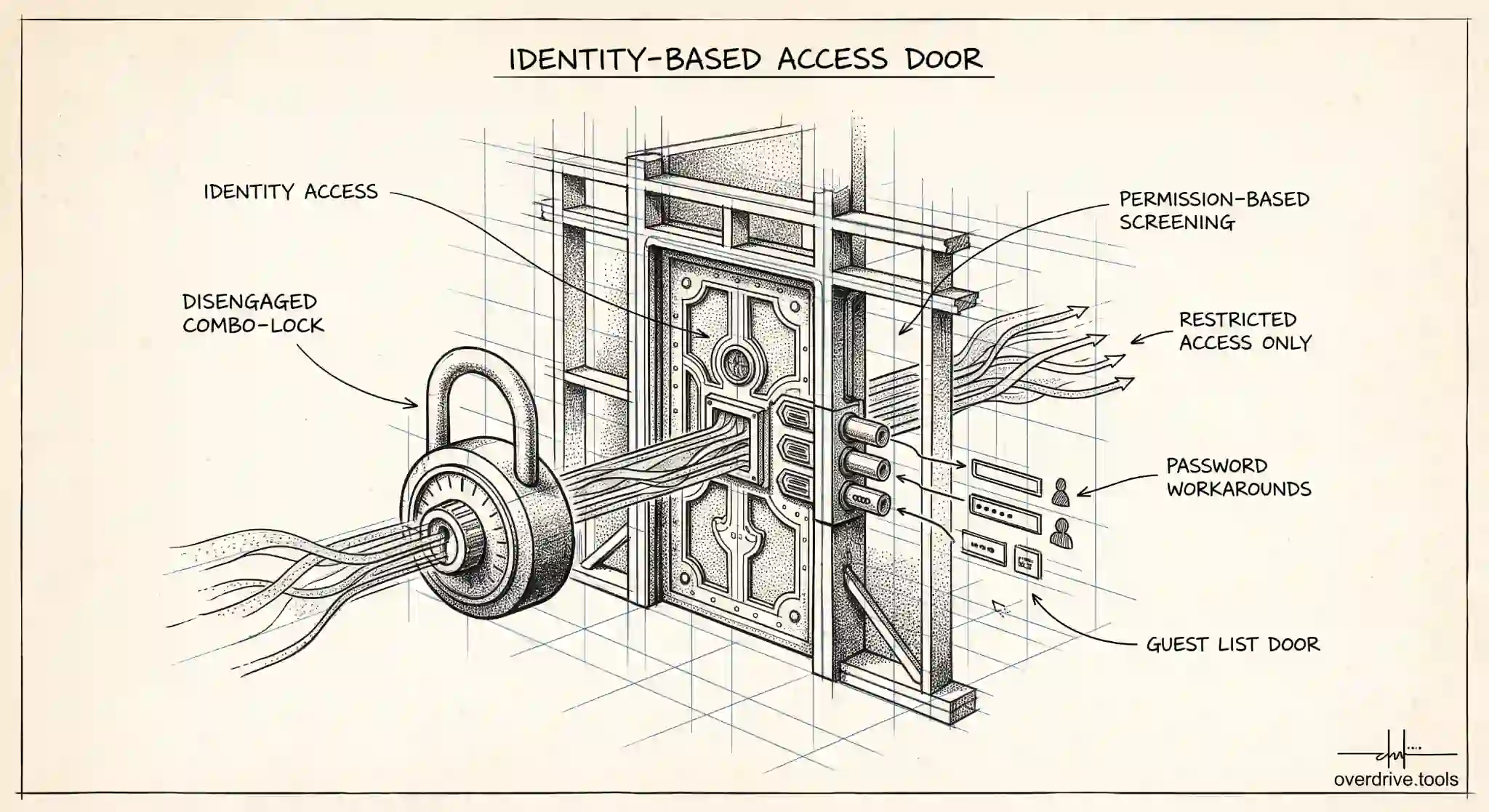
This is the part people miss: the link is the key. There's no second check. Google doesn't ask the visitor who they are, doesn't email you for approval, and doesn't log their identity. If they have the URL, they're in.
The permission level still matters
Turning on "Anyone with the link" is only half the setting. The other half is the role you assign, which decides what those visitors can do once they open the file. You choose one of three:
Viewers can open and read the file. By default they can also download, print, and copy it, unless you specifically turn that off. Commenters can do everything a viewer can, plus leave comments and suggestions. Editors can change the content directly, and depending on your settings they may also be able to reshare the file to other people.
So "anyone with the link can edit" is a very different exposure from "anyone with the link can view." The first lets strangers alter your work. The second lets them read and, unless you've locked it down, save their own copy. Neither requires them to identify themselves.
One important detail about viewing: because visitors don't sign in, you can't see who they are. In Google Docs, Sheets, and Slides, people who open a link-shared file without an account appear as anonymous animals, like an anonymous aardvark. Your own name and email, however, stay visible to them as the file's owner. The anonymity runs one direction only.
What it does not mean
It's worth clearing up two common fears, because "anyone with the link" is often confused with something more exposed than it really is.
It does not mean your file is on the public web. Only the Public setting makes a file discoverable through Google Search. A link-shared file is invisible to search engines under normal conditions. The catch is that if someone posts your link on a public web page, a forum, or a social post that later gets crawled, the file can become findable through that page. The link itself is safe until it's published somewhere public.
It also does not mean everyone in the world already has access. Access is gated by the link. The risk isn't that the whole internet can see the file today, it's that you've removed the invitation step, so the moment the link spreads, so does access. You've traded a locked door for one that opens for anyone holding the key.
Why this setting causes problems
The trouble with "anyone with the link" is that it's frictionless to turn on and easy to forget. You share a file once for a quick collaboration, the link does its job, and the setting quietly stays active for months or years. Multiply that across a busy Drive and you end up with a pile of files sitting open to anyone who ever received a link, long after the reason for sharing has passed.
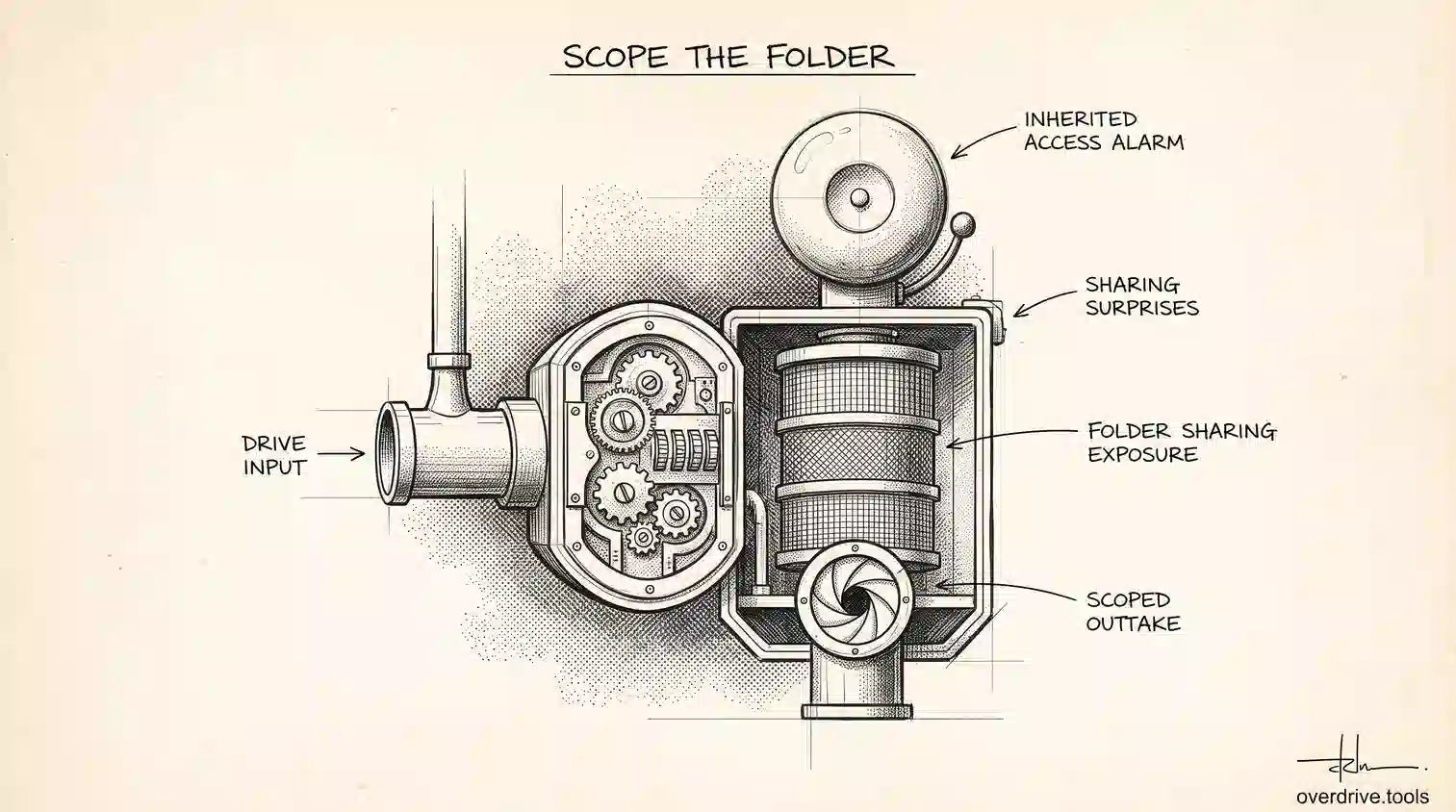
Files created from a shared folder inherit that folder's access too. If a folder is set to "anyone with the link," every file you drop into it becomes link-accessible automatically, without a separate decision on your part. That's how sensitive documents end up exposed without anyone consciously sharing them.
The other issue is visibility. Google doesn't give you a single screen that lists every file currently set to "anyone with the link." You'd have to open each file's sharing dialog one at a time to check, which is why these settings tend to accumulate unnoticed.
Consider a common scenario. You put together a proposal, set it to "anyone with the link" so a client can review it without the hassle of a Google account, and email them the URL. The client forwards your message to two colleagues for a second opinion. One of them saves the file to read later, another pastes the link into a project tracker their whole team can see. None of that was your decision, yet all of it is now normal access to a document that may contain pricing, internal notes, or contact details. Nobody did anything wrong, and that's the point: the setting was working exactly as designed. The exposure came from the link traveling, which is what links do.
There's also a timing problem. A link share made sense on the day you created it, but circumstances change. Projects end, clients churn, employees move on, and drafts get replaced by final versions you'd rather people not see. The sharing setting doesn't expire on its own unless you're on an eligible Workspace account that supports expiration dates, so yesterday's reasonable share becomes today's stale open door.
How to find and fix link-shared files
If you want to know which files in your Drive are set to "anyone with the link" and tighten the ones that shouldn't be, here are your options.
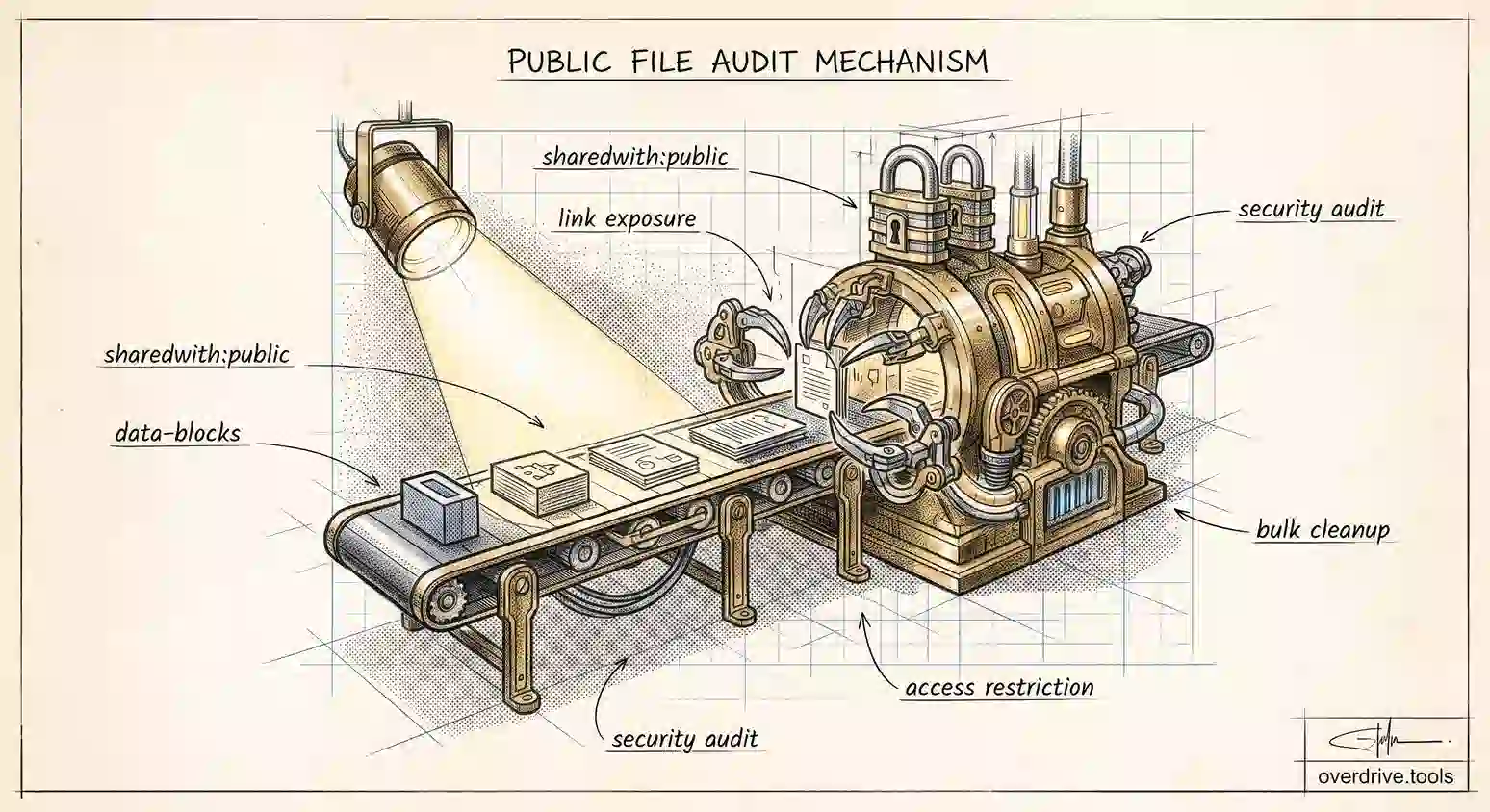
Option 1: Scan your whole Drive at once. Because Google Drive has no built-in report of link-shared files, checking manually means opening files one by one. A tool like Overdrive can scan your entire Drive and show every file set to "anyone with the link" or shared externally in a single view, so you can spot the exposure and revoke access in bulk instead of hunting file by file.
Option 2: Check files individually in Google Drive. For a specific file, select it, click Share, and look under General access. If it reads "Anyone with the link," click the dropdown and switch it to Restricted. That immediately cuts off everyone who isn't invited by email. Click Done to save.
Option 3: Lock down the parent folder. If several files are exposed because their folder is link-shared, fixing the folder fixes them all at once. Open the folder's sharing settings, set General access to Restricted, and the files inside inherit the tighter setting.
If you'd rather keep a file link-shared but reduce the risk, you can leave it on "Anyone with the link" as Viewer and turn off downloading, printing, and copying in the advanced sharing settings. That won't stop someone from reading it, but it does stop them from easily walking away with a copy.
When it's fine to use
"Anyone with the link" isn't inherently dangerous, and there are good reasons to use it. It's genuinely useful for a file you want to distribute quickly to a group whose email addresses you don't have, for a document attached to a newsletter, or for a resource you're comfortable letting circulate freely. The key is that it should be a deliberate choice for content you don't mind spreading, not the default you reach for out of habit.
The safe habit is simple. Use Restricted sharing by default, invite people by email when you can, and reserve "anyone with the link" for the handful of files where broad, anonymous access is actually what you want. Then check your Drive every so often to make sure old link shares haven't piled up. A setting that made sense for one quick handoff shouldn't still be open a year later.
Related Articles
- How to Remove 'Anyone With the Link' in Google Drive
- Can People See My Google Drive?
- Google Drive Permission Levels: What Viewer, Commenter, Editor, and Owner Can Actually Do