Google Drive Permission Levels: What Viewer, Commenter, Editor, and Owner Can Actually Do
Confused by Google Drive's permission settings? Here's exactly what each role can and can't do — and which one to use when sharing files.
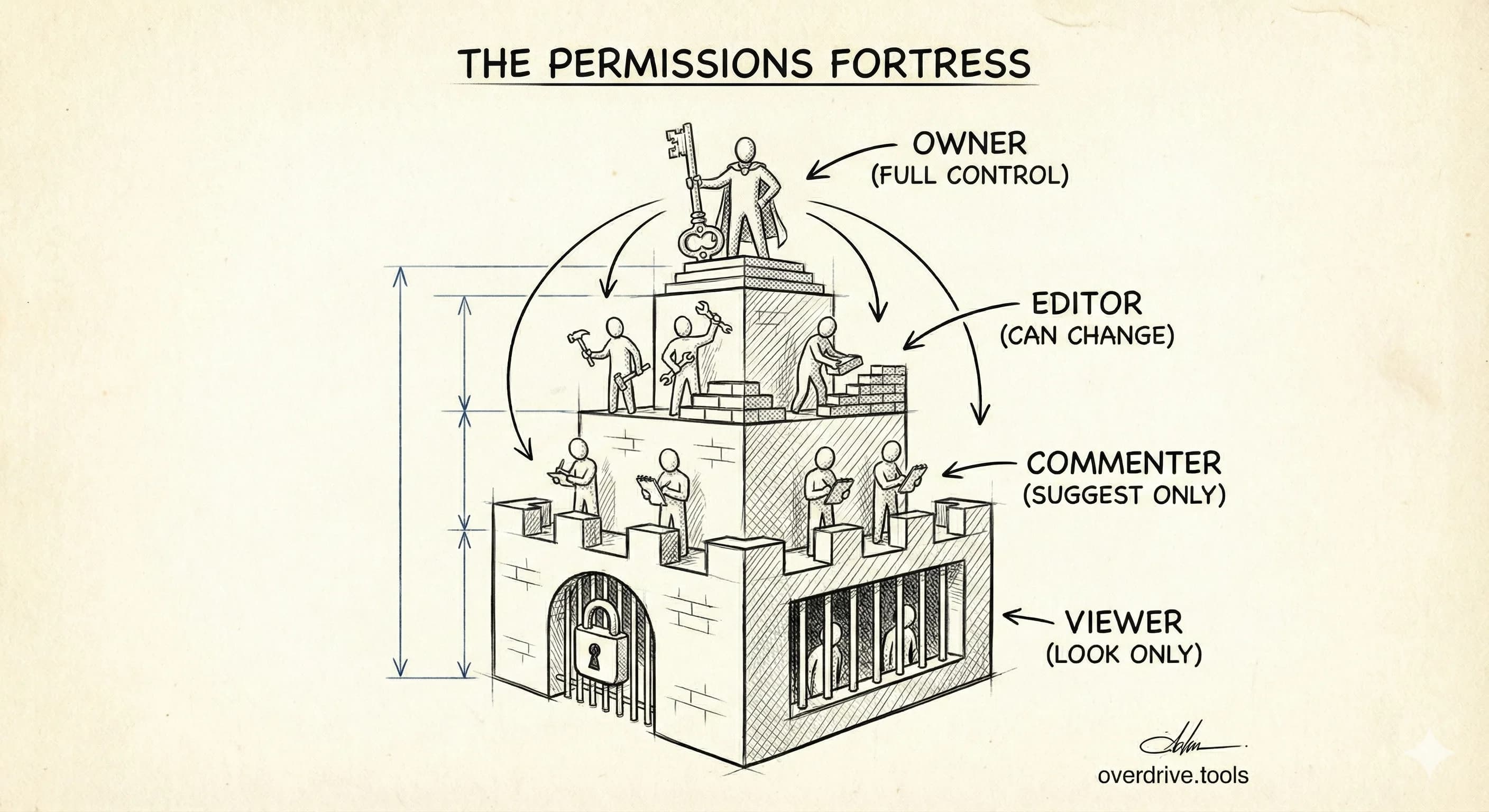
Google Drive has four permission levels: Viewer (can only view), Commenter (can view and comment), Editor (can view, comment, and edit), and Owner (full control including sharing and deletion). When you share a folder, everyone with access to that folder automatically gets the same access to everything inside it—this is called inherited permissions.
Understanding these levels prevents two common mistakes: giving people more access than they need, and accidentally restricting collaborators who need to edit.
The Four Permission Levels
Viewer
What Viewers can do:
- Open and read files
- Download files (unless restricted)
- Print files (unless restricted)
- Make a copy to their own Drive
What Viewers cannot do:
- Edit content
- Leave comments
- Share with others (unless allowed)
- Delete files
- See version history details
Best for: Distributing final documents, sharing reference materials, giving read-only access to sensitive information.
Commenter
What Commenters can do:
- Everything Viewers can do
- Add comments and suggestions
- Reply to existing comments
- Resolve their own comments
What Commenters cannot do:
- Edit content directly
- Accept or reject suggestions (only Editors/Owners can)
- Share with others (unless allowed)
- Delete files
Best for: Review workflows, getting feedback without risking unwanted edits, collaborative documents where you want tracked input.
Editor
What Editors can do:
- Everything Commenters can do
- Edit content directly
- Accept or reject suggestions
- Add and remove other people (unless restricted)
- Move files to different folders (with some limitations)
- See full version history
What Editors cannot do:
- Delete files permanently (only move to their own Trash)
- Transfer ownership
- Change the owner's sharing settings
Best for: Collaborative work, team documents, anything requiring direct editing by multiple people.
Owner
What Owners can do:
- Everything Editors can do
- Delete files permanently
- Transfer ownership to someone else
- Control all sharing settings
- Restrict download, print, and copy options
- Prevent Editors from changing sharing
Important: Every file has exactly one Owner. For personal Drive files, the Owner is whoever created or uploaded the file. Ownership can be transferred, but there's always only one.
Note: Shared Drives work differently—files in Shared Drives are owned by the organization, not individuals.
How Folder Permissions Work
This is where most confusion happens.
Inheritance: Folder Access = File Access
When you share a folder, everyone with access automatically gets the same permission level for everything inside:
📁 Project Folder (shared with Alex as Editor)
   ├── 📄 Document.docx      ← Alex is Editor
   ├── 📄 Spreadsheet.xlsx   ← Alex is Editor
   └── 📁 Subfolder          ← Alex is Editor
       └── 📄 Notes.docx     ← Alex is Editor
You don't need to share each file individually. Add files to a shared folder, and they're automatically accessible to everyone with folder access.
Adding Permissions (But Not Removing)
You can give someone more access to a specific file than they have to the folder:
📁 Project Folder (shared with Alex as Viewer)
   ├── 📄 Overview.docx      ← Alex is Viewer (inherited)
   └── 📄 Editable.docx      ← Alex is Editor (you added extra access)
But you cannot give someone less access to a file than they have to its parent folder. If Alex is an Editor on the folder, you can't make them a Viewer on a file inside it.
The Solution for Restricted Files
If certain files need restricted access:
- Don't put them in the shared folder. Keep sensitive files in a separate location.
- Use a different folder structure. Create a subfolder that's shared with fewer people.
- Share the folder with lower permissions and grant higher permissions to specific files as needed.
Sharing Options Beyond Permission Levels
Permission levels control what someone can do. Sharing settings control who can access.
Restricted (Specific People)
- Only people you explicitly add can access
- Most secure option
- You control exactly who sees the file
- Default for new files
Anyone with the Link
- Anyone who has the link can access
- No sign-in required (depending on settings)
- You can't see who accessed it
- Link can be forwarded to others
Risk: Once shared, you can't control who the link reaches. Someone could forward it, post it publicly, or share it unintentionally.
Anyone on the Web (Public)
- File is indexed and discoverable
- Anyone can find and access it
- Appropriate only for intentionally public content
- Available for Google Workspace accounts with admin permission
Checking Current Permissions
For a Single File
- Right-click the file → Share → Share
- See list of people with access
- See their permission level next to their name
- See general access setting at the bottom ("Restricted" or "Anyone with the link")
For Multiple Files
Google Drive doesn't offer a built-in way to audit permissions across many files at once. You'd need to check each file individually, which becomes impractical with hundreds of files.
For bulk permission auditing, see Who Has Access to My Google Drive Files?
Changing Permissions
Upgrading or Downgrading Access
- Right-click the file → Share → Share
- Find the person in the list
- Click their current permission level
- Select new level (Viewer, Commenter, Editor)
- Click Save
Removing Access Entirely
- Right-click the file → Share → Share
- Find the person
- Click their permission level
- Select Remove access
- Click Save
Removing Inherited Access
If someone has access through a folder, you can't remove their access to individual files. You need to either:
- Remove them from the parent folder (removes all access)
- Move the file out of the shared folder
- Change the folder's sharing settings
Additional Sharing Controls
Owners and Editors can set additional restrictions.
Prevent Editors from Changing Sharing
- Open sharing settings
- Click the gear icon (⚙️)
- Uncheck "Editors can change permissions and share"
- Now only the Owner can add or remove people
Useful when you want help editing but don't want collaborators adding others.
Disable Download, Print, and Copy
- Open sharing settings
- Click the gear icon (⚙️)
- Uncheck "Viewers and commenters can see the option to download, print, and copy"
Limitations:
- Only applies to Viewers and Commenters
- Editors can still download
- Determined users can still screenshot or copy content manually
- Doesn't work for all file types
Set Expiration Dates
For Google Workspace accounts, you can set access to expire:
- Open sharing settings
- Click the dropdown next to a person's permission
- Select Add expiration
- Choose a date
Access automatically revokes on that date. Useful for temporary collaborators, contractors, or time-limited projects.
Shared Drives: Different Rules
Google Workspace's Shared Drives have a different permission model.
Shared Drive Permission Levels
| Level | Capabilities |
|---|---|
| Viewer | View files only |
| Commenter | View and comment |
| Contributor | View, comment, edit, add files |
| Content Manager | Above + move/delete files, moderate |
| Manager | Full control including member management |
Key Differences from Personal Drive
- Files are owned by the organization, not individuals
- Members have consistent access to everything in the Shared Drive
- You can't share individual files with people outside the Shared Drive's membership
- Deleted files go to Shared Drive Trash, not personal Trash
Common Permission Mistakes
Mistake 1: Over-Sharing with "Anyone with Link"
Problem: You share a file with "Anyone with the link" for convenience, then forget about it. The link spreads, and unintended people access your file.
Fix: Default to "Restricted" sharing. Only use link sharing when truly necessary, and review link-shared files periodically.
Mistake 2: Making Everyone an Editor
Problem: You give Editor access to everyone because "they might need to edit something." Now anyone can accidentally delete content, accept bad suggestions, or share with others.
Fix: Start with Viewer or Commenter. Upgrade to Editor only for people who actually need to edit.
Mistake 3: Forgetting Folder Inheritance
Problem: You share a folder with your team, then add a sensitive file to it. The team can now see the sensitive file.
Fix: Keep sensitive files in separate, restricted folders. Think about inheritance before adding files to shared folders.
Mistake 4: Not Removing Former Collaborators
Problem: Old contractors, former employees, or past clients still have access to files months or years later.
Fix: Audit sharing periodically. Remove access when collaboration ends. See How to Revoke Google Drive Access for Former Employees.
Mistake 5: Confusing Ownership with Editing Rights
Problem: You give someone Editor access thinking they can now "own" the file. But they can't control sharing settings or delete it permanently.
Fix: If someone needs full control, transfer ownership. If they just need to edit, Editor is sufficient.
Auditing Permissions at Scale
With hundreds or thousands of files, checking permissions manually isn't realistic.
Signs you need a permission audit:
- You've shared files with "Anyone with the link" and lost track of which ones
- Former collaborators might still have access
- You're not sure what's in shared folders
- You've never reviewed sharing settings since creating files
Overdrive scans your entire Google Drive and shows all sharing—who has access to what, which files are public, and where your security gaps are. One scan reveals permission issues that would take hours to find manually.
Frequently Asked Questions
Can I see who viewed my file?
For Google Docs, Sheets, Slides, and Forms: File → See version history or Activity dashboard shows who viewed and when (for people with Google accounts). For other file types, there's no built-in view tracking.
Can Editors delete files?
Editors can move files to Trash, which removes them from the shared location. However, the Owner can recover files from their own Trash. Editors cannot permanently delete files they don't own.
What happens when I remove someone's access?
They immediately lose access. If they have the file open, they'll see it but won't be able to make changes or reopen it. They won't be notified that access was removed.
Can I share a file with someone who doesn't have a Google account?
Yes, but with limitations. Set sharing to "Anyone with the link," and they can view. For editing, they'll need a Google account. Some file types support anonymous editing with link access.
How do I transfer ownership?
- Share the file with the new owner as Editor
- Open sharing settings
- Click the dropdown next to their name
- Select "Transfer ownership"
- They'll need to accept the transfer
Note: You can only transfer ownership to someone with a Google account. After transfer, you become an Editor (unless they remove you).
Do permissions apply to files inside a shortcut?
Shortcuts don't affect permissions. The shortcut is just a pointer—the original file's sharing settings apply wherever the shortcut appears.
Keep Reading
- Who Has Access to My Google Drive Files? — Find every shared file in your Drive
- How to Find Externally Shared Files in Google Drive — Audit external sharing
- Google Drive Security Audit Checklist — Complete security review process