How to Share One Folder, Not Your Whole Drive
Sharing a Google Drive folder can expose more than you intended. Here's how folder access really works, and how to share exactly one thing safely.
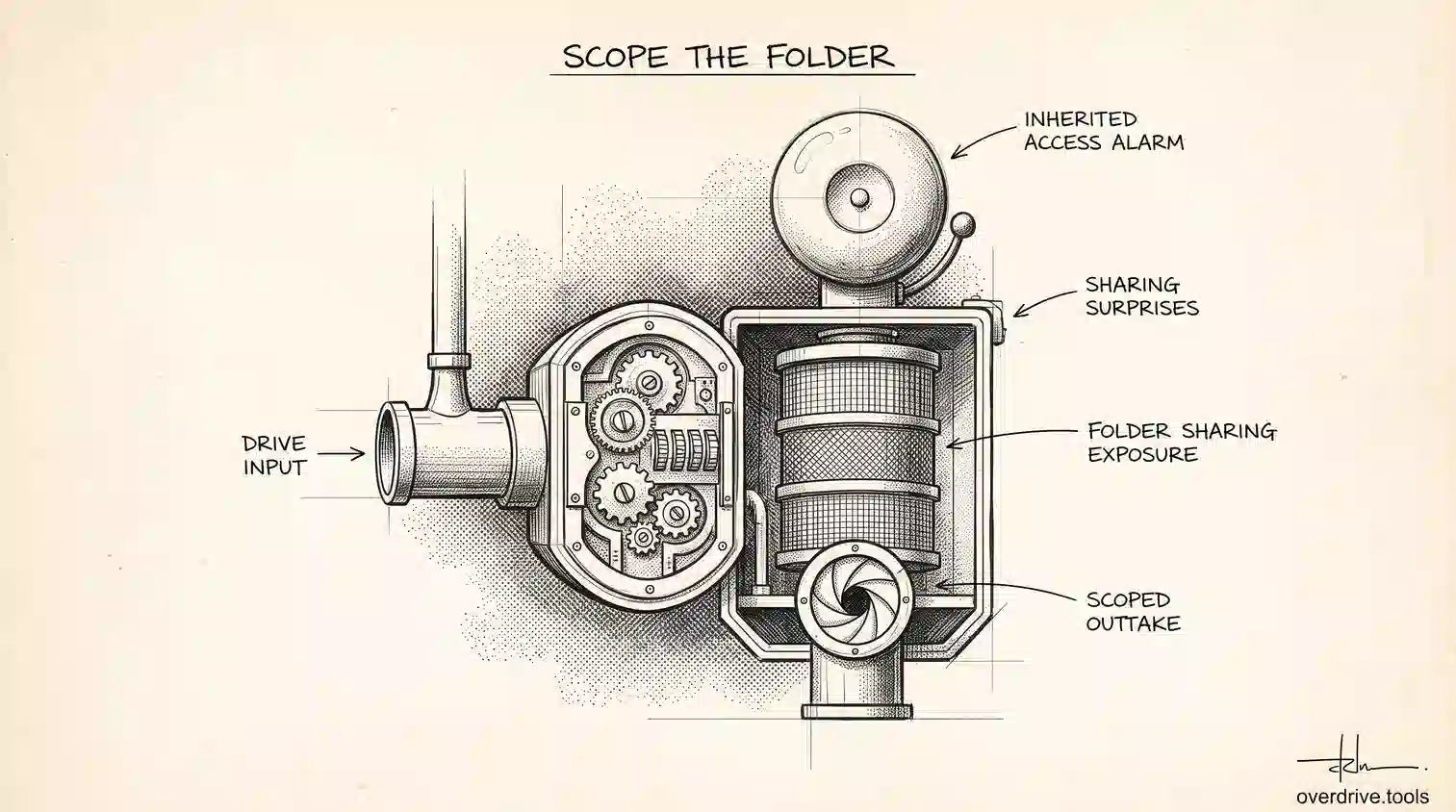
Sharing a single folder in Google Drive is straightforward, and the anxiety people feel about it is mostly misplaced: sharing a folder does not give anyone access to the rest of your Drive. What it does give them is everything inside that folder, including subfolders and anything added later, and that's where the real surprises come from.
The problem is rarely that you shared too much of your Drive. It's that the folder you shared contained more than you were picturing. Here's how folder sharing actually works, and how to scope it to exactly what you intend.
What sharing a folder actually exposes
When you share a folder, the person you share with gets access to everything inside it: every file, every subfolder, and every file inside those subfolders, all the way down. They do not get access to the folder's parent, to sibling folders, or to anything else in your Drive.
So your Drive as a whole is safe. The unit of exposure is the folder and its entire contents.
Two consequences catch people out. First, access is inherited downward without limit, so a folder five levels deep inside a shared folder is shared too, even if you'd forgotten it existed. Second, access applies to future contents: anything you or anyone else adds to that folder later is automatically visible to everyone who has access, with no new prompt and no notification to you.
That second point is the one that produces genuine incidents. You share a project folder in March, and in September someone drops a spreadsheet of client contacts into it, not realizing an outside contractor has standing access.
Sharing one folder properly
The mechanics are simple. Right-click the folder, choose Share, add people by email address, pick their role, and send.
Three choices within that are worth making deliberately.
Share with named people rather than a link. Named access is visible in the sharing panel and removable per person. Link access is neither, and it travels wherever the link travels. Unless you genuinely need to hand a URL to a group you can't enumerate, add people by email.
Pick the lowest useful role. Viewer for reference material, Commenter for feedback, Editor only when someone genuinely needs to change things. Editors can also often add other people, which is how access quietly widens.
Check General access before you finish. This is the setting that determines whether the folder is Restricted or open to anyone with the link. Sharing with a named person doesn't change it, so a folder that was already link-shared stays link-shared.
Structuring so you can share narrowly
If you frequently need to share part of something, the answer isn't clever permissions, it's structure.
Because access flows downward from a shared folder, you cannot easily give someone less access to one file inside a folder they can already open. Google's sharing model deliberately resists that, and trying to fight it produces confusing results.
The working pattern is to separate before you share. Create a folder that contains only what the other person should see, put the relevant material in it, and share that. If a client needs three deliverables from a project containing thirty files, a Client Shared subfolder holding those three is cleaner and safer than any permission gymnastics on the parent.
For recurring relationships, build this into your structure from the start. A project folder with an internal area and a shared area means you never have to think about it again, and new files land on the correct side by default rather than by memory.
Sharing a single file instead
Often the honest answer is that you don't need to share a folder at all.
Sharing one file exposes exactly that file. No inheritance, no future additions, nothing else. When someone needs one document, share the document. People reach for the folder because it feels tidier, then inherit a much broader exposure than the task required.
The rule of thumb: share a folder when the other person needs an ongoing working area, and share files when they need specific things. Most one-off requests are file requests.
Checking what a folder actually contains
Before sharing anything that's been around a while, open it and look properly, including inside every subfolder.
Folders accumulate. A folder you created for one purpose two years ago has probably absorbed screenshots, exports, drafts, and things somebody moved there because it seemed like the right place. The version in your head is the version from when you made it, and the version on disk is what you're about to share.
Check for subfolders you'd forgotten, files owned by other people that will travel with the share, and anything with personal or financial detail that doesn't belong in a work folder. Two minutes of looking prevents the most common oversharing incident there is.
Shared drives change the picture
Everything above describes My Drive, where files belong to individuals. If you're on Google Workspace, shared drives work differently enough to matter.
In a shared drive, files are owned by the organization rather than by the person who created them, and membership is set at the drive level. You add someone to the shared drive, and they get access to its contents. You can grant access to a specific folder inside a shared drive, but the model is designed around drive-level membership, and folder-level exceptions tend to create confusion about who can see what.
The practical implication is that the right unit of separation in a shared drive is usually a whole shared drive, not a folder. If a group of people needs its own boundary, giving it its own shared drive is cleaner than carving out folders within a larger one and hoping the permissions hold.
Files in a shared drive also survive people leaving the company, which is the main reason to prefer them for anything the team depends on. A folder in someone's My Drive disappears with their account.
What the other person actually sees
A small point that causes a lot of confusion: a folder shared with you does not automatically appear in your Drive's folder tree.
It lands in Shared with me, which is a separate view, and it stays there until the recipient chooses to add a shortcut to it in their own My Drive. People often assume a shared folder will show up alongside their own folders, don't find it, and report that the sharing didn't work.
If you're sharing something a collaborator will use regularly, telling them to look in Shared with me and add a shortcut saves a round of confused messages. It also explains why a shared folder can seem to vanish later: the shortcut was removed, while the underlying access is intact.
Auditing what you've already shared
All of the above governs new sharing. The harder question is what you shared over the last few years and never revisited, because Drive gives you no single view of it. You can open any individual folder and see its sharing panel, but there's no screen that lists every folder you've shared and with whom.
The partial workaround is search. Running owner:me sharedwith:public in the Drive search bar surfaces files you own that are link-shared or public, which catches the broadest category. It won't show you folders shared with specific named people, which is the quieter and often larger surface.
For the full picture, Overdrive scans your entire Drive and shows every file and folder along with who can access it, including external people and link shares, so you can see the whole sharing surface in one view and revoke what no longer belongs rather than opening folders one at a time hoping to spot something.
Whichever route you take, the pattern to look for is the same: folders shared for finished work, external addresses from completed engagements, and link sharing on anything you'd describe as sensitive.
Removing access cleanly
When a collaboration ends, open the folder's sharing panel and remove the people who no longer need it, then check General access is set to Restricted if it was ever opened up.
One thing to verify: removing someone from a folder removes their inherited access to the contents, but not any access granted directly on individual files inside it. If you ever shared a specific file separately, that share survives the folder removal and needs clearing on its own. This is a common reason people are surprised to find someone still has access after an apparently thorough cleanup.
The short version
Sharing a Google Drive folder never exposes your whole Drive, but it does expose everything inside that folder, including subfolders and anything added later. Share with named people rather than links, pick the lowest useful role, and check General access before finishing. When someone needs only part of a folder, create a subfolder containing just that material and share it, since Drive won't let you meaningfully restrict a file inside a folder someone can already open. For one-off requests, share the file rather than the folder. And check what a folder actually holds before sharing it, because the version in your memory is rarely the version on disk.
Related Articles
- "Anyone With the Link" in Google Drive: What It Means
- Google Drive Permissions: How to Review and Remove Access
- Can People See My Google Drive?