How to Create a Shared Folder in Google Drive
Learn how to create a shared folder in Google Drive and invite collaborators. Step-by-step instructions for desktop and mobile, plus permission settings explained.
Overdrive Team//2 min read
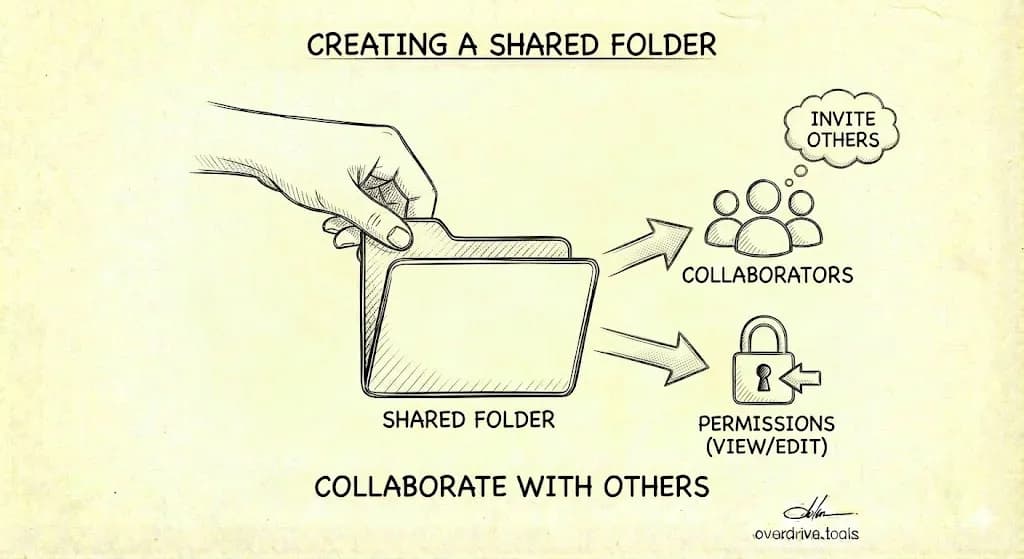
To create a shared folder in Google Drive, click "New" → "New folder," name it, then right-click the folder and select "Share." Add people by email, choose their permission level (Viewer, Commenter, or Editor), and click "Send." Everyone you add can now access the folder and its contents.
Create a Shared Folder on Desktop
- Go to drive.google.com
- Click "New" in the top left
- Click "New folder"
- Name your folder and click "Create"
- Right-click the new folder
- Click "Share"
- Enter email addresses of people you want to share with
- Choose permission level for each person (Viewer, Commenter, or Editor)
- Click "Send"
Recipients get an email notification with a link to the folder.
Create a Shared Folder on Mobile
- Open the Google Drive app
- Tap the "+" button
- Tap "Folder"
- Name your folder and tap "Create"
- Tap the three dots next to the new folder
- Tap "Share"
- Add people by email
- Set permissions and tap "Send"
Share an Existing Folder
Already have a folder you want to share?
- Right-click the folder (or tap three dots on mobile)
- Click "Share"
- Add people and set permissions
- Click "Send"
All files currently in the folder become accessible to the people you add. New files added later inherit the same sharing.
Permission Levels Explained
| Permission | Can View | Can Comment | Can Edit | Can Delete |
|---|---|---|---|---|
| Viewer | ✅ | ❌ | ❌ | ❌ |
| Commenter | ✅ | ✅ | ❌ | ❌ |
| Editor | ✅ | ✅ | ✅ | ✅ |
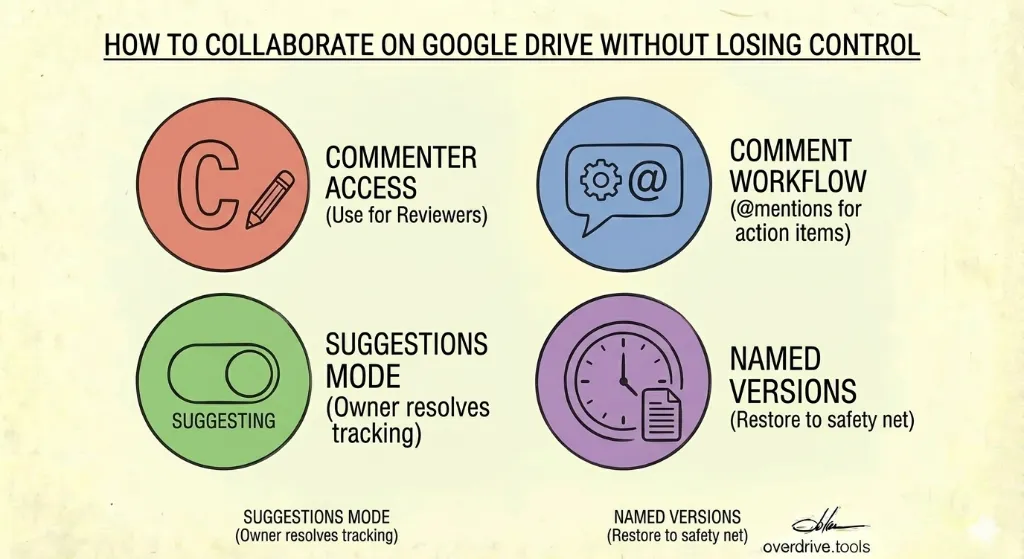
Viewer: Can only see files. Best for final deliverables or reference materials.
Commenter: Can view and leave comments but not change content. Good for review workflows.
Editor: Full access to edit, add, move, and delete files. Use for active collaborators.
For a deeper explanation, see our Google Drive Permissions Explained guide.
Share via Link Instead of Email
If you don't have everyone's email or want to share more broadly:
- Right-click the folder → "Share"
- Under "General access," click "Restricted"
- Change to "Anyone with the link"
- Choose permission level (Viewer, Commenter, or Editor)
- Click "Copy link"
- Share the link however you want
Warning: Anyone who gets the link can access the folder. Be careful with sensitive content.
Prevent Editors from Resharing
By default, Editors can share your folder with others. To prevent this:
- Right-click the folder → "Share"
- Click the gear icon (⚙️) in the top right
- Uncheck "Editors can change permissions and share"
- Click "Done"
Now only you (the owner) can add or remove people.
What Happens to Files Inside
When you share a folder:
- All existing files inside become accessible to the people you add
- New files added to the folder inherit the same sharing
- Files moved out of the folder keep their sharing (they don't become private)
- People with folder access can see the folder structure
If you have files inside that shouldn't be shared, move them out before sharing the folder.
Managing Shared Folders Over Time
Shared folders can get messy. People leave projects, permissions pile up, and you lose track of who has access to what.
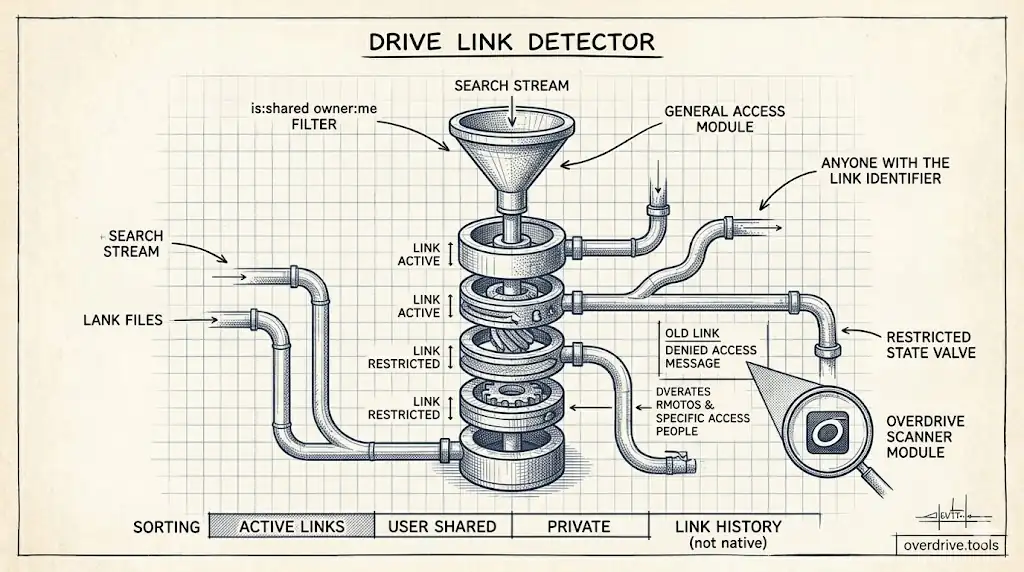
To audit your shared folders, Overdrive scans your entire Drive and shows every folder by who has access—so you can spot over-shared folders and clean them up before they become a security risk.
For a full cleanup process, see our Google Drive Security Audit Checklist.