How to Restrict "Anyone With the Link" in Workspace
Admins can stop users creating public Drive links across the organization. Here's where the setting lives, what it doesn't undo, and how to roll it out.
Overdrive Team//6 min read
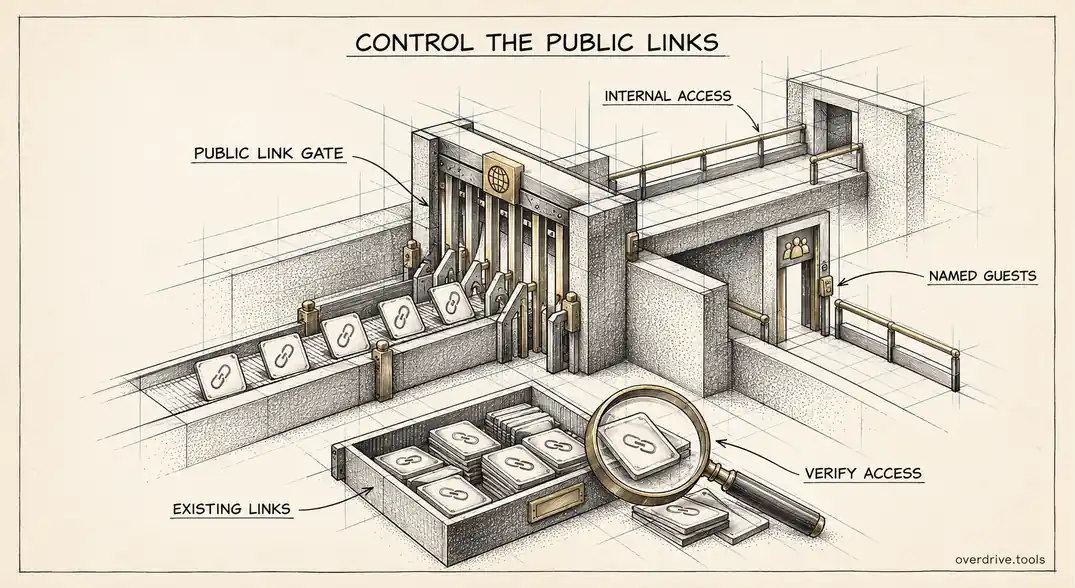
"Anyone with the link" is the most convenient sharing option in Google Drive and the hardest one to keep track of. A link travels wherever it's pasted: into an email thread, a support ticket, a Slack channel with guests in it, a vendor's project tool. Once it's out, nobody can say who has it.
Individual users can switch a file back to Restricted, but that only fixes one file at a time. As an admin, you can decide whether people in your organization are allowed to create these links at all, limit who can use them, and set safer defaults for new files. Here's how to do that without breaking the workflows that legitimately depend on link sharing.
What you're actually controlling
There are two different "anyone" options, and it matters which one you restrict.
Anyone with the link, outside the organization. Anyone who has the URL can open the file, with no sign-in tied to your domain. This is the one that creates real exposure.
Anyone in your organization with the link. Only signed-in members of your domain can open it. This is useful internally and far lower risk, because access still requires a company account.
Most organizations want to keep the second and tightly limit the first. Restricting link sharing doesn't mean forbidding all links. It means making sure a link alone never grants access to people outside the company.
Where the setting lives
In the Admin console, go to Apps, then Google Workspace, then Drive and Docs, then Sharing settings, and open Sharing options. If sharing outside your organization is allowed, you'll see an option that controls whether users can make files visible to anyone with the link. Clearing it stops users from choosing the external "anyone with the link" option while still allowing them to share with named external people.
You can apply this per organizational unit, which is how most admins should roll it out. Finance, HR, and legal can be locked down first, while teams that publish material externally, such as marketing or support, keep the option until you've agreed an alternative.
Two related settings are worth reviewing at the same time. The general access default controls what new files start as, so you can make sure new documents begin as Restricted rather than open to the organization or beyond. And the warning for external sharing shows users a confirmation when they share outside the domain, which catches a lot of accidental exposure without blocking anything.
If your organization uses trust rules instead of the older sharing settings, the same intent is expressed there. Trust rules decide which audiences users can share with, and a user can only pick the external "anyone with the link" option when the rules permit sharing with anyone. If you're on trust rules, edit them rather than looking for the legacy checkbox.
What the setting doesn't do
This is the part that catches admins out. Changing a sharing setting governs what users can do from now on. Don't assume it cleans up everything that was already shared.
Google's own documentation is explicit about this for a related control: turning off publishing to the web does not revert files that were already published. Treat link sharing the same way. After you change the setting, pick a file you know was link-shared, open it from a signed-out browser, and confirm the result yourself rather than trusting the change to have covered the past.
Either way, the existing backlog is a separate job. A domain that has allowed public links for years will have hundreds or thousands of them, many created for a single use and never revisited. Some point at files that have since been edited to contain far more sensitive material than they did on the day they were shared.
Finding the links that already exist
Here are your options for the backlog.
Option 1: Get a current list of public links
Overdrive for Google Workspace connects with read-only access and lists files that are open to anyone with the link, ranked by severity, with files that are indexed on the web raised above ordinary link shares. Each finding shows the owner and how long the exposure has existed, and you can send the owner a pre-written request to restrict the file. It reads metadata only, never file contents, so it's safe to run before you decide on a policy.
Option 2: Use the Drive audit log
Drive log events record visibility changes, including when a file is made available to anyone with the link. Filter to those events and export them. The limit is time: Drive log events are kept for six months, so links created earlier won't appear, and those are often the forgotten ones.
Option 3: Ask users to check their own files
Users can search their Drive for files they own that are shared publicly and switch them to Restricted. It's a reasonable request to include with a policy announcement, but it only works as well as each person's diligence.
Rolling it out without breaking things
Public links exist because people need them, so a hard switch-off across the domain tends to produce a wave of support requests and a quiet migration to personal accounts, which is worse. A staged approach works better.
Start by measuring. Know how many public links exist and which teams create them, so the conversation with each team is based on its own numbers.
Lock down the sensitive organizational units first. Teams handling payroll, contracts, customer data, and board material rarely have a legitimate need for public links, and restricting them removes most of the risk in one change.
Offer an alternative before you remove the option elsewhere. Sharing with named external addresses, visitor sharing for people without Google accounts, or a dedicated shared drive with external members all give people a way to collaborate that you can actually revoke later.
Then tell people what changed and why. A one-paragraph note saying public links are now off for most teams, explaining how to share with outside contacts instead, and naming who to ask for exceptions, prevents most of the friction.
Measuring whether it worked
A restriction you can't measure is a restriction you'll eventually doubt. Before rolling out, record a baseline: how many files are open to anyone with the link, split by organizational unit. After each stage, take the same measurement.
You're looking for two numbers to move. New public links in restricted units should drop to roughly zero, because users can no longer create them. The existing backlog should shrink as owners restrict their files. If the first number doesn't move, the setting isn't applying where you think it is, usually because a user sits in a different organizational unit than expected or trust rules are overriding the legacy setting. If the second number doesn't move, the cleanup needs a nudge, which normally means contacting owners directly with their own list of files.
Keep an eye on displacement too. If public links in one unit fall while sharing to personal accounts rises, people have found a workaround, and the alternative you offered isn't working for them.
Handling legitimate public sharing
Some content genuinely should be public: published reports, press kits, product documentation, recruiting material. For those, the cleanest pattern is a small number of designated owners or a dedicated organizational unit allowed to create public links, with everything else restricted. That keeps public sharing deliberate and auditable instead of being something anyone can do on any file.
Review that group's public files periodically. Material that was meant to be public at launch sometimes gets updated with internal notes later, and the link quietly carries the new content to everyone who has it.
Finally, write the rule down. A single line in your IT policy saying which teams can publish files publicly, and who approves exceptions, settles most future debates before they start.
The short version
Admins can restrict "anyone with the link" sharing in the Admin console under Drive and Docs sharing options, or through trust rules if your organization uses them, and should apply it by organizational unit starting with sensitive teams. Keep "anyone in the organization with the link" available, since it still requires a company account. Don't assume changing the setting removes links that already exist: verify with a known file, and treat the existing backlog as its own cleanup. Pair the restriction with safer defaults, an external-sharing warning, and an alternative way to share with outside contacts, so the policy reduces exposure instead of pushing it somewhere you can't see.
Related Articles
- "Anyone With the Link" in Google Drive: What It Means
- How to Find Every Publicly Shared File in Your Google Workspace
- Google Drive Trust Rules Explained