How to Find Every Publicly Shared File in Your Google Workspace
Public 'anyone with the link' files are the quietest risk in a Google Workspace. Here's how admins can find them across the whole org, and why it's harder than it should be.
Overdrive Team//7 min read
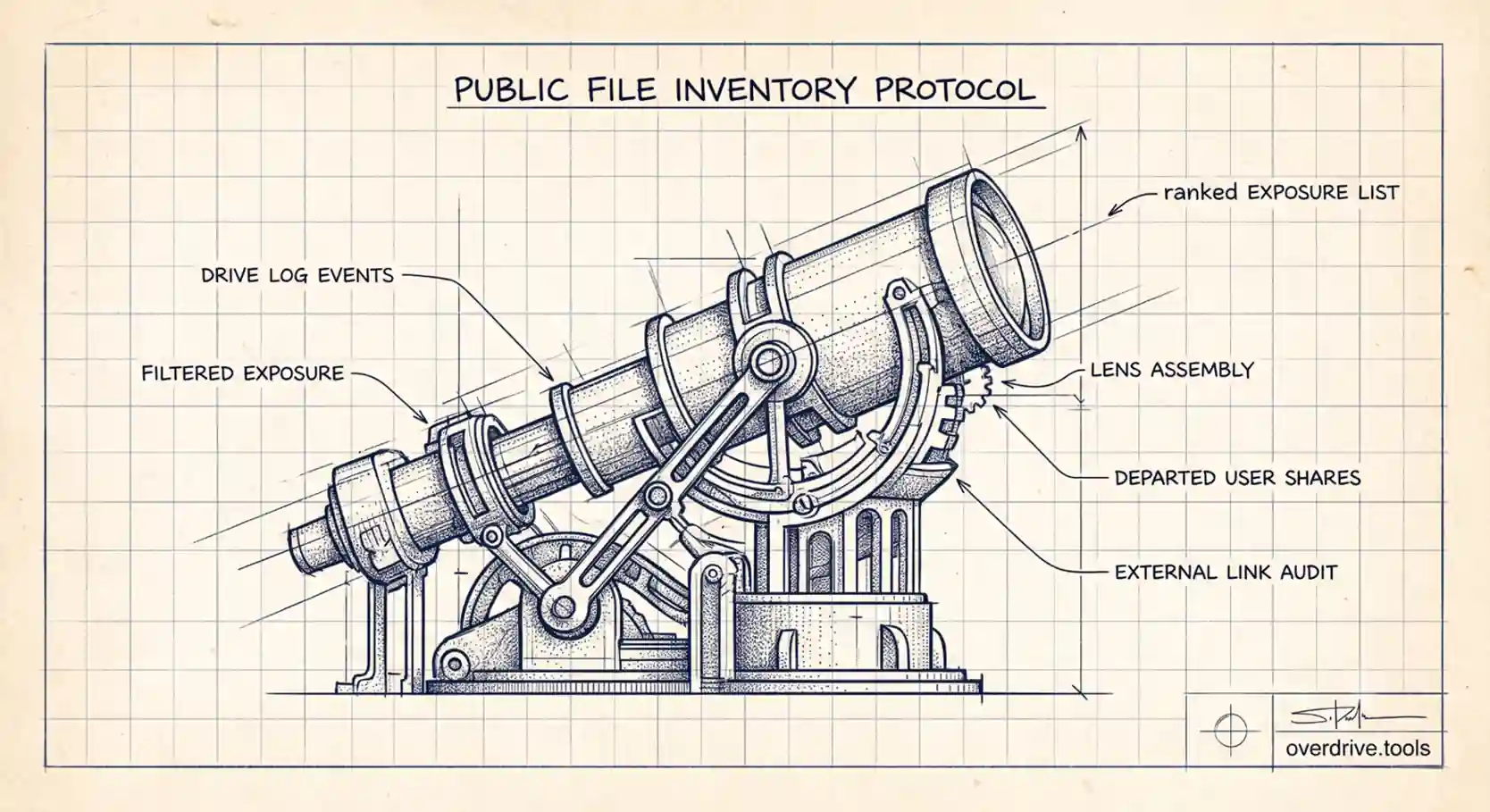
To find publicly shared files across a Google Workspace, an admin can review Drive log events in the Admin console's audit reports, use the security investigation tool if your edition includes it, or connect a tool that continuously inventories external and public shares. None of these is a single button, which is exactly why public files tend to accumulate unseen.
For an admin, this is one of the most uncomfortable questions to be asked: "Which of our files are public right now?" You almost certainly have some. A "Q4 Board Deck" set to "anyone with the link" for a quick share, a spreadsheet a contractor made public two years ago, a folder someone opened up and forgot. The data exists somewhere in Google's logs. The problem is that seeing it all in one place, ranked by what matters, is something Google largely leaves to you.
Why Public Files Are the Exposure You Don't See
A public file doesn't announce itself. When someone changes a file's sharing to "anyone with the link," nothing breaks, no one is notified, and the file keeps working exactly as before. The exposure is invisible by design. Multiply that across hundreds or thousands of users, years of activity, and constant onboarding and offboarding, and you get a slow accumulation of public files that no one is tracking.
The risk compounds because link-shared files spread. A link can be forwarded, posted, indexed, or pasted into a ticket. Once a file is "anyone with the link," you've lost control of where that link goes, and you can't see who's used it. For a board deck, a pricing sheet, or anything with personal data, that's the kind of exposure that turns into an incident long after the share was created.
What Google Gives You, and Where It Stops
Google does record this information. The challenge is the form it comes in.
Drive log events (Reports). In the Admin console under Reporting, the Drive audit log captures sharing events, including when files are shared externally or made public. You can filter by visibility and event type. It's real data, but it's an event stream: one row per action, no sense of current state, no ranking, and no easy way to answer "show me everything that is public right now." You're reconstructing a present-day picture from a history of individual events.
The security investigation tool. Higher-tier editions (Enterprise Standard and Plus, Education Standard and Plus, and Frontline editions) include the security investigation tool, which lets you query Drive sharing more flexibly and take action on results. It's genuinely useful. The catch is the edition gate: if you're on a Business plan, you don't have it. Google's more advanced exposure tooling, including the security center and DLP, lives in those same higher tiers, which means a large share of organizations are left with the raw audit log and manual review.
Drive sharing settings. You can restrict future public sharing at the org-unit level: disabling "anyone with the link," limiting sharing to trusted domains, and adding warnings. This is essential, but it's preventative. It governs what happens next; it does nothing about the files that are already public.
That last point is the trap most admins fall into: tighten the policy, assume the problem is handled, and never address the files that were exposed before the change.
How to Actually Build the List
Here are your options for getting a present-day inventory of public and externally shared files.
Option 1: Monitor exposure continuously with Overdrive. Reconstructing current exposure from audit events by hand is slow and never quite complete. Overdrive for Google Workspace connects with read-only access and turns Google's sharing signals into a present-tense, prioritized inventory: which files are public or shared externally, how long they've been exposed, and who owns them, all surfaced as a ranked list of issues rather than a stream of events. Because it watches continuously from the day you connect, new public shares show up as they happen instead of waiting for your next manual audit. It reads metadata only (sharing permissions, owners, directory info), never the contents of your files, which is the right posture for a tool with this much visibility. For Business-plan admins without the investigation tool, it fills the gap Google leaves open.
Option 2: Work the audit log manually. In the Admin console, open the Drive log events under Reporting, filter for external and public visibility changes, and export the results. Then reconcile them against current state, because an old "made public" event may have been reversed since. For a smaller domain over a short window this is workable. Across a large org with years of history it becomes a research project, and the output is a snapshot that's stale the moment you finish.
Option 3: Spot-check with sharing settings and user reports. You can review individual users' sharing in their account reports and check high-risk groups. This is fine for investigating a specific person or team, but it doesn't scale to "the whole organization."
Whichever route you take, the workflow is the same: list what's public, decide which exposures are intentional, and remediate the rest by restricting sharing or contacting the owner. We cover the broader review in the Google Drive security audit checklist.
Prioritizing What You Find
A raw list of public files isn't an action plan, because some public files are supposed to be public. The work is triage. A few factors tell you what to handle first: how sensitive the content is (board, finance, HR, customer data), how long it's been exposed, whether it's owned by an active or departed user, and whether it's shared broadly or to a single outside address. A pricing sheet public for fourteen months owned by someone who left is a very different problem from a public marketing one-pager.
This correlation, joining "what's exposed" with "how long," "owned by whom," and "how risky," is the part that turns a data dump into something you can act on. It's also the part the audit log won't do for you, and the reason a present-tense, ranked view saves so much time.
It's worth being honest about one limit, too. No tool, native or third-party, can promise a perfectly complete history of every file ever shared. Visibility depends on the sharing activity Google makes available, and very old exposure can be harder to reconstruct. A trustworthy approach is upfront about that line, surfacing detected and recent exposure clearly rather than overstating completeness. What you want is steadily improving visibility from the moment you start watching, not a false sense that the list is exhaustive.
Closing the Loop and Keeping It Closed
Finding public files once is a project; keeping them in check is a habit. After your first cleanup, two things keep exposure down. First, tighten the org-level sharing defaults so new public shares are limited or warned against. That's prevention you set once. Second, put the discovery on a schedule rather than waiting for an incident, because exposure regenerates as people share, collaborate, and leave. Pair that with solid offboarding so departing users' public shares get caught, and the public-file problem shifts from a recurring fire drill to a managed, visible part of your security posture.
The goal isn't zero public files, since some sharing is intentional and necessary. The goal is that every public file is one you know about and chose to allow, and that anything you didn't choose gets caught quickly rather than years later.
Frequently Asked Questions
Can I see all public files in Google Workspace from the Admin console?
You can reconstruct them from Drive log events under Reporting, and query them with the security investigation tool if your edition includes it. There's no single native "current list of all public files," which is why many admins use a dedicated tool.
Does the security investigation tool come with every Workspace edition?
No. It's limited to higher tiers such as Enterprise Standard and Plus, Education Standard and Plus, and Frontline editions. Business-plan admins don't have it and rely on the audit log instead.
How do I stop users from making files public?
In the Admin console, adjust Drive sharing settings per org unit: disable "anyone with the link," restrict sharing to trusted domains, and enable warnings. This governs new shares only, not existing ones.
Why is finding public files so hard in Google Workspace?
The data is spread across audit events with no present-state view or prioritization. You're rebuilding the current picture from a history of individual actions, which is slow and error-prone at scale.
Are public files actually a security risk?
They can be. "Anyone with the link" means the link can be forwarded or indexed and you can't see who used it. For sensitive content, that's a real exposure, especially when it persists for months unnoticed.
Related Articles
- Auditing Third-Party App Access in Google Workspace
- What Happens to Shared Files When an Employee Leaves Your Workspace
- How to Find Externally Shared Files in Google Drive