Google Drive Trust Rules Explained
Trust rules give admins granular control over who can share Drive files with whom. Here's how they work, which editions have them, and how to use them.
Overdrive Team//7 min read
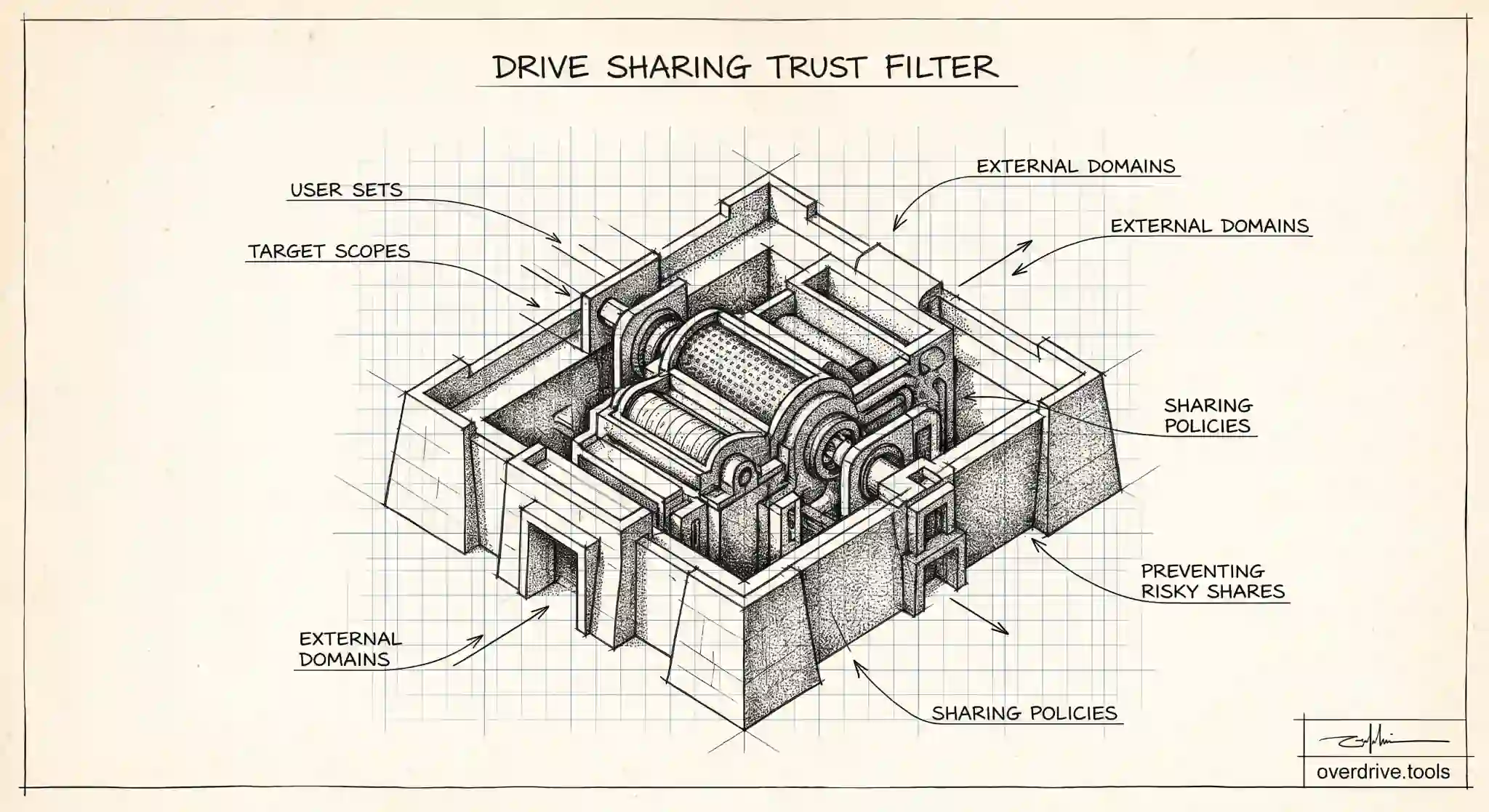
Trust rules are Google Workspace's granular way to control Drive sharing between specific sets of users. Instead of a single organization-wide switch that either allows or blocks external sharing, trust rules let you define who can share with whom: which groups or organizational units can share files externally, which internal teams can share with each other, and which external domains your people can send files to or receive them from. For admins who need sharing to be open in some places and locked down in others, that granularity is the whole point.
Trust rules replaced the older, blunter Drive sharing settings and became generally available in late 2022. They're more capable, but also more involved, and like several advanced controls they're limited to certain editions. Here's what they do, who can use them, and how to approach them without accidentally breaking collaboration.
What trust rules actually control
The older model of Drive external sharing was essentially a set of broad toggles applied per organizational unit: external sharing on or off, with a few options around warnings and allowlisted domains. It worked, but it was coarse. You couldn't easily say that the finance team should never share externally while the marketing team freely collaborates with agencies, beyond splitting them into organizational units and hoping the toggles lined up.
Trust rules replace that with targeted policies built around three questions: whose files these apply to, who those files can be shared with, and what direction the sharing goes. A single rule can specify a source set of users, such as a group or organizational unit, a target scope, such as internal users, a specific external domain, or anyone external, and whether sharing to that target is allowed or blocked. You can also govern who can receive files and who can be added to shared drives, not just who can send.
Because rules are evaluated together, you build a policy out of several targeted rules rather than one global setting. That lets you express real organizational intent: open collaboration with trusted partner domains, tighter control for sensitive teams, and a sensible default for everyone else.
Which editions include trust rules
As with other advanced Drive controls, trust rules aren't on every plan. They're supported on Enterprise Standard and Enterprise Plus, on Education Standard and Education Plus, on Frontline Plus, and on Enterprise Essentials Plus.
If you're on a Business edition or a lower Education or Frontline tier, you'll be working with the standard external sharing settings rather than full trust rules, and controlling sharing means using those organizational-unit-level toggles instead. Admins planning a granular sharing policy should confirm their edition supports trust rules before designing around them, since the whole approach depends on having the feature available.
How to approach setting them up
Trust rules are powerful enough to break collaboration if you deploy them carelessly, so the method matters as much as the rules. The single most important principle is to understand your current sharing before you change it. Because rules can block sharing between sets of users, a rule written without knowing how people actually collaborate can cut off legitimate workflows the moment it goes live.
Start by mapping intent. Decide, in plain terms, what should be allowed: which teams collaborate externally and with whom, which teams should be internal-only, and which external domains are genuinely trusted partners. Translate that into a small number of clear rules rather than a sprawling set, since a lean policy is far easier to reason about and troubleshoot.
Build in a default and then the exceptions. Many organizations set a baseline for the whole domain and then add more permissive or more restrictive rules for specific groups or organizational units on top. Test with real scenarios before relying on the policy: confirm that a trusted-partner share still works, that a blocked scenario is actually blocked, and that ordinary internal collaboration is untouched. Roll out to a limited scope first if you can, watch for broken workflows, and expand once you're confident.
Document what each rule is for. Six months later, a rule with no explanation is a rule nobody dares to change, and undocumented sharing policy tends to calcify into something the organization works around rather than with.
Trust rules control the future, not the past
The most important thing to understand about trust rules is what they don't do. They govern sharing actions going forward. When a rule is in place, it controls new attempts to share in the scenarios it covers. It does not reach back and remediate everything that was already shared before the rule existed. All the files sitting exposed from years of looser settings remain exactly as exposed as they were; the rule simply stops new shares that violate it.
That distinction defines where a visibility tool complements trust rules. Setting a strong forward-looking policy is essential, but so is knowing your existing exposure, and Google doesn't give admins an easy present-tense view of what's currently shared externally or publicly across the whole domain. Overdrive for Google Workspace connects with read-only access and turns Google's sharing signals into a prioritized inventory of what's exposed right now, which files are public or shared outside the organization, for how long, and who owns them. So trust rules lock down future sharing while this surfaces the backlog of existing shares to review and clean up, which is the exposure a forward-looking rule was never going to touch. It reads metadata only, never file contents.
Together they close both halves of the problem: policy prevents new risky sharing, and visibility clears the risky sharing that already happened.
Trust rules versus the older settings in practice
It helps to see the difference concretely. Under the older external-sharing model, an admin's main levers were per-organizational-unit toggles: external sharing on or off, with warnings and an allowlist of domains. Expressing something like the finance team never sharing externally while marketing collaborates freely with agencies meant carefully arranging organizational units so the toggles happened to line up, and even then the control was coarse.
Trust rules express that intent directly. You write a rule that says finance's files can't be shared externally, another that lets marketing share with specific trusted partner domains, and a default for everyone else, all without contorting your organizational structure to fit the settings. The policy reads like the intent instead of encoding it indirectly, which makes it easier to get right and easier to explain later.
A rollout sequence that avoids breakage
Because trust rules can block sharing between sets of users, a careless rollout can cut off legitimate collaboration the moment it goes live. A safe sequence avoids that. First, map how people actually share today, including the external partners teams rely on, so you know what must keep working. Second, write a small number of clear rules expressing the target policy, with a sensible default and explicit exceptions for trusted partners. Third, test each intended outcome with real scenarios: confirm a trusted-partner share still works, a blocked scenario is genuinely blocked, and ordinary internal collaboration is untouched.
Roll out to a limited scope before the whole domain where you can, watch for broken workflows, and expand once you're confident. Document each rule's purpose as you go, because an undocumented sharing policy becomes something nobody dares to change and the organization quietly works around. A measured rollout is the difference between trust rules that tighten security and trust rules that generate a wave of support tickets on day one.
The payoff for that care is a sharing policy that finally matches how the organization actually works, rather than a blunt switch that's either too open or too restrictive for half your teams. That precision is the whole reason trust rules exist, and it's why the effort of a careful rollout is repaid every time a sensitive team stays locked down while a collaborative one keeps moving. Get the rollout right once, document it, and the policy largely maintains itself, needing only occasional review as teams and partners change. That low ongoing cost is the quiet reward of doing the setup carefully the first time.
The short version
Trust rules give Workspace admins granular control over Drive sharing by defining who can share with whom, in which direction, replacing the older blunt external-sharing toggles. They're available on Enterprise, Education Standard and Plus, Frontline Plus, and Enterprise Essentials Plus editions. Set them up by mapping how people should collaborate, writing a small number of clear rules with a sensible default and tested exceptions, and documenting each one. Remember that trust rules only govern future sharing, so pair them with visibility into your existing exposure to clean up the shares that predate the policy.
Related Articles
- Managing External Sharing in Google Workspace: An Admin's Guide
- How to Find Every Publicly Shared File in Your Google Workspace
- Shared Drive Permission Levels Explained: Manager, Content Manager, Contributor & Viewer