How to Monitor Google Workspace Storage Usage Across All User Accounts
Google Workspace pools storage differently than personal accounts, and per-user overuse is invisible until it isn't. Here's how admins get real visibility.
Overdrive Team//7 min read

Most Workspace admins couldn't say, offhand, which of their users is closest to running out of storage. The information isn't hidden exactly: the Admin console's Storage menu shows a ranked list of top users along with a breakdown by Drive, Gmail, and Photos. It's just that almost nobody opens it until someone hits a limit and support tickets start arriving. By then, the storage problem has usually been building for months.
Personal Google accounts get a small free allowance (5 GB by default, up to 15 GB with a phone number) shared across Drive, Gmail, and Photos. Workspace storage works differently, and that difference is exactly why it's easy to lose track of. Depending on the edition, storage can be pooled across the entire organization rather than assigned per user, which means one team's habit of uploading massive video files or never emptying Gmail attachments can quietly eat into space that other departments assumed they had. A per-user quota problem on a personal account is obvious: you get a warning email and Drive stops syncing. A pooled-storage problem in Workspace is invisible until the pool itself runs low, at which point every user across the domain can be affected at once.
Why Storage Visibility Matters More in Workspace Than It Looks
In smaller Workspace editions and legacy plans, admins can still set individual per-user storage limits, but doing so without any visibility into actual usage patterns is guesswork. You either set limits too generously, defeating the purpose, or too conservatively, generating a stream of "storage almost full" complaints from people who were doing nothing wrong. The organizations that handle this well treat storage monitoring as an ongoing habit rather than a reactive fire drill, and they build it around three questions: who is using the most space right now, is that usage legitimate work product or forgotten clutter, and is the trend going up faster than expected.
Google's Admin console does answer the first question reasonably well. Under Storage, the "Users using the most storage" panel gives a ranked list, and clicking into an individual account shows the Drive, Gmail, and Photos split for that person. There's also a Reporting path: Reporting > User Reports > Accounts, which surfaces total organizational storage alongside the same per-service breakdown. Neither view, importantly, lets an admin see the files themselves. Google's privacy model is deliberate here: admins can see how much space someone is using, not what's inside their documents. That's a reasonable boundary, but it also means the console alone won't tell you whether a user's 400 GB is ten years of legitimate project archives or a handful of forgotten video exports that could be deleted in an afternoon.
Getting a Usable View of Org-Wide Storage
Option 1: A tool built to visualize storage across the whole Drive
Because the Admin console shows totals but not composition, most of the real diagnostic work still happens at the individual account level, one user at a time. Overdrive approaches it from the other direction: it scans a Drive account and visualizes what's actually taking up space, by file type, age, and size, so instead of a single number per user, you get a picture of where the gigabytes are actually going. For an admin trying to figure out whether a storage spike is legitimate growth or accumulated clutter across old projects, duplicate exports, or large files nobody has opened in years, that composition view is the missing piece the native reports don't provide.
Option 2: Work through the native Admin console reports manually
If you want to stay entirely within Google's own tools, the workflow is manageable but repetitive. Start in Storage from the main Admin console menu to get the ranked list of top users. For each account worth investigating, open Directory > Users, click the individual, and check the percentage breakdown between Drive and mail storage shown at the top of their account page. For an organization-wide trend rather than a single snapshot, use Reporting > User Reports > Accounts, which shows total storage consumption over time and can help you catch a slow, steady climb before it becomes an emergency. None of this shows file-level detail, so once you've identified a high-usage account, the next step is usually a conversation with that user about what's actually in their Drive, or an export request if the account belongs to someone who has since left.
Setting Limits Without Guessing
Some Workspace editions let admins cap storage per organizational unit or per individual user, found under Storage in the Admin console. This is worth doing deliberately rather than defaulting to whatever number feels safe. A reasonable approach is to look at the current distribution across your top storage users, find a limit that comfortably covers legitimate heavy use (design teams, video-heavy departments, anyone doing data analysis with large exports) without giving unlimited headroom to accounts that are simply never cleaned up. Setting limits too low without understanding actual usage patterns just shifts the burden onto your help desk.
What This Doesn't Solve on Its Own
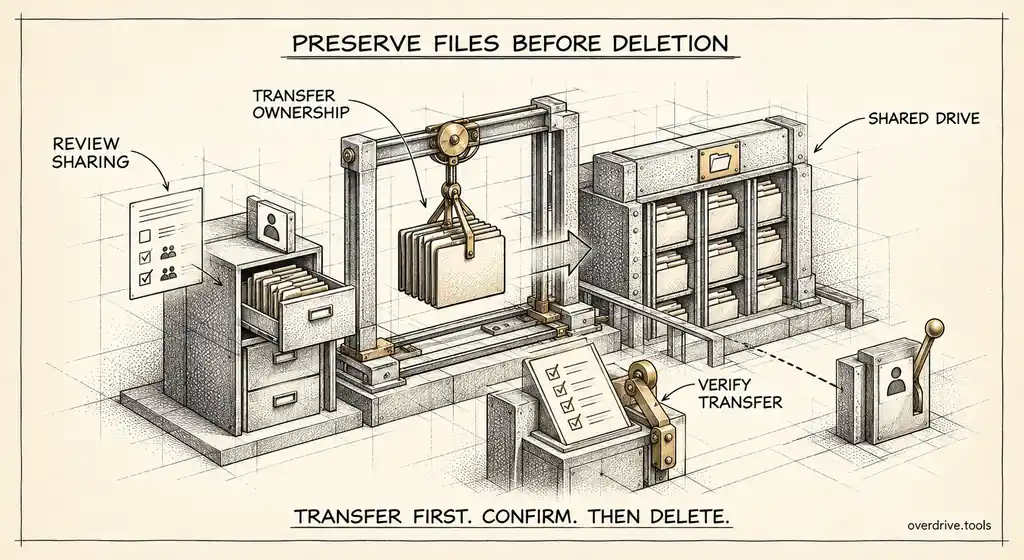
Storage monitoring tells you where space is going, not why it keeps growing. If your organization doesn't have any retention or offboarding practice, whatever limits you set will keep getting tested every quarter as departed employees' files sit untouched and active users keep uploading without ever archiving anything. Pairing storage visibility with a periodic cleanup pass, and with an offboarding process that reassigns or archives a departed user's Drive contents rather than leaving them in place indefinitely, is what actually keeps the numbers stable over time rather than just visible.
It's also worth remembering that Gmail attachments and Google Photos both draw from the same pool in many Workspace configurations, so a user with a "Drive problem" may actually have a Gmail problem. Checking the per-service breakdown before assuming the fix is a Drive cleanup saves a round of wasted effort.
Common Growth Patterns Worth Investigating First
Not all storage growth deserves the same level of concern, and knowing the difference saves a lot of wasted investigation time. A design or video team growing by tens of gigabytes a month is often just doing its job; the fix there is a higher per-user allowance, not a cleanup mandate. A single account that suddenly jumps in usage after months of flat activity is a different signal entirely, and worth a direct look, since it can mean anything from a large legitimate project kickoff to an account syncing a personal media library it shouldn't be. Steady, slow creep across many accounts at once usually points to a habit problem across the organization rather than any one user: nobody empties Gmail attachments, nobody clears Drive Trash, and version history quietly accumulates on files that get edited often.
Gmail attachments deserve particular attention because they're easy to overlook when the instinct is to go straight to Drive. Since Gmail, Drive, and Photos frequently share the same underlying pool, a user with years of large attachments sitting in their inbox can show up in storage reports as a "Drive problem" when the actual fix is clearing out old email. Checking the per-service split before assuming where to start prevents a lot of misdirected cleanup effort aimed at the wrong service.
Frequently Asked Questions
Can admins set different storage limits for different departments?
Yes, in editions that support per-user or per-organizational-unit limits, admins can assign different caps to different groups. This is worth doing deliberately once you understand actual usage patterns rather than applying one blanket number across a diverse organization with very different storage needs by team.
Does emptying Gmail free up Drive space?
If Drive, Gmail, and Photos share a pool in your configuration, yes. Deleting large attachments and emptying the Gmail trash reduces the shared total, which is often a faster win than a Drive-specific cleanup, especially for users whose storage growth is actually coming from years of accumulated email rather than Drive files themselves.
How often should storage usage actually be reviewed?
A monthly glance at the top-storage-users list catches spikes early without becoming a burdensome task. A deeper quarterly review, cross-referencing usage against actual file composition, is a reasonable cadence for catching slower, accumulated clutter that a monthly glance won't reveal on its own.
Does Google warn admins before an organization hits its storage limit?
Google does provide some notifications as usage approaches plan limits, but relying solely on that warning means you're reacting at the last responsible moment rather than managing usage proactively. By the time a warning arrives, the underlying causes (unused accounts, forgotten large files, uncleaned attachments) have usually been building for a long time already.
Should a growing organization plan storage into its onboarding process?
Yes, and this is easy to overlook until growth makes it painful. Adding storage-usage review to your standard new-hire and offboarding checklists, rather than treating storage as a purely reactive concern, means allowances and cleanup expectations get set at the point where they're cheapest to establish. An organization that only thinks about storage after hitting a plan-wide limit is always working from a deficit, cleaning up years of accumulated habit under time pressure instead of managing it as a routine part of how the domain runs day to day.
Related Articles
- How Much Free Storage Does Google Drive Give You?
- Google Drive Storage Full? Here's Why (and How to Fix It)
- How to Find Every Publicly Shared File in Your Google Workspace