Google Drive Storage Full? Here's Why (and How to Fix It)
Your Google Drive is full, but you're not sure why. Learn what's actually consuming your storage—large files, duplicates, hidden app data—and how to reclaim space efficiently.
Overdrive Team//9 min read
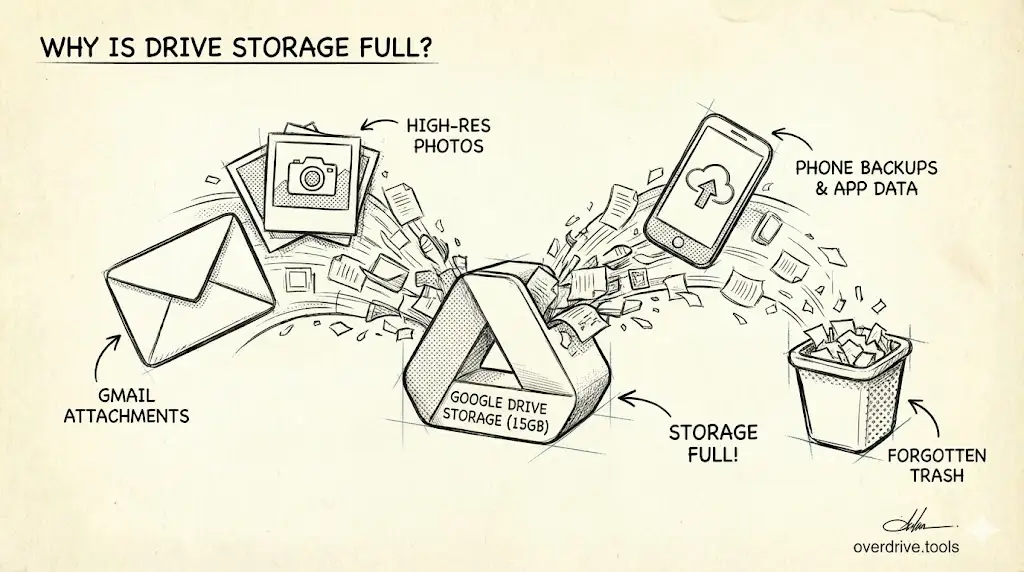
Your Google Drive storage is full when files, photos, Gmail attachments, and app data collectively exceed your plan's limit (15 GB free, or your paid tier). The problem isn't always obvious—large files hide in forgotten folders, duplicates waste space, and Google's own apps silently consume quota without clear visibility into what's actually taking up room.
Key Takeaways
- Gmail attachments, Google Photos, and Drive files all share the same storage quota
- Large files are often buried deep in folder structures where you can't see them
- Duplicates and old revisions consume space invisibly
- Google's built-in tools show total usage but don't reveal what's actually filling your Drive
- App data from third-party integrations can silently consume gigabytes
Most people don't realize they're paying for storage they could easily reclaim. This guide shows you exactly what's consuming space and how to fix it.
Why Is My Google Drive Full?
Google Drive storage isn't just Drive files. Your 15 GB (or paid tier) includes three services:
Google Drive – Documents, spreadsheets, PDFs, images, videos, and any uploaded files Gmail – Email messages and attachments (each attachment counts toward your quota) Google Photos – Photos and videos not stored in "High quality" mode (now called "Storage saver")
When you hit your limit, Google stops accepting new files across all three services. You can't receive emails with attachments, upload photos, or save documents.
The Real Culprits Behind Storage Bloat
1. Large Files Hidden in Folders
The biggest storage hogs are often files you uploaded years ago and forgot about:
- Video files – A single 10-minute 1080p video can consume 1–2 GB
- RAW photos – Uncompressed image files from professional cameras (20–50 MB each)
- Design files – Photoshop PSDs, Illustrator files, CAD documents
- Compressed archives – ZIP files containing entire project folders
- Old backups – Phone backups, computer backups, exported data
These files sit in subfolders, nested several levels deep. Google Drive's default view sorts by name or date modified—not by size—so you never see them.
2. Duplicate Files
Duplicates happen when:
- You upload the same file multiple times from different devices
- Collaborators share copies instead of links
- You download, edit, and re-upload a file without deleting the original
- Automated backups create redundant versions
Each duplicate consumes the same storage as the original. Five copies of a 500 MB file = 2.5 GB wasted.
3. Google Photos in "Original Quality"
If you enabled "Original quality" (or the older "High quality" setting before June 2021), every photo and video uploaded counts toward your quota.
- A single smartphone photo: 3–5 MB
- A 4K video (1 minute): 350–400 MB
Families with thousands of photos quickly consume 50+ GB without realizing it.
4. Gmail Attachments
Every email attachment lives in Gmail and counts against storage:
- Old email threads with PDFs, presentations, or images
- Forwarded emails with large attachments
- Automated reports sent daily (they add up)
Deleting the email doesn't delete the attachment from your quota unless you also empty Gmail's Trash.
5. Hidden App Data
Third-party apps integrated with Google Drive store data invisibly:
- WhatsApp backups – Chat histories and media (can reach 5+ GB)
- Google Keep – Notes with image attachments
- Third-party backup apps – Automated file sync services
- Collaboration tools – Apps that auto-save exports to Drive
This data doesn't appear in your main Drive view. You need to check Settings → Manage Apps to see it.
6. File Revisions and Versions
Google Docs, Sheets, and Slides don't count toward storage, but uploaded files do—and every time you upload a new version, Google keeps the old one.
If you repeatedly upload a 100 MB file and make 10 revisions, you've consumed 1 GB.
How to See What's Using Your Storage
Google's storage tools are limited. Here's what you can do natively:
Check Total Storage Usage
- Go to Google One Storage
- See breakdown: Drive, Gmail, Photos
This shows the total, but not which specific files are the problem.
View Largest Files in Drive (Desktop Only)
- Open Google Drive on a computer
- Click Storage in the left sidebar (below "Shared with me")
- See files sorted by size
Limitations:
- Only shows files you own (not shared files)
- Doesn't show duplicates
- Doesn't reveal app data or Gmail attachments
- No bulk actions
Check Gmail Storage
- Open Gmail
- Search:
has:attachment larger:10M(finds emails with attachments over 10 MB) - Manually review and delete
Limitation: You must manually check each email.
Check Google Photos Storage
- Open Google Photos
- Go to Settings → Recover storage
- Google shows if any photos are in "Original quality" and offers to compress them
Limitation: Compression is permanent and reduces quality.
See App Data Storage
- Open Google Drive → Settings (gear icon) → Manage apps
- See list of apps with hidden storage
- Disconnect apps to remove their data
Limitation: No preview—disconnecting deletes data immediately.
How to Fix a Full Google Drive (Step-by-Step)
Solution 1: Use Overdrive to See Everything at Once
Overdrive scans your entire Drive and shows exactly what's consuming space—large files, duplicates, old files, app data, and shared content—in a single view. You see the full picture without manually searching through folders or toggling between Gmail, Photos, and Drive.
Overdrive identifies:
- Large files hidden across all folders
- Duplicate files wasting storage
- Files you haven't opened in months or years
- Shared files that don't count toward your quota (so you know what not to delete)
Once you see what's actually taking up space, you decide what to delete. Overdrive doesn't auto-delete—it gives you visibility so you can act confidently.
Solution 2: Delete Large Files Manually
If you prefer Google's native tools:
- Open Google Drive
- Click Storage in the left sidebar
- Review largest files
- Right-click → Remove (moves to Trash)
- Open Trash → Empty trash (permanent deletion)
Time required: 10–30 minutes for 50–100 files.
Solution 3: Find and Remove Duplicates
Google Drive has no built-in duplicate finder. You must:
- Sort files by name
- Manually scan for identical filenames
- Check file sizes to confirm they're duplicates
- Delete extras
For large Drives with thousands of files, this is impractical.
Alternative: Overdrive's duplicate detection automatically groups identical files so you can review and delete them in bulk.
Solution 4: Compress Google Photos
- Open Google Photos
- Go to Recover storage
- Click Compress
Google converts "Original quality" photos to "Storage saver" (compressed). This frees space but reduces resolution.
Trade-off: Compressed photos look identical on screens but lose detail if printed large.
Solution 5: Clean Up Gmail Attachments
- Open Gmail
- Search:
has:attachment larger:10M - Select emails → Delete
- Open Trash → Empty Trash now
Limitation: You must check each email individually to avoid deleting important attachments.
Solution 6: Remove App Data
- Open Google Drive → Settings → Manage apps
- Find apps using storage
- Click Options → Delete hidden app data
Warning: This deletes app data permanently. Make sure you don't need it (e.g., WhatsApp backups).
Solution 7: Empty Trash and Spam
Files in Trash still count toward storage for 30 days.
- Open Google Drive Trash
- Click Empty trash
- Open Gmail → Trash → Empty Trash now
- Open Gmail → Spam → Delete all spam messages now
What Happens When Google Drive Is Full?
When you hit your storage limit:
- You can't upload new files to Drive
- You can't receive emails with attachments (senders get a bounce-back)
- Google Photos stops backing up new photos
- Google Docs/Sheets/Slides still work (they don't count toward storage)
- Existing files remain accessible (you don't lose anything)
Google gives you a grace period, but after a few months of being over quota, they may start deleting content (starting with oldest Trash/Spam).
How to Prevent Google Drive From Filling Up Again
1. Store Photos in "Storage Saver" Mode
Change Google Photos settings:
- Open Google Photos
- Under Backup, select Storage saver (not Original quality)
Photos uploaded in Storage saver mode don't count toward your 15 GB free storage.
2. Unsubscribe from Emails with Large Attachments
Automated reports, newsletters with images, and marketing emails consume storage over time. Unsubscribe or set up filters to auto-delete.
3. Link Instead of Upload
When collaborating, share Drive links instead of downloading and re-uploading files. Shared files don't count toward your quota if you're not the owner.
4. Review Storage Quarterly
Set a calendar reminder every 3 months:
- Check Google One Storage
- Delete old files
- Empty Trash
Or use Overdrive: Scan once, see everything, clean up in minutes.
5. Upgrade Your Storage Plan (If Needed)
If you legitimately need more space:
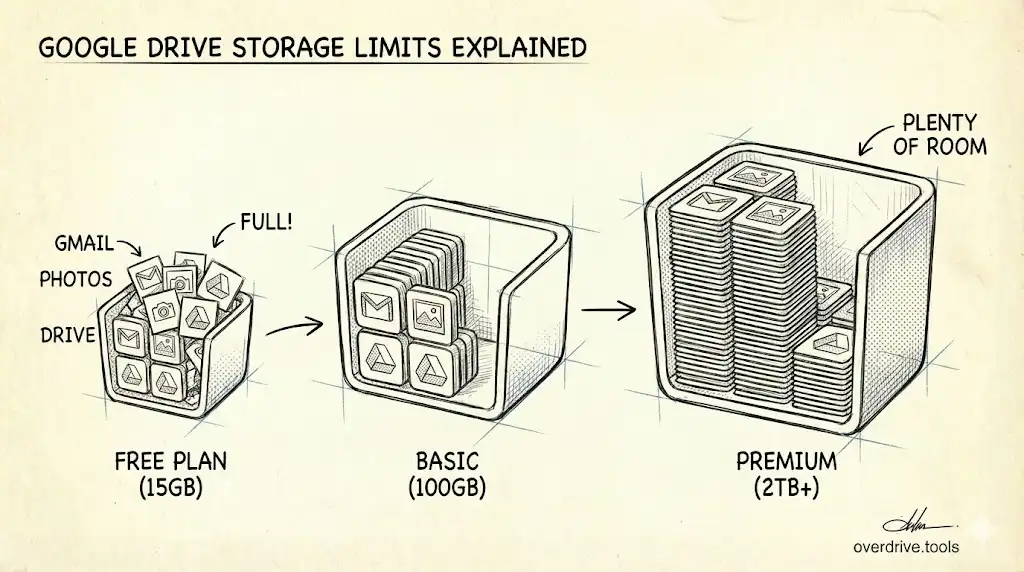
- 100 GB: $1.99/month
- 200 GB: $2.99/month
- 2 TB: $9.99/month
But before upgrading, make sure you're actually using the space efficiently. Many people pay for storage when they could delete 20–50 GB of forgotten files.
Common Mistakes to Avoid
Mistake 1: Deleting Files Without Checking Trash
Deleted files stay in Trash for 30 days and still count toward storage. Always empty Trash after cleanup.
Mistake 2: Compressing Photos Without Backups
Once you compress photos in Google Photos, the change is permanent. If you need original-quality photos later (e.g., for printing), you'll need backups elsewhere.
Mistake 3: Deleting Shared Files
If you delete a file someone shared with you, it doesn't free up your storage—you didn't own it. Deleting it only removes your access.
Focus on files you uploaded or own.
Mistake 4: Assuming Google Docs Count Toward Storage
Google Docs, Sheets, and Slides don't count toward your quota—only uploaded files (PDFs, Word docs, Excel sheets) do.
Mistake 5: Ignoring App Data
App data is invisible in the main Drive interface. Check Settings → Manage apps regularly to see what's hiding there.
Tools That Help (Beyond Overdrive)
If you want alternatives to Overdrive, here are other approaches:
Manual Sorting with Google Drive Filters
Google Drive lets you filter by file type:
- Type:pdf – Shows all PDFs
- Type:video – Shows all videos
Pair this with the "Storage" view to find large files of a specific type.
Limitation: No duplicate detection, no bulk actions for app data, no visibility into Gmail or Photos from Drive.
Third-Party Duplicate Finders
Some apps claim to find duplicates, but they:
- Require full Drive access (security risk)
- Miss duplicates with slightly different names
- Can't see app data or Gmail attachments
Overdrive scans your full Google account (with your permission) and shows everything in one place—no guessing, no piecemeal tools.
Google Takeout (for Backups)
If you want to download everything before cleanup:
- Go to Google Takeout
- Select Drive, Gmail, Photos
- Export data
Limitation: This doesn't help you understand what's taking up space—it just gives you a backup.
Frequently Asked Questions
Why doesn't Google show me which files are using storage?
Google's business model relies on storage upgrades. Showing detailed breakdowns would make it too easy to reclaim space without paying. Their "Storage" view helps, but it's deliberately limited—no duplicates, no app data, no Gmail integration.
Will deleting old emails free up storage?
Yes, but only after you empty Trash. Deleted emails sit in Trash for 30 days. Go to Gmail → Trash → "Empty Trash now" to reclaim space immediately.
Can I get more free storage from Google?
No. Google's free tier is fixed at 15 GB shared across Drive, Gmail, and Photos. The only way to get more is to upgrade to a paid Google One plan.
Do files shared with me count toward my storage?
No. Files others share with you don't count toward your quota—only files you upload or own. If you make a copy of a shared file, the copy counts.
How long does Google keep files in Trash?
30 days. After that, files are permanently deleted. However, if your account is over quota for an extended period, Google may delete Trash and Spam earlier.
Does Google Drive compress files automatically?
No. Google Drive stores files exactly as uploaded. Google Photos offers compression ("Storage saver"), but Drive does not.
Can I recover space without deleting files?
Rarely. The only options are:
- Compress Google Photos (reduces quality)
- Move files to an external hard drive or different cloud service
- Share ownership of large files (if they're collaborative documents)
Otherwise, you need to delete files.
Keep Reading
- How to Find Large Files in Google Drive (4 Methods) – Advanced sorting and filtering techniques
- How to Find and Delete Duplicate Files in Google Drive – Step-by-step duplicate cleanup
- Hidden App Data Is Eating Your Google Drive Storage – Uncover hidden storage usage
- The Ultimate Google Drive Storage Cleanup Guide (2026) – Complete cleanup process