How to Check Your Google Drive Storage Usage
Learn how to check your Google Drive storage usage and see what's taking up space. Find storage breakdowns by service, file type, and folder.
Overdrive Team//2 min read
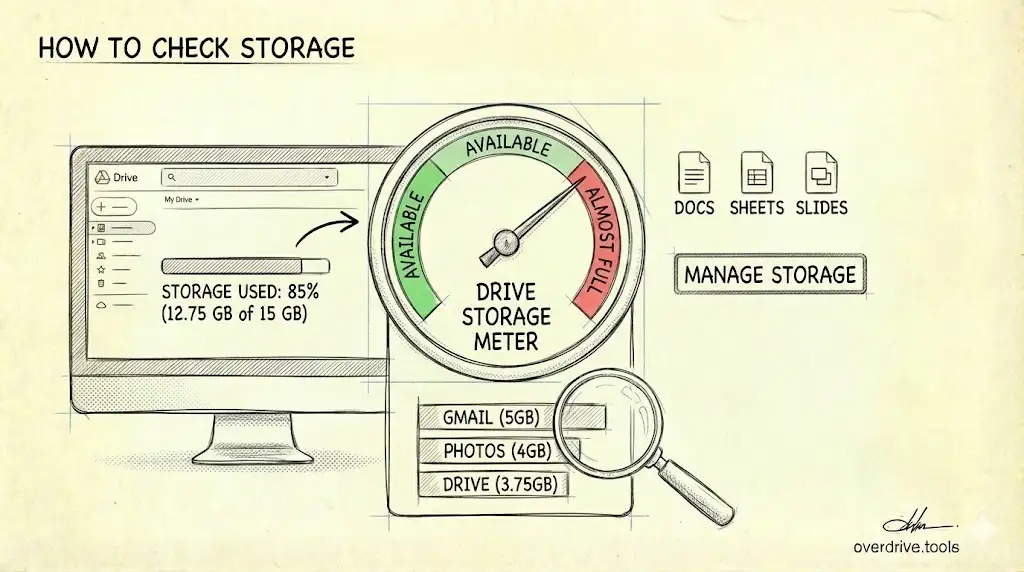
To check your Google Drive storage usage, go to drive.google.com/settings/storage. This shows your total usage and breaks it down by Google Drive, Gmail, and Google Photos. For a quick glance, look at the bottom-left corner of Google Drive—your usage appears below the storage bar.
Check Storage on Desktop
Quick view:
- Go to drive.google.com
- Look at the bottom-left corner
- Your usage shows as "X GB of 15 GB used"
Detailed breakdown:
- Go to drive.google.com/settings/storage
- See usage split by Drive, Gmail, and Photos
- Click "View details" for more info
Google One view:
- Go to one.google.com/storage
- See a visual breakdown by service
- Access cleanup suggestions
Check Storage on Mobile
- Open the Google Drive app
- Tap the menu icon (three lines) in the top left
- Tap "Storage"
- View your usage breakdown
What Counts Against Your Storage
Your 15 GB free storage is shared across three services:
Google Drive:
- All uploaded files (PDFs, images, videos, ZIPs)
- Google Docs, Sheets, Slides (these now count since 2021)
- Files in Trash (until permanently deleted)
Gmail:
- All emails and attachments
- Emails in Trash and Spam
Google Photos:
- Photos uploaded after June 2021
- Photos uploaded as "Original quality" before June 2021
What Doesn't Count
- Google Docs, Sheets, Slides created before June 2021
- Photos uploaded as "High quality" (now "Storage saver") before June 2021
- Files shared with you (counts against owner's storage)
- Google Workspace files if you have unlimited storage through work
See What's Using the Most Space
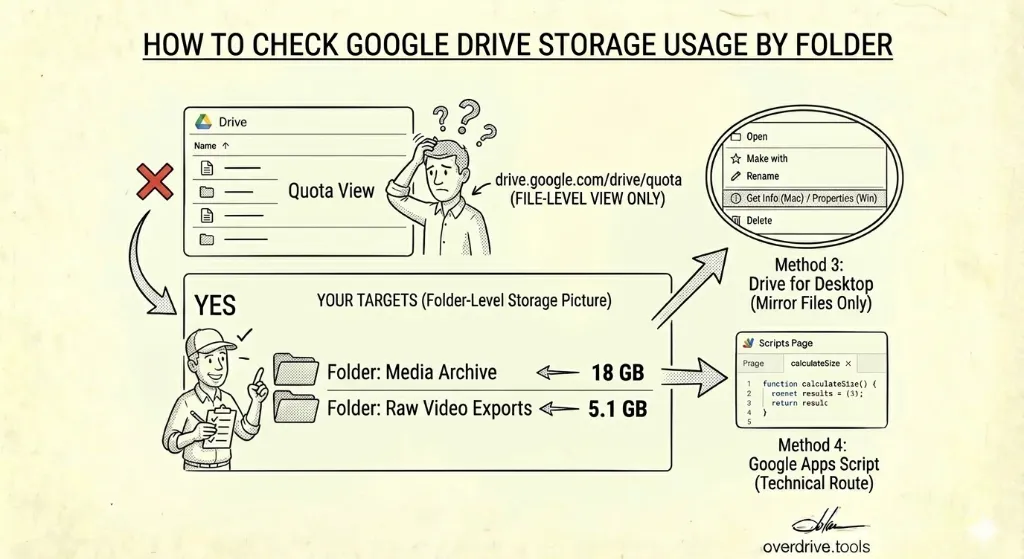
The storage settings page shows your largest files, but for a complete picture, you need to dig deeper.
Using Google's Storage Manager:
- Go to one.google.com/storage/management
- Review suggested items to delete
- See large files, trash, and spam
Using Overdrive:
Google's built-in tools show basic info, but Overdrive scans your entire Drive and shows exactly what's consuming space—including hidden app data, duplicate files, and forgotten files buried in folders. You get a complete breakdown in about two minutes.
Storage Still Full?
If your storage looks full but you can't find what's using it, you likely have:
- Files in Trash (empty it)
- Hidden app data from third-party apps
- Large Gmail attachments
- Old Google Photos uploads
For a deep dive into hidden storage consumers, see our guide on why Google Drive shows full when it's empty and hidden app data.