Google Workspace Storage Full: What Admins Can Do
When Google Workspace pooled storage fills up, it affects the whole domain. Here's what admins can do to free space, add capacity, and prevent a repeat.
Overdrive Team//7 min read

When a Google Workspace domain runs out of storage, it's rarely one person's problem. Because most editions pool storage across the whole organization, a full pool can mean users across every department suddenly can't upload to Drive, send or receive attachments, or back up their files, all at once. For an admin, a storage-full situation is both urgent and awkward, because the cause is usually spread across many accounts and the fix isn't a single button.
The situation is manageable, though, and it breaks into three jobs: free up space quickly to relieve the immediate pressure, add capacity if you genuinely need more, and change how storage is governed so you don't end up here again. Here's how to work through each.
Understand how Workspace storage actually works
Before fixing anything, it helps to be clear on the model, because it's different from personal accounts. A personal Google account has a small fixed allowance (5 GB by default, up to 15 GB with a phone number) shared across Drive, Gmail, and Photos. Google Workspace instead gives each user a storage allotment that is pooled across the organization, and the size depends on the edition: Business Starter provides 30 GB per user, Business Standard 2 TB per user, Business Plus 5 TB per user, and Enterprise editions typically 5 TB per user with more available on request.
The key word is pooled. That per-user figure is contributed into a shared pool for the whole domain, not locked to each individual. So one team uploading terabytes of video can consume space that other teams assumed was theirs, and the domain hits its ceiling even though most users look fine individually. This is exactly why a storage problem can be invisible until the pool itself runs low, and why the fix has to look across accounts rather than at any single one.
Step one: find where the space actually went
You can't free space efficiently until you know where it's concentrated. Start in the Admin console under Storage, which shows total usage and a ranked list of the users consuming the most, with a breakdown across Drive, Gmail, and Photos. That ranked list is where the quick wins usually are, because storage tends to cluster in a handful of heavy accounts rather than spreading evenly.
The Admin console tells you which accounts are large, but not what's inside them, and that composition is where the real cleanup decisions live. A user near the top of the list might be holding legitimate active work, or gigabytes of old exports, duplicate files, and videos nobody has touched in years. Those look identical in a totals report and completely different once you can see what the space is made of.
This is where deeper visibility earns its place. Overdrive for Google Workspace connects with read-only access and visualizes what's actually taking up space in a Drive account, by file type, age, and size, and surfaces duplicates and large old files. So instead of a single number per user, an admin gets a picture of whether a storage spike is legitimate growth or reclaimable clutter, which turns the top-users list into an actionable cleanup plan rather than just a leaderboard. It reads metadata only, never the contents of files.
Step two: free up space
With the heavy accounts identified, several kinds of cleanup reliably recover space. Old and duplicate files in Drive are usually the biggest source, especially large media, exports, and copies that accumulated over years. Gmail is the quiet second source, where large attachments across long-lived inboxes add up to real gigabytes. Emptying Drive and Gmail trash matters too, since deleted items keep counting against the pool until they're permanently removed, and trash holds them for 30 days.
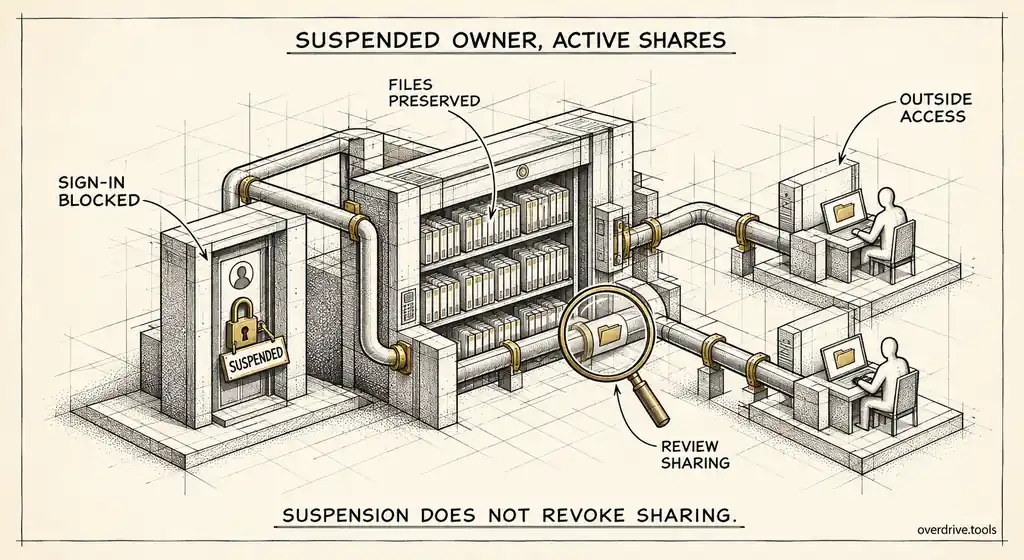
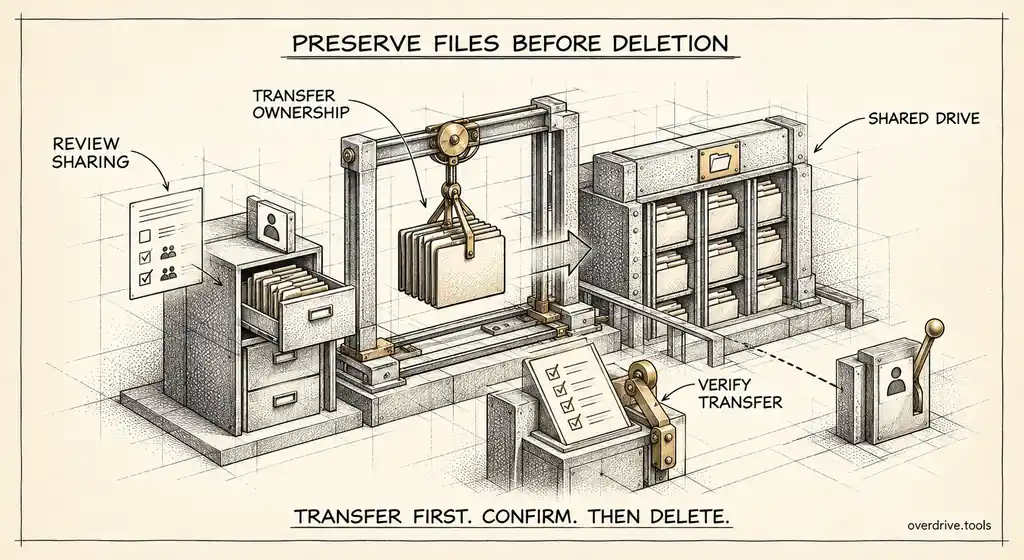
Departed users are another overlooked reservoir. Accounts for people who have left, if still active, keep occupying pooled storage. Handling offboarding properly, by transferring what's needed and then removing the account, frees that space, and it's worth checking for suspended accounts that were never fully cleaned up.
Because much of this lives inside individual accounts, cleanup is partly a coordination exercise: identify the heavy accounts, then either work with those users to clear genuine clutter or handle it centrally where policy allows.
Step three: add capacity if you truly need it
Sometimes the storage is legitimately used and cleanup only buys a little runway. In that case you have two levers. You can add storage to your existing edition, since Workspace lets you purchase additional pooled storage, or you can upgrade to a higher edition, which raises the per-user contribution to the pool, for example moving from Business Starter's 30 GB per user to Standard's 2 TB per user.
The decision comes down to whether the usage is real. If a cleanup shows the pool is full of active, necessary data, buying capacity is the right call. If it's full of clutter, adding storage just delays the next crisis and pays monthly to store what should be deleted. That's why the cleanup step should come before the purchase step, not after.
Step four: stop it happening again
The lasting fix is governance. Admins can set storage limits per user or per organizational unit, which caps how much any one account or team can consume and prevents a single heavy user from draining the whole pool unnoticed. Setting sensible limits turns an invisible, domain-wide risk into a contained, per-account one that surfaces early.
Beyond limits, a light routine keeps storage healthy: check the Storage dashboard on a schedule rather than only in a crisis, keep offboarding tight so departed accounts don't linger, and periodically review the heaviest accounts for reclaimable clutter before the pool gets tight. Storage problems in Workspace build slowly and then hit everyone at once, so the value of monitoring is that it converts a sudden outage into a slow, manageable trend you can act on early.
A repeatable playbook when the pool gets tight
Because storage pressure recurs, it helps to have a standing playbook rather than improvising each time. The sequence that works is consistent: check the Storage dashboard to see total usage and the heaviest accounts, look inside the top accounts to separate genuine active data from reclaimable clutter, clear the obvious wins first, and only then decide whether to buy capacity.
The obvious wins are usually the same each time. Empty Drive and Gmail trash across heavy accounts, since trashed items keep counting for 30 days. Clear large, old exports and duplicate files that have accumulated in a handful of accounts. Track down suspended or departed-user accounts that are still holding storage and finish their offboarding. These few actions typically recover more space, faster, than any other effort.
Communicating during a crunch matters too. If the pool is genuinely tight, let affected teams know what's happening and what you need from them, since much of the cleanup lives inside individual accounts and users can clear their own clutter faster than you can centrally. A short, specific ask, such as pointing people at their largest and oldest files, is far more effective than a vague request to free space.
Finally, convert the one-time fix into ongoing governance. Set per-user or per-organizational-unit storage limits so no single account can drain the pool unnoticed, and put the Storage dashboard on a recurring calendar so you catch the next trend early. The goal is to make a full pool a slow, visible trend you act on in advance, rather than a sudden outage that takes the whole domain down at once. None of this requires heroics, just a standing order of operations and the discipline to run it before the pool is critical rather than after. Admins who treat storage as something to watch monthly rarely face an emergency at all, because they see the trend building and act while there's still slack. The teams that get blindsided are almost always the ones for whom the Storage dashboard is a page they only open once support tickets have already started arriving.
The short version
When Google Workspace storage fills up, it's a pooled, domain-wide problem, so the fix looks across accounts, not at one. Find where the space went using the Admin console's top-users view, then go deeper to tell legitimate growth from reclaimable clutter. Free space by clearing old and duplicate files, large Gmail attachments, trash, and departed accounts. Add pooled storage or upgrade editions only if a cleanup confirms the usage is real. Then govern it with per-user or per-OU storage limits and regular monitoring, so the pool never quietly fills to the point of taking the whole domain down.
Related Articles
- How to Monitor Google Workspace Storage Usage Across All User Accounts
- How to Find and Reclaim Unused Google Workspace Licenses
- How Much Free Storage Does Google Drive Give You, and What Counts Against It?