How to Sort Files by Size in Google Drive
Learn how to sort Google Drive files by size to find your largest files. Use the Storage view, quota page, or Desktop app to see what's taking up space.
Overdrive Team//2 min read
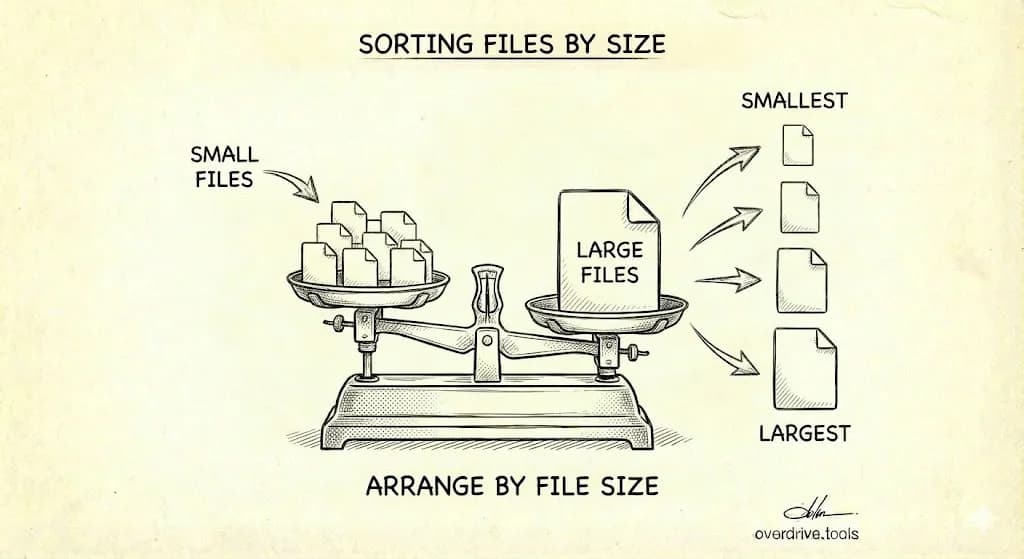
To sort files by size in Google Drive, click "Storage" in the left sidebar (or go directly to drive.google.com/drive/quota). This shows all your files sorted by size, largest first. Click the "Storage used" column header to reverse the order. Note: You cannot sort by size within individual folders—this only works in the Storage view.
Sort by Size Using Storage View
- Go to drive.google.com
- Click "Storage" in the left sidebar
- Your files appear sorted by size (largest first)
- Click "Storage used" to reverse the order (smallest first)
Direct link: Go straight to drive.google.com/drive/quota
This view shows every file in your Drive, regardless of which folder it's in.
Sort by Size on Mobile
The mobile app doesn't have a dedicated storage view, but you can access it through a browser:
- Open Chrome (or any browser) on your phone
- Go to drive.google.com/drive/quota
- Request desktop site if prompted
- View files sorted by size
Why You Can't Sort by Size in Folders
Google Drive's folder view only lets you sort by:
- Name
- Last modified
- Last opened
The "Size" column appears in list view but isn't clickable. This is a known limitation—Google hasn't added this feature despite years of user requests.
Workaround: Use Google Drive for Desktop
If you need to sort files by size within a specific folder:
- Install Google Drive for Desktop
- Sync your Drive to your computer
- Open the folder in Windows Explorer or Mac Finder
- Sort by size using your operating system's file browser
This works because your synced files behave like regular files on your computer.
Filter by File Type and Size
In the Storage view, you can filter results:
- Go to drive.google.com/drive/quota
- Click "Type" dropdown
- Select a file type (PDFs, Videos, Images, etc.)
- View only that type, still sorted by size
This helps you find, for example, your largest videos or biggest PDFs.
See Folder Sizes
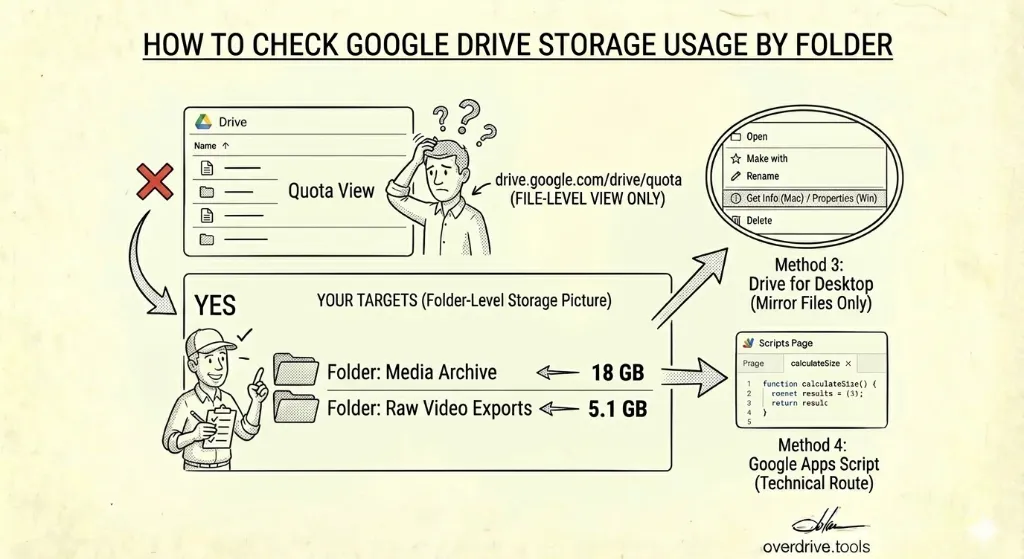
Google Drive doesn't show folder sizes natively. To see how much space each folder uses:
Option 1: Use Overdrive to scan your entire Drive and see all folders ranked by size in one view—plus duplicates, empty folders, and other storage wasters.
Option 2: Right-click a folder → "View details" (shows size, but you have to check each folder manually)
For more ways to find what's using your storage, see our guide on finding large files in Google Drive.
Use Storage Manager for Cleanup Suggestions
Google also offers a cleanup tool:
- Go to one.google.com/storage/management
- See suggested files to delete (large files, trash, spam)
- Review and delete directly
This works for personal Gmail accounts. Workspace accounts may not have access.
What Counts Toward Storage
When reviewing large files, remember:
- Google Docs, Sheets, Slides count toward storage (since 2021)
- Files in Trash still count until permanently deleted
- "Shared with me" files don't count (owner pays for storage)
- Hidden app data counts but doesn't appear in normal views
If you're confused about where your storage is going, see our guide on why Google Drive shows full when it looks empty.