How to Free Up Gmail Storage Without Losing Important Emails
A practical walkthrough for finding and removing the attachments and threads eating your shared Google storage.
Overdrive Team//5 min read
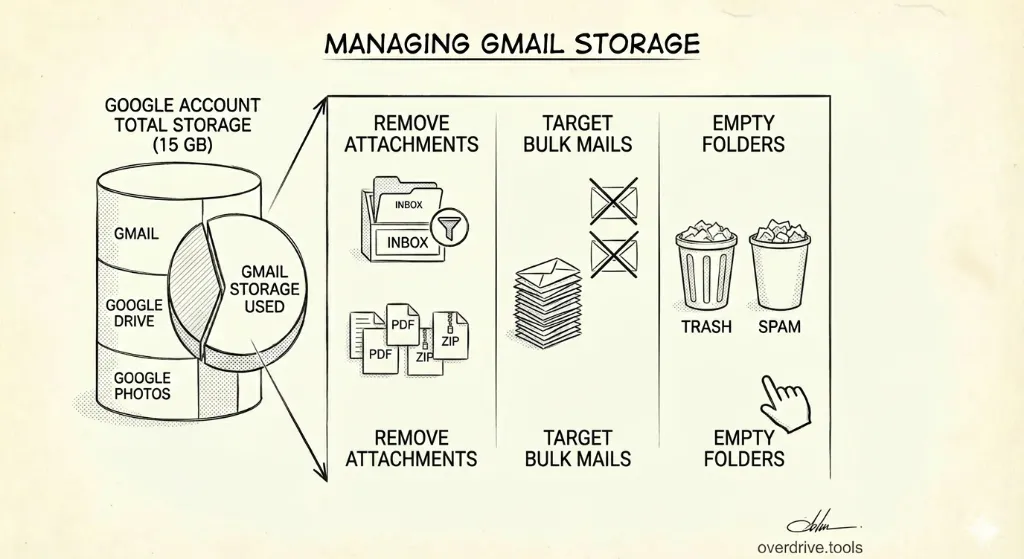
Google gives every account 15 GB of storage. Sounds like a lot—until you realize it's shared across Gmail, Google Drive, and Google Photos. For most people, Gmail is the silent culprit quietly consuming the majority of that space, one PDF attachment at a time.
This guide walks you through exactly how to find what's eating your storage, how to safely delete it, and how to make sure you don't accidentally throw away something you'll need later.
The Core Problem: Shared Storage
Every file attached to an email—every photo, PDF, spreadsheet, ZIP file—counts against your 15 GB quota. So does every email sitting in your Spam and Trash folders. And it adds up faster than you'd expect:
- A few hundred email newsletters over the years
- Monthly invoices and statements going back five years
- Large attachments from projects you finished long ago
- Spam that was never emptied
Google Workspace accounts have storage limits set by the admin, and even paid tiers can fill up. When storage runs out, Gmail stops receiving new messages. That's when the problem becomes urgent.
Step 1: See Where Your Storage Is Actually Going
Before deleting anything, get a clear picture of the situation.
Check your current usage: Go to google.com/settings/storage. This shows how storage is split between Gmail, Drive, and Photos.
If Gmail is the biggest contributor, you're in the right place. If Drive is the culprit, the issue is likely large files rather than email—and tools like Overdrive can help you audit Drive permissions and find oversized files.
Understand what counts: In Gmail, storage is consumed by messages and their attachments across all folders—including Inbox, Sent, All Mail, and any labels you've created. Trash and Spam also count until they're emptied.
Step 2: Find the Biggest Attachments First
The fastest wins come from finding large attachments—the emails that are individually consuming hundreds of megabytes.
Use Gmail's built-in size filter:
In the Gmail search bar, type:
has:attachment larger:10MB
This returns every email with an attachment over 10MB. Sort by size (click the sort icon or use the "Size" column if you're in a browser) and work from the top down.
You can also try:
has:attachment larger:5MB— catches mid-size fileshas:attachment larger:25MB— for only the very largest
Before deleting, ask: Do you still need the attachment itself? If yes, download it to your computer or save it to Google Drive before removing the email. The attachment is the valuable part—the email thread usually isn't.
Step 3: Clean Out Newsletters and Bulk Senders
Newsletters are among the worst offenders. You might have thousands from senders you subscribed to years ago and haven't read since.
Find emails from a specific sender:
from:newsletter@example.com
Find and bulk-delete newsletters:
unsubscribe in:inbox
This surfaces emails with unsubscribe links—a reliable proxy for marketing messages. Select all, then delete. Gmail will prompt you to confirm when selecting more than one page of results.
Pro tip: Use the "Select all conversations that match this search" option (not just "Select all on this page") to catch everything at once.
Step 4: Target Old Emails You'll Never Read
Older emails are lower risk to delete—if you haven't needed something in five years, you almost certainly won't need it.
Find emails older than a specific date:
before:2020/01/01
Or combine it with size:
before:2021/01/01 has:attachment larger:1MB
Find emails in categories you've ignored:
Gmail automatically sorts certain mail into Promotions, Social, and Updates tabs. These are usually safe to bulk-delete:
category:promotions older_than:1y
category:social older_than:2y
category:updates older_than:1y
The older_than: operator accepts d (days), m (months), and y (years).
Step 5: Empty Trash and Spam
This step is often overlooked—and it's free storage you can reclaim immediately.
Gmail doesn't automatically delete Trash and Spam contents right away. Spam is cleared after 30 days, and Trash after 30 days as well, but only if Google's cleanup has run. In practice, both folders can accumulate gigabytes of storage.
To empty them:
- In Gmail sidebar, right-click Trash → Empty Trash now
- In Gmail sidebar, right-click Spam → Empty Spam now
You can also search for items in these folders specifically:
in:trash has:attachment larger:1MB
Then select all and permanently delete.
Step 6: Handle Sent Mail
Sent mail is often forgotten but holds copies of every large file you've ever emailed—presentations, videos, documents, design files.
in:sent has:attachment larger:5MB
Sent emails containing attachments are usually safe to delete once the project or conversation is complete. The recipient has their own copy.
Step 7: What to Keep (And How to Protect It)
Not everything should be deleted. Before doing any bulk cleanup, make sure the following types of emails are archived properly rather than thrown away:
Keep (or archive offline):
- Financial records, tax documents, and receipts
- Contracts, agreements, and legal correspondence
- Healthcare-related communications
- Employment records and offer letters
- Anything you might need for legal or compliance purposes
How to archive without counting against storage: Google Takeout lets you export your entire Gmail as a local backup. Go to takeout.google.com, select Gmail, and download a full export. Once you have a local backup, you can delete more aggressively knowing you have a copy.
Alternatively, forward important emails to an email client like Outlook or Apple Mail that stores messages locally, outside of Google's storage quota.
Step 8: Manage Attachments That Live in Drive
When someone shares a file with you through Gmail, Google sometimes stores a copy in Drive under "Shared with me." This doesn't usually count against your quota—but files you've added to your own Drive do.
Check your Drive storage breakdown at drive.google.com/settings/storage. Files you uploaded yourself, Google Docs you've created, and items in your Drive trash all count.
Delete Drive trash: In Drive, click Trash in the sidebar → Empty trash.
For Google Workspace Admins
If you're managing storage for an organization rather than a personal account, the approach is similar but at scale.
In the Admin Console, go to Reports > Highlights to see storage usage across the organization. Individual users consuming disproportionate storage are often the result of large email histories or uncleaned Drive folders.
You can also use the Storage section under Account Settings to see how pooled storage is allocated and which users are approaching their limits.
For organizations consistently running low on storage, the long-term fix is usually a combination of:
- Migrating team files to Shared Drives (where storage is pooled, not attributed to individuals)
- Establishing offboarding processes that transfer and archive departing employees' data
- Running periodic permission and storage audits using tools like Overdrive
Quick Reference: Useful Gmail Search Operators
| Goal | Search Query |
|---|---|
| Large attachments | has:attachment larger:10MB |
| Old emails with attachments | before:2021/01/01 has:attachment |
| Promotional mail | category:promotions older_than:1y |
| Everything in Trash | in:trash |
| Everything in Spam | in:spam |
| Emails from one sender | from:example@example.com |
| Unsubscribe links (newsletters) | unsubscribe |
| Sent mail with attachments | in:sent has:attachment larger:5MB |
Quick Checklist for Freeing Up Gmail Storage
- Check your storage breakdown at google.com/settings/storage
- Search for and delete emails with large attachments (
has:attachment larger:10MB) - Download any attachments you still need before deleting
- Bulk-delete old newsletters and promotional mail
- Delete emails older than a set date you're comfortable with
- Empty Spam folder
- Empty Trash folder
- Review and clean up Sent mail with attachments
- Empty Drive trash
- Consider a Google Takeout backup before aggressive cleanup
Related Articles
- The Google Drive Security Audit Checklist
- How to Audit Google Drive When an Employee Leaves
- Google Drive Permissions Explained