Find Workspace Users Without 2-Step Verification
One account without 2-Step Verification can expose a whole shared Drive. Here's how admins find unenrolled users, enforce 2SV, and avoid lockouts.
Overdrive Team//6 min read
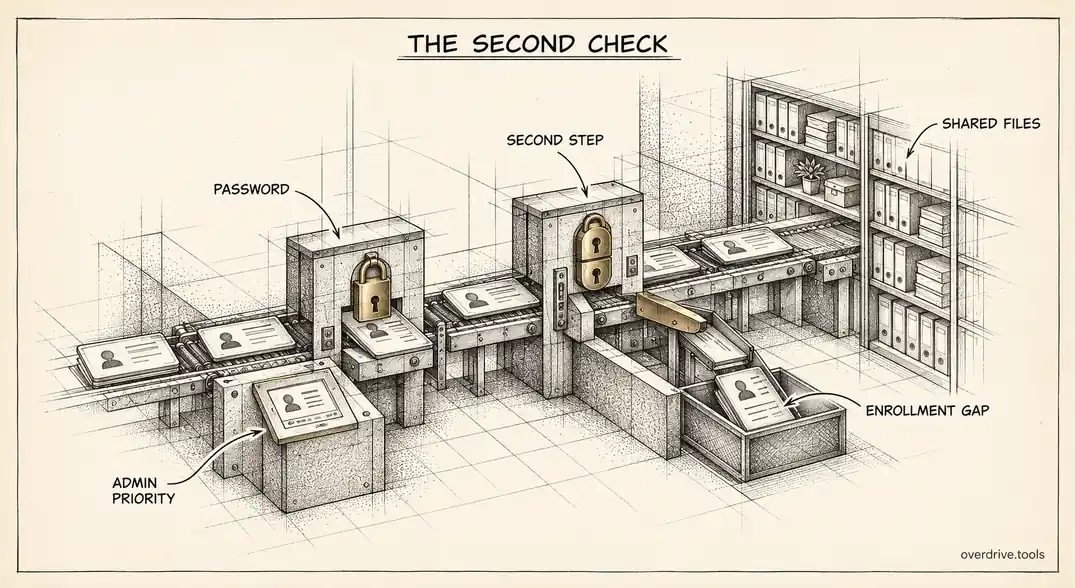
To find Google Workspace users who haven't turned on 2-Step Verification, open the Admin console, go to Reporting, then User Reports, then Security, and look at the 2-Step Verification enrollment column. Filter or sort it to show users who aren't enrolled. That gives you the list. The harder part is deciding who to fix first and enforcing 2SV without locking half the company out on a Monday morning.
2-Step Verification matters more for Drive than people assume. A single account protected only by a password is a key to everything that user can open, including every shared drive they belong to and every file colleagues have shared with them. Here's how to find the gaps, prioritize them, and close them safely.
Why one unprotected account matters
Passwords leak constantly, through phishing, reuse across sites, and breaches of unrelated services. When that happens to an account with 2-Step Verification, the attacker hits a second check they usually can't pass. When it happens to an account without it, they're in.
Inside Google Workspace, "in" means access to that person's Drive, their Gmail, and everything shared with them. For a typical employee, that's far more than their own files. Team shared drives, project folders, and documents colleagues have shared all become reachable through one weak account. The account doesn't need to be important for the breach to be.
Some accounts deserve extra attention because of what they can reach. Admins can change settings across the organization. Users who own or manage many externally shared files can widen exposure further. And suspended accounts are a separate case: they can't sign in while suspended, but if one is ever restored without 2SV, it becomes a weak point again.
Finding unenrolled users
Here are the places Google gives you.
The Security report
Under Reporting, then User Reports, then Security, the report shows each user's 2-Step Verification enrollment status. You can add a 2-Step Verification enforcement column from the settings, which shows whether each user is required to enroll, and filter by organizational unit to compare teams. Enrollment data can lag by up to 48 hours, so very recent changes may not show yet. Viewing this report requires the Reports administrator privilege.
The Accounts report
The Accounts report includes both enrollment and enforcement columns alongside other account details, which is useful if you want a single export showing 2SV status next to other user attributes.
An individual user's security settings
For a real-time answer on a single person, open their account in the Admin console and view their security settings, which shows current 2SV status without the report delay.
The security health page
On editions that include it, the security health page under Security can show organizational units and groups where 2-Step Verification isn't enforced, for both users and admins. It's a good way to see policy gaps at a glance rather than user by user.
Prioritizing who to fix first
A list of unenrolled users is a starting point, not a plan. Some accounts carry much more risk than others, and it's worth fixing those before rolling enforcement out to everyone.
| Account type | Why it matters | Priority |
|---|---|---|
| Super admins and admins | Can change security for the whole organization | Immediate |
| Owners of many externally shared files | Breach exposes data already reachable from outside | High |
| Finance, HR, legal, leadership | Hold the most sensitive files and are phishing targets | High |
| Members of many shared drives | Breach reaches a lot of team data | Medium to high |
| Everyone else | Standard risk | Roll out with enforcement |
Admins come first, without exception. Google now treats 2SV for admins as a baseline and has been moving toward enforcing it, so an admin account without 2SV is both a risk and increasingly unsupported.
The second row is where Drive sharing matters. A user without 2SV who has shared hundreds of files outside the company is more dangerous than one who works only internally, because an attacker using their account inherits all of that outside reach. Overdrive for Google Workspace connects with read-only access and flags users without 2-Step Verification as a finding, and factors 2SV status into each user's risk score alongside their external sharing, so the unprotected accounts with the most exposure surface first. It reads metadata only, never file contents.
Enforcing 2SV without lockouts
Finding the gaps is only useful if you close them, and the safest way is to require enrollment with a grace period.
Start by allowing users to turn on 2-Step Verification, if that isn't already enabled, and ask them to enroll voluntarily. Give clear instructions and a deadline. Many people will enroll on their own.
Then turn on enforcement by organizational unit, starting with admins and high-risk teams. When you enforce 2SV, you can set an enforcement date and a new-user enrollment period, which gives new hires time to set up their second step before it's required. Choose the methods you allow, keeping in mind that security keys and passkeys are the strongest options, while SMS codes are better than nothing but the weakest choice.
Plan for the people who will get stuck. Users who lose their phone, travel without their second device, or simply ignore the deadline will be blocked when enforcement starts. Google lets admins generate backup verification codes for a user, which gets them back in while they re-enroll. Make sure your help desk knows how to do this before you flip the switch, not after.
Communicate twice: once when you announce the deadline, and once a few days before enforcement begins. The second reminder catches most of the stragglers.
Choosing which methods to allow
When you enforce 2-Step Verification, you also decide which second steps are acceptable, and the choice matters as much as the enforcement itself.
Security keys and passkeys are the strongest options because they resist phishing. A fake sign-in page can trick someone into typing a code, but it can't get a hardware key or passkey to approve a sign-in for the wrong site. For admins and high-risk users, requiring these methods is worth the extra setup.
Google prompts on a phone and authenticator apps are a solid middle ground for most staff. They're easy to use and much stronger than passwords alone.
Text message and voice codes are the weakest choice, since phone numbers can be hijacked and codes can be phished. They're still better than nothing, and sometimes the only realistic option for staff without smartphones, but if you allow them, consider restricting them to the groups that genuinely need them.
A sensible pattern is to allow any method for most users as a first step, then raise the bar for admins and sensitive teams once enforcement is stable.
Handling shared and service accounts
Shared mailboxes and accounts used by several people are a common reason organizations hold off on enforcement. Rather than exempting them indefinitely, look at whether they need to be user accounts at all. A shared mailbox can often become a Google Group or a delegated mailbox that people reach through their own protected accounts. Where an account genuinely needs to exist, protect it with a security key kept by the team that uses it, and record who holds it.
Keeping it enforced
Once enforcement is on, coverage can still drift. Watch for three things.
New organizational units created without enforcement inherit whatever their parent has, so check that policy flows down as you expect when your structure changes.
Exceptions granted temporarily tend to become permanent. If you exempt a user or group, record why and set a date to revisit it.
Restored accounts should be checked. A user brought back from suspension should have 2SV confirmed before they resume normal use.
A quick monthly look at the Security report, filtered to unenrolled users, catches all three. If the list is empty, record that too. A dated note showing full enrollment is useful evidence for customer security reviews and audits.
The short version
Find Google Workspace users without 2-Step Verification in the Admin console under Reporting, User Reports, Security, using the 2-Step Verification enrollment column, with an enforcement column available in settings and a possible delay of up to 48 hours. The security health page shows unenforced units and groups on editions that include it. Fix admins first, then users who share a lot externally or hold sensitive data, because one password-only account can expose everything that person can reach in Drive. Enforce 2SV by organizational unit with a deadline and new-user enrollment period, prepare backup codes for lockouts, and review enrollment monthly so coverage doesn't quietly slip.
Related Articles
- The Google Workspace Drive Security Audit: A Recurring Checklist for Admins
- Auditing Third-Party App Access in Google Workspace
- How to Set Up Context-Aware Access for Google Drive